AI product staging
Home / AI Lifestyle Product Photos
AI Lifestyle Product Photos Without a Photoshoot
Start from one product photo and create the lifestyle shots a photoshoot would give you: the product staged on a kitchen counter, a bathroom shelf, a living-room table, or a styled surface. The product stays tied to your reference, so the scene sells the product instead of replacing it.
AI lifestyle product photography places a real product into a believable setting. KrafLayer offers two routes: Scene Compose places up to three products into a scene photo you already have, and Background Replacer swaps a plain packshot background for a setting you describe. Both keep the uploaded product as the source of truth for shape, material, color, and label.
Lifestyle scenes from one product photo
Place products into an existing scene, or swap a plain packshot background for a styled setting. Illustrative examples made with GPT Image models; drag each slider to compare.
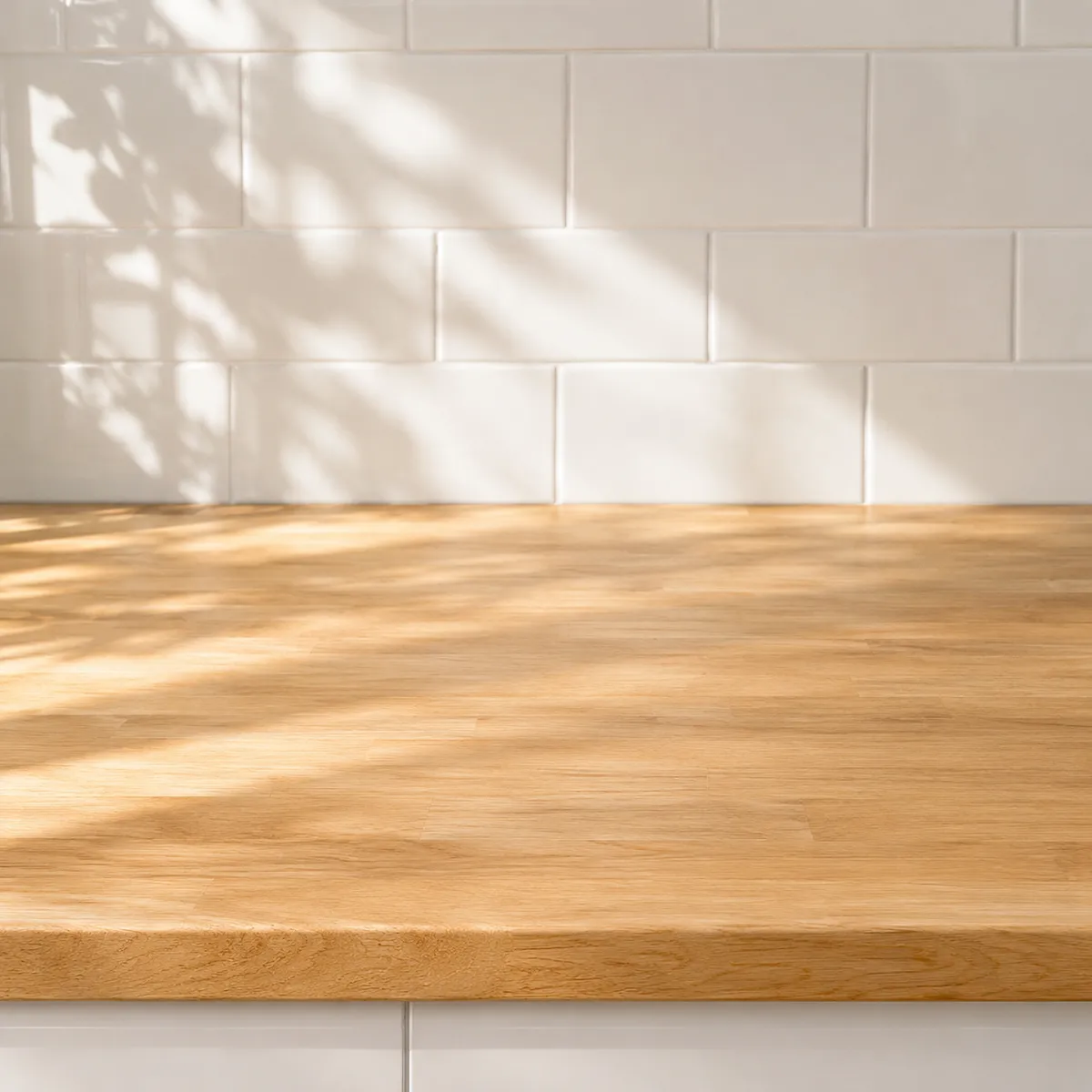
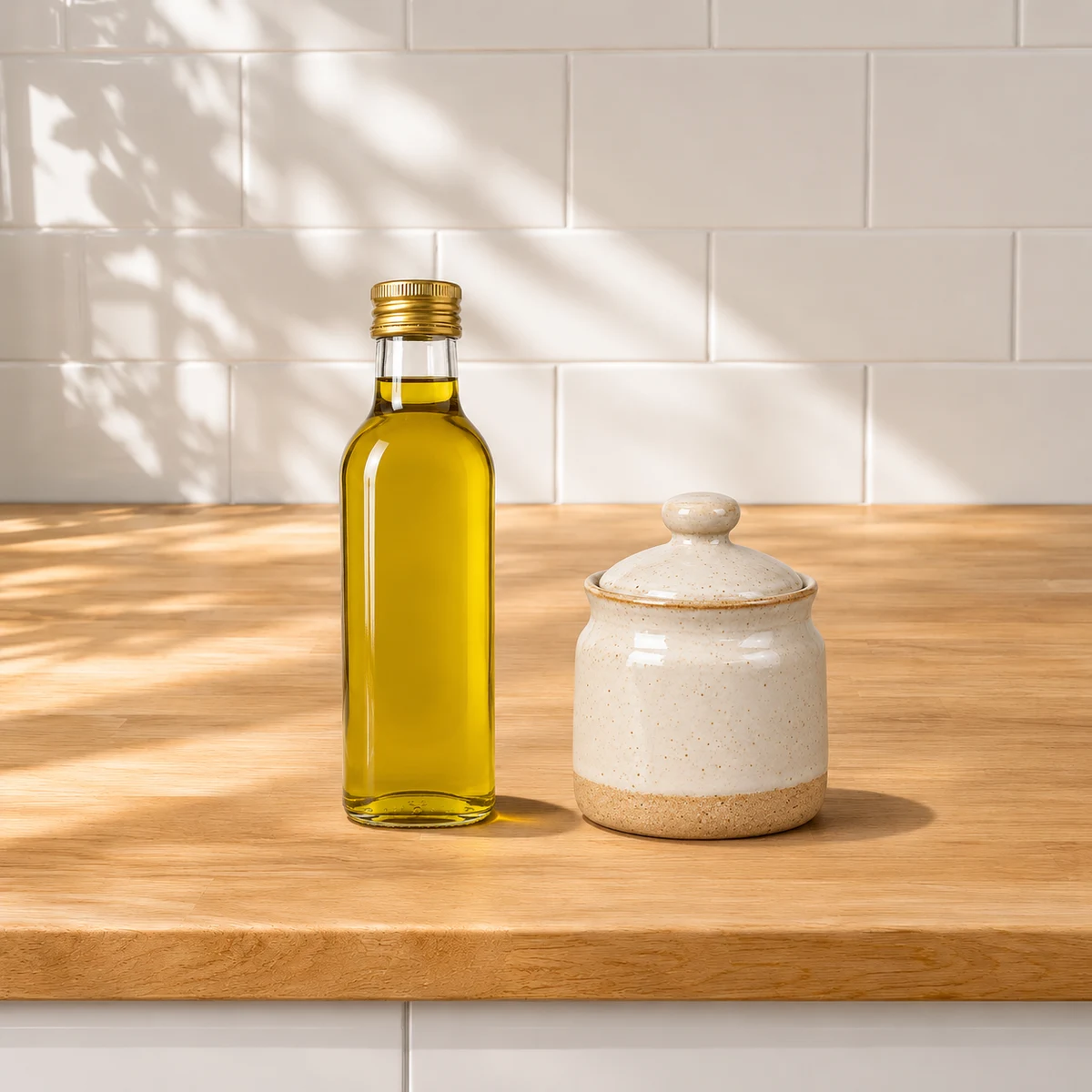
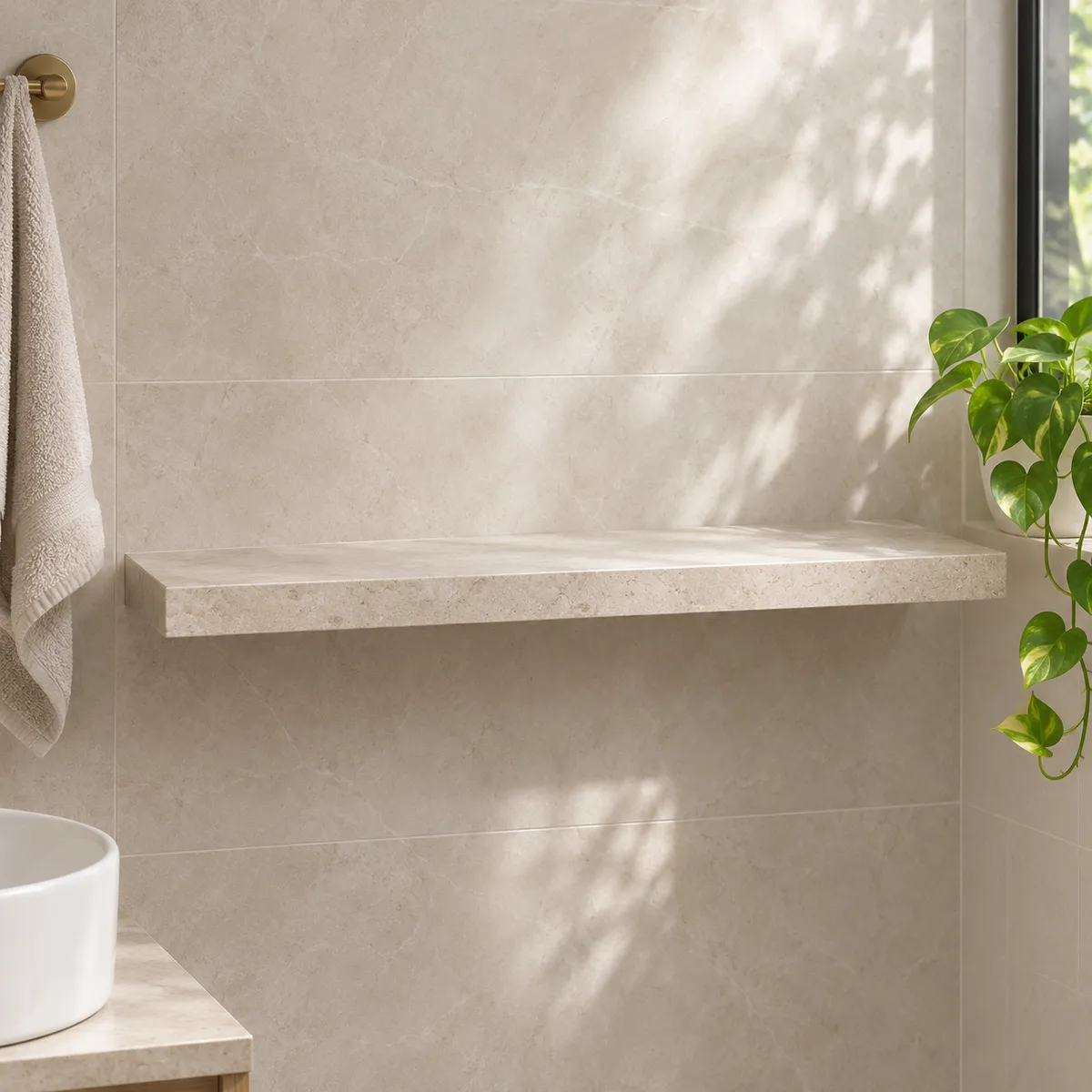
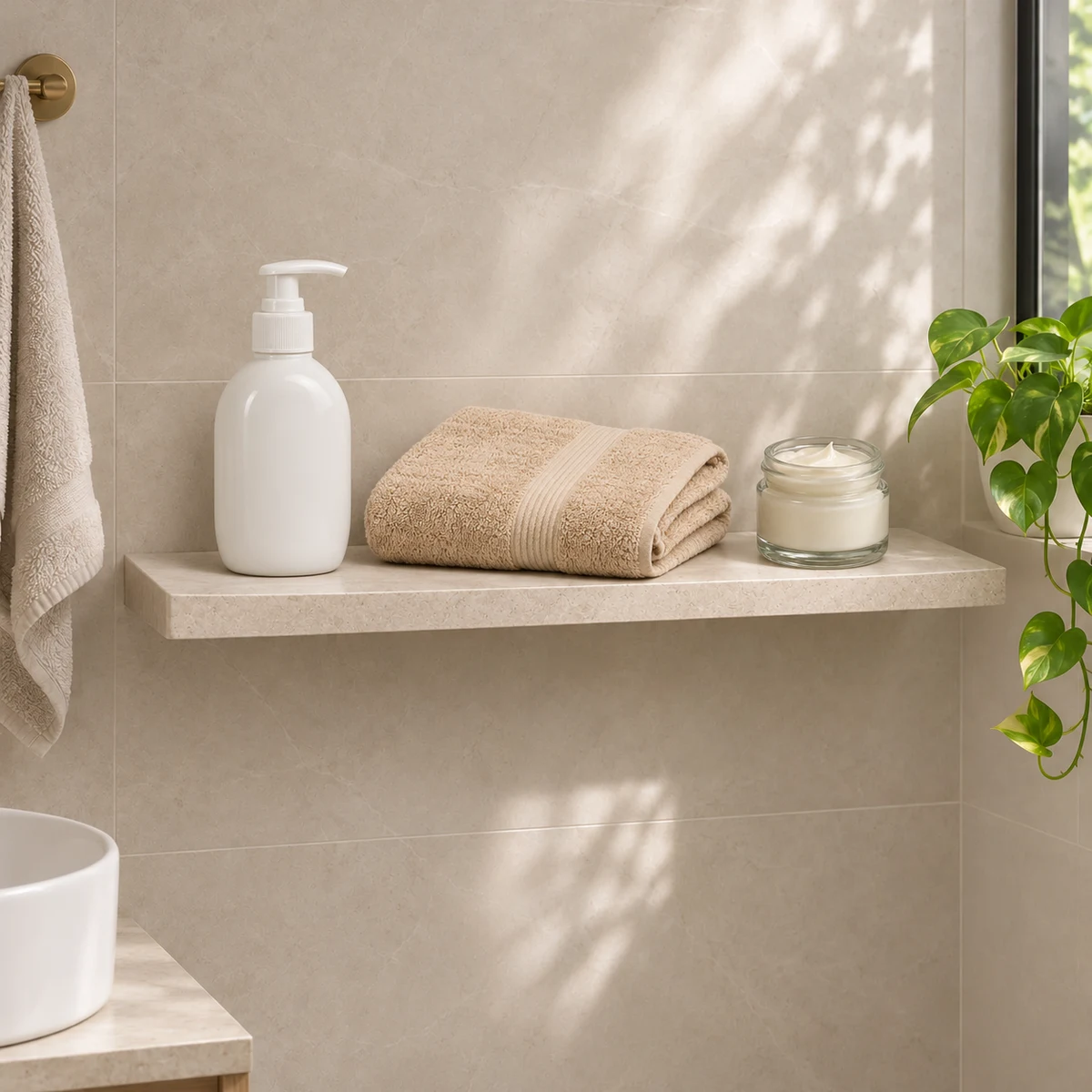
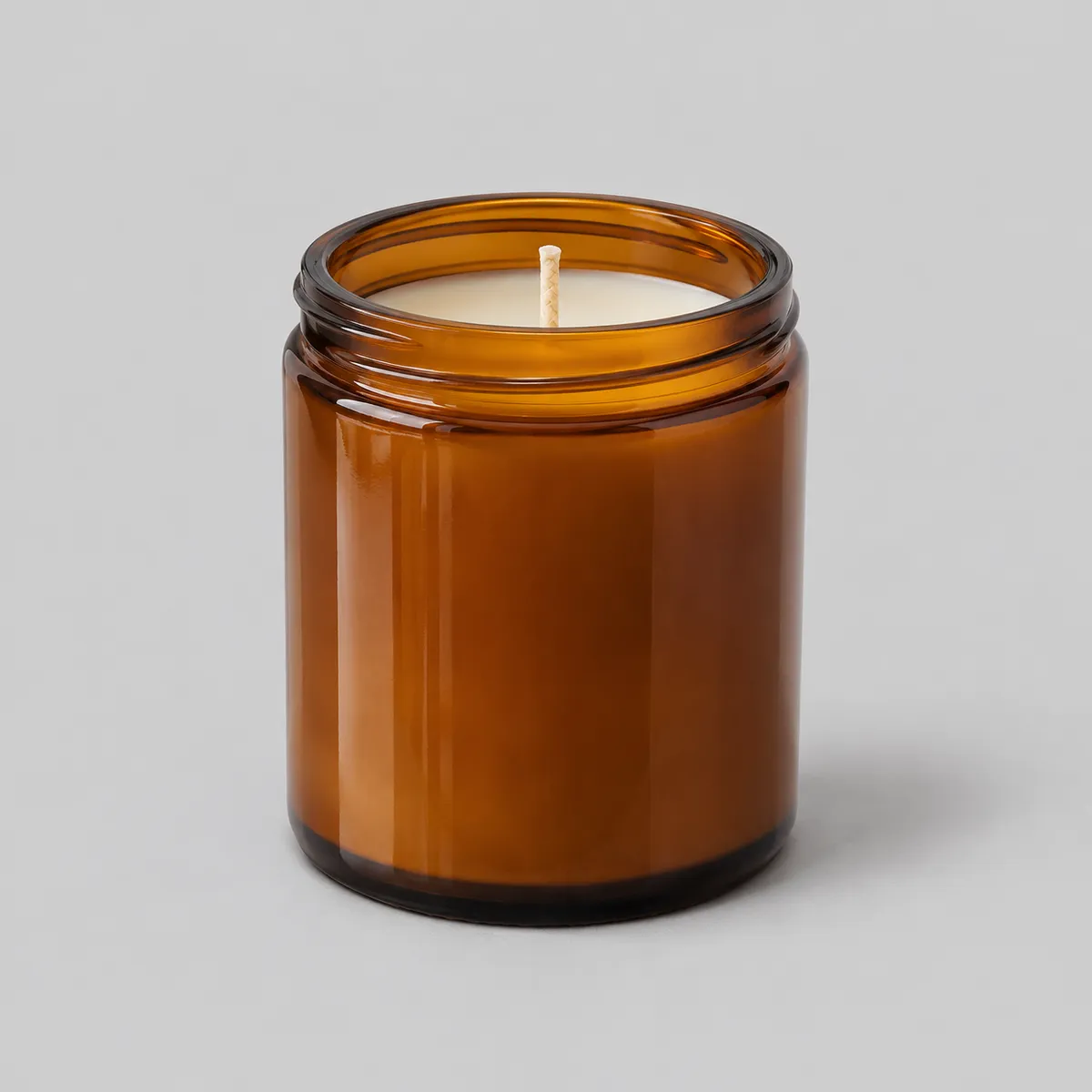
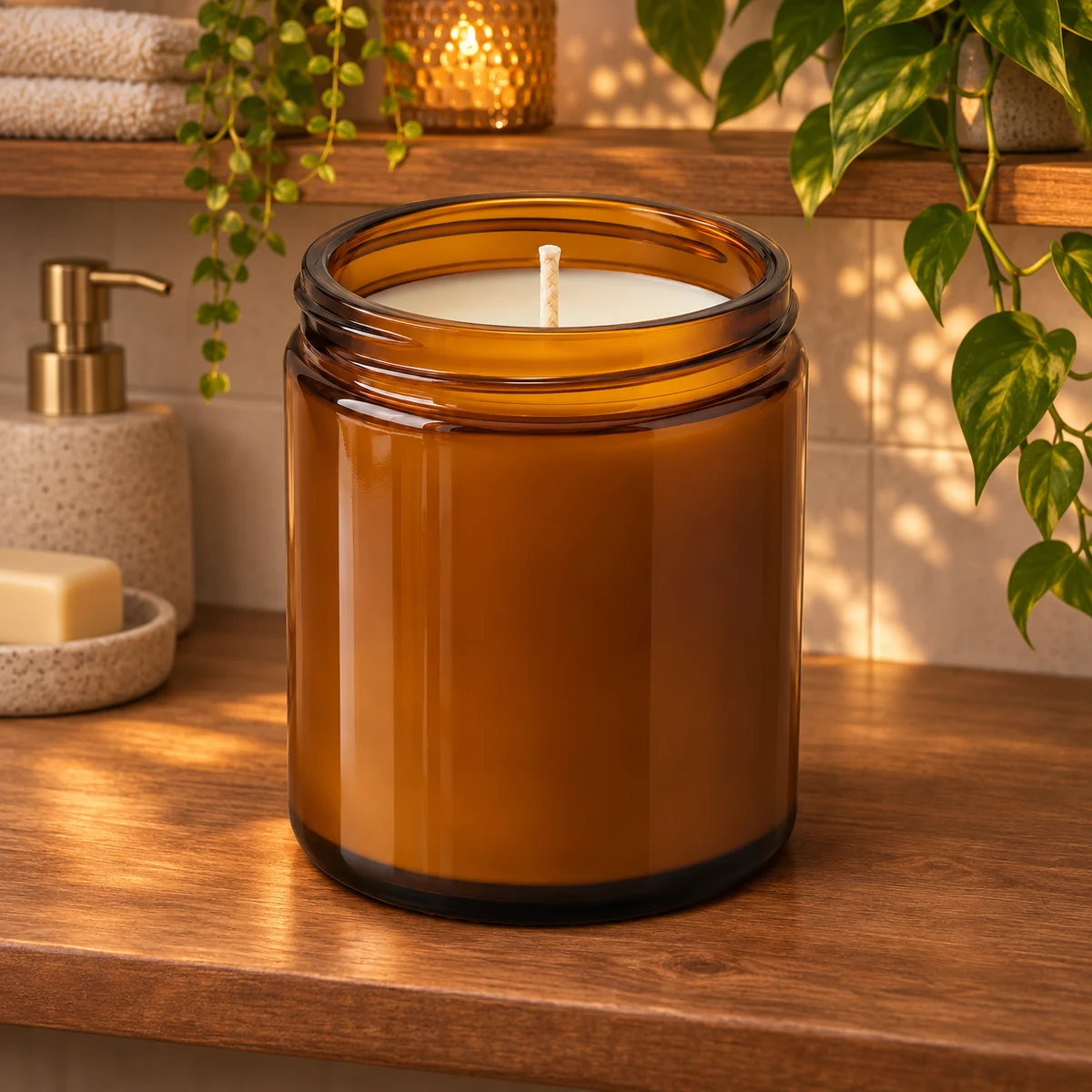
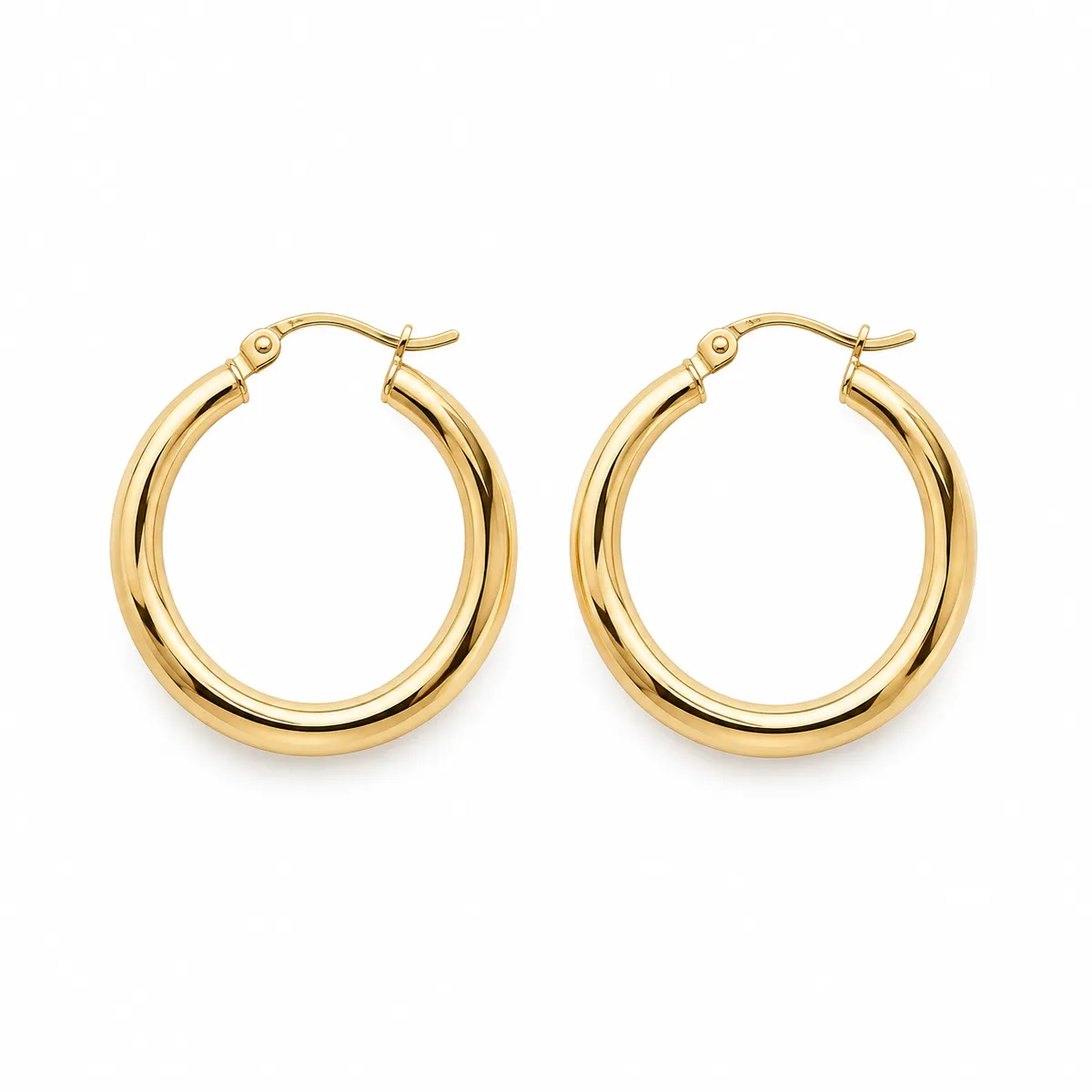
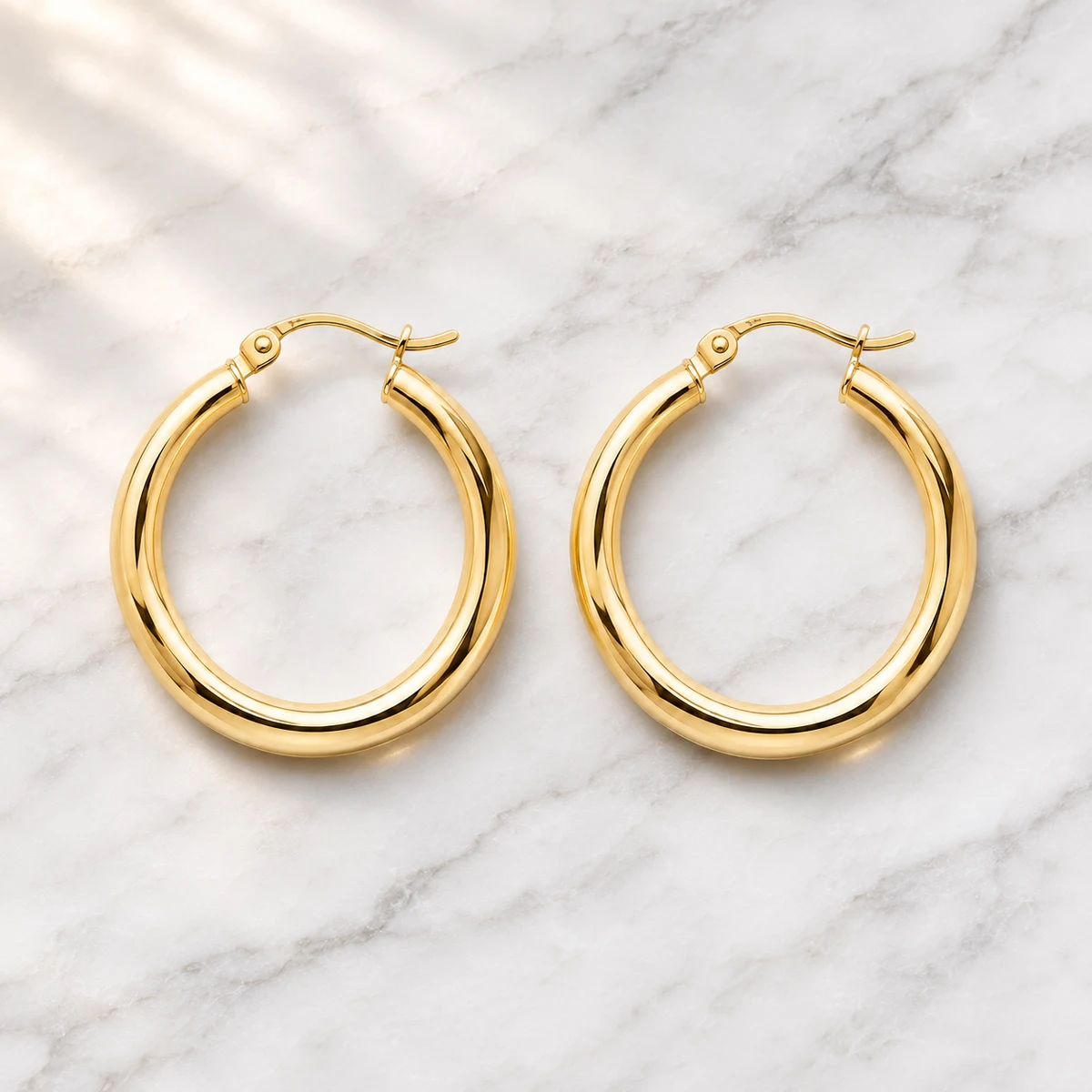
Place products into a scene you already have
Upload a room, counter, or shelf photo and up to three product images. Scene Compose places them with matching perspective, scale, and shadows, which suits bundles and routines such as a skincare set or kitchen pair.
Describe a new setting for a packshot
Have only a plain product photo? Background Replacer keeps the product and generates the setting you describe, such as white marble in morning light or a warm wooden shelf with plants.
Match the scene to where the image will run
Marketplace main images usually need a plain white background, so use lifestyle scenes for secondary listing images, store pages, ads, and social posts. Keep one clean cutout of every product for the rest.
Workflow
- Choose the route: an existing scene photo (Scene Compose) or a described setting (Background Replacer).
- Upload a clear product photo; add up to three products when composing a scene.
- Describe placement or setting in one or two sentences, including surface and light direction.
- Generate, then check scale, shadows, reflections, and label text against the original product.
- Export the image for secondary listing images, store pages, ads, or social posts.
FAQ
Can I create lifestyle product photos without a photoshoot?
Yes. Start from a clear product photo, then either place the product into an existing scene with Scene Compose or replace its background with a described setting such as a kitchen counter, bathroom shelf, or living room with Background Replacer. Lifestyle shots work best when the scene explains how the product is used and the lighting direction matches the product photo. Check scale, shadows, reflections, and label text before publishing.
What is AI product staging?
AI product staging means placing a real product into a styled scene, the way a photographer would arrange it on a set, without a physical shoot. The product reference stays the source of truth while the AI adds the surface, props, and light around it. Use staging for lifestyle listing images, ads, and social posts; keep a clean white-background image for marketplace main images.
Which is better for listings: a lifestyle background or a white background?
They do different jobs. A white background shows the product clearly and is what most marketplaces ask for in the main image. A lifestyle background shows scale, use, and mood, which helps in secondary images, store pages, and ads. Most listings do best with both: a clean main image first, then two or three lifestyle images.
Will the product look different after it is placed in a scene?
The workflow is instructed to keep the product's shape, color, material, and label, but generative models can still drift on small text, logos, and fine hardware. Compare the result with the original photo before publishing, and regenerate or use Mask Edit if a detail changed.
How many products can I place in one scene?
Scene Compose accepts up to three product images per scene. For larger sets, compose the scene in two passes or build separate images for each product group.
Related pages
- AI Scene Compose
Place up to three products into a scene photo you already have. - AI Background Replacer
Swap a plain background for a described lifestyle setting. - Product-on-model photos
Show the product worn or held by a model when human context sells it. - White background product photos
Make the clean main image that marketplaces ask for. - Furniture product images
Room scenes and lifestyle visuals for furniture catalogs.