Marketplace main images
Home / White Background Product Photos
White Background Product Photos From Any Product Picture
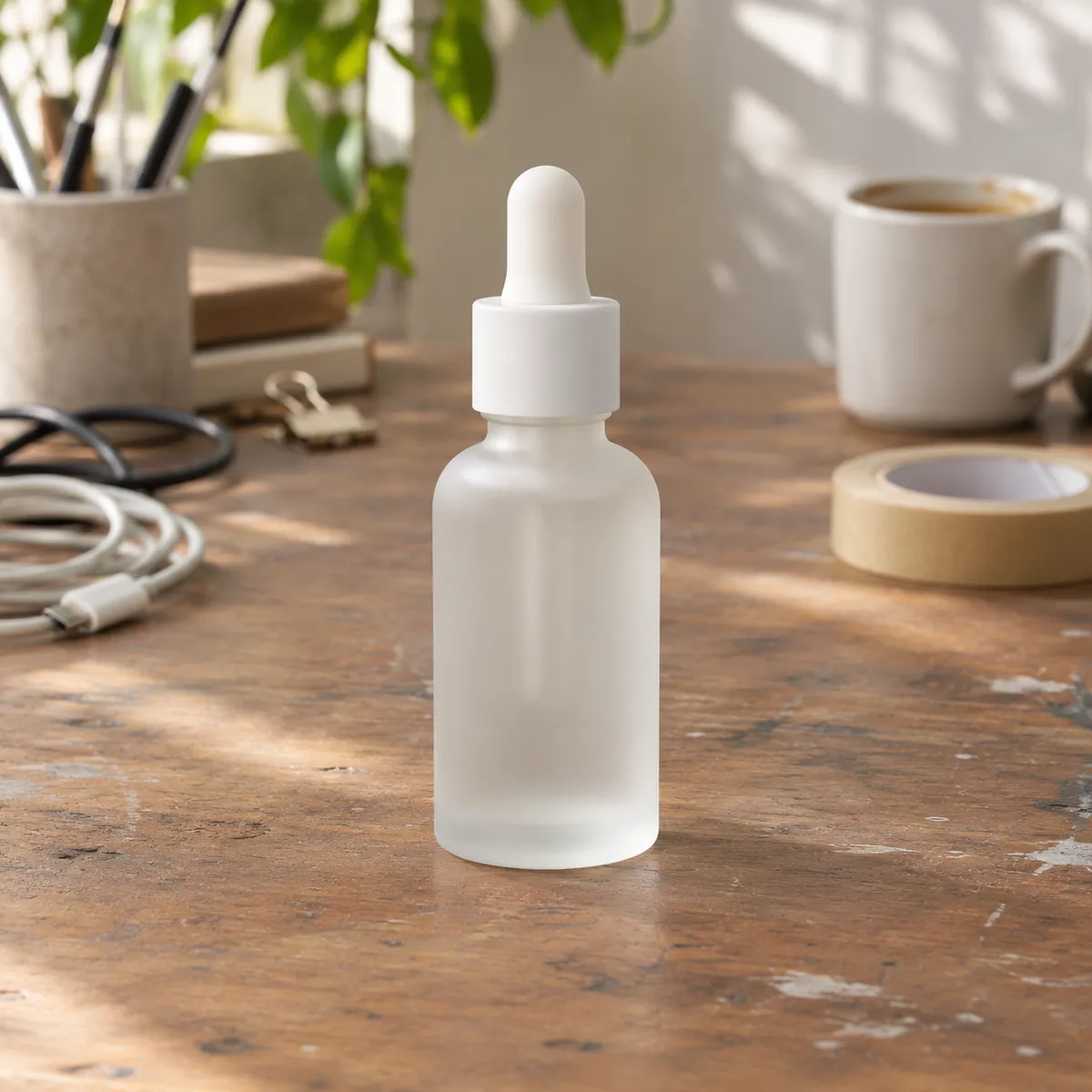
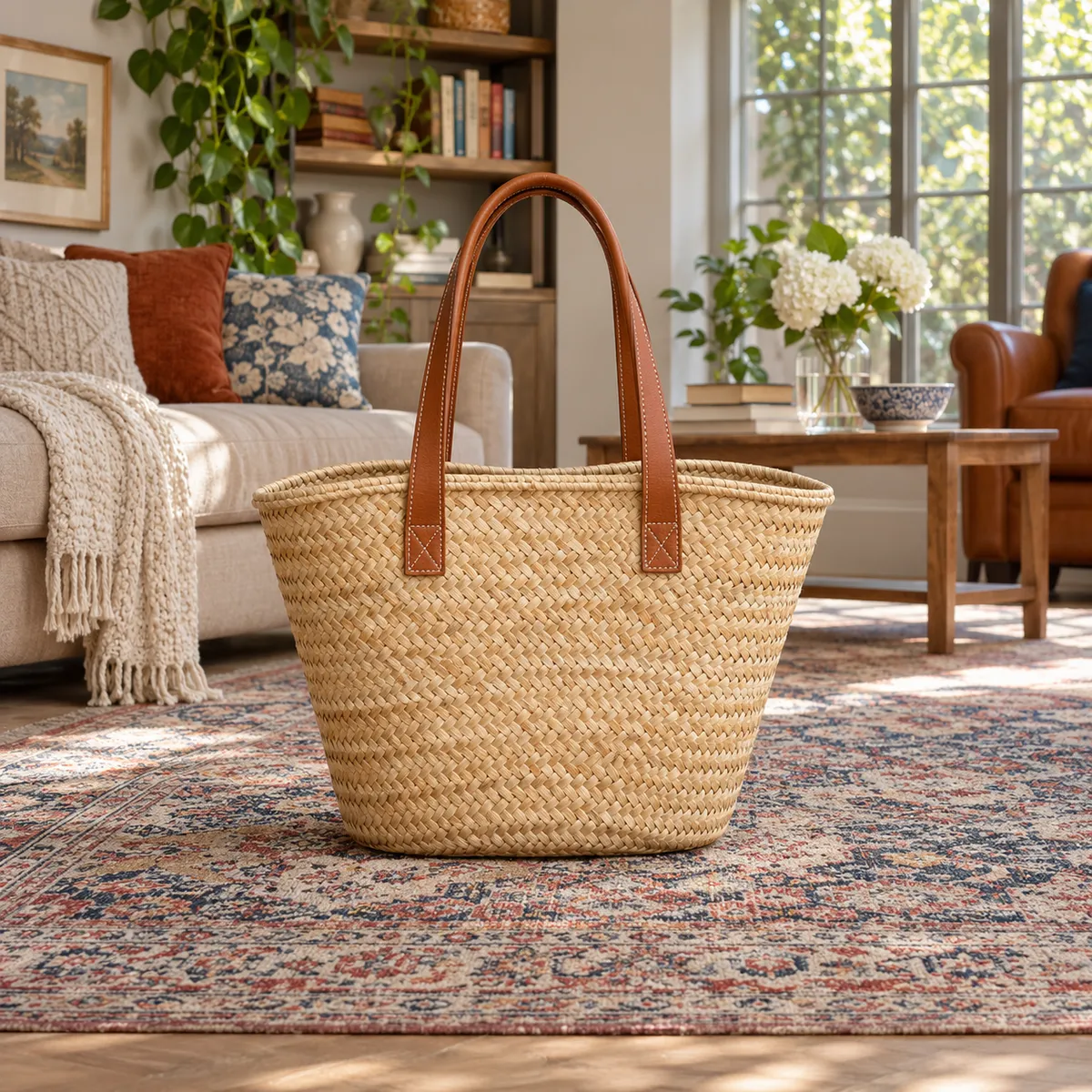
Photographed your product on a desk, a rug, or a shelf? Remove the background, put the cutout on pure white, and you have the clean main image that Amazon, Google Shopping, and most marketplaces ask for. No studio, no lightbox, no manual masking.
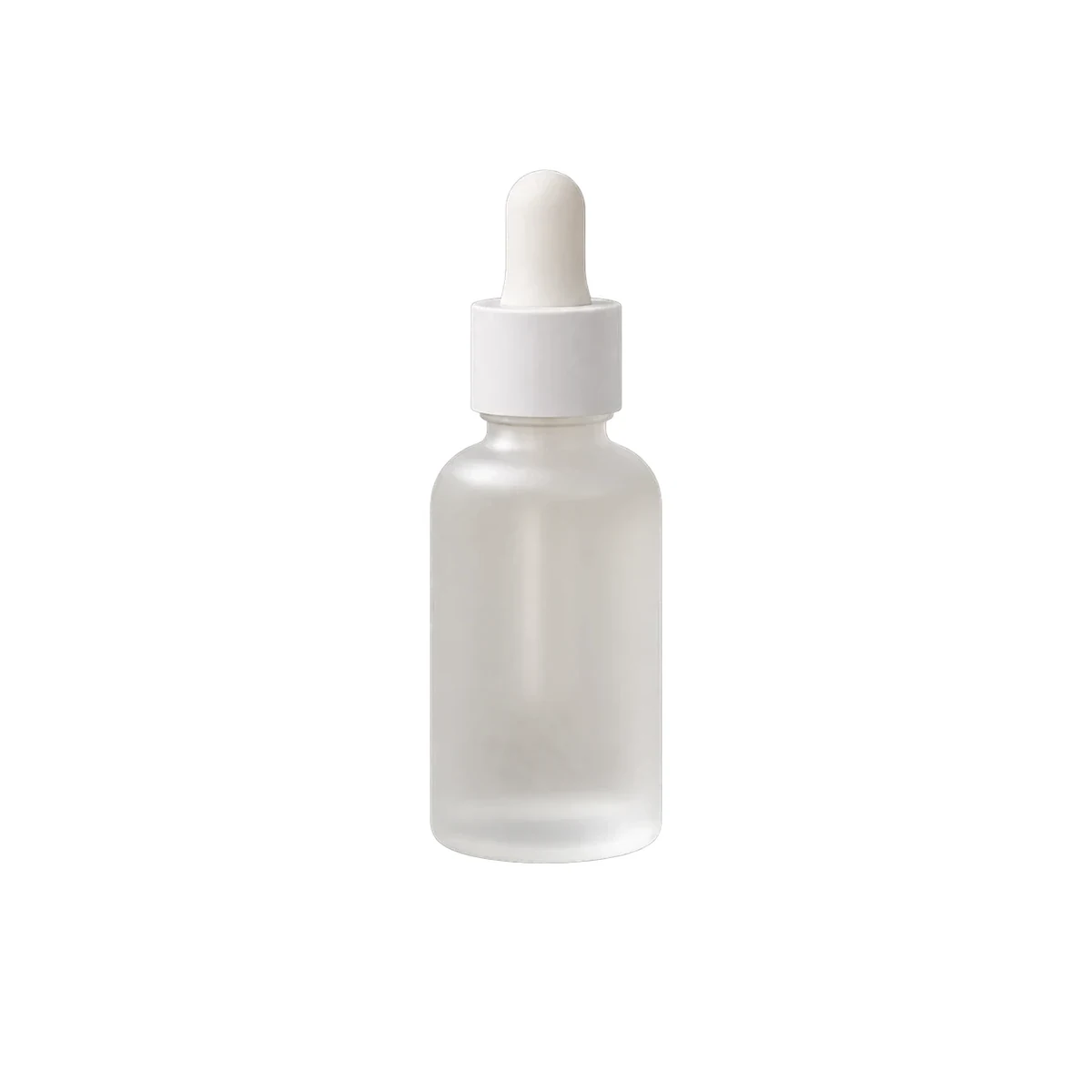
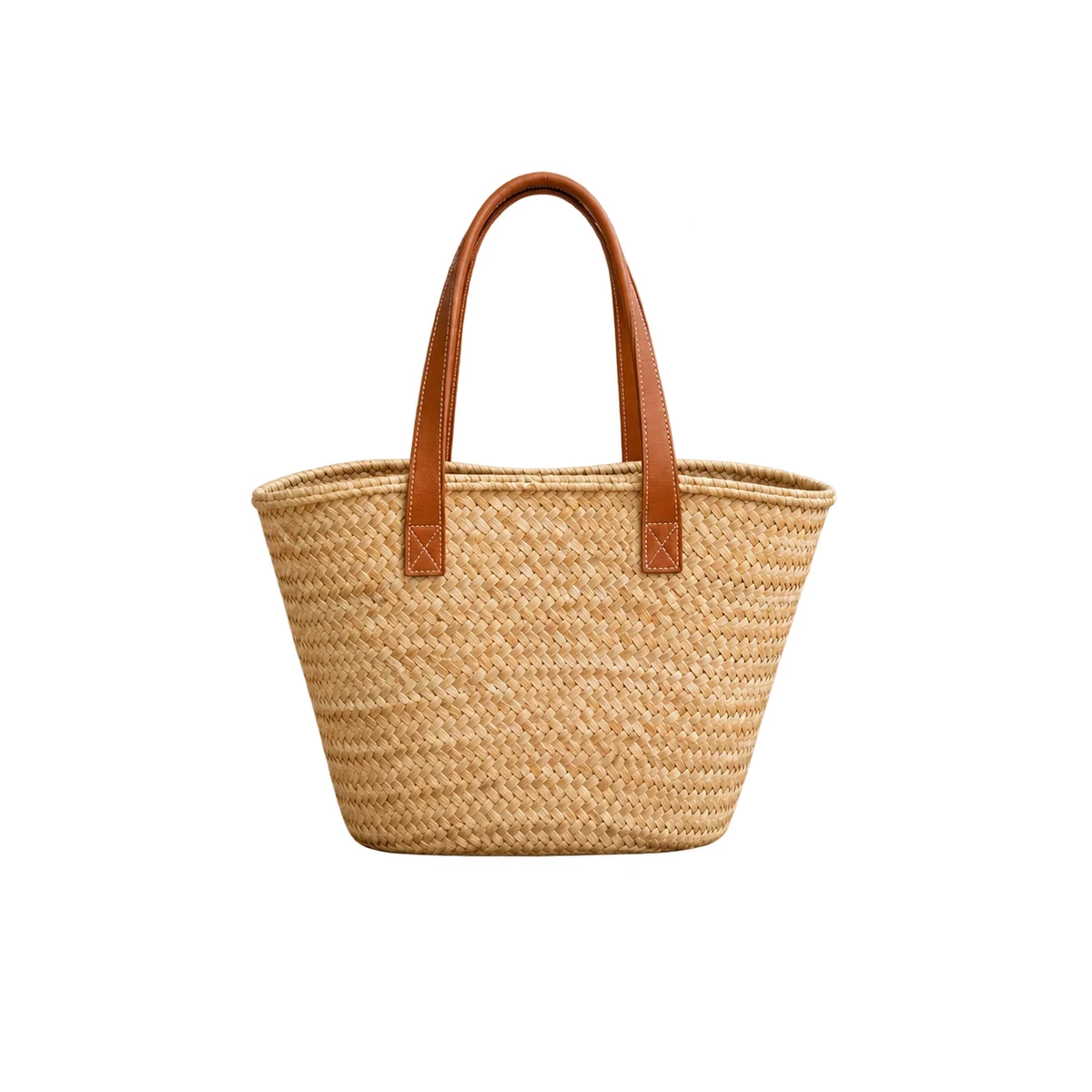
A white background product photo shows only the product on a pure white (RGB 255, 255, 255) field. In KrafLayer, the AI Background Remover returns a transparent PNG cutout, which you place on white, or you can ask the Background Replacer for a white studio background with a soft contact shadow. Marketplace rules change, so confirm the current image requirements for your channel before publishing.
From a busy scene to a clean white background
The cutout from the Background Remover placed on pure white. Illustrative examples made with GPT Image models; drag each slider to compare.
Cut the product out first
The Background Remover returns a transparent PNG with the product's edges redrawn by the model. A transparent cutout is the most reusable asset: it goes on white today and into ads, banners, and scenes later.
Place it on pure white
Drop the cutout onto a white canvas in any editor, or use Background Replacer with a prompt like pure white studio background with a soft contact shadow. Keep the product large in the frame and centered.
Check the edges at full size
White backgrounds expose halos and rough edges. Zoom in on glass, fine chains, fur, and handles, and compare color with the original photo. Fix leftovers with Object Eraser or Mask Edit before you upload.
Workflow
- Upload a product photo to the AI Background Remover (JPG, PNG, or WebP).
- Run the removal and download the transparent PNG.
- Place the cutout on a pure white canvas, or generate a white studio background with Background Replacer.
- Zoom in to check edges, color, and label text against the original photo.
- Export at the size your marketplace asks for and confirm its current image rules.
FAQ
How do I make a product photo background white?
Remove the existing background with the AI Background Remover, then place the transparent cutout on a pure white canvas. If you want a soft shadow under the product, use Background Replacer and describe a pure white studio background with a soft contact shadow. Check the edges at full size before you publish.
Does Amazon require a pure white background?
Amazon's main product image guidelines have long asked for a pure white background with the product filling most of the frame. Requirements differ by category and change over time, so check the current rules in Seller Central before uploading. Secondary images can usually use lifestyle and detail shots.
Why do my white background photos look gray?
Photos shot against a white sheet or wall usually come out light gray because of exposure and uneven lighting. Brightening the whole image washes out the product. Cutting the product out and placing it on true white keeps the product's own exposure and color intact.
Should I keep a shadow under the product?
A soft contact shadow helps the product look grounded on store pages and ads. For marketplace main images, keep any shadow subtle and confirm it is allowed for your category. When in doubt, use the plain cutout on white.
Is the white background tool free to use?
You can try background removal on KrafLayer's free plan. Each run uses credits, and the editor shows the cost before you start. Current plan credits and edit costs are listed on the pricing page.
Related pages
- AI Background Remover
Get a transparent PNG cutout from any product photo. - Background colors
See the same cutout on gray, beige, pink, blue, green, yellow, and black. - AI Background Replacer
Generate a white studio background with a soft shadow. - Amazon product photos
Prepare Amazon main images, detail images, and listing checks. - AI lifestyle product photos
Add lifestyle scenes for secondary images, store pages, and ads. - Product photo editor
Clean, repair, and upscale product photos before listing.