Image generation
AI Product Photography Workflow: Reference to Store Assets
TL;DR
Turn verified reference photos into store-ready AI product assets with an asset manifest, protected product master, channel derivatives, and human review.
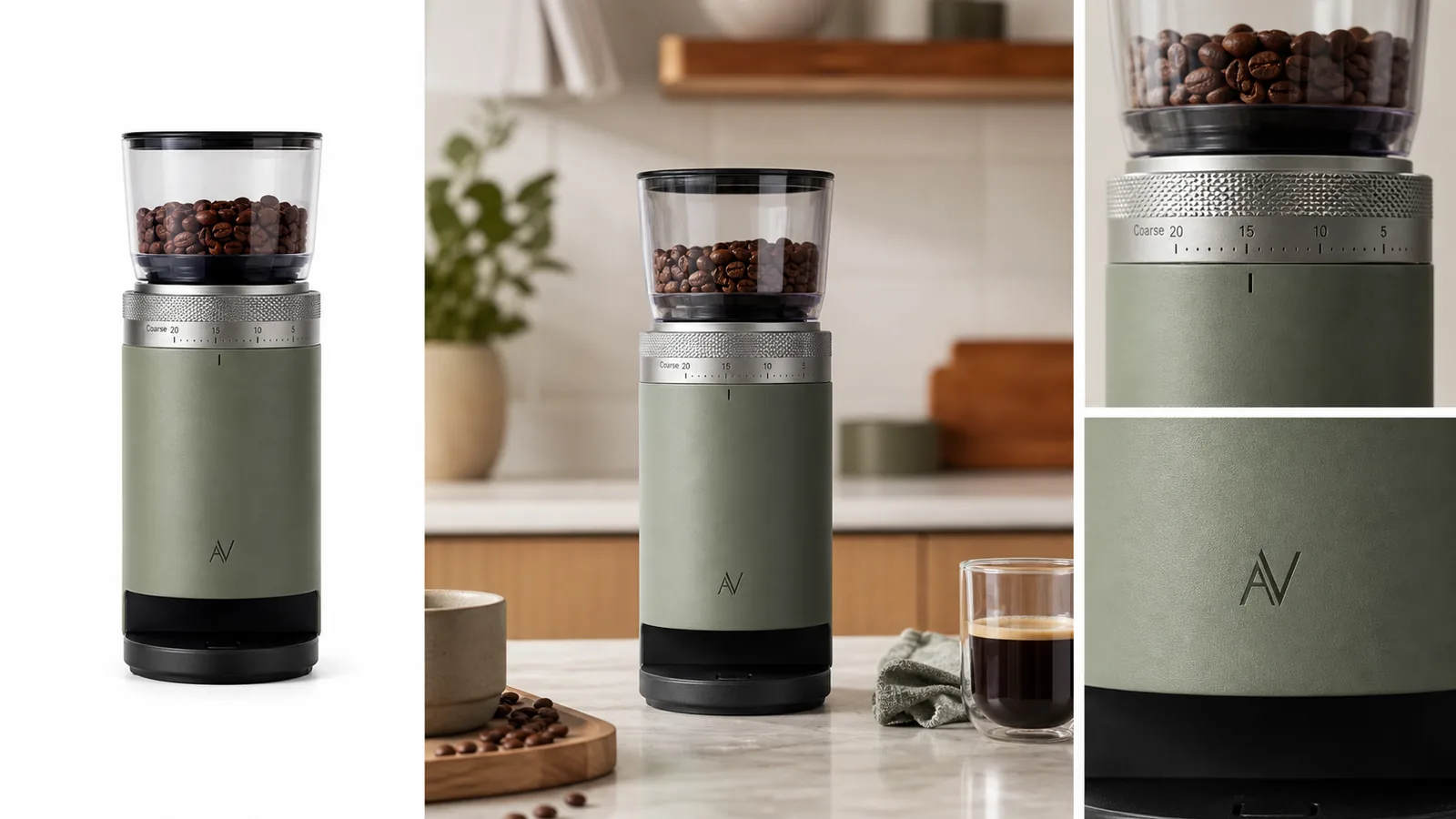
A reliable AI product photography workflow separates product truth from visual styling. Start with verified reference photos, define the role of every asset, protect one product master, and derive store-ready channel exports from it.
An AI product photography workflow should start with product facts, not with a dramatic prompt. The reliable sequence is: choose the clearest reference image, define the image role, generate one product-led asset, compare it against the real SKU, clean only the parts that need work, then export the image into the right listing or campaign set.
In KrafLayer, this workflow usually starts on the [AI product photography](/ai-product-photography) side, moves through the [AI product image generator](/ai-product-image-generator), and finishes with review or cleanup in the [product photo editor](/product-photo-editor). The point is not to make a random studio scene. The point is to create store-ready product photos that still match what the buyer will receive and fit the rest of your [ecommerce product photography](/ecommerce-product-photography) set.
The Workflow Rule
The practical rule is simple: every step should either protect product truth or make one selling role clearer. If a step makes the image prettier but changes the product, skip it.
Use this AI product photography workflow from reference image to final export:
- Pick one accurate product reference.
- Write a product-truth list before prompting.
- Choose the image role: main, lifestyle, detail, comparison, ad crop, or marketplace cleanup.
- Generate one asset at a time.
- Review the output against the product-truth list.
- Edit only the weak area instead of regenerating the whole product.
- Export the final image into a consistent ecommerce product photography set.
That sequence keeps the workflow concrete. It also avoids the common mistake of treating AI product photography as a style generator instead of a controlled product-image process.
Step 1: Start With The Clearest Reference Image
Your reference image does not need perfect lighting. It needs enough product information for the model and the reviewer to understand the SKU.
Before using an AI product image generator workflow, inspect the reference for:
- full product silhouette
- true color and finish
- material texture
- labels, logos, tags, or package panels
- hardware, seams, ports, handles, hinges, dials, clasps, or closures
- scale cues such as cup size, hand size, room size, or product thickness
For the Aven espresso grinder example above, the protected facts are the matte sage cylinder, clear bean hopper, black base, silver burr dial, compact scale, and small invented monogram. The lifestyle and detail views can change the setting, but they should not redesign the grinder.
Step 2: Define The Store-Ready Image Role
Store-ready product photos are not all trying to do the same job. A good workflow names the role before writing the prompt.
Use these roles:
- Main image: clean product recognition, centered shape, no clutter.
- Lifestyle image: believable use context, scale, surface, and light.
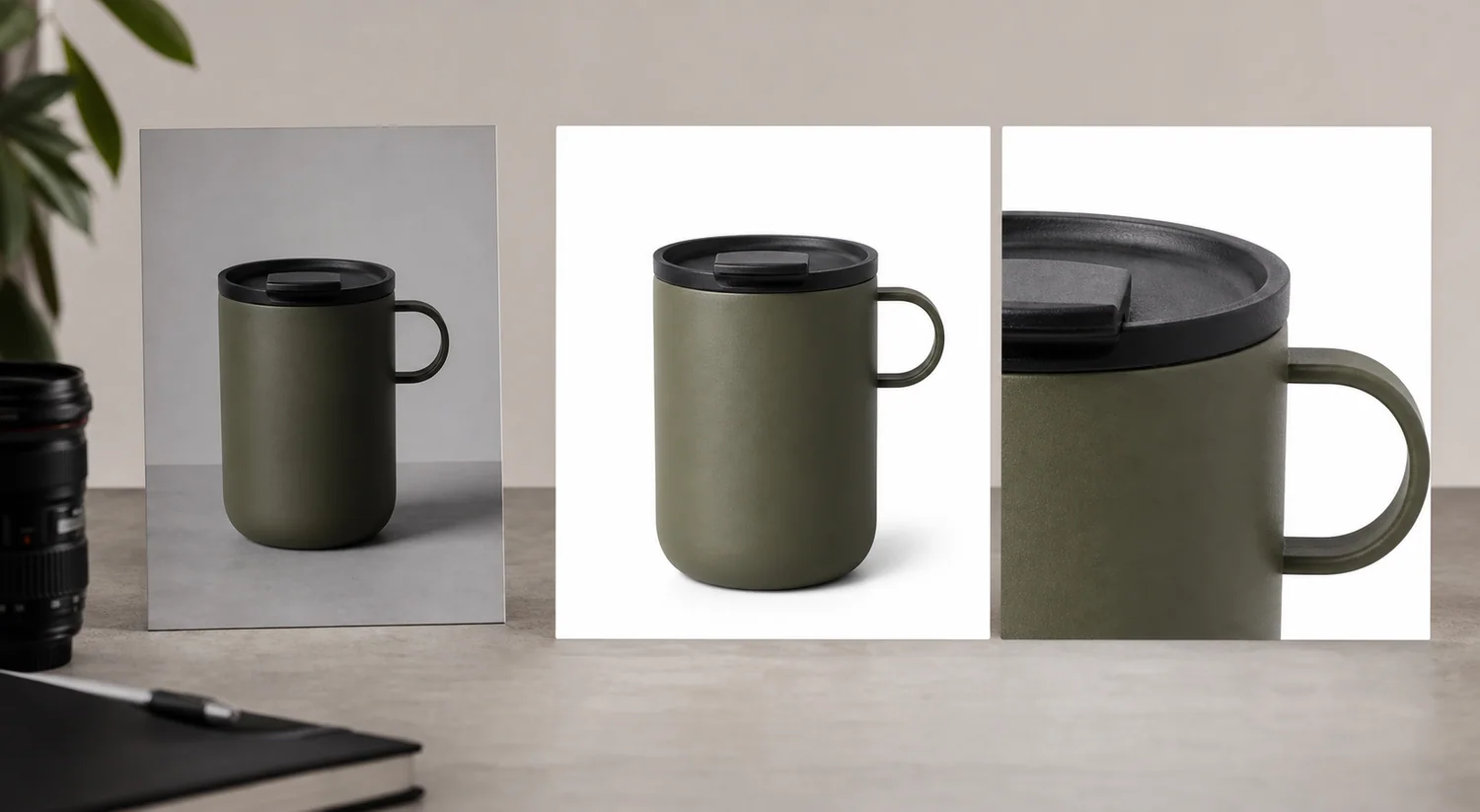
- Detail image: one close product fact such as texture, stitching, dial, label, lid, port, or material.
- Feature image: one practical benefit, not a fake badge or unsupported claim.
- Ad crop: stronger composition while keeping the product readable.
- Cleanup image: background, shadow, crop, or small defect repair.
This is where AI product photography workflow becomes different from generic prompt writing. The prompt should serve the product page, not the other way around.
Step 3: Generate One Product-Led Asset
Start with one role and one product. Avoid asking for a full catalog set in a single prompt if product accuracy matters.
A reusable prompt structure:
Create a realistic ecommerce product photo from this reference. Keep the same product shape, color, material, scale, logo area, hardware, and camera-angle family. Create a [main image / lifestyle scene / detail image] for [store page / marketplace listing / campaign]. Use natural commercial lighting and a clean selling context. Do not add platform UI, badges, claims, barcodes, QR codes, extra accessories, or new product features.
For a store-ready product photos workflow, the strongest first output is often a main image or lifestyle image. Detail views can follow once the product identity is stable.
Step 4: Review Product Truth Before Editing
Review is the part many AI workflows skip. It is also where ecommerce risk usually appears.
Check the generated image for:
- shape drift: the product is taller, wider, smoother, or redesigned
- color drift: sage becomes gray, black becomes navy, gold becomes yellow
- material drift: ceramic looks plastic, leather looks vinyl, glass loses thickness
- feature drift: ports, dials, seams, closures, stones, laces, buttons, or labels move
- scale drift: the product becomes too large or too small for the scene
- claim drift: the image adds fake badges, ratings, awards, certifications, discounts, or platform marks
The best AI product photography workflow treats review as a required production step. If the generated output changes what the buyer receives, it is not store-ready.
Step 5: Clean The Image Without Regenerating The SKU
If the image is mostly right, use editing rather than full regeneration. A full regeneration can fix one shadow while silently changing the product.
Use KrafLayer editing tools based on the problem:
- Use background cleanup when the product is accurate but the setting is distracting.
- Use local product photo editing when one area needs glare, dust, crease, crop, or shadow cleanup.
- Use upscaling when the composition is correct but the file is too soft.
- Use background replacement when the product is accurate but the selling context needs to change.
For the grinder example, the right cleanup might be: keep the same grinder, preserve the dial markings and hopper shape, soften a harsh shadow, and remove stray beans that distract from the product. That is a product photo editor workflow, not a new generation request.
Step 6: Build A Consistent Ecommerce Product Photography Set
One good image is useful. A consistent set is what makes a product page feel trustworthy.
For most ecommerce product photography workflows, build this small set:
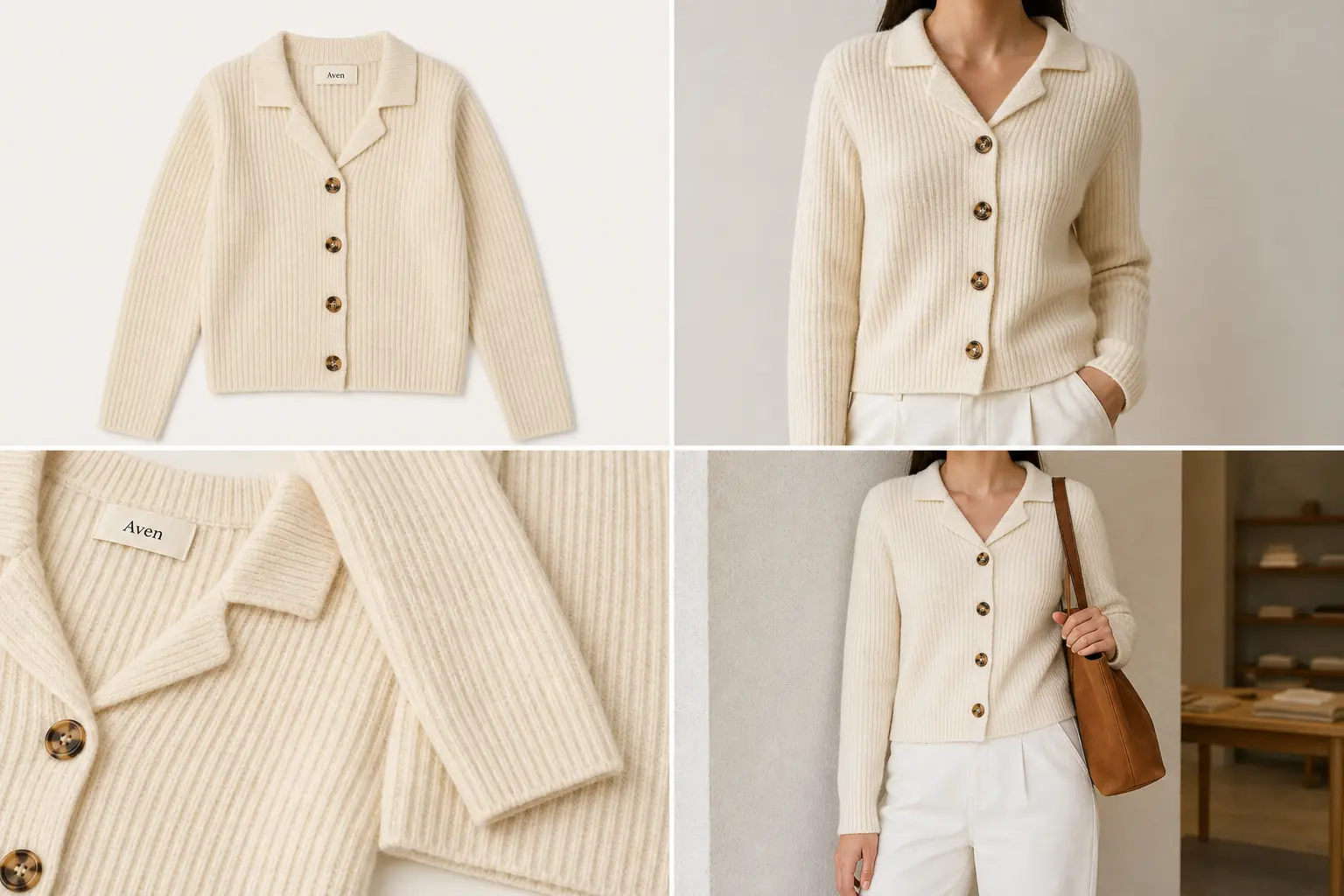
- One clean main image for immediate product recognition.
- One lifestyle image showing scale and use context.
- One detail image proving material, mechanism, closure, texture, or finish.
- One alternate angle if shape, depth, or feature placement matters.
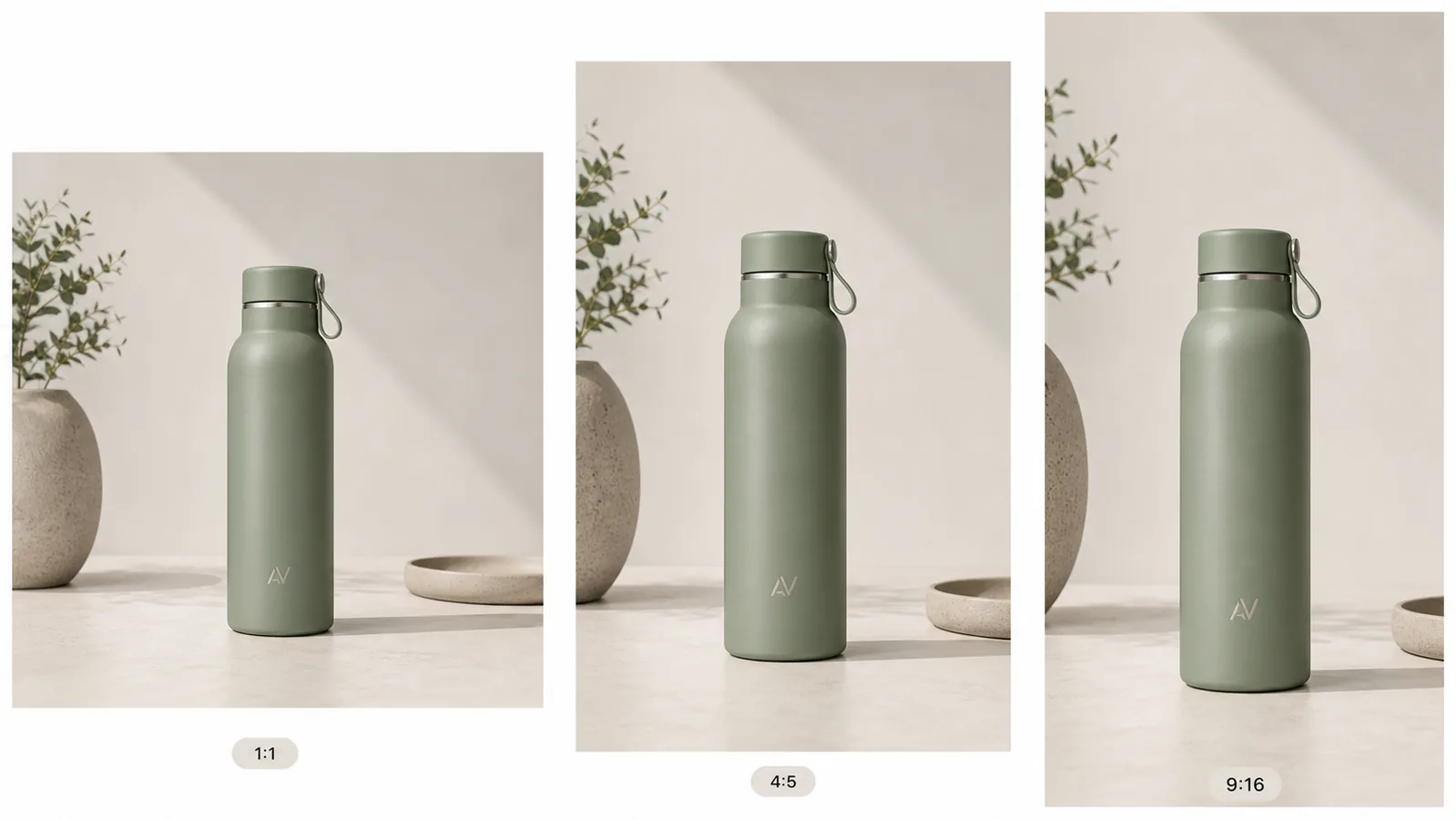
- One ad or social crop only after the product facts are stable.
The images should feel related. They do not need identical backgrounds, but product color, scale, lighting logic, and material should stay believable across the set.
What To Avoid
Avoid these workflow shortcuts:
- generating a whole campaign from a weak reference
- changing the product to fit a trendy scene
- using fake marketplace UI or platform badges
- adding claims the product label or seller cannot support
- making detail images from invented parts
- upscaling unreadable labels into invented text
- publishing without comparing against the real SKU
AI can create polished product images quickly, but ecommerce publishing still needs judgment. The buyer should not learn new product facts from an AI mistake.
Build an asset manifest before generating
Google accepts one required main image plus up to 10 additional images for free listings, while Shopify supports product images, video, 3D, and AR. An asset manifest prevents the team from generating attractive duplicates while missing the views a buyer actually needs ([Google free listings](https://support.google.com/merchants/answer/13889434?hl=en); [Shopify product media](https://help.shopify.com/en/manual/products/product-media), 2026).
For each planned asset, record:
| Field | Example |
|---|---|
| Role | Main image, material detail, scale, lifestyle, vertical ad |
| Buyer question | “What is included?” |
| Required sources | Front, side, package contents |
| Allowed changes | Background and crop only |
| Hard rejection | Missing cap, changed label, false scale |
| Destination | Shopify PDP, Google additional image, Meta 4:5 |
Generate only when the required sources exist. If the manifest asks for an underside mechanism and no underside photo exists, the next step is photography, not prompting.
Separate the product master from channel derivatives
Shopify accepts images up to 5000 × 5000 pixels or 25 megapixels, and Google recommends submitting the largest trustworthy full-size image available. Keep one high-resolution product master, then derive channel-specific files without repeatedly editing compressed outputs ([Shopify product media types](https://help.shopify.com/en/manual/products/product-media/product-media-types); [Google image requirements](https://support.google.com/merchants/answer/6324350?hl=en), 2026).
Use a simple file lineage:
1. camera or supplier original; 2. reviewed clean master; 3. transparent cutout when needed; 4. role-specific generated or edited asset; 5. channel crop and compression; 6. published URL recorded in the manifest.
Never use a small marketplace download as the new master. Compression, sharpening, and unknown color conversion accumulate every time a derivative is edited again.
Add provenance and review ownership
Google requires generative-AI product images to retain IPTC digital-source metadata. Assign a human reviewer and record whether the asset is photographed, locally edited, composited, or generated ([Google AI-generated content](https://support.google.com/merchants/answer/14743464?hl=en), 2026).
The reviewer should compare the final file with the product evidence, not just approve the layout. Check identity first, channel rules second, and aesthetics third. That order feels unglamorous, but it prevents a polished wrong SKU from entering every downstream crop.
FAQ
What is an AI product photography workflow?
An AI product photography workflow is a repeatable process for turning a product reference into ecommerce images. A practical workflow includes reference selection, product-truth notes, image-role planning, generation, review, cleanup, and export into a store-ready image set.
What should I do before generating AI product photos?
Before generating, write down the product facts that cannot change: shape, color, material, scale, label placement, hardware, seams, ports, buttons, dials, closures, and any included accessories. This gives you a checklist for reviewing the output.
How many AI product images should I generate at once?
Generate one image role at a time when product accuracy matters. Start with a main image or lifestyle image, review product truth, then generate detail or ad crops after the product identity is stable. This reduces hidden SKU drift.
When should I use a product photo editor instead of regenerating?
Use a product photo editor when the image is mostly correct but one area needs cleanup, such as glare, dust, shadow, background clutter, crop, or a small local defect. Regenerate only when the entire concept or image role is wrong.
Can KrafLayer create a full ecommerce product photography set?
KrafLayer can support the workflow from product reference to generated image to final cleanup. Use the AI product image generator for new image roles, then review and edit outputs before placing them into a consistent ecommerce product photography set.
Conclusion
An AI product photography workflow works when it is disciplined: start from a real reference, define the image role, protect product truth, generate one asset, review it, then clean only what needs work. KrafLayer fits this process because it connects generation and editing, helping sellers move from reference image to store-ready product photos without turning the SKU into a generic AI scene.
Keep exploring
Continue the story
More practical guidance on product accuracy, composition, and conversion-ready visuals.
Put it into practice
Take the next step in KrafLayer
Choose a generation or editing workflow that matches what you just learned.