Edit tools
AI Product Retouching: What to Clean Up and What to Leave Alone
TL;DR
Use AI product retouching to clean dust, lint, background marks, rough edges, and soft resolution without changing the real SKU.
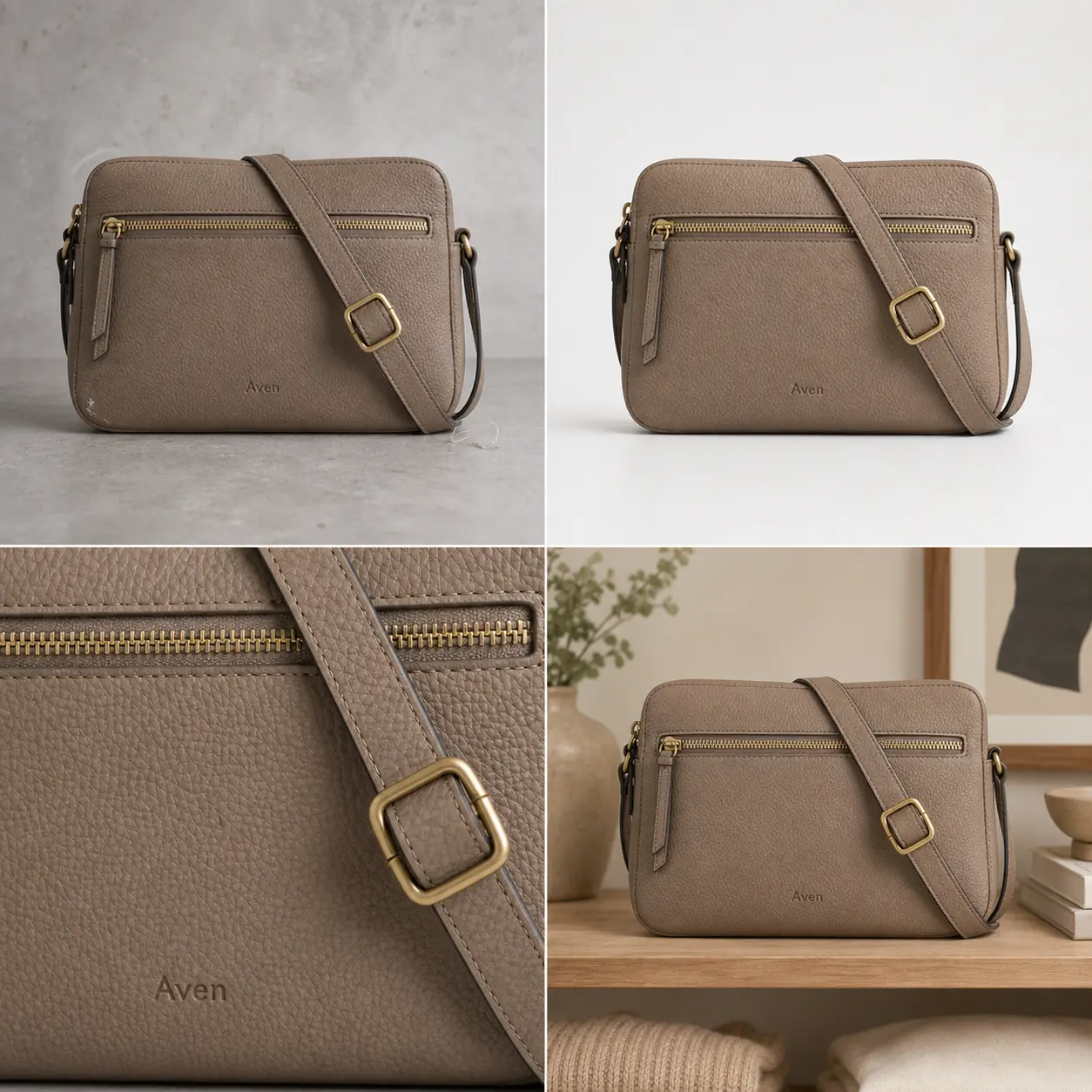
AI product retouching should remove distractions that stop a buyer from understanding the product. It should not make the product look like a different SKU. The practical rule is: clean dust, lint, background marks, small props, rough cutout edges, and soft resolution; leave the shape, color, material, label position, hardware, seams, scale, and functional details alone.
KrafLayer's [product photo editor](/product-photo-editor) fits this kind of retouching because each edit can stay narrow. Use an object eraser for a small distraction, background removal for a reusable cutout, upscaling for a soft but accurate source, and generation only when you have a product truth list to review against.
What AI Product Retouching Should Fix
Product retouching AI is best when the source photo already represents the real item and only needs cleanup. In the Aven bag example, the product itself is usable: the taupe pebbled leather, brass zipper, stitched strap, buckle, rectangular silhouette, and brand stamp are all visible. The blockers are smaller: dust, a corner scuff, loose lint, uneven background marks, and a presentation that is not quite store-ready.
Good retouching makes the buyer's job easier without changing the product:
- remove dust, lint, loose thread, fingerprints, or sensor spots
- clean a background scuff or wrinkle that distracts from the item
- soften harsh glare while keeping useful material highlights
- repair cutout halos and rough transparent edges
- improve usable size with upscaling when the source still has real detail
- create a clean main image, detail crop, or lifestyle crop from the same product truth
The key phrase is same product truth. If retouching changes the bag shape, zipper teeth, leather grain, strap width, buckle color, or brand stamp placement, the edit has gone too far.
What To Leave Alone
The safest retouching rule is to protect anything a buyer might use to judge fit, quality, material, or compatibility. Leave these details alone unless the source image is clearly wrong and you have a verified product reference:
- true product color and finish
- silhouette, proportions, thickness, and scale
- seams, stitching, zipper teeth, straps, handles, buckles, caps, pumps, ports, buttons, dials, and lids
- label position, logo area, package text, and SKU markings
- material texture such as pebbled leather, glass thickness, knit ribbing, brushed metal, paper grain, or ceramic matte finish
- shadows that prove the product sits naturally on the surface
This is where product photo retouching differs from general image editing. A prettier image can still be a bad ecommerce image if it invents a better product than the one being sold.
Choose The Smallest Retouching Tool
Use the smallest tool that fixes the real problem. That makes the result easier to inspect.
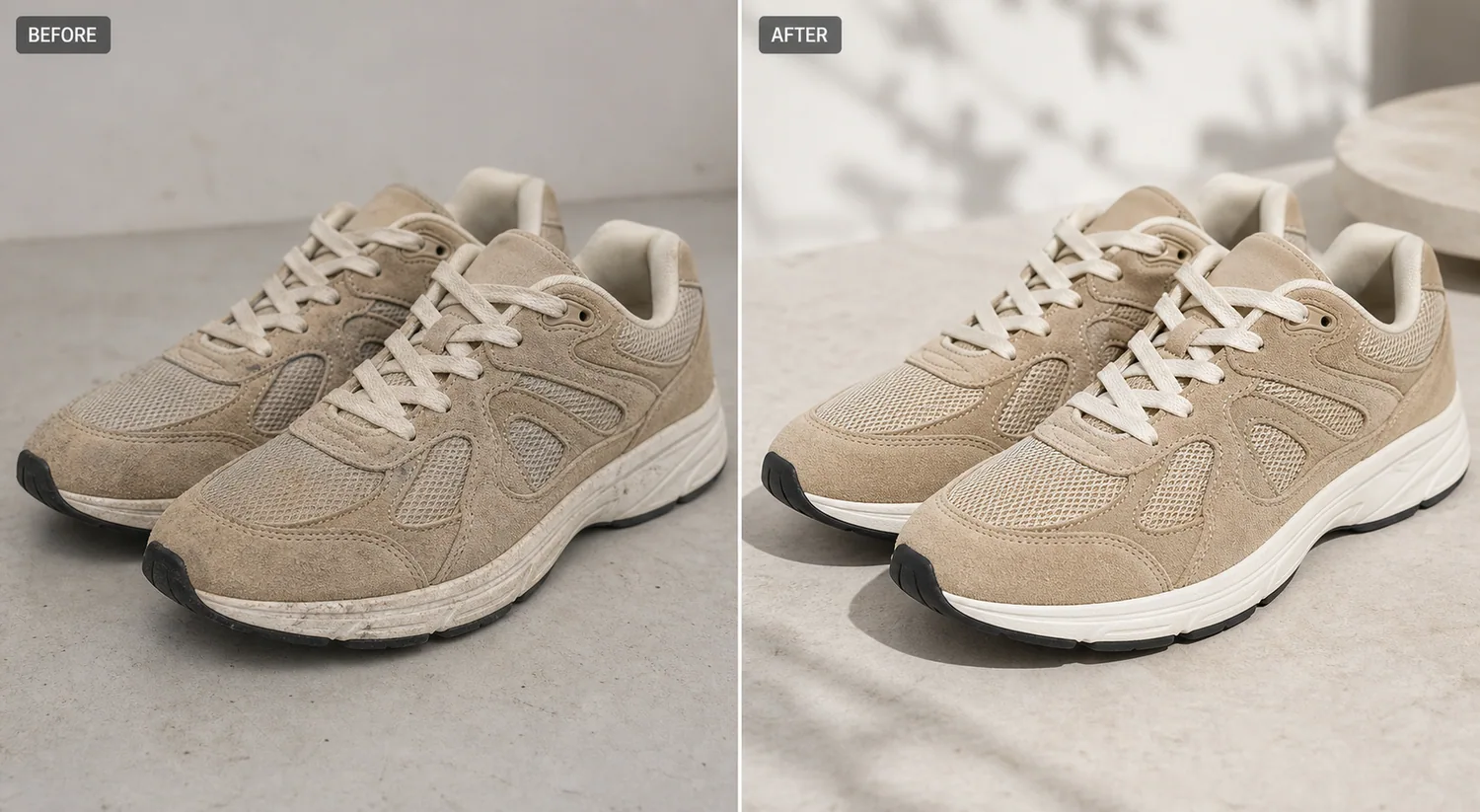
Use the [AI object eraser](/tools/ai-object-eraser) for a localized distraction: lint, a small prop, dust, a sticker on an owned product photo, or a background mark. Brush only the unwanted area. If the product edge changes, reduce the mask and retry.
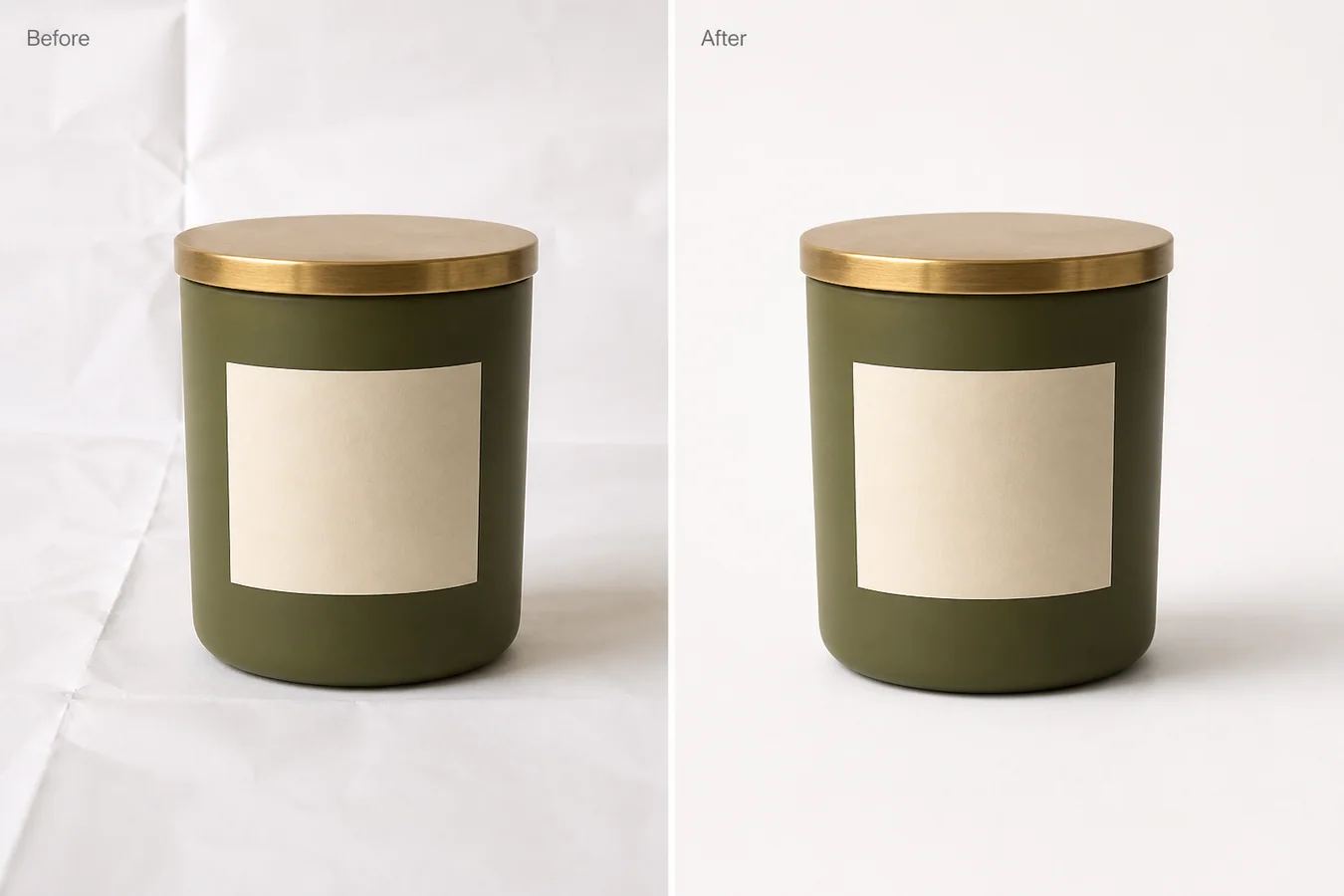
Use the [product background remover](/tools/ai-background-remover) when the item is accurate but needs a clean cutout for listings, layouts, ads, or marketplace drafts. Review strap holes, transparent parts, handles, glass, cables, and thin fabric edges.
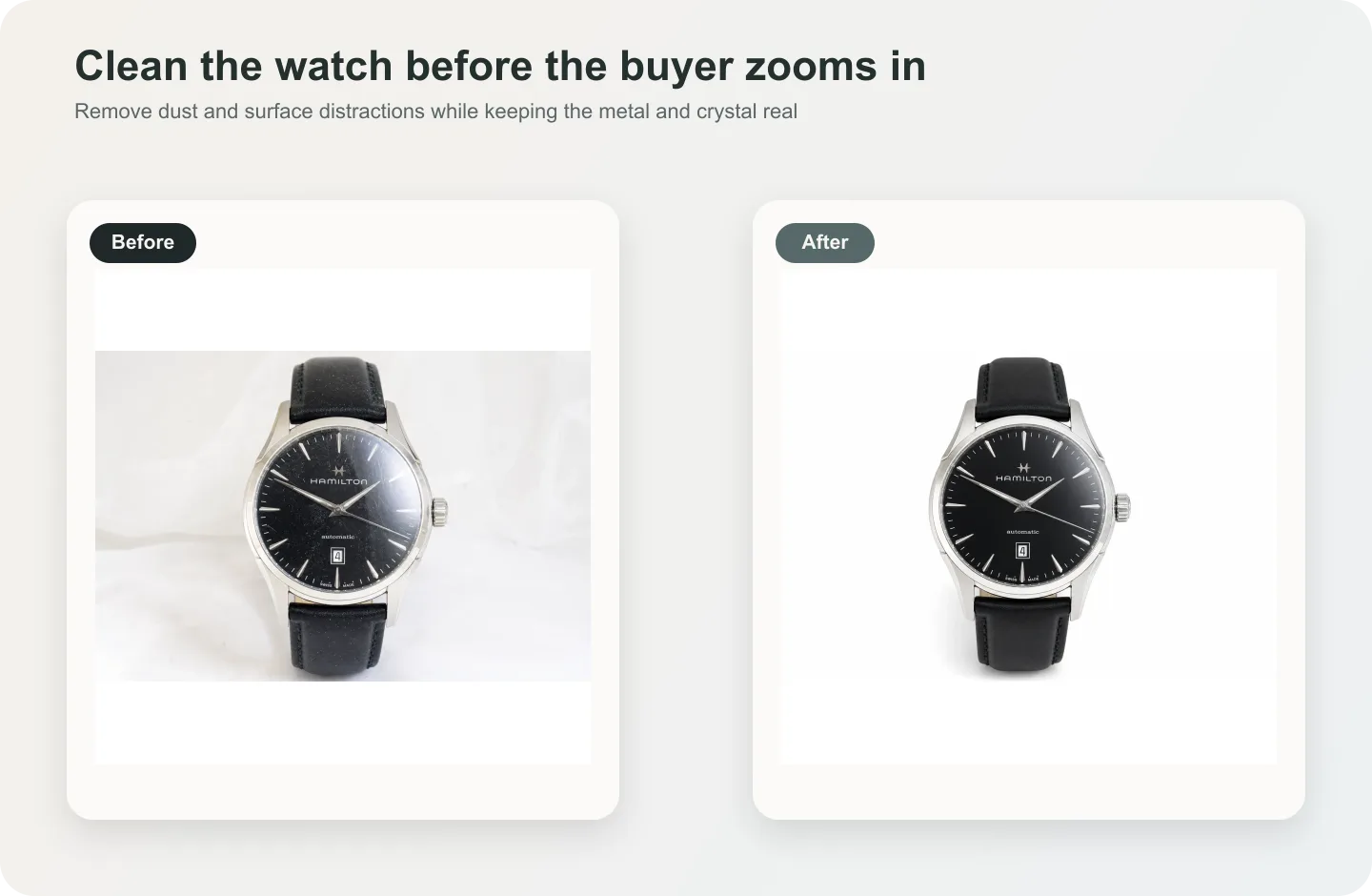
Use the [AI image upscaler](/tools/ai-image-upscaler) when the image is too small but still truthful. Upscaling is useful only if it preserves texture and edges. It should not invent label text, stitching, zipper teeth, watch markers, ports, or packaging details.
Use an [AI product image generator](/ai-product-image-generator) or scene workflow when you need a new product role, such as a lifestyle image or ad crop. Start from a product truth list and review the generated image against the original reference before publishing.
A Retouching Workflow For Ecommerce Images
Use this workflow before publishing retouched product photos:
- Pick the clearest source image of the actual SKU.
- Write a product truth list before editing: color, material, parts, label area, scale, and details that must stay fixed.
- Mark the retouching blocker in one sentence, such as "remove lint near strap" or "clean gray background scuffs."
- Make one edit at a time.
- Compare the result against the source image and the product truth list.
- Create the next image role only after the retouched main image passes review.
- Check the full gallery for consistency across main image, detail crop, lifestyle photo, and ad crop.
For the bag example, that means the cleaned main image can remove lint and background marks, but the detail crop still needs to show the same leather grain, zipper teeth, buckle shape, strap stitching, and brand stamp.
Use Detail Images As A Truth Check
Detail images are not decoration. They are evidence. A strong detail crop should help a buyer verify something that matters:
- leather grain, stitching, zipper, buckle, and edge paint for bags
- cap shape, pump, label, glass thickness, and liquid color for skincare
- knit ribbing, seams, buttons, collar, hem, and fabric drape for apparel
- ports, buttons, vents, seams, LEDs, and material finish for electronics
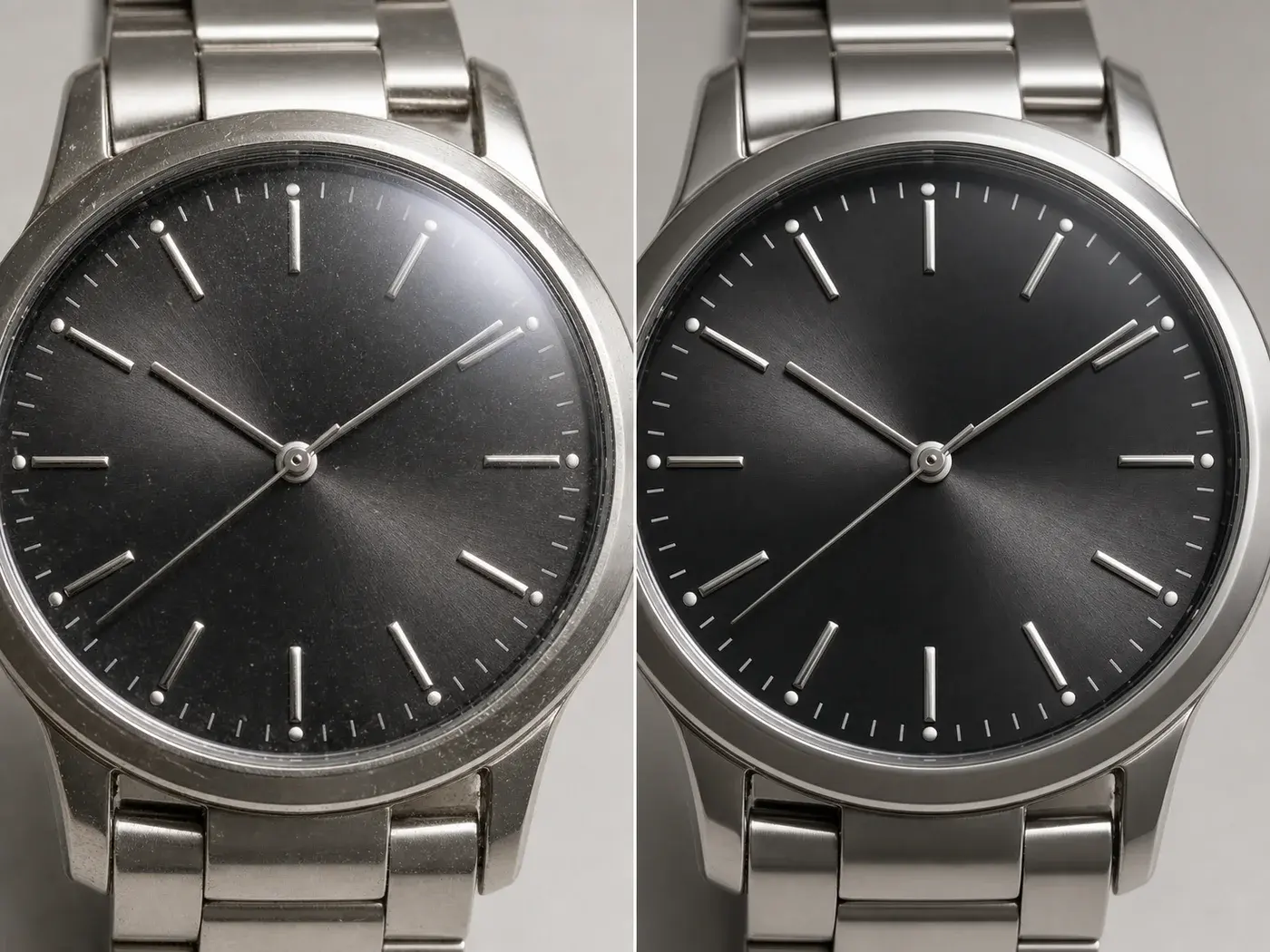
- dial markers, crown, case finish, strap stitching, and hands for watches
If AI product retouching makes the hero image cleaner but the detail crop no longer matches, do not publish the set. Retouching should reduce visual noise, not create product drift.
Pre-Publish Retouching Checklist
Run this checklist after using product retouching AI:
- Same SKU: the retouched image still shows the same product.
- Same color: the product color did not shift into a more flattering but inaccurate shade.
- Same material: leather, fabric, glass, metal, paper, plastic, or ceramic still looks believable.
- Same hardware: zippers, buckles, ports, caps, pumps, buttons, and straps are unchanged.
- Same label area: logos, stamps, and package text did not move or change shape.
- Clean edge: cutouts have no halos, missing corners, or jagged transparent areas.
- Natural shadow: the product still sits on the surface instead of floating.
- No fake proof: the image does not add badges, review stars, certifications, platform UI, discounts, QR codes, barcodes, or unsupported claims.
- Gallery match: the main image, detail crop, lifestyle image, and ad crop still describe one product.
If a retouching result fails one of these checks, use a narrower edit or return to the original source.
FAQ
What is product retouching AI?
Product retouching AI uses image-editing models to clean ecommerce product photos. It can remove small distractions, clean backgrounds, improve cutout edges, upscale accurate images, and prepare detail or lifestyle views. The goal is a clearer product image, not a redesigned product.
What should I remove from a product photo?
Remove distractions that are not part of the product: dust, lint, fingerprints, background scuffs, loose props, rough cutout edges, and minor lighting issues. Keep any detail that affects the product's real appearance, construction, function, material, or scale.
Can AI retouch product photos without changing the SKU?
It can, but only when the workflow is controlled. Use a product truth list, make one narrow edit at a time, and compare the output against the source image. If color, shape, hardware, labels, seams, or scale drift, the edit should be rejected.
Is product photo retouching the same as background removal?
No. Background removal is one retouching task. Product photo retouching can also include object cleanup, edge repair, glare control, resolution improvement, detail crops, and lifestyle image preparation. Choose the task based on the publishing blocker.
Should I use AI retouching on marketplace product images?
You can use AI retouching to prepare cleaner marketplace images, but do not treat it as an approval guarantee. Check the current rules for your selling channel and avoid misleading product changes, fake badges, platform UI, review stars, certifications, or unsupported claims.
Conclusion
Product retouching AI works when it removes the noise around a product and protects the facts of the product itself. Clean the dust, lint, background marks, cutout edges, and resolution problems that make an image harder to use. Leave the SKU-defining details alone. In KrafLayer, that means choosing the narrow edit first, reviewing the result against a product truth list, and building the rest of the image set only after the product still looks honest.
Keep exploring
Continue the story
More practical guidance on product accuracy, composition, and conversion-ready visuals.
Put it into practice
Take the next step in KrafLayer
Choose a generation or editing workflow that matches what you just learned.