Edit tools
Remove Product Backgrounds: 8-Step Ecommerce Workflow
TL;DR
Remove product backgrounds without manual masking, inspect alpha edges, handle glass and fine detail, and export transparent or white files.
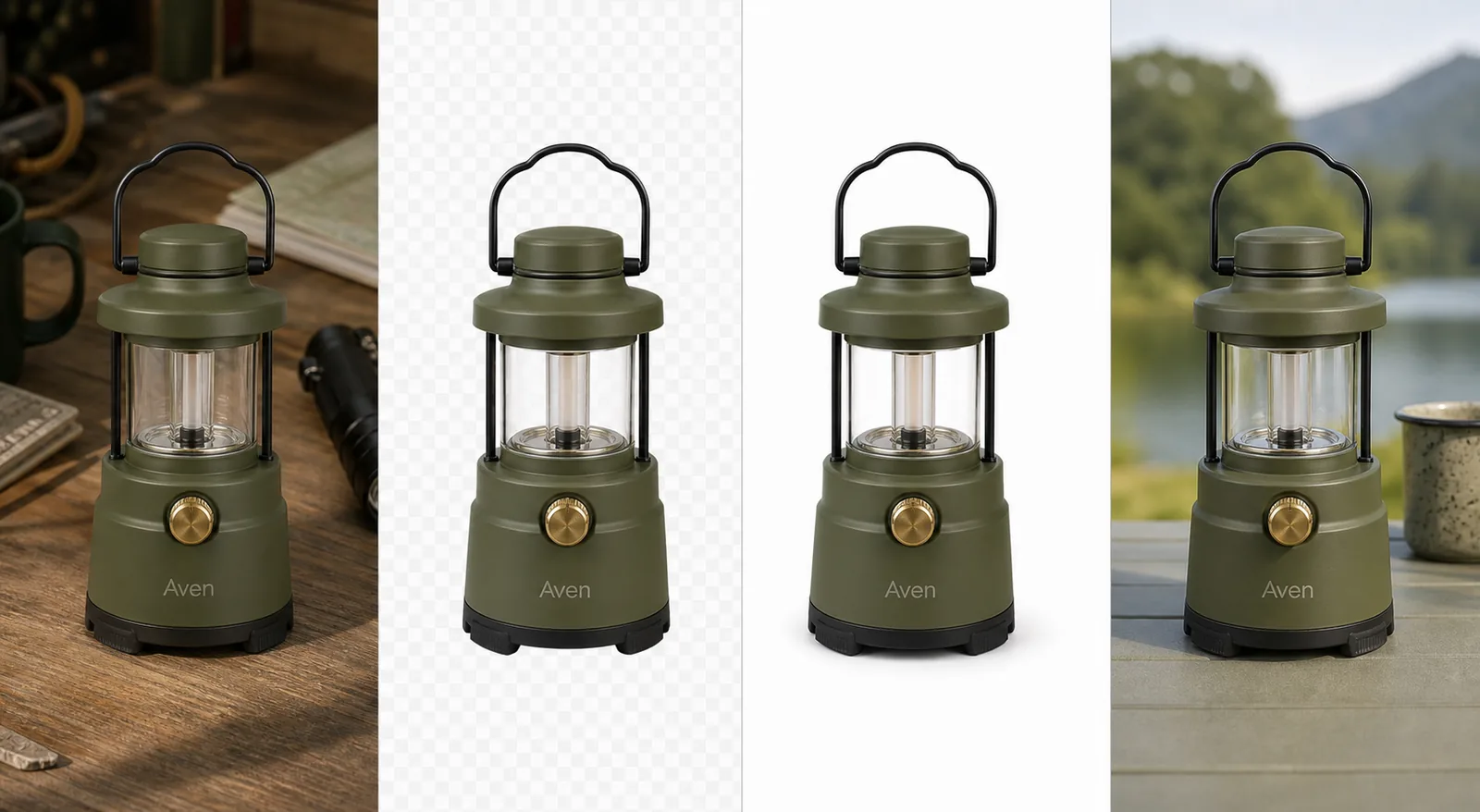
AI background removal is useful when it produces a reusable cutout without eating the product's real edges. The hard cases are not square cardboard boxes. They are glass, mesh, fur, hair-like fibers, polished metal, thin straps, soft shadows, and any pale object already sitting on white.
The analysis uses current guidance from Google and from Etsy, Shopify, and eBay, checked on August 11, 2026. The lantern sequence is a KrafLayer demonstration, not a measured accuracy test or customer result.
Quick Summary
Remove the background, inspect the alpha edge at 100%, test the cutout on black and white, then export separate transparent and channel-ready versions. Google accepts white or transparent backgrounds but warns that light products on transparency may display against black. Etsy always converts transparency to black.
Abstract
One-click removal should be the first pass, not the final approval. Review silhouette, semi-transparent regions, holes, fine details, color spill, and contact shadow. Keep a transparent master for reuse, then flatten a white or colored copy for the destination.
Key Takeaways
- Transparent pixels and clean edges are separate problems.
- Checkerboards can hide white halos and missing pale details.
- Etsy transparency renders black.
- Preserve a natural contact shadow only when the image role needs one.
- Reshoot when the product boundary is not visible in the source.
Table of Contents
1. [What background removal changes](#what-does-background-removal-actually-change) 2. [The step-by-step method](#how-do-you-remove-a-product-background-without-manual-masking) 3. [Alpha edge review](#how-do-you-check-a-transparent-cutout) 4. [Difficult materials](#which-products-need-extra-review) 5. [Transparent versus white](#should-you-export-transparent-png-or-white-background) 6. [Channel rules](#what-do-platforms-require) 7. [When one click is not enough](#when-should-you-correct-or-reshoot) 8. [Frequently asked questions](#frequently-asked-questions)
What Does Background Removal Actually Change?
Google recommends a solid white or transparent product background and requires accurate representation of the actual product. A remover therefore has one narrow job: classify product and non-product pixels without altering the SKU itself ([Google Merchant Center](https://support.google.com/merchants/answer/6324350?hl=en), 2026).
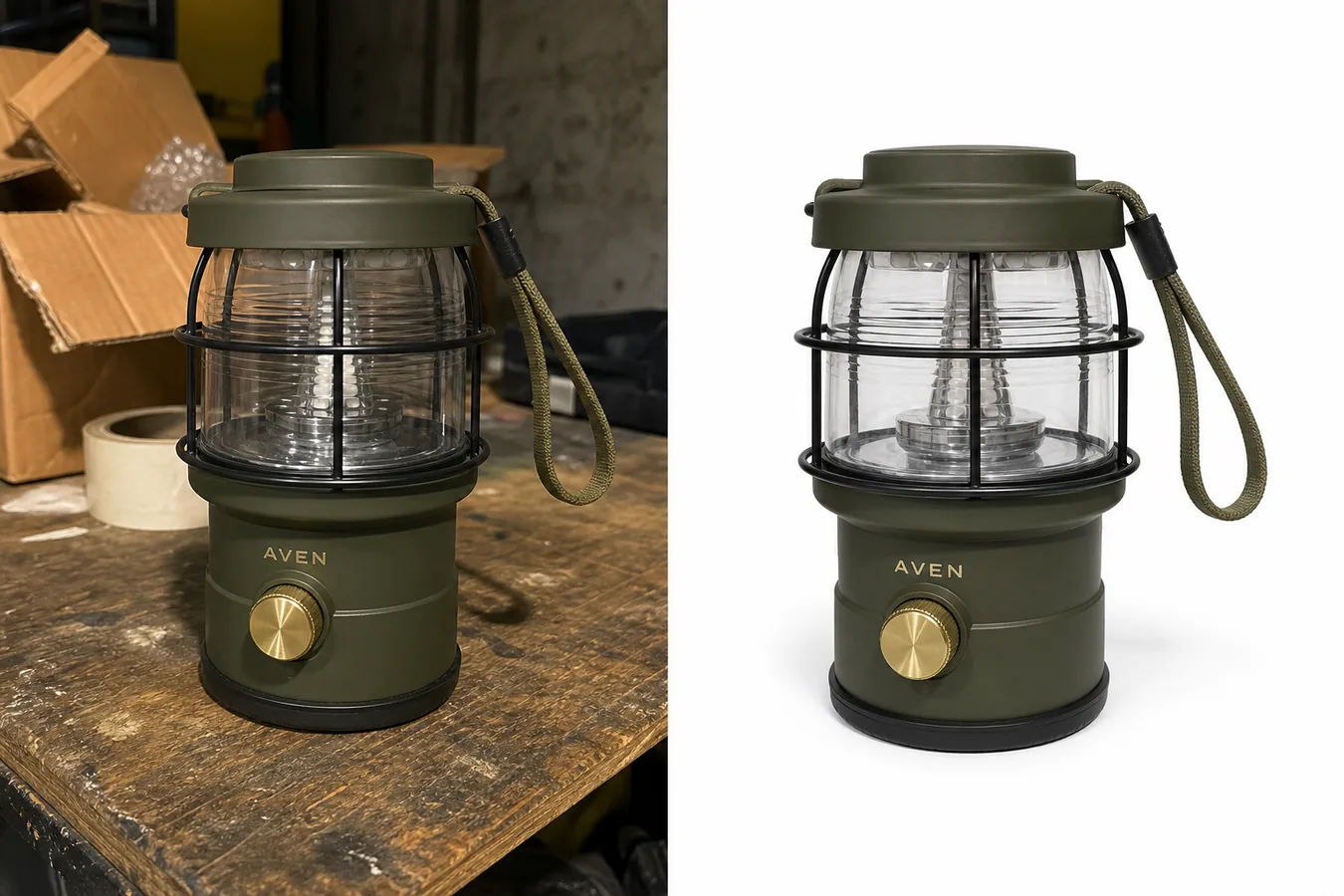
We evaluated the workflow by edge fidelity and destination behavior, not by a cross-tool precision score. The demonstration below exposes four stages that should remain separate: source, transparent cutout, white-background export, and optional lifestyle scene.
*KrafLayer demonstration composite. Inspect the lantern handle, glass panes, interior frame, feet, and contact area. The outdoor scene is a separate edit after removal.*
How Do You Remove a Product Background Without Manual Masking?
Google recommends the largest high-resolution source available, up to 64 megapixels and 16 MB, and warns against submitting upscaled thumbnails. A sharp boundary gives automatic segmentation more real evidence to work with ([Google Merchant Center](https://support.google.com/merchants/answer/6324350?hl=en), 2026).
1. Upload the largest original source to the [AI Background Remover](/tools/ai-background-remover). 2. Generate the automatic cutout without adding a new scene. 3. Place the result on black, white, and a saturated inspection color. 4. Zoom to 100% around outer edges, holes, translucent areas, and shadows. 5. Compare the product's silhouette and internal openings with the source. 6. Save a transparent PNG master. 7. Create white, neutral, or lifestyle branches from that master. 8. Export the required pixel size and format for each channel.
Do not repeatedly remove the background from compressed descendants. Return to the best source or clean master for each new branch.
How Do You Check a Transparent Cutout?
Etsy converts transparent parts of an image to black, and Google warns that light products on transparent backgrounds may also appear against black. Those behaviors make dual-background inspection necessary ([Etsy Help](https://help.etsy.com/hc/en-us/articles/115015663347-Requirements-and-Best-Practices-for-Images-in-Your-Etsy-Shop); [Google Merchant Center](https://support.google.com/merchants/answer/6324350?hl=en), 2026).
| Edge defect | What it looks like | Likely cause | Action |
|---|---|---|---|
| White halo | Pale fringe on dark background | Old background color remains in edge pixels | Refine/decontaminate edge or use a better source |
| Dark halo | Dirty fringe on white | Matting against a dark source | Correct fringe before flattening |
| Cut bite | Missing notch in silhouette | Mask classified product as background | Restore locally or rerun with clearer source |
| Filled hole | Handle or gap becomes solid | Internal negative space missed | Correct the alpha region |
| Hard plastic edge | Soft/fibrous material looks cut with scissors | Edge transition too sharp | Restore a controlled soft transition |
| Ghost shadow | Detached gray stain under product | Source shadow partly retained | Remove or rebuild a coherent contact shadow |
A checkerboard shows transparency but is not enough. White halos vanish on white squares, and dark halos vanish on dark squares. Inspect solid backgrounds too.
Make the reusable asset first
Create a transparent cutout with the [AI Background Remover](/tools/ai-background-remover), test it on contrasting colors, and only then build white main images or new scenes.
Which Products Need Extra Review?
Shopify accepts product images up to 5000 × 5000 pixels or 25 megapixels, which gives sellers room to retain edge detail. Resolution matters most for the product classes that segmentation finds ambiguous ([Shopify Help Center](https://help.shopify.com/en/manual/products/product-media/product-media-types), 2026).
| Product class | Typical failure | Review point |
|---|---|---|
| Clear glass | Background remains visible through product | Preserve pane shape, distortion, and highlights |
| Polished metal | Reflection is mistaken for background | Keep the true outer edge and material contrast |
| Mesh or lace | Openings fill or strands disappear | Inspect repeating holes across the whole item |
| Fur and fibers | Fine strands are clipped | Compare perimeter density with source |
| Thin straps and cables | Narrow parts vanish | Trace each connection end to end |
| White-on-white products | Boundary has too little contrast | Try a better-lit source or light-gray capture |
| Soft contact shadows | Shadow is removed or detached | Decide whether the role needs a grounded or floating asset |
Transparent material is not simply partially visible background. It changes and reflects what sits behind it. If the final placement differs radically from the source, manual compositing or a new photograph may be more truthful.
Should You Export Transparent PNG or White Background?
PNG supports translucent backgrounds, while JPEG does not. Amazon's product-photo guide describes pure white as the default for product shots, and Google recommends white or transparent. Keep both when possible: transparent for production, flattened white for a predictable listing ([Amazon](https://sell.amazon.com/blog/product-photos); [Google Merchant Center](https://support.google.com/merchants/answer/6324350?hl=en), 2026).
| Output | Use it for | Main caution |
|---|---|---|
| Transparent PNG | Reusable master, layouts, later background replacement | Larger files and destination rendering differences |
| White JPEG/WebP | Main listing image and predictable presentation | Loses alpha and can reveal edge contamination |
| Neutral-color JPEG/WebP | Owned-store secondary or collection card | Must not change perceived product color |
| Generated scene | Lifestyle or campaign branch | Requires product, lighting, and scale review |
Do not confuse the transparent master with a finished main image. Crop, product fill, shadow, file size, and platform rules still need a channel-specific pass.
What Do Platforms Require?
Google will require all product images to reach 500 × 500 pixels from January 31, 2027 and recommends around 1500 × 1500 or larger. Etsy recommends 2000 pixels in both dimensions. eBay requires at least 500 × 500 and recommends about 1600 × 1600 ([Google](https://support.google.com/merchants/answer/6324350?hl=en); [Etsy](https://help.etsy.com/hc/en-us/articles/115015663347-Requirements-and-Best-Practices-for-Images-in-Your-Etsy-Shop); [eBay](https://www.ebay.com/help/selling/listings/adding-pictures-listings?id=4148), 2026).
Background removal does not guarantee approval. The correct item, variant, crop, resolution, overlays, props, and category policy still matter. A clean alpha mask can be technically excellent and still be the wrong listing image.
When Should You Correct or Reshoot?
Correct locally when the automatic mask misses a small, visible area and the source clearly shows what belongs there. Reshoot when the boundary itself is absent: blown-out white edges, motion blur, severe compression, an object blocking the product, or transparent material with no readable separation.
Do not ask an upscaler to reconstruct an edge that never existed in the capture. It may produce a plausible strap, strand, letter, or clasp, but the result is not verified product evidence.
Verdict
One-click removal is useful when approval still happens by eye. Save the transparent master, inspect it on contrasting solid colors, and flatten a destination-specific copy. If the source never shows the true boundary, stop repairing the mask and make a better photograph.
Frequently Asked Questions
How do I remove a product background without Photoshop?
Use an automatic browser background remover, then inspect the result rather than accepting the preview. Test the transparent cutout on white, black, and a saturated color; compare edges and internal holes with the source; save a PNG master; and flatten separate channel-ready copies.
Is a transparent background accepted everywhere?
No. Google accepts or recommends transparency in many cases but warns about light products appearing on black. Etsy always turns transparent pixels black. Preserve a transparent production master, then export a flattened version suited to the destination.
Why does my cutout have a white outline?
The edge pixels still contain color from the old white background. The halo may disappear on white but become obvious on dark or colored layouts. Inspect against several solid colors, correct the fringe, or return to a sharper, better-separated source.
Should I keep the product shadow?
Keep or rebuild a restrained contact shadow when the product should appear grounded. Remove it for a flexible transparent asset if the old shadow is tied to the discarded scene. Never keep a detached shadow that conflicts with the final light direction.
Can automatic removal handle glass and mesh?
It can produce useful first passes, but clear glass, reflections, mesh openings, lace, fibers, and thin straps need full-resolution review. If the source does not separate those details from the old background, a new capture or manual correction is safer.
References
1. [Google Merchant Center: Image link requirements](https://support.google.com/merchants/answer/6324350?hl=en), accessed August 11, 2026. 2. [Etsy Help: Image requirements and best practices](https://help.etsy.com/hc/en-us/articles/115015663347-Requirements-and-Best-Practices-for-Images-in-Your-Etsy-Shop), accessed August 11, 2026. 3. [Shopify Help Center: Product media types](https://help.shopify.com/en/manual/products/product-media/product-media-types), accessed August 11, 2026. 4. [eBay Help: Adding pictures to listings](https://www.ebay.com/help/selling/listings/adding-pictures-listings?id=4148), accessed August 11, 2026.
Keep exploring
Continue the story
More practical guidance on product accuracy, composition, and conversion-ready visuals.
Put it into practice
Take the next step in KrafLayer
Choose a generation or editing workflow that matches what you just learned.