Edit tools
Replace Product Background With AI: 6-Point Realism Check
TL;DR
Replace product backgrounds with AI while preserving SKU identity, physical lighting, contact shadow, reflections, and believable scale.
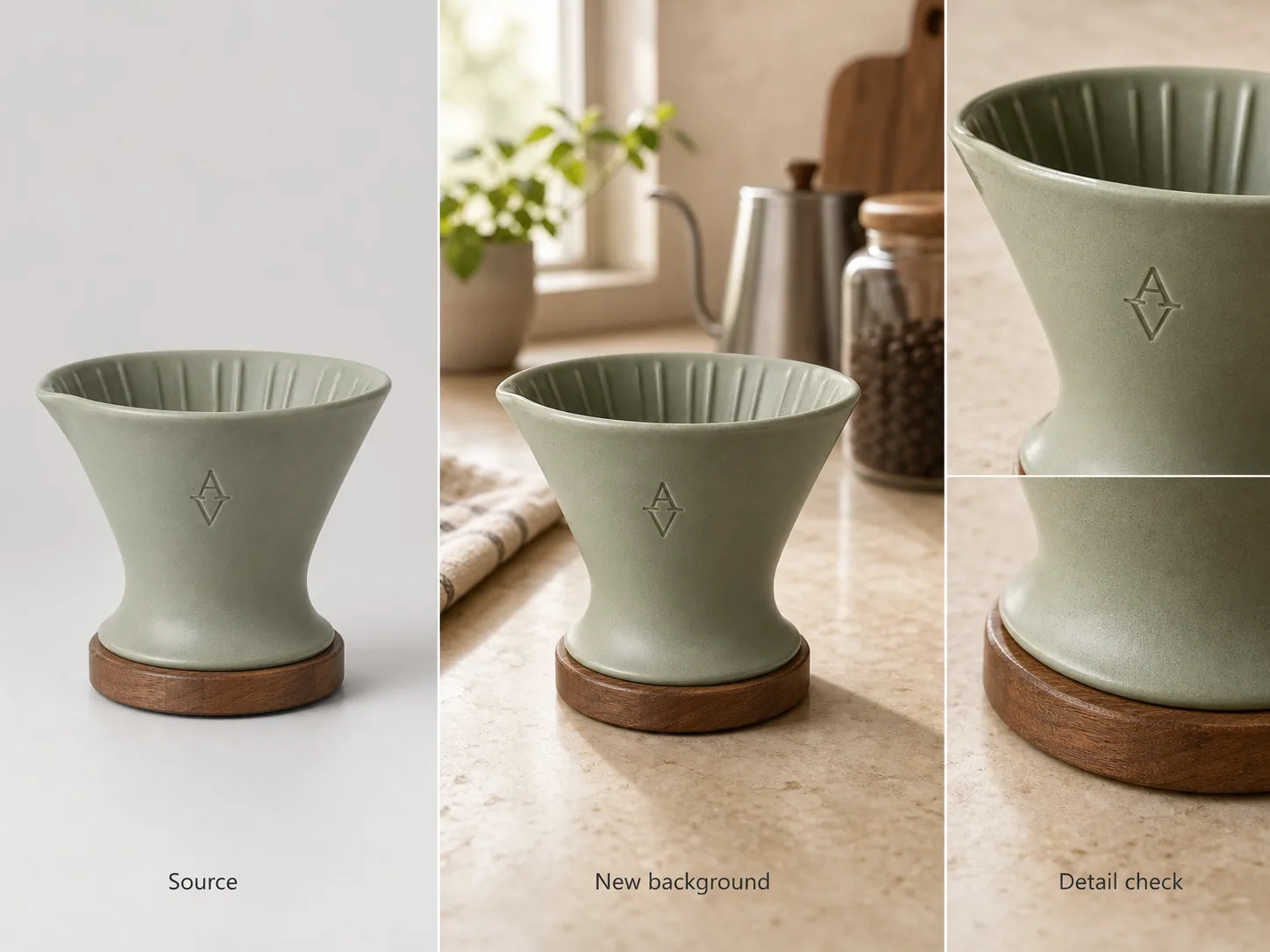
Replacing a product background with AI is an inpainting problem, not a decorating problem. The new scene must make physical sense around the original product while the SKU's silhouette, label, material, color, and included parts remain unchanged. A beautiful kitchen is a failed edit if the bottle shape drifts or the contact shadow points the wrong way.
The workflow combines current marketplace guidance with product-background research published at AAAI 2025. The visual examples are KrafLayer demonstrations, not controlled benchmarks or customer results.
Quick Summary
AAAI researchers identify inappropriate backgrounds and product inconsistency as the two central failures in automated product-image inpainting. Protect the product first, specify the scene second, then inspect geometry, lighting, contact, reflections, text, and scale before publishing.
Abstract
Use a clean, high-resolution product source; describe one physically plausible scene; keep the product region protected; generate a few variants; and compare each output with the original at full size. If the source lacks factual detail, reshoot instead of asking generation to invent it.
Key Takeaways
- Background removal creates a cutout; replacement creates a new environment.
- Product identity and scene plausibility need separate review.
- Text-only prompts cannot prove that the SKU stayed accurate.
- Contact shadow, reflection, and perspective expose fake-looking edits quickly.
- A plain factual image should remain in the gallery.
Table of Contents
1. [Evidence and limits](#what-evidence-supports-the-workflow) 2. [Removal versus replacement](#how-is-background-replacement-different-from-removal) 3. [Source preparation](#what-source-image-should-you-use) 4. [Prompt structure](#what-should-the-background-prompt-contain) 5. [Six-part realism review](#how-do-you-review-an-ai-replaced-background) 6. [Workflow](#what-is-the-safest-step-by-step-workflow) 7. [When to reject AI](#when-should-you-reshoot-or-composite-manually) 8. [Frequently asked questions](#frequently-asked-questions)
What Evidence Supports the Workflow?
A 2025 AAAI paper on product-image background inpainting describes two recurring failure classes: inappropriate backgrounds and inconsistent products. Its authors trained an evaluation method using human feedback from 44,000 automatically inpainted product images, which underlines why visual review cannot stop when the background looks nice ([AAAI paper](https://ojs.aaai.org/index.php/AAAI/article/download/32027/34182), 2025).
We translated those two classes into a practical review: scene plausibility plus product fidelity. We did not run a lab comparison across commercial tools. The KrafLayer images below show what to inspect, not a measured win rate.
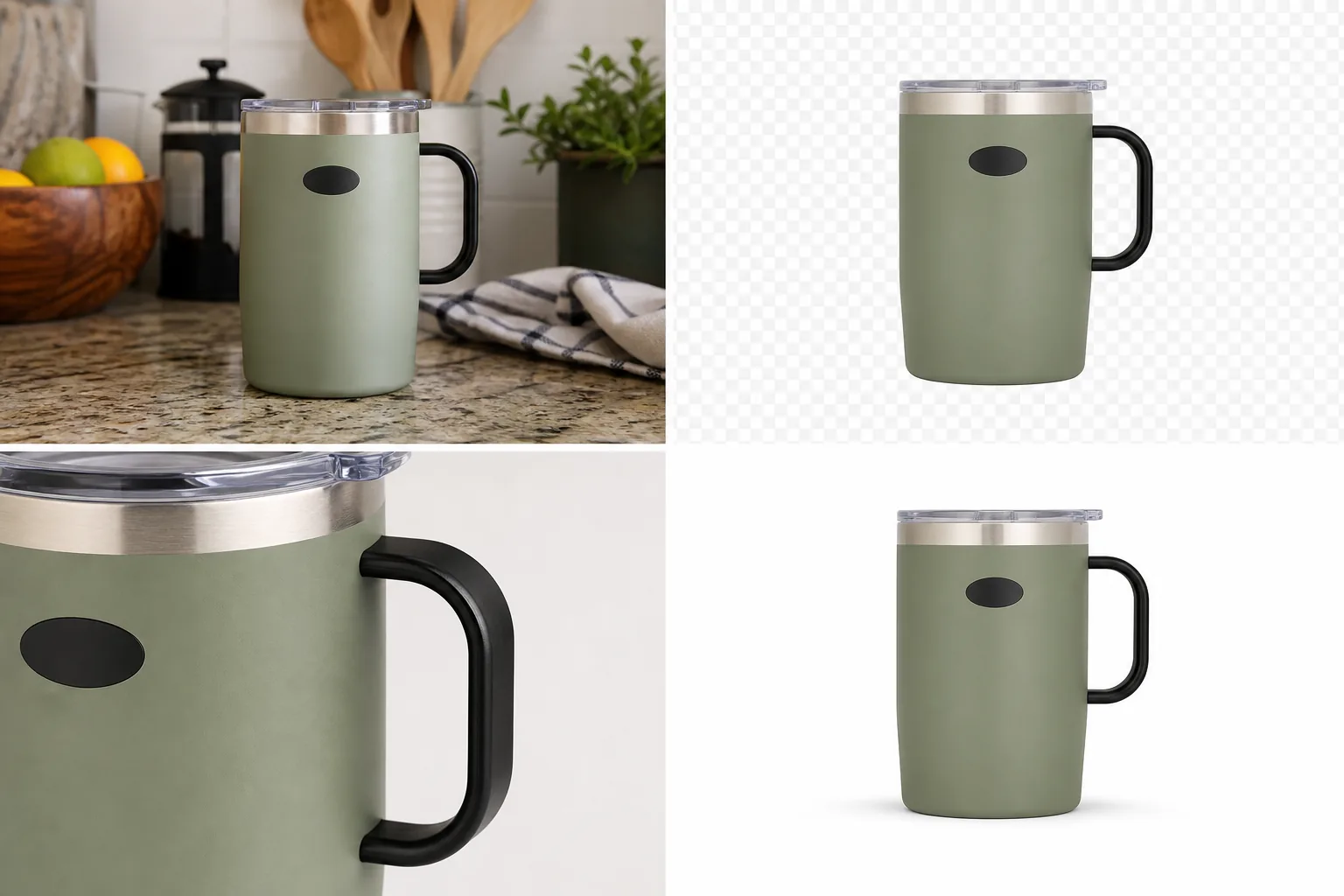
*KrafLayer demonstration composite. The third panel matters most: compare shape, label, material, and edge treatment after judging the new kitchen scene.*
How Is Background Replacement Different From Removal?
Google recommends solid white or transparent backgrounds for product feeds but also accepts clear staged or lifestyle images. Removal prepares a neutral asset; replacement creates the staged context and adds more variables, including perspective, surface, light, reflection, and implied scale ([Google Merchant Center](https://support.google.com/merchants/answer/6324350?hl=en), 2026).
| Operation | What changes | Best use | Main failure |
|---|---|---|---|
| Background removal | Pixels outside the product become transparent | Reusable cutout, white main image | Trimmed edges, halos, lost transparency |
| Flat background replacement | Cutout is placed on one color or simple gradient | Catalog consistency | False shadow or color spill |
| Generated scene replacement | AI builds a new environment around the product | Secondary and campaign imagery | Product drift and physically impossible context |
| Full image regeneration | Product and scene are regenerated together | Concept exploration | Highest risk of changing the SKU |
Use the narrowest operation that solves the problem. If only the backdrop is messy, do not regenerate the bottle.
What Source Image Should You Use?
Google recommends the largest trustworthy image available, up to 64 megapixels and 16 MB, and says not to upscale a thumbnail. The source should show the whole product, the correct variant, and the details you need the output to preserve ([Google Merchant Center](https://support.google.com/merchants/answer/6324350?hl=en), 2026).
A strong source has sharp edges, readable marks, controlled glare, and enough empty space for the intended crop. Use multiple product views when side geometry matters. One front view cannot reveal a connector on the back or the exact depth of a handle.
Before generation, write a short identity lock. Record the exact category and variant color, then the silhouette and proportions. Add visible label placement, material finish, required components, included accessories, and any feature the model must not invent.
What Should the Background Prompt Contain?
The 2025 DreamPainter paper argues that ecommerce background generation must balance product consistency with spatial arrangement, shadows, and reflections, and that text-only control is limited for precise inpainting ([DreamPainter](https://arxiv.org/abs/2508.02155), 2025). A prompt can guide the scene, but the source image remains the factual anchor.
Build the prompt in the following order:
1. Image role: secondary lifestyle product image for a store gallery. 2. Surface and setting: pale stone kitchen counter beside a softly lit wall. 3. Camera: eye-level three-quarter view, 50 mm product-photography feel. 4. Light: large soft window from camera left, restrained fill from right. 5. Contact: realistic soft shadow directly under the product. 6. Constraints: preserve product silhouette, color, label, cap, and proportions; add no accessories touching the product.
Avoid prompt soup. A request for a luxury, cinematic, minimalist, rustic, futuristic kitchen with dramatic sun contains conflicting physical cues. One coherent room is easier to review.
Replace the setting, then inspect the SKU
Try the [AI Background Replacer](/tools/ai-background-replacer) with one concrete scene. Keep the source open beside the result and reject any version that changes product facts.
How Do You Review an AI-Replaced Background?
Amazon says appealing product photos must still be accurate, and Google requires the image to show the correct product variant. Those policies turn fidelity review into a publishing requirement, not an aesthetic preference ([Amazon](https://sell.amazon.com/blog/product-photos); [Google Merchant Center](https://support.google.com/merchants/answer/6324350?hl=en), 2026).
| Review | Ask | Reject when |
|---|---|---|
| Geometry | Does silhouette and proportion match the source? | Handle, cap, opening, or body shape shifts |
| Light | Does light direction agree across scene and product? | Product highlight comes from the opposite side |
| Contact | Does the product sit on the surface? | Shadow gap makes it float or sink |
| Reflection | Do glossy surfaces reflect the new environment plausibly? | Metal or glass keeps an impossible old reflection |
| Text and material | Are label, grain, weave, and finish intact? | Letters mutate or material becomes plastic |
| Scale | Do props and perspective imply believable size? | A mug appears the size of a vase |
Inspect at three sizes: thumbnail for hierarchy, normal gallery size for plausibility, and 100% zoom for edges and text. The error often changes with scale.
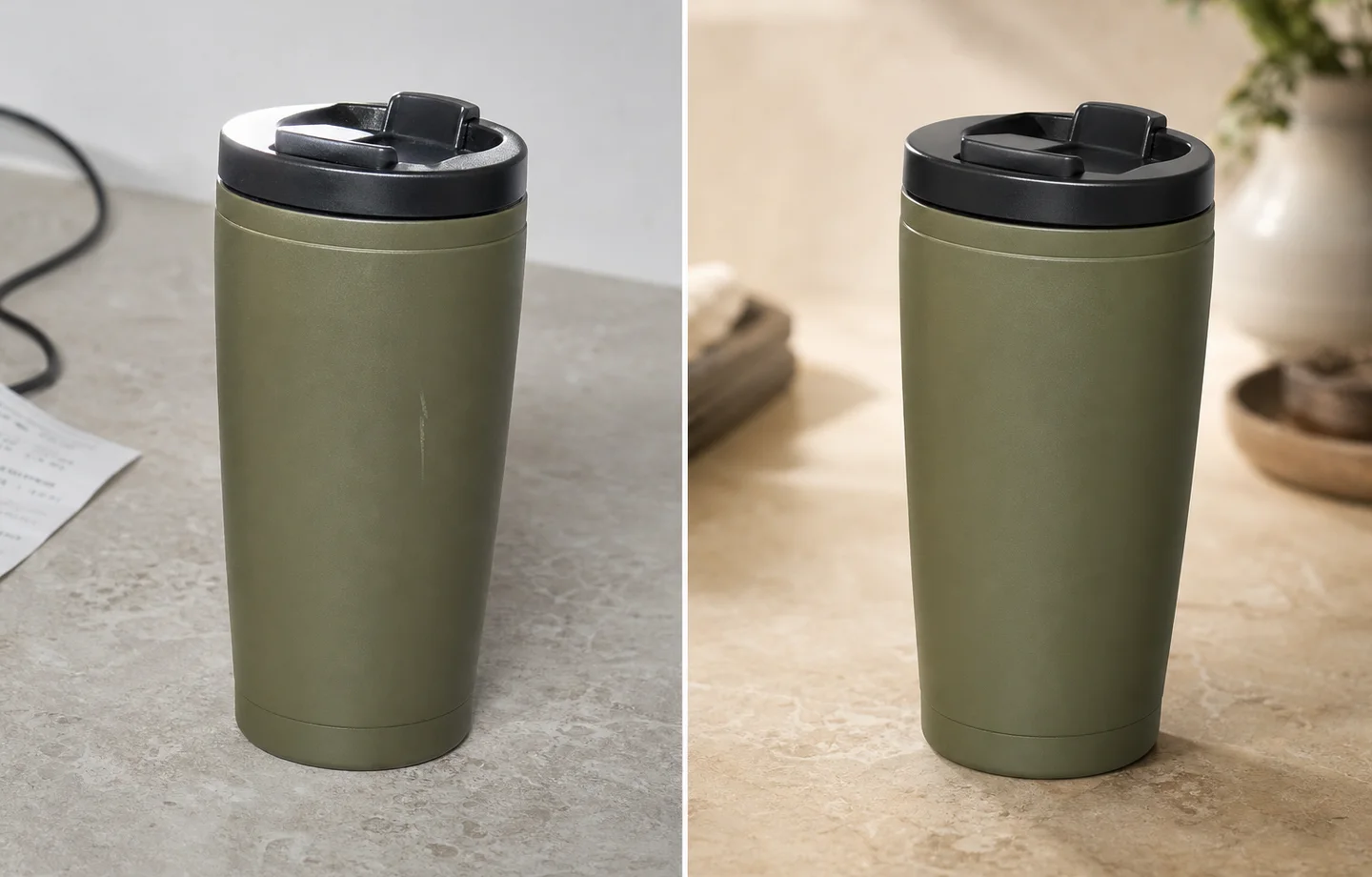
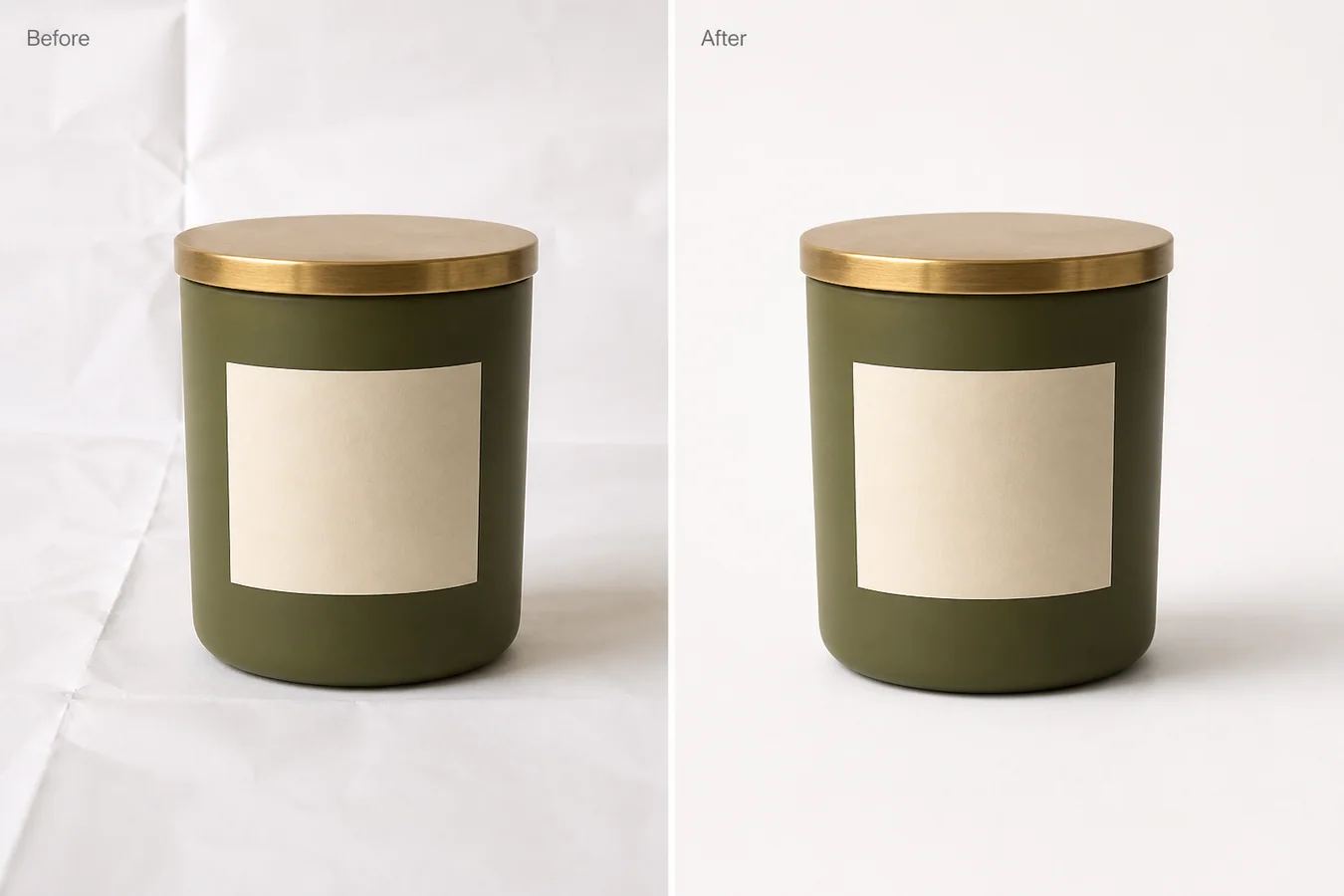
*Published demonstration. The warm room is secondary. First compare the lid, body taper, color, contact shadow, and the direction of light.*
What Is the Safest Step-by-Step Workflow?
Amazon recommends product images larger than 1,000 pixels on each side for zoom. That level of detail also makes review more useful: tiny previews hide altered letters, clipped rims, and broken reflections ([Amazon](https://sell.amazon.com/blog/product-photos), 2026).
1. Keep an untouched master and note the target channel. 2. Remove or clean the old background without changing the product. 3. Choose one image role and one plausible environment. 4. Generate two to four variations, not dozens of unrelated scenes. 5. Eliminate outputs with obvious product drift. 6. Compare the best candidate with the source using the six-part table. 7. Make local corrections only where needed. 8. Export a channel-specific copy and preserve the clean cutout. 9. Publish it beside at least one plain factual product view.
The sequence is intentionally conservative. It makes a failed stage replaceable instead of baking every edit into one file.
When Should You Reshoot or Composite Manually?
AI cannot recover factual evidence that the source never captured. Reshoot when the label is unreadable, an important edge is cropped, glare hides the material, or the only view cannot establish the product's depth. Manual compositing is safer when regulated copy, precise packaging, transparent glass, fine jewelry, or contractual brand assets must remain pixel-exact.
Also reject a generated scene when it implies unsupported use. A cosmetic bottle placed beside food, a pillow on a wet floor, or electronics in unsafe conditions may look polished but tells the wrong product story. The AAAI paper treats an inappropriate background as a first-class failure, separate from visual quality.
Verdict
Protect the product first and generate the environment second. The result passes only when both halves work: the SKU remains factual, and the new scene obeys light, contact, reflection, perspective, and scale. If either half fails repeatedly, use a clean composite or reshoot.
Frequently Asked Questions
What is the best way to replace a product background with AI?
Start with a sharp source, protect the product region, describe one plausible scene, generate a small set, and compare every candidate with the original. Review product geometry and label separately from lighting, shadow, reflection, and scale. Keep a plain product image in the final gallery.
Why do AI-replaced backgrounds look fake?
The usual causes are conflicting light direction, a missing or detached contact shadow, incorrect scale, reflections from the old scene, and product edges that do not interact with the new environment. A plausible room cannot hide those physical contradictions.
Can I use AI backgrounds for marketplace main images?
Usually reserve generated scenes for secondary or lifestyle images. Google recommends white or transparent product backgrounds, and Amazon treats pure white as the default for main shots. Category rules vary, so verify the current destination policy before uploading.
Can one reference photo preserve the whole product?
It can preserve visible facts, but it cannot reliably reveal hidden geometry. Use additional angles for the back, side, top, connectors, closures, or deep handles. If an important feature is absent from every source, photograph it instead of asking AI to guess.
How many background variations should I generate?
Generate enough to compare, not enough to lose the brief. Two to four variations of one coherent scene usually reveal whether the prompt and source are working. If all versions alter the same product detail, improve the source or switch to a narrower compositing workflow.
References
1. [AAAI 2025: Evaluation framework for product-image background inpainting](https://ojs.aaai.org/index.php/AAAI/article/download/32027/34182), accessed August 11, 2026. 2. [DreamPainter: Image background inpainting for ecommerce](https://arxiv.org/abs/2508.02155), accessed August 11, 2026. 3. [Google Merchant Center: Image link requirements](https://support.google.com/merchants/answer/6324350?hl=en), accessed August 11, 2026. 4. [Amazon: Six tips for product photos](https://sell.amazon.com/blog/product-photos), accessed August 11, 2026.
Keep exploring
Continue the story
More practical guidance on product accuracy, composition, and conversion-ready visuals.
Put it into practice
Take the next step in KrafLayer
Choose a generation or editing workflow that matches what you just learned.