Edit tools
Best AI for Editing Store Product Photos: 4 Tools Compared
TL;DR
A practical comparison of four AI tools for editing online store product photos, including workflow fit, pricing, batch and API limits, marketplace rules, and product-fidelity checks.
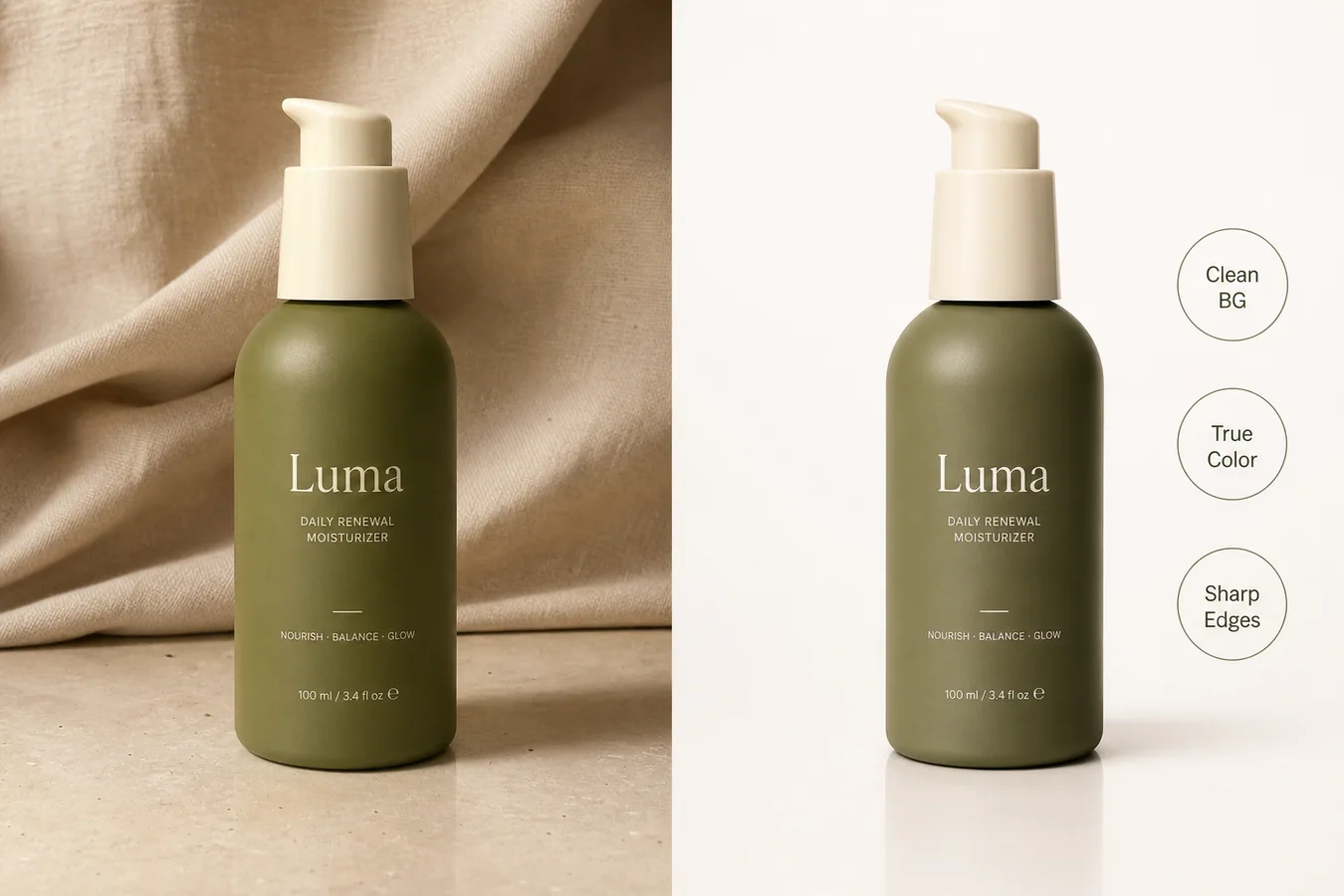
The best AI for editing store product photos depends on the job. KrafLayer fits focused ecommerce cleanup, Photoroom fits API automation, Pixelcut publishes unusually large browser-batch limits, and Adobe Express fits teams that also need a broader design suite. Whichever tool you choose, reject edits that quietly change the SKU.
The comparison covers four current options using public product and pricing documentation checked on August 11, 2026. It also shows how to judge real editing outputs against marketplace image rules. The visual examples are KrafLayer demonstration assets, not customer case studies or a controlled cross-tool benchmark.
Quick Summary
Google will require product images of at least 500 × 500 pixels from January 31, 2027, while Shopify says 2048 × 2048 pixels usually displays best for square product images. Choose an editor by channel requirements, product fidelity, workflow volume, and the exact defect you need to fix.
Abstract
Four editors cover four different needs. KrafLayer is the practical low-cost choice for sellers who want separate ecommerce workflows. Photoroom is stronger for API and catalog automation. Pixelcut publishes unusually high batch limits. Adobe Express fits teams that also need templates and general design. None removes the need for product-level review.
Key Takeaways
- Google recommends that the product occupy 75% to 90% of the image.
- Shopify accepts product images up to 5000 × 5000 pixels or 25 megapixels.
- Etsy recommends listing photos at least 2000 pixels wide and high.
- eBay requires at least 500 × 500 pixels and recommends about 1600 × 1600.
- Product fidelity matters more than the number of AI effects.
Table of Contents
1. [How we evaluated the editors](#how-did-we-evaluate-these-ai-product-photo-editors) 2. [What makes an editor safe for ecommerce](#what-makes-an-ai-product-photo-editor-safe-for-ecommerce) 3. [Marketplace image requirements](#what-image-requirements-must-an-online-store-meet) 4. [Four AI product photo editors compared](#which-ai-product-photo-editor-is-best-for-your-store) 5. [What the image examples show](#what-do-real-editing-examples-reveal) 6. [Which editing workflow should you use](#which-editing-workflow-should-you-use-first) 7. [When should you reshoot instead](#when-should-you-reshoot-instead-of-using-ai) 8. [Pre-publish checklist](#what-should-you-check-before-publishing) 9. [Frequently asked questions](#frequently-asked-questions)
How Did We Evaluate These AI Product Photo Editors?
We reviewed four vendors' public feature pages, price information, batch limits, and API documentation on August 11, 2026, then checked three published KrafLayer demonstration composites at full resolution. The previous article had 1,853 words but only one image and no independent evidence beyond its own asset URL. The new draft replaces feature claims with traceable sources.
The comparison uses four questions:
1. Can the editor solve a specific ecommerce defect? Background removal, object cleanup, upscaling, local correction, and scene replacement are different jobs. 2. Can a reviewer compare the output with the source? A clean image is not useful if a label, color, material, or included accessory changes. 3. Can it reach the store's required volume? Editing ten images manually and standardizing 10,000 images are different purchasing decisions. 4. Can it export a channel-ready file? Pixel dimensions, file size, background treatment, crop, and product fill still matter after the AI work is finished.
We did not run the same source photo through all four paid products because no authorized competitor accounts or API credentials were available for the comparison. Therefore, the article compares documented capabilities and workflow fit, not image-quality scores. Any numeric quality ranking without a controlled test would be made up.
What Makes an AI Product Photo Editor Safe for Ecommerce?
Google recommends that a product fill 75% to 90% of the image and forbids promotional overlays in the main product image. Those rules reveal the real job of an ecommerce editor: make the item easier to inspect while preserving what the buyer will receive, not merely make the composition more dramatic ([Google Merchant Center](https://support.google.com/merchants/answer/6324350?hl=en), 2026).
Apply the following seven-point fidelity check to every edited output:
| Check | Compare against the source | Reject the edit when |
|---|---|---|
| Silhouette | Outer shape, proportions, openings, handles | The product becomes wider, taller, smoother, or structurally different |
| Color | Variant color, white balance, transparency | The output resembles another SKU or hides a color cast |
| Text and marks | Label copy, logo, barcode, warnings | Letters mutate, disappear, or turn into invented claims |
| Material | Grain, weave, gloss, metal, glass | Texture becomes plastic, over-sharpened, or physically implausible |
| Components | Caps, ports, seams, stones, fasteners | A part is added, removed, duplicated, or moved |
| Scale and crop | Product fill and visible boundaries | The crop hides important information or suggests false scale |
| Light and contact | Shadow direction, reflections, surface contact | The product floats or the new scene conflicts with its lighting |
The smallest effective edit is usually the safest. Remove a background when the background is wrong. Mask one region when only that region is wrong. A full scene regeneration creates more places for product drift.
*Published demonstration asset. Inspect the bottle silhouette, olive color, pump geometry, label placement, and contact shadow instead of judging only the cleaner background.*
What Image Requirements Must an Online Store Meet?
Google announced a 500 × 500 pixel minimum for all product images beginning January 31, 2027. It recommends images around 1500 × 1500 pixels or larger, caps files at 64 megapixels and 16 MB, and warns against upscaling thumbnails. An editor can prepare the file, but the merchant remains responsible for the final listing ([Google Merchant Center](https://support.google.com/merchants/answer/12159030?hl=en), 2026).
| Channel | Current official guidance checked August 11, 2026 | Practical export target |
|---|---|---|
| Google Merchant Center | 500 × 500 minimum from January 31, 2027; around 1500 × 1500 or above recommended; maximum 64 MP and 16 MB | Export at least 1500 × 1500 when the source supports it; keep the product at 75% to 90% fill |
| Shopify | Product images up to 5000 × 5000 or 25 MP and under 20 MB; 2048 × 2048 usually displays best for square images | Use a consistent aspect ratio and retain enough resolution for detail views |
| Etsy | Listing photos recommended at 2000 pixels wide and high; first photo should be at least 635 pixels in both dimensions | Use square or horizontal first images with a centered focal point |
| eBay | Minimum 500 × 500; about 1600 × 1600 recommended; up to 12 MB per photo | Use a clean main image plus additional angles and honest flaw close-ups |
Sources: [Google Merchant Center](https://support.google.com/merchants/answer/6324350?hl=en), [Shopify Help Center](https://help.shopify.com/en/manual/products/product-media/product-media-types), [Etsy Help](https://help.etsy.com/hc/en-us/articles/115015663347-Requirements-and-Best-Practices-for-Images-in-Your-Etsy-Shop), and [eBay Help](https://www.ebay.com/help/selling/listings/adding-pictures-listings?id=4148).
These figures are not interchangeable. A platform's upload ceiling is not a recommended working size, and a minimum is not a quality target. Start with the largest trustworthy source image, edit it, then create channel-specific exports. Do not enlarge a thumbnail merely to make its dimensions pass validation.
Fix one real defect before you rebuild the scene
Open the [KrafLayer Product Photo Editor](/product-photo-editor), choose background cleanup, object removal, upscaling, restoration, or a local mask edit, and compare the result with your original before spending credits on a new scene.
Which AI Product Photo Editor Is Best for Your Store?
The four products publish materially different scale signals. KrafLayer starts at $0 with 30 credits every seven days; Photoroom's public Image Editing API charges $0.10 per call; Pixelcut lists batches of up to 10,000 images; Adobe Express accepts files up to 40 MB in its background-removal flow. The right choice depends on volume and control, not a universal score.
| Editor | Best fit | Evidence-backed strengths | Important limitation to verify |
|---|---|---|---|
| KrafLayer | Small and growing stores that want focused ecommerce workflows | Eight editing routes on its product editor hub; free plan has 30 credits every 7 days; Starter is $6 for 350 credits | Public editor pages do not present the same catalog-scale batch or external API proposition as Photoroom and Pixelcut |
| Photoroom | Catalog teams and businesses that need API automation | Image Editing API combines multiple edit options in one $0.10 call; Batch advertises up to 250 images in the web workflow | API calls are billed again for identical repeated requests because caching is not yet available |
| Pixelcut | Sellers that prioritize very large browser-based batches | Publishes batches up to 10,000 images; $10 plan lists 600 monthly AI credits and 1,000 batch exports | Advanced model usage and daily limits vary by plan; API credits are separate from app credits |
| Adobe Express / Firefly | Marketing teams that need product cleanup inside a broad design suite | Free background removal, transparent PNG output, object removal, generative fill, templates, and Stock assets | Batch background removal is positioned for enterprise users, not the ordinary free workflow |
Best for focused product-photo correction: KrafLayer
The public [product photo editor hub](/product-photo-editor) separates eight jobs rather than hiding them behind one prompt. That is useful when a seller can name the defect and wants a direct route to a background remover, object eraser, upscaler, restoration tool, background replacer, mask edit, reference editor, or scene composer.
Price is the clearest entry advantage. The [pricing page](/pricing) lists a free allocation of 30 credits every seven days and a $6 Starter plan with 350 credits every 30 days. The trade-off is scale positioning: if your decision depends on a documented public API or a 10,000-image batch, the evaluated public pages point more clearly to Photoroom or Pixelcut.
Best for API automation: Photoroom
Photoroom's documentation prices its Image Editing API at $0.10 per call and says one call can combine background removal, positioning, shadows, backgrounds, relighting, text removal, expansion, and other edits. The same documentation warns that repeating an identical request is billed again because caching is not available ([Photoroom API](https://docs.photoroom.com/image-editing-api-plus-plan/whats-the-pricing), 2026).
That makes Photoroom easier to evaluate for a marketplace or catalog pipeline where API behavior matters more than the cheapest manual edit. Its public Batch page also describes processing up to 250 images in one web workflow. Test the API on your hardest SKU classes before committing volume, especially glass, reflective packaging, fine jewelry, and text-heavy labels.
Best for very large browser batches: Pixelcut
Pixelcut says its bulk editor handles up to 10,000 images per batch and supports resize, background removal, upscaling, shadows, crop, canvas expansion, and background changes. Its $10 monthly plan lists 600 AI credits and 1,000 batch exports, while API credits are sold separately at $0.01 each ([Pixelcut pricing](https://www.pixelcut.ai/pricing), 2026).
The headline batch number is compelling, but throughput alone does not prove output consistency. Run a representative sample first. A useful sample contains easy opaque products plus difficult transparent, reflective, textured, and label-heavy items.
Best for a broader design ecosystem: Adobe Express
Adobe Express removes backgrounds and downloads transparent PNG files, while Firefly adds object removal, generated backgrounds, upscaling, and generative fill. The background-removal page accepts JPEG, PNG, and WebP uploads up to 40 MB ([Adobe Express](https://www.adobe.com/express/feature/ai/image/remove-background), 2026).
Choose it when product cleanup is one part of a larger design job involving templates, social posts, text, and Adobe assets. If ecommerce batch automation is the main requirement, confirm the plan carefully: Adobe's public materials position batch background removal for enterprise use.
What Do Real Editing Examples Reveal?
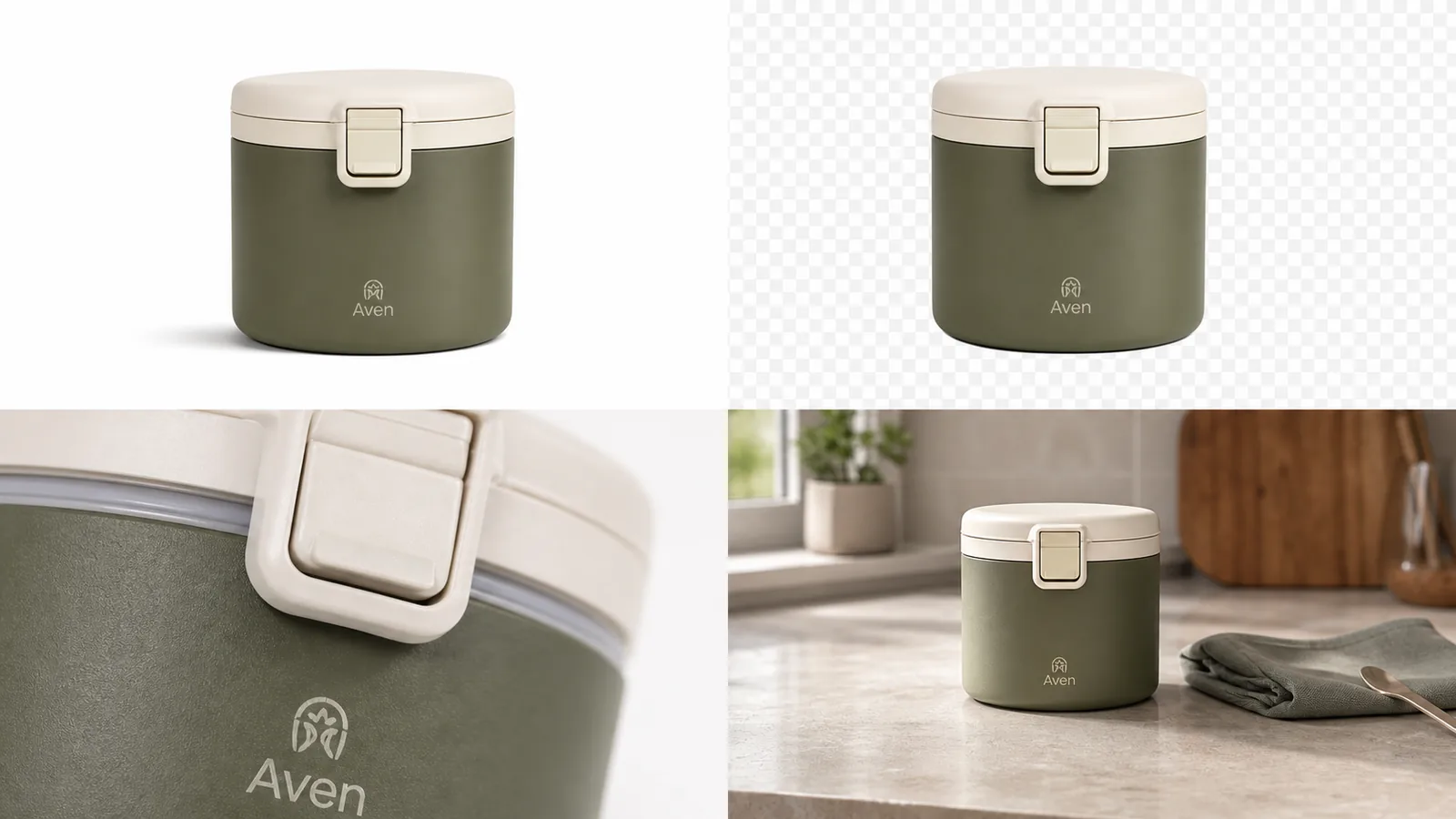
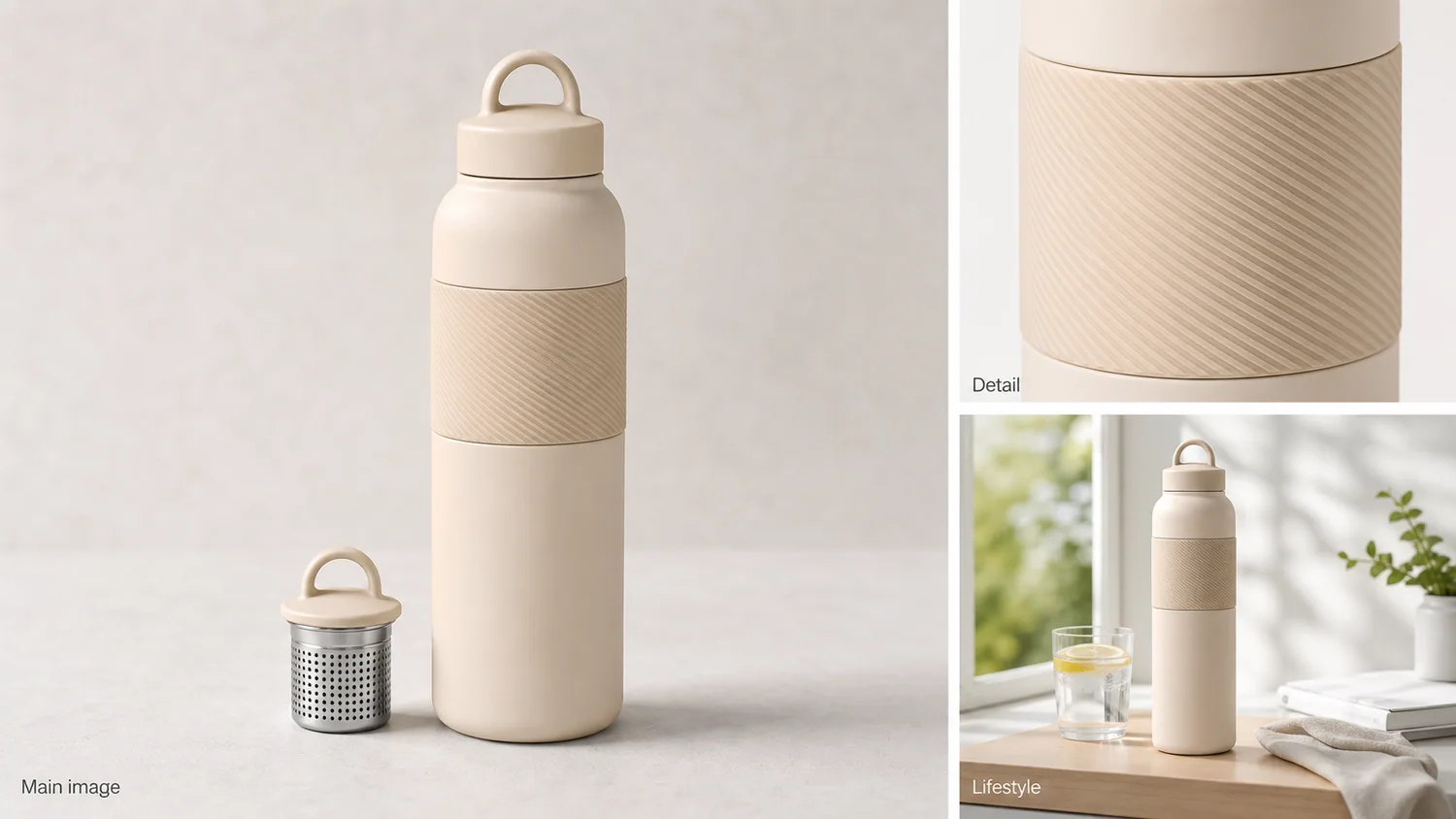
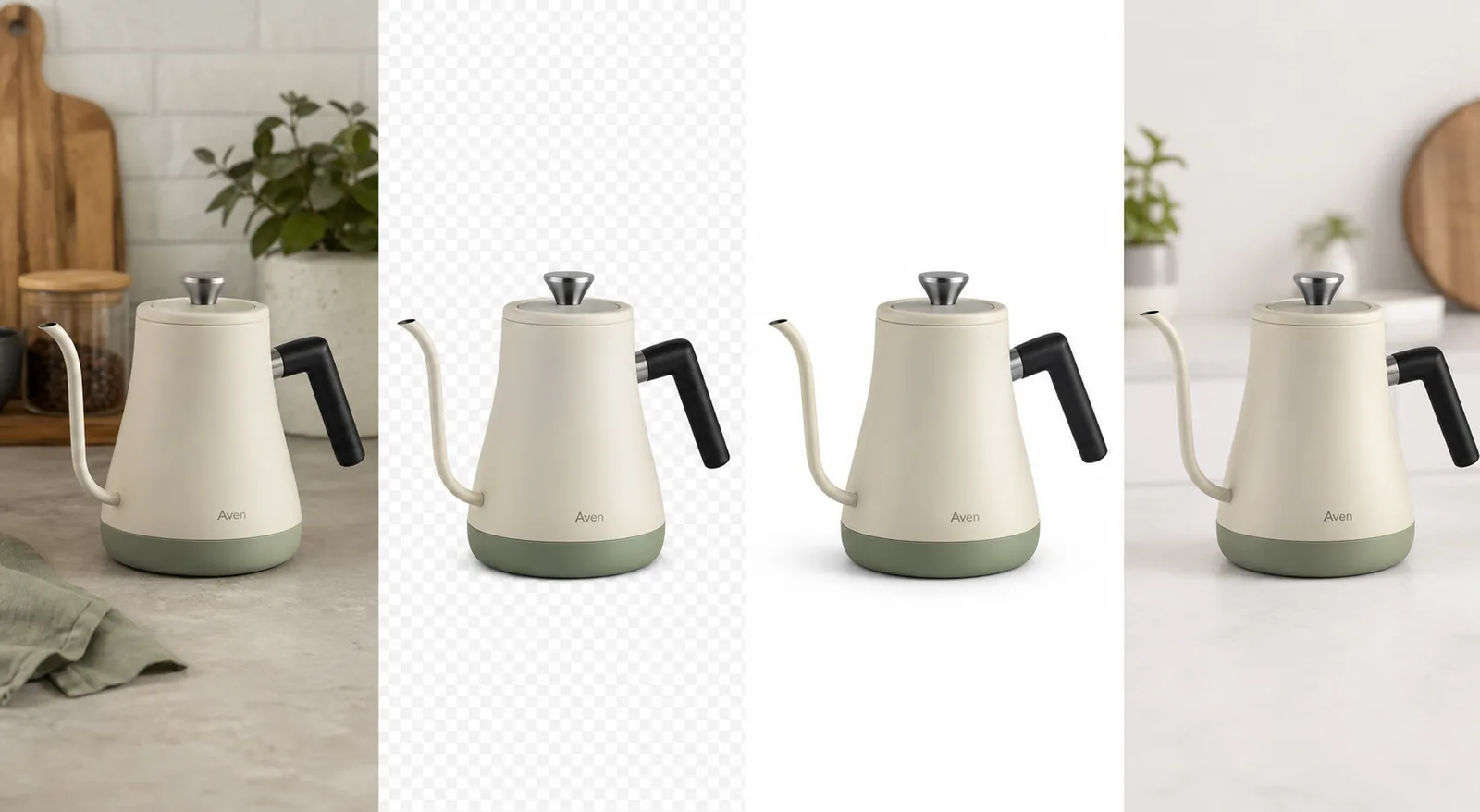
Three published KrafLayer demonstration composites let us inspect more than a polished hero. The useful evidence is not that the outputs look attractive. It is whether the same product facts survive across a cutout, detail crop, and new scene. These images are demonstrations, not verified customer outcomes.
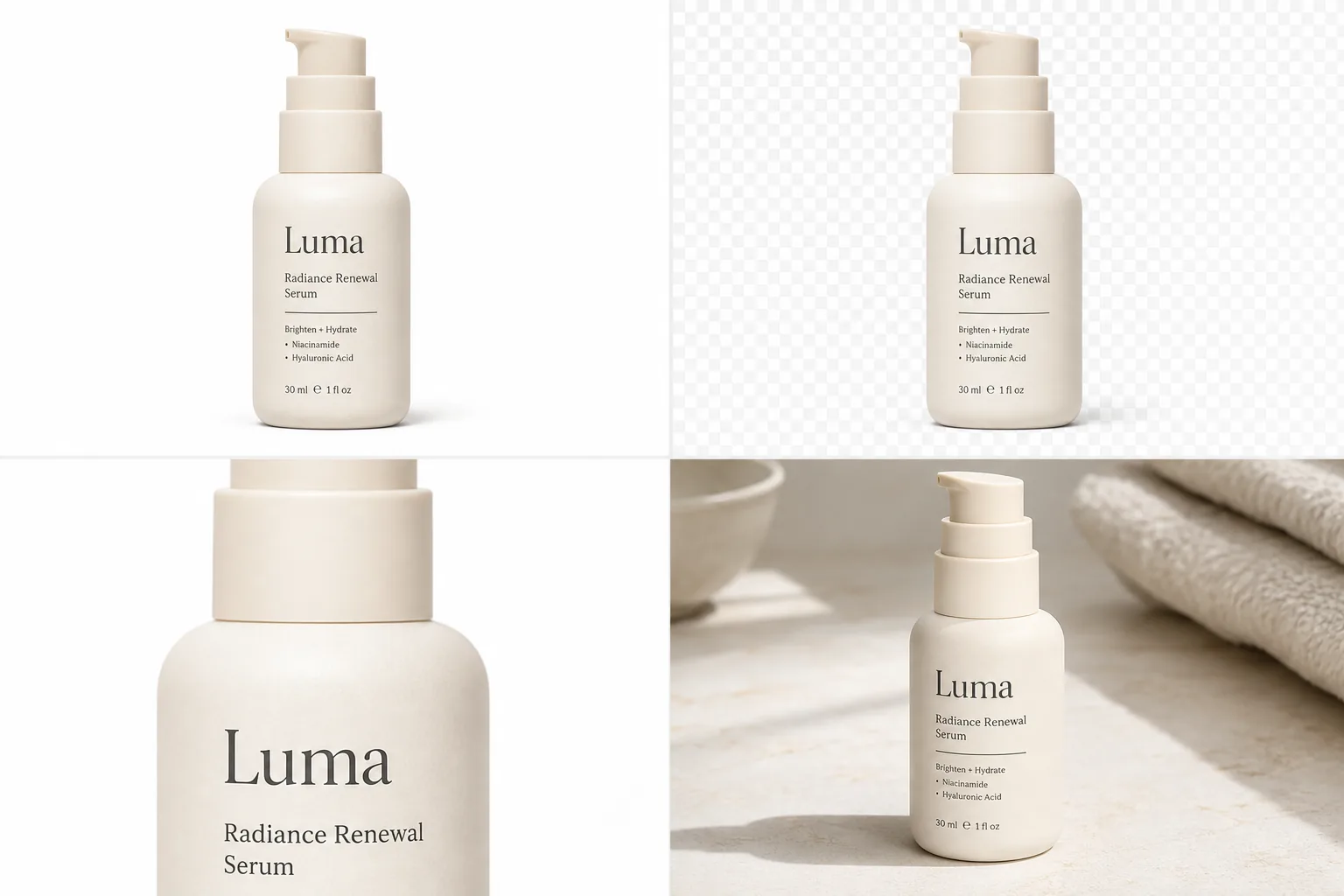
The serum grid is useful because it exposes four review points at once. The pump, bottle proportions, front label, and warm cream color should match across the white image, transparent cutout, detail crop, and lifestyle scene. The checkerboard also makes edge halos easier to spot than a white background would.

The kettle is a harder geometry test. Compare the long spout curve, lid knob, handle attachment, body taper, and small front mark. A background can look believable while one of those parts drifts. Thin handles and reflective edges deserve inspection at 100% zoom.
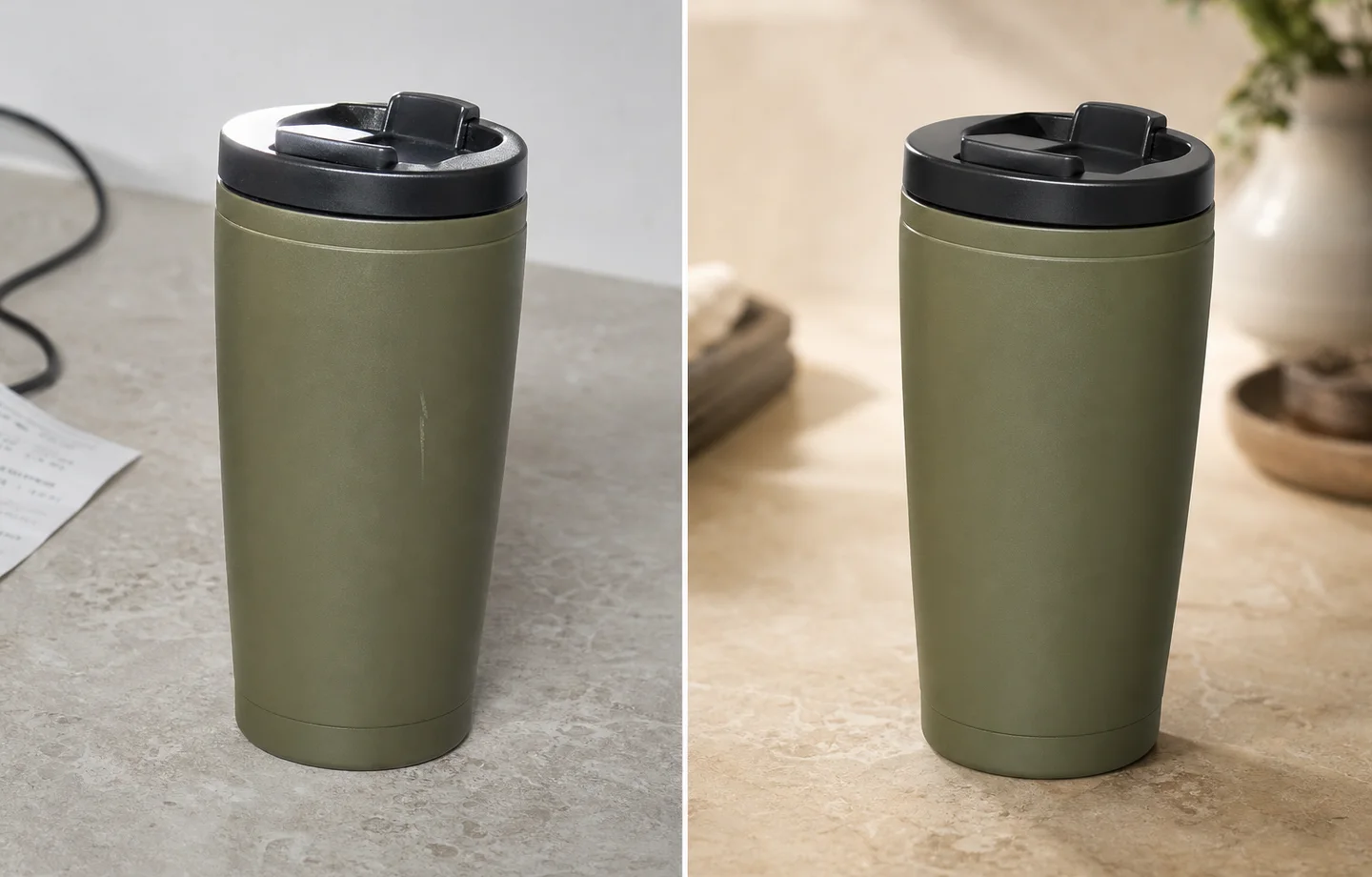
The mug example shows why a scene swap needs a contact check. The body and lid remain easy to compare, but the new surface, warmer light, and softer background introduce a second question: does the shadow make the mug feel planted, or does it float?
Which Editing Workflow Should You Use First?
KrafLayer's public hub separates eight edit routes, while Pixelcut lists ten common bulk actions. Both product maps support the same decision rule: diagnose the defect before choosing the AI operation. A narrow edit reduces unnecessary regeneration and makes the output easier to compare with the source.
| Visible problem | Start with | Review most closely | Do not use it to |
|---|---|---|---|
| Messy or inconsistent background | Background remover | Fine edges, transparent areas, contact shadow | Hide part of the product |
| Dust, prop, cable, or stray mark | Object eraser | Filled texture and nearby product edges | Conceal damage or required information |
| Small but otherwise sharp image | Upscaler | Text, seams, grain, ports, stones | Invent detail absent from the source |
| Noisy or damaged legacy photo | Restoration | Material texture and label legibility | Turn an unusable reference into a factual product record |
| One glare, shadow, or local defect | Mask edit | Mask boundary and unchanged surrounding pixels | Redesign the entire SKU |
| Correct product, wrong selling context | Background replacer | Scale, lighting, reflections, surface contact | Create a marketplace main image without checking channel rules |
| Need a new campaign composition | Reference edit or scene composition | Product identity across every variant | Replace your plain, factual product view |
A sensible order is cleanup, restoration if needed, upscaling, local correction, and only then scene creation. Keep the original file and export each stage separately. If a later edit fails, you can return to a clean source instead of repairing a repair.
When Should You Reshoot Instead of Using AI?
Shopify allows product images up to 5000 × 5000 pixels or 25 megapixels, but a large file can still contain bad evidence. Reshoot when the source does not clearly show the product fact you need to preserve. AI cannot reliably recover an unreadable label, hidden connector, unknown fabric weave, or missing angle from pixels that were never captured ([Shopify Help Center](https://help.shopify.com/en/manual/products/product-media/product-media-types), 2026).
Reshoot when:
- the main label or regulated claim is unreadable;
- the product is motion-blurred or materially out of focus;
- an important edge is cropped out;
- the color reference is unreliable;
- reflective glare hides the product construction;
- the image shows the wrong variant;
- the only available photo contains a watermark you do not own;
- a buyer needs an angle that does not exist in the source set.
The reshoot boundary is the unglamorous part most editor comparisons omit. AI is good at removing friction around evidence. It is not a substitute for missing evidence.
What Should You Check Before Publishing?
eBay allows up to 24 listing pictures and recommends showing several angles, while Etsy allows up to 20 photos. A single polished AI image should not carry the whole product story. Use the gallery to show factual views, detail, scale, flaws where relevant, and only then lifestyle context ([eBay Help](https://www.ebay.com/help/selling/listings/adding-pictures-listings?id=4148); [Etsy Help](https://help.etsy.com/hc/en-us/articles/115015628707-How-to-Create-a-Listing)).
Before publishing, verify:
- The SKU, color, shape, label, and included accessories match the source.
- The main image follows the current channel's background and overlay rules.
- Pixel dimensions and file size meet the channel requirement.
- The product occupies an intentional, consistent share of the frame.
- Fine edges are clean at 100% zoom.
- Text and logos are readable and not AI-invented.
- Shadows, reflections, and product contact match the scene.
- The source file and an unedited master are retained.
- The filename and alt text describe the product and image role.
- At least one plain image shows exactly what the buyer receives.
Verdict
The price and scale evidence points to four different winners: KrafLayer starts at $6 for 350 credits, Photoroom publishes a $0.10 multi-edit API call, Pixelcut advertises 10,000-image batches, and Adobe combines cleanup with a larger design system. Pick the workflow that matches the store rather than accepting a universal ranking.
For a small online store editing a few products at a time, KrafLayer is the most direct starting point in the evaluated set. For catalog automation, Photoroom has the clearest public API offer. For very large browser batches, Pixelcut publishes the strongest scale claim. For design-heavy marketing teams, Adobe Express is the broader workspace.
Whichever editor you choose, keep one plain factual product image. AI-made lifestyle scenes can add context, but they should never be the only evidence a buyer sees.
Frequently Asked Questions
What is the best AI that can edit my store's products?
For a small store, start with the product defect and the monthly volume. KrafLayer has the lowest documented paid entry among the four compared here at $6 for 350 credits, plus a free allocation. Pixelcut starts at $10 and emphasizes batch output. Test both on difficult SKUs before choosing.
Which AI product photo editor is best for an API workflow?
Photoroom publishes the clearest image-editing API proposition among the four products reviewed. Its Plus API charges $0.10 per call and allows multiple edit options in one request. Pixelcut also offers an API with separate credits. Confirm endpoints, retry behavior, rate limits, storage, and idempotency before production use.
Can AI editing make an image marketplace compliant automatically?
No editor can guarantee compliance across every channel and category. Google, Shopify, Etsy, and eBay publish different size, background, crop, and content guidance. Use AI to prepare the image, then validate the final export against the current official policy for the channel where it will appear.
Is background removal safer than generating a new scene?
Usually, because background removal changes a smaller part of the image. It can still damage transparent materials, fine straps, hair-like fibers, and shadows. A generated scene adds scale, lighting, reflection, and contact risks, so it needs a broader product-fidelity review.
Can an upscaler recover unreadable label text?
An upscaler can reconstruct plausible detail, but plausible is not the same as factual. If the original label cannot be read, do not treat generated letters as product evidence. Find a better source image or reshoot the label and use the upscale only after the factual detail is visible.
How many product images should an online store use?
There is no universal ideal count, but the platforms allow room for a set: eBay supports up to 24 listing pictures and Etsy up to 20. Use enough images to cover the main view, alternate angles, scale, material, details, included items, and honest flaws before adding lifestyle variants.
References
1. [Google Merchant Center: Image link requirements and best practices](https://support.google.com/merchants/answer/6324350?hl=en), accessed August 11, 2026. 2. [Google Merchant Center: Upcoming minimum image size](https://support.google.com/merchants/answer/12159030?hl=en), accessed August 11, 2026. 3. [Shopify Help Center: Product media types](https://help.shopify.com/en/manual/products/product-media/product-media-types), accessed August 11, 2026. 4. [Etsy Help: Image requirements and best practices](https://help.etsy.com/hc/en-us/articles/115015663347-Requirements-and-Best-Practices-for-Images-in-Your-Etsy-Shop), accessed August 11, 2026. 5. [eBay Help: Adding pictures to listings](https://www.ebay.com/help/selling/listings/adding-pictures-listings?id=4148), accessed August 11, 2026. 6. [Photoroom API: Image Editing API pricing](https://docs.photoroom.com/image-editing-api-plus-plan/whats-the-pricing), accessed August 11, 2026. 7. [Pixelcut: Plans and pricing](https://www.pixelcut.ai/pricing), accessed August 11, 2026. 8. [Pixelcut: Bulk image editor](https://www.pixelcut.ai/bulk), accessed August 11, 2026. 9. [Adobe Express: AI background remover](https://www.adobe.com/express/feature/ai/image/remove-background), accessed August 11, 2026. 10. [KrafLayer: Product photo editor](https://kraflayer.com/product-photo-editor), accessed August 11, 2026. 11. [KrafLayer: Pricing](https://kraflayer.com/pricing), accessed August 11, 2026.
Keep exploring
Continue the story
More practical guidance on product accuracy, composition, and conversion-ready visuals.

Put it into practice
Take the next step in KrafLayer
Choose a generation or editing workflow that matches what you just learned.