Edit tools
How to Remove Product Backgrounds for Marketplace-Ready Images with AI
TL;DR
A practical background-removal workflow for ecommerce product images: clean cutouts, believable edges, natural shadows, transparent PNGs, white-background main images, prompt examples, and QA checks. Includes how to do it in KrafLayer.
TL;DR
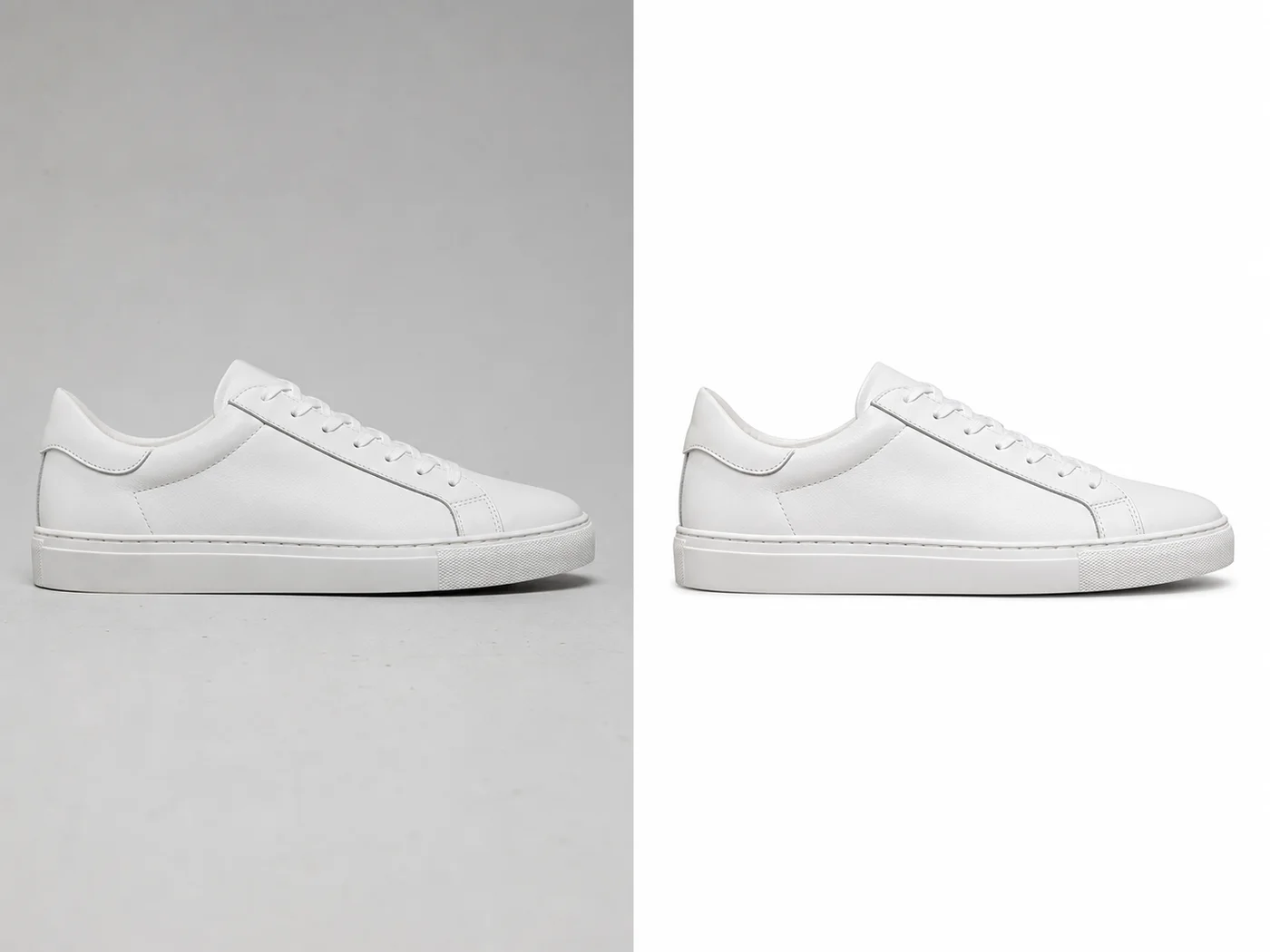
For Remove Product Backgrounds for Marketplace-Ready Images, use KrafLayer as a fast pre-publishing edit step: upload the product photo, run Remove BG, and inspect the cutout edge and transparent areas. It is most useful for listing images, detail pages, or ad assets, as long as shape, material, labels, color, scale, and accessories still match the source SKU.
Background removal is useful when the product is already worth saving, but the surroundings are not. Maybe the supplier photo has a desk, a hand, a gray paper sweep, or a messy room behind it. The goal is not to make the product look like a floating sticker. The goal is to separate the product cleanly, keep the real edges, and rebuild the image for the channel where it will sell.
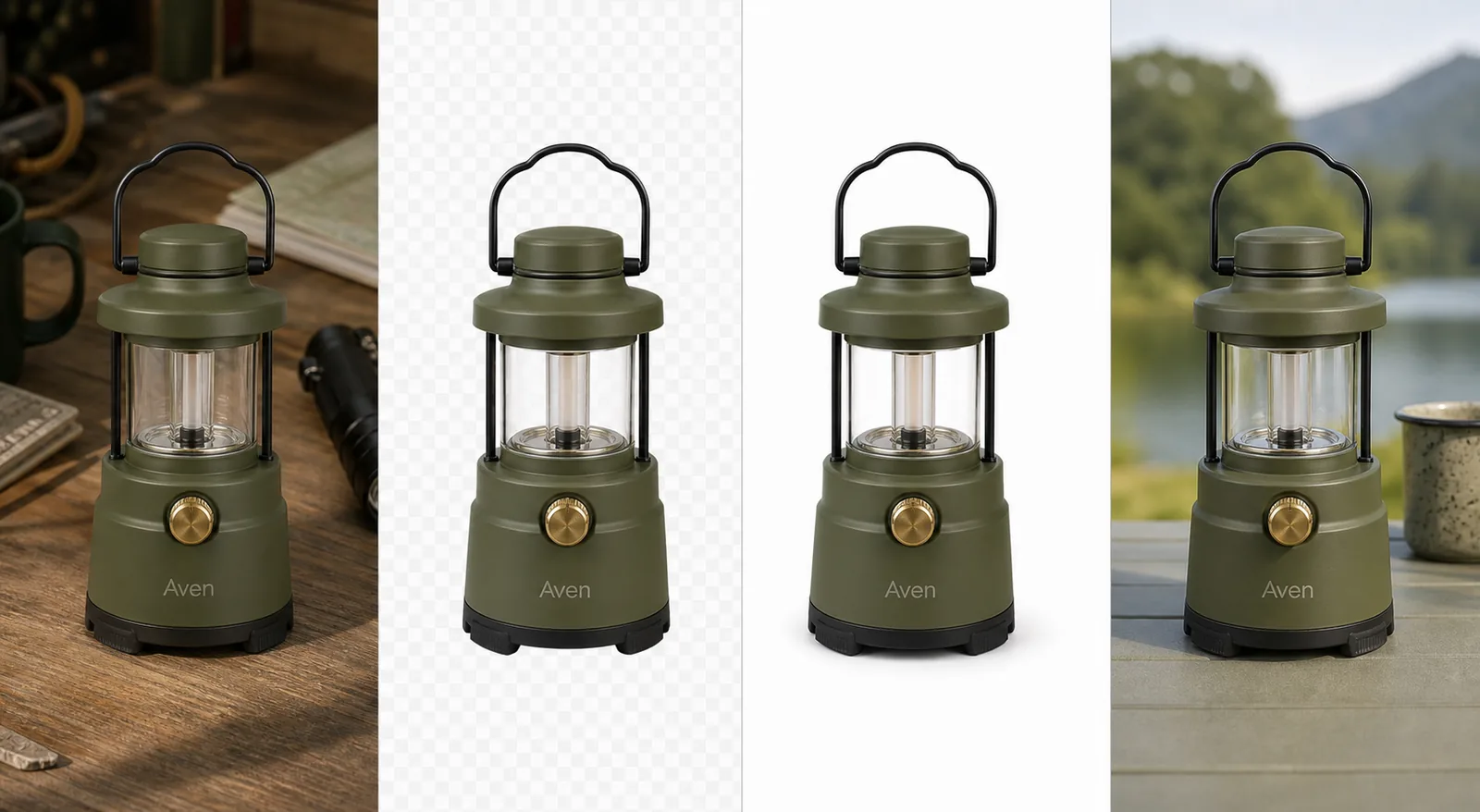
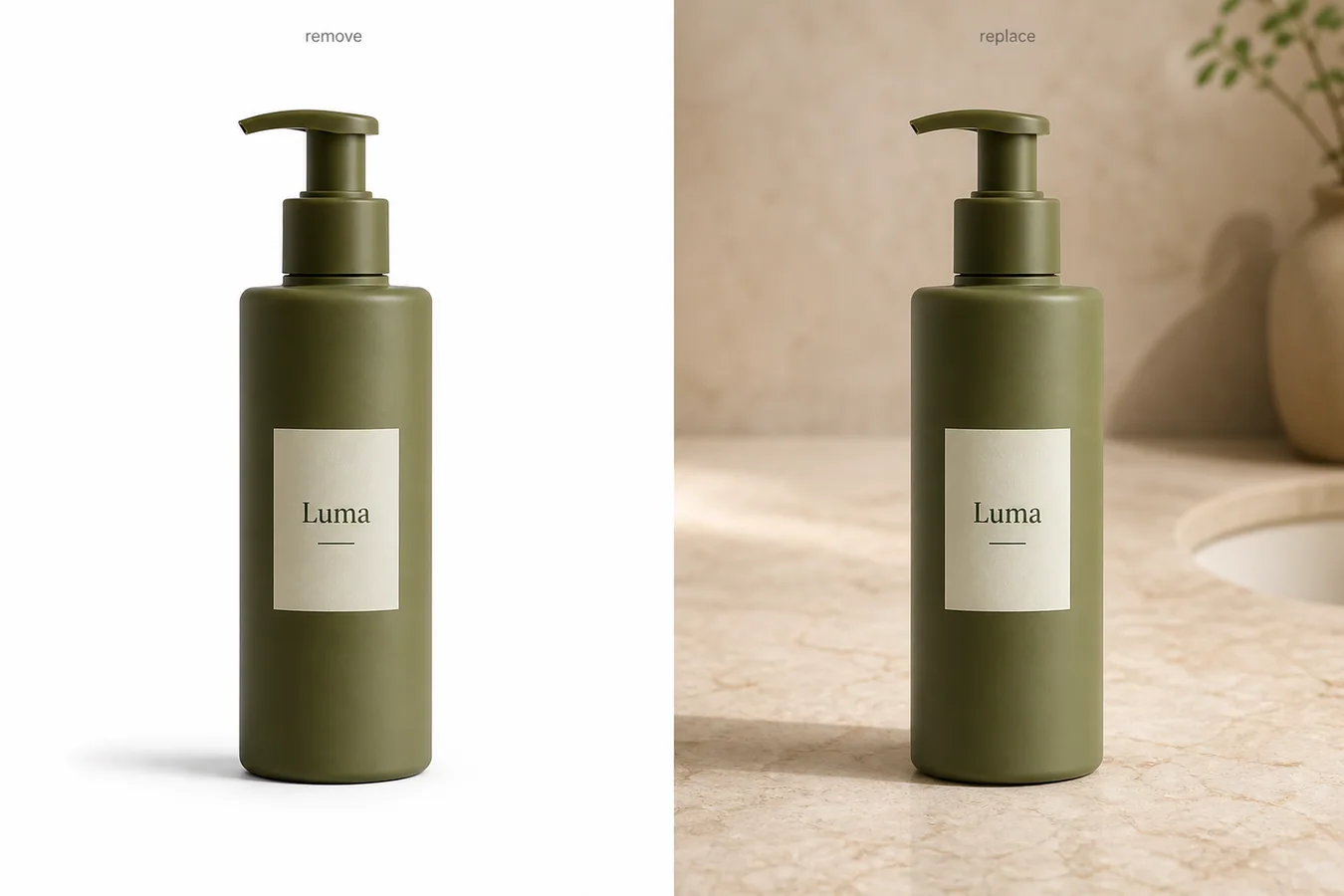
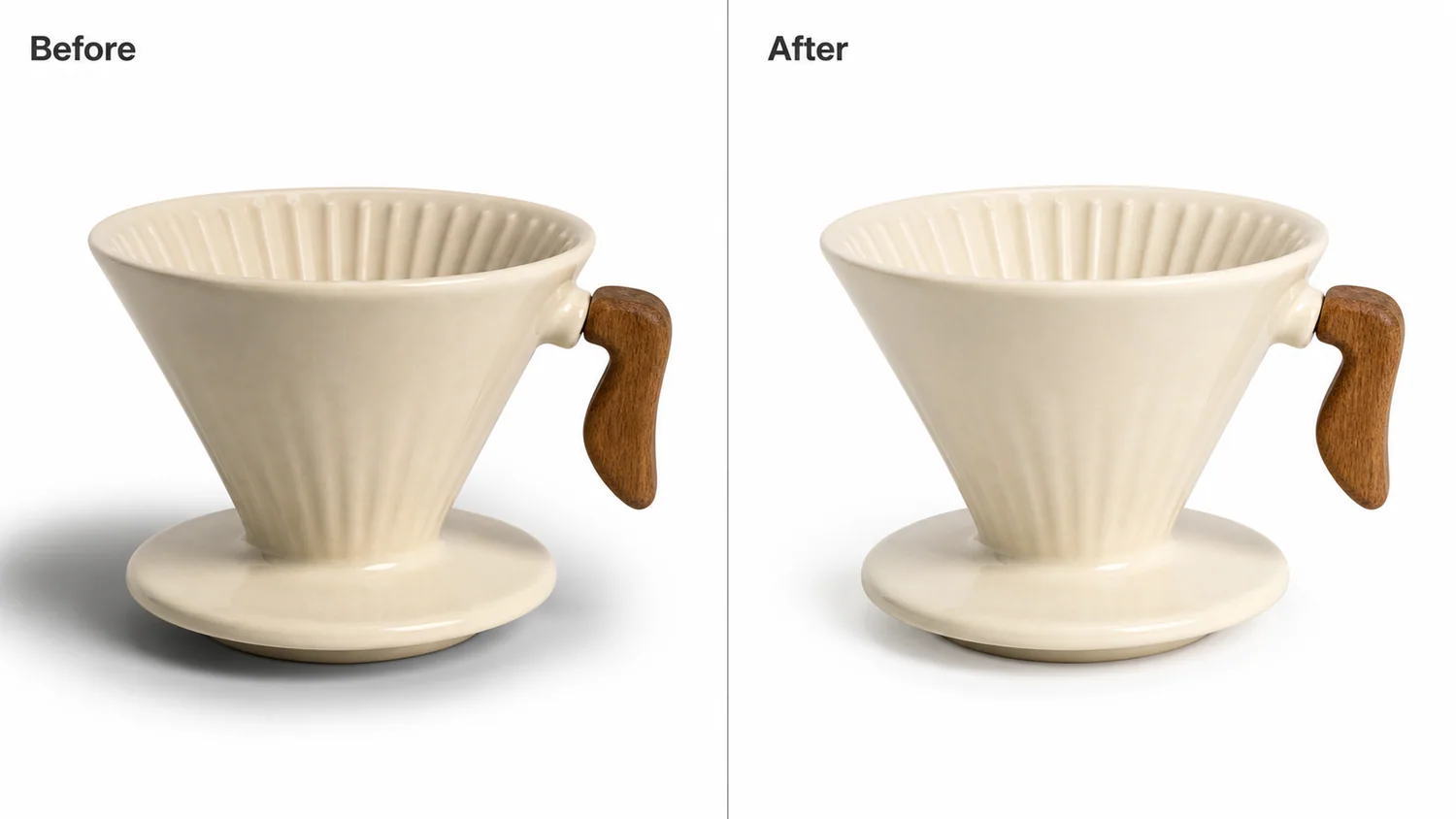
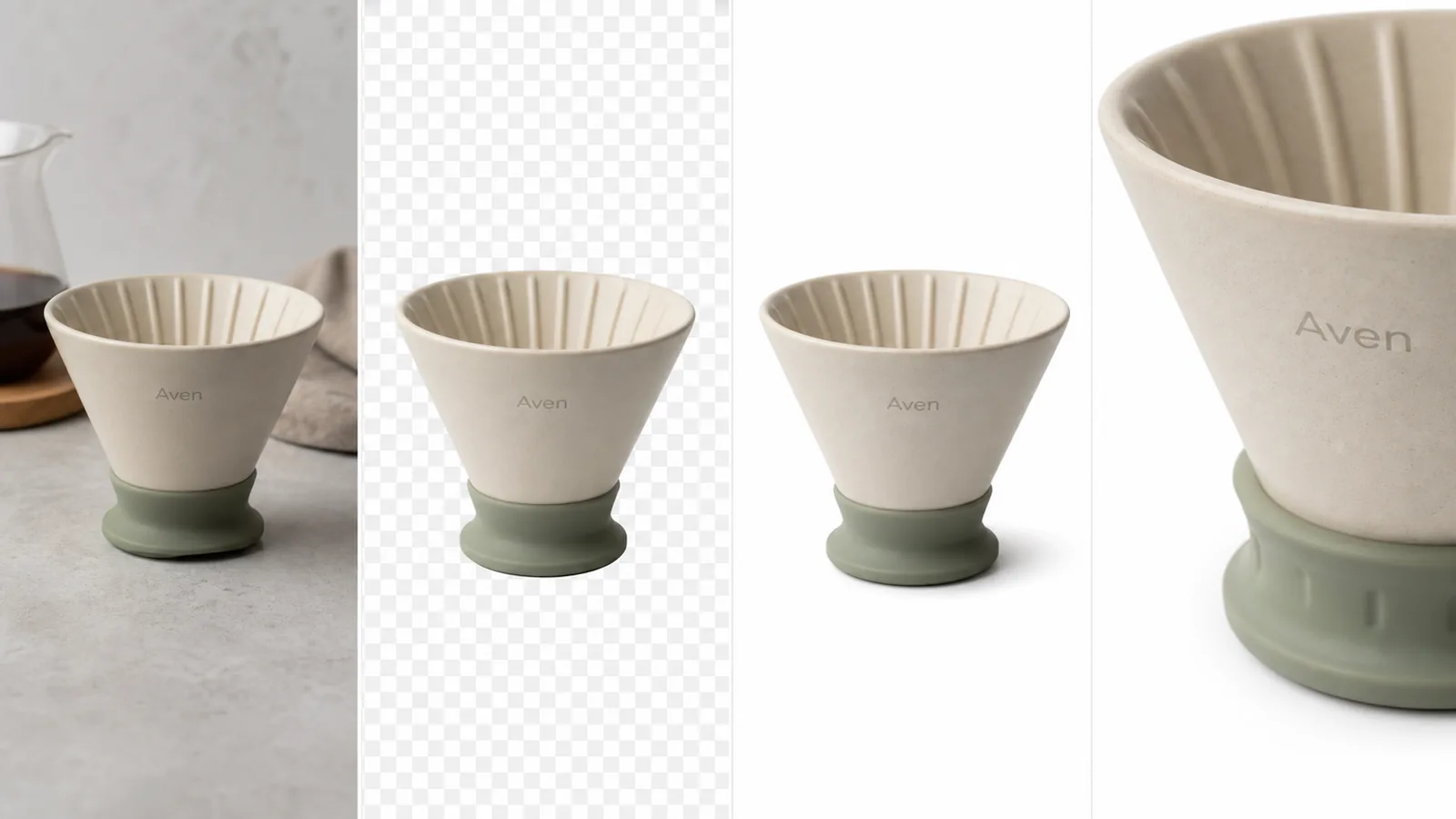
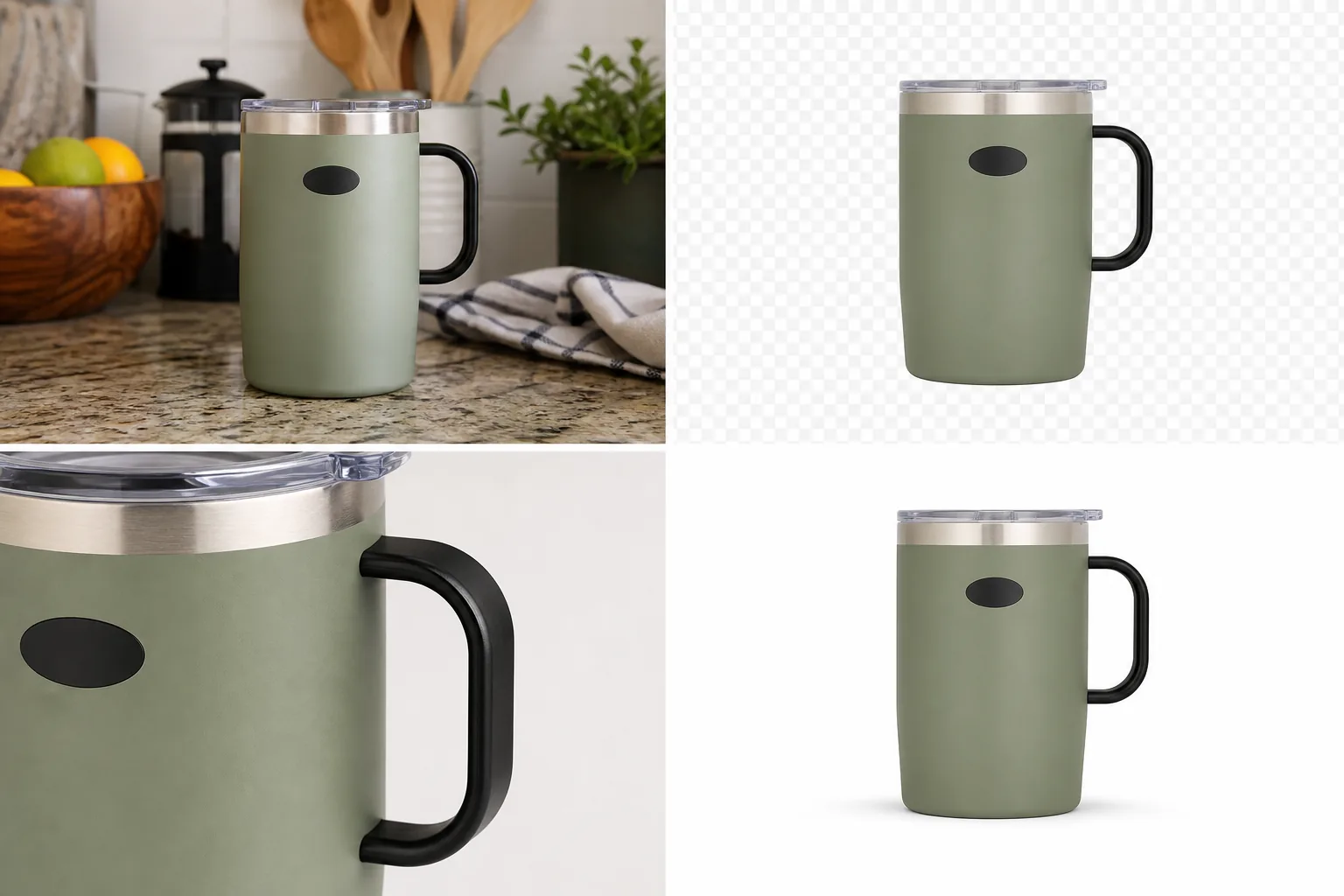
For ecommerce, a good background-removal result usually needs two outputs: a clean white-background listing image and a transparent PNG that can be reused in ads, banners, comparison tables, and detail-page modules. Treat the cutout as a production asset, not a one-time edit.
When to remove the background
Use background removal when the product shape is clear but the environment is hurting the image. It works well for shoes, bags, bottles, small electronics, accessories, home goods, and packaged products where the buyer mainly needs to judge silhouette, color, material, and scale.
Do not use it as a shortcut for a bad product reference. If the original photo is blurry, cropped through the product, or hides important details, removing the background will only give you a cleaner weak image.
The workflow that produces usable assets
1. Start with the highest-resolution product photo you have. Avoid screenshots when you still have the original image. 2. Remove only the background. Keep laces, transparent edges, holes, handles, straps, reflections, and soft material boundaries intact. 3. Decide the output type: pure white main image, transparent PNG, light gray catalog image, or ad-ready cutout. 4. Add or preserve a subtle contact shadow when the product should feel grounded. Remove the shadow only when you specifically need a transparent cutout. 5. Check the result on a white background, a dark background, and at thumbnail size. Edge problems often hide until you test the asset in context.
Details that matter more than people expect
A marketplace cutout fails when the small details are wrong. Shoe laces cannot melt into the background. Bottle glass should not get a jagged halo. Fur, knit, raffia, mesh, and translucent plastic need softer edge treatment than metal or ceramic.
For Amazon-style main images, keep the background simple and avoid props, badges, heavy shadows, and decorative scenes. For Shopify, TikTok Shop, email, and ads, you can reuse the transparent PNG inside stronger compositions after the product cutout is clean.
Where KrafLayer Fits
When you apply this Remove Product Backgrounds for Marketplace-Ready Images workflow in KrafLayer, the tool choice matters: upload the product photo, run Remove BG, and inspect the cutout edge and transparent areas. After generation, judge the image by the channel it serves — listing images, detail pages, or ad assets — and check that shape, material, labels, color, scale, and accessories still match the source SKU.
Steps in KrafLayer
Use Remove BG as a one-click tool: upload the product image, run the automatic background remover, then download the transparent PNG or continue editing. It does not require a prompt or brush mask.
1. Upload or choose the product image. 2. Run the tool according to its interaction model: one-click tools generate directly; Erase-style tools need a brush mask first. 3. Zoom in to check edges, text, material, shadow, and product scale before downloading or continuing the edit.
Summary
Background removal should make the product easier to buy, not just easier to paste. A useful ecommerce cutout keeps the SKU accurate, protects fragile edges, and gives the team flexible assets for listings, ads, and product-page modules.
FAQ
Should I keep the original product shadow?
Keep a soft contact shadow for white-background listing images because it helps the product feel real. Remove or separate the shadow for transparent PNG assets so designers can place the product into different layouts.
Why does my cutout have a white halo?
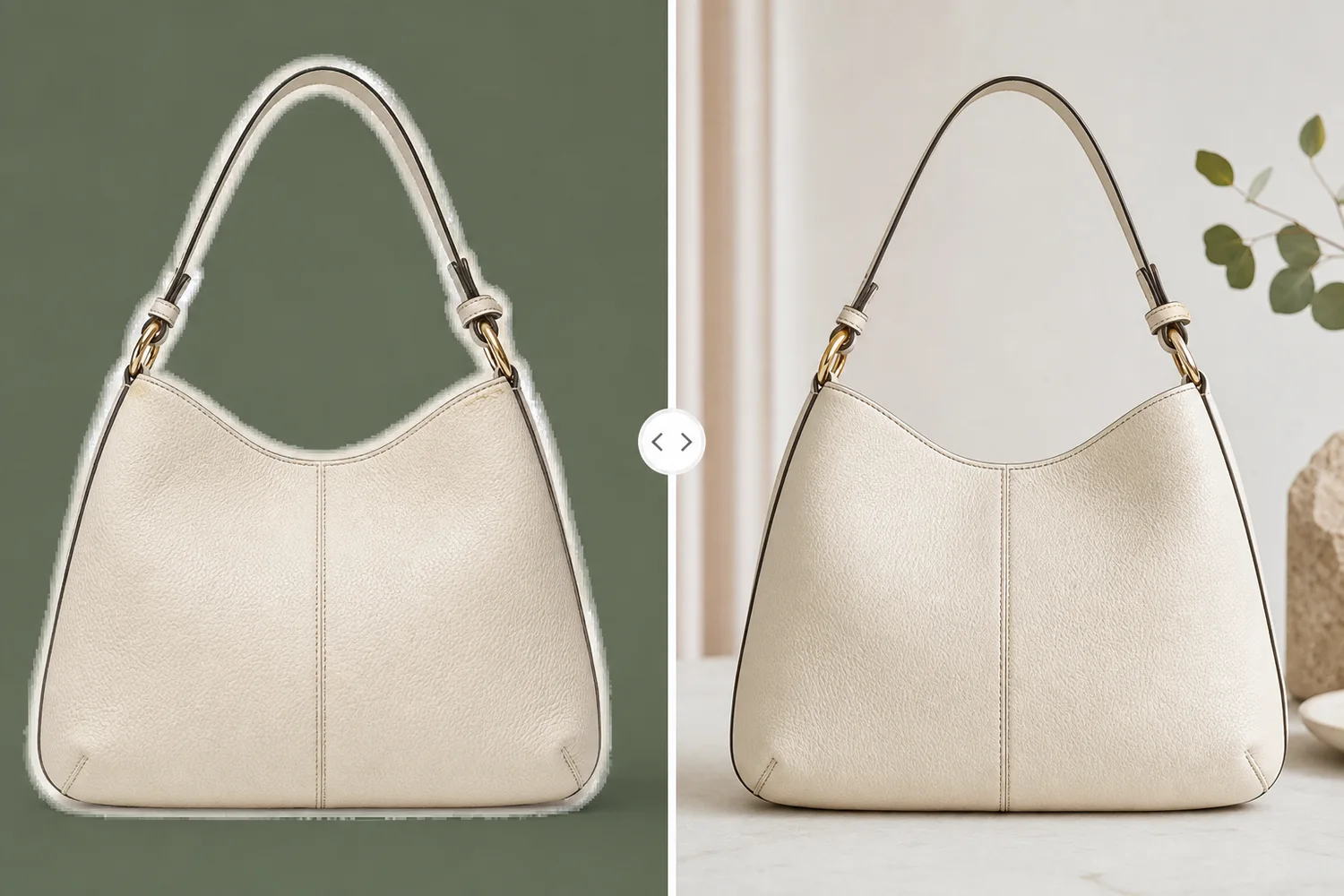
A halo usually means the old background color remained on the product edge. Regenerate with instructions to clean the edge color while preserving the product boundary, or test the cutout on a dark background before publishing.
Can one background-removed image work for every channel?
One clean cutout can become the source asset for many channels, but each channel still needs its own crop and context. Amazon main images, Shopify galleries, paid ads, and social covers do not have the same visual job.
Keep exploring
Continue the story
More practical guidance on product accuracy, composition, and conversion-ready visuals.
Put it into practice
Take the next step in KrafLayer
Choose a generation or editing workflow that matches what you just learned.