Edit tools
How to Make Heavy Shadows on White Product Photos Look Natural
TL;DR
A practical AI editing workflow for softening harsh white-background shadows while keeping the product grounded, realistic, and listing-ready. Includes how to do it in KrafLayer.
TL;DR
For Make Heavy Shadows on White Product Photos Look Natural, KrafLayer is useful when a real product reference needs to become a usable asset for listing images, detail pages, or ad assets. Treat it as production editing, not product reinvention; the test is whether shape, material, labels, color, scale, and accessories still match the source SKU.
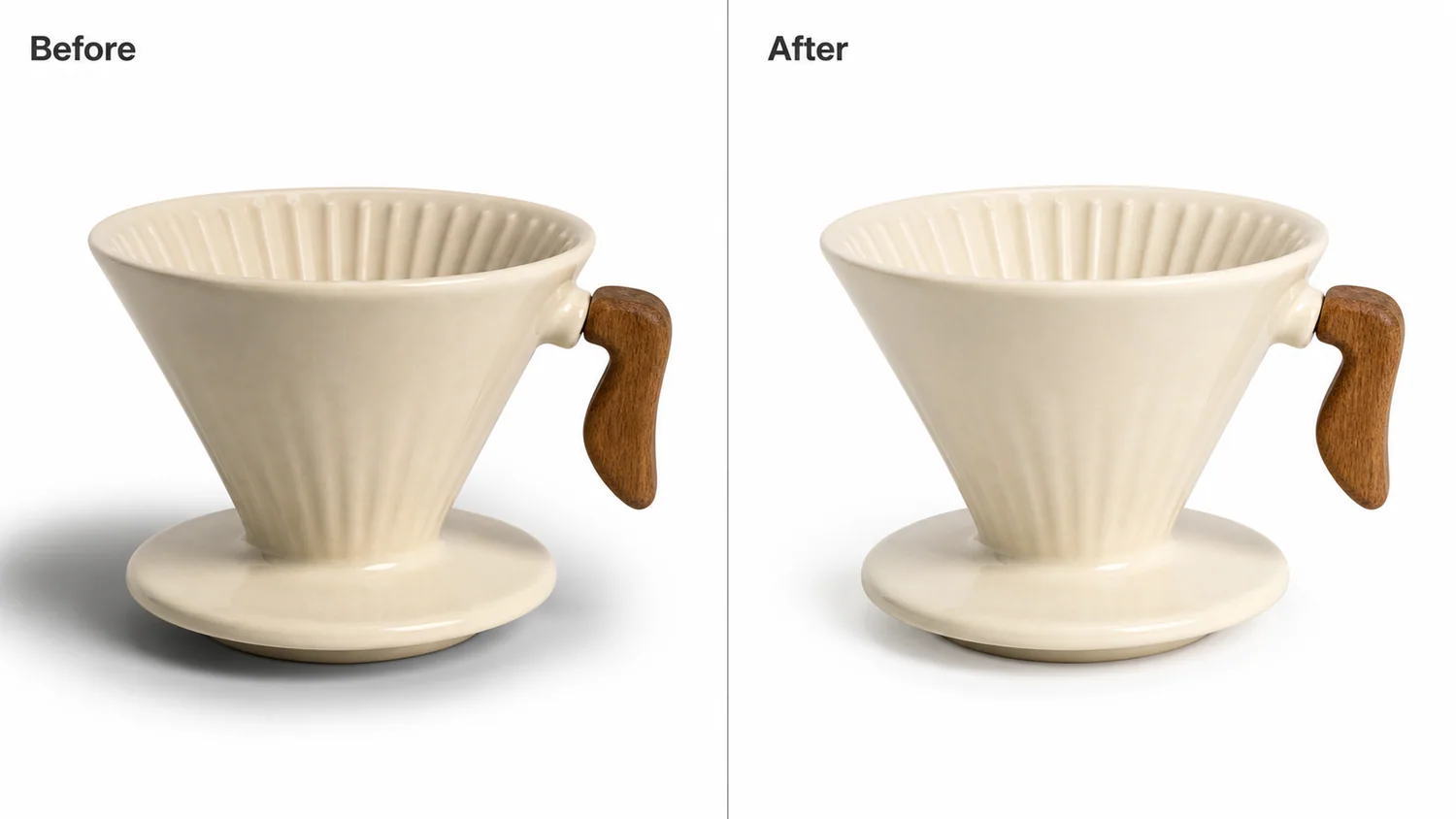
Heavy shadows on white-background product photos make a clean listing look dirty, cramped, or pasted together. The fix is not to remove the shadow completely. A good ecommerce edit keeps a soft contact shadow so the product still feels real, but reduces the dark cast that pulls attention away from the item.
KrafLayer is an AI-powered visual editor for ecommerce product photography. For sellers, it can help clean up white-background main images without flattening the product into a cutout.
In the example, the ceramic coffee dripper is already clear, but the left-side shadow is too dark and wide. The corrected image keeps the same cream ceramic body, ribbed cone, wooden handle, camera angle, crop, and product scale, while turning the shadow into a softer contact mark that works better for a marketplace main image.
What a Natural Product Shadow Should Do
A product shadow has one job: prove that the item is sitting in space. It should not become the first thing the buyer notices.
On a white-background product photo, a natural shadow usually has these traits:
- darkest directly under the product contact point
- soft at the outer edge
- lighter than the product's main material
- consistent with the visible light direction
- not so wide that it makes the frame feel gray
- not removed so much that the product floats
If the shadow looks like a stain, the product feels less premium. If the shadow disappears completely, the image can look fake or clipped out.
Protect the Product Before Editing
Shadow cleanup often happens near the product edge, so protect the SKU details before asking AI to edit. For the coffee dripper, the protected details are the ribbed ceramic cone, cream glaze, saucer base, wooden handle shape, handle attachment point, rim ellipse, scale, crop, and camera angle.
For other products, protect the parts that affect buyer trust:
- shoes: outsole edge, laces, stitching, toe shape, tread
- bags: straps, buckles, zipper pulls, leather grain, base contact
- packaging: label position, cap shape, pouch seams, box corners
- home goods: ceramic glaze, wood grain, fabric weave, metal edges
- jewelry: stone shape, prongs, chain position, metal reflection
The AI should soften the lighting problem, not rebuild the product.
A Prompt for Fixing Heavy White-Background Shadows
Use a local edit prompt in [KrafLayer](https://kraflayer.com):
Soften the overly heavy shadow on this white-background product photo. Keep the exact same cream ceramic coffee dripper, ribbed cone, saucer base, wooden handle, handle attachment, rim shape, ceramic glaze, scale, crop, and camera angle. Replace the dark wide shadow with a natural soft contact shadow under the product, consistent with the existing studio light. Keep the white background clean but not fake. Do not change the product color, remove the handle, alter the ribbing, add props, add logos, over-brighten the ceramic, or make the product float.
For batch work, keep the same shadow rule across the image set. A catalog looks more trustworthy when the shadow style is consistent from main image to angle image to detail image.
Review the Result Like a Listing Image
After the edit, zoom out and judge it the way a buyer sees it in a grid or on a product page.
Check these points:
- the product still touches the surface visually
- the shadow is soft but not invisible
- the white background does not look gray
- product edges remain crisp
- texture and highlights still show material quality
- the edited side does not look overexposed
- the image would crop cleanly for Shopify, Amazon, ads, or email
A strong correction is quiet. The buyer should see the product first, not the retouching.
When to Keep More Shadow
Do not force every white-background image into a weightless cutout. Heavy objects, textured handmade goods, glass, polished metal, and premium tabletop products often need some grounding. The better question is whether the shadow helps the buyer understand the product.
Keep more shadow when it shows scale, thickness, transparency, or material weight. Reduce it when it looks like dirt, distracts from the SKU, or makes a white-background main image feel poorly lit.
Where KrafLayer Fits
When you apply this Make Heavy Shadows on White Product Photos Look Natural workflow in KrafLayer, start from the clearest product reference, then decide whether the asset needs cleanup, lighting, background work, detail support, or an ad version. Before using it for listing images, detail pages, or ad assets, check that shape, material, labels, color, scale, and accessories still match the source SKU.
FAQ
How do I make heavy shadows on white product photos look natural?
Reduce the dark outer shadow, keep a soft contact shadow under the product, and protect product shape, material, edges, scale, and camera angle.
Should I remove all shadows from white-background product images?
No. A small natural shadow usually helps the product feel real. Removing every shadow can make the item look like a floating cutout.
Can AI fix a dirty-looking shadow without changing the product?
Yes, if the prompt tells the AI to edit only the shadow and preserve product details such as material, silhouette, hardware, labels, and contact points.
What makes a product shadow look ecommerce-ready?
An ecommerce-ready shadow is soft, light, attached to the product, consistent with the light direction, and secondary to the product itself.
Keep exploring
Continue the story
More practical guidance on product accuracy, composition, and conversion-ready visuals.
Put it into practice
Take the next step in KrafLayer
Choose a generation or editing workflow that matches what you just learned.