Edit tools
Free Product Photo Editor for Ecommerce: What to Fix Before You Publish
TL;DR
Use a free product photo editor to test background cleanup, object removal, upscaling, and product-truth checks before publishing ecommerce images.
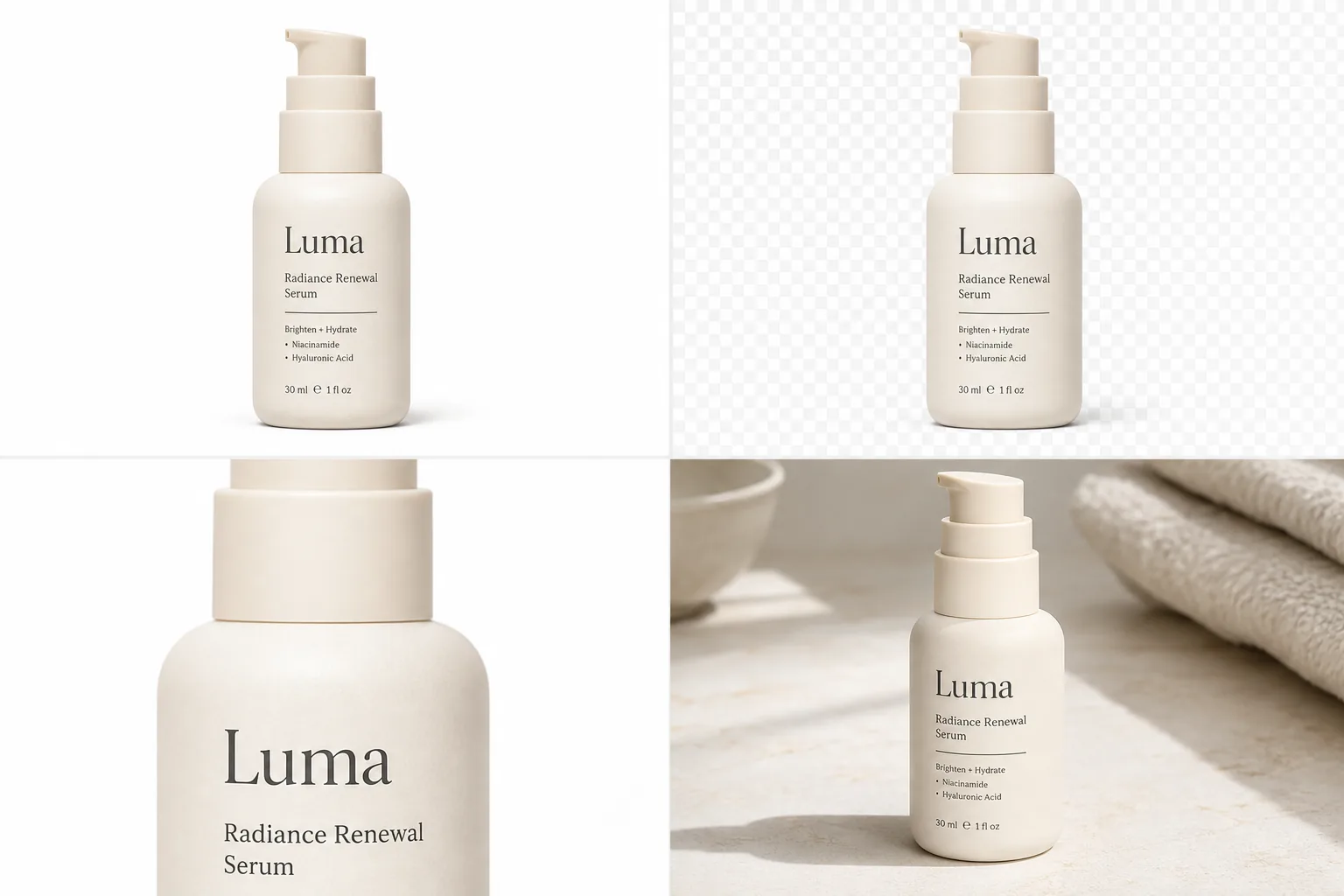
A free product photo editor is useful when it helps you fix a specific ecommerce problem before publishing: remove a messy background, clean a distracting object, improve crop and resolution, or test a better product context. The practical rule is simple: use free editing to prove image quality and workflow fit, but do not treat "free" as a promise of unlimited production volume or automatic marketplace approval.
In KrafLayer, the [product photo editor](/product-photo-editor) is best used as a pre-publish repair bench. Start from the product image you already trust, then choose the smallest edit that makes the image clearer for buyers. If the product itself changes shape, label, material, color, or scale, the edit is not ready for your store.
What A Free Product Photo Editor Should Fix
A free product photo editor should help you test whether the editing workflow can make a real product image publishable. It should not force you into a vague redesign when the image only needs cleanup.
Use it for jobs like:
- removing or simplifying a product background
- checking whether a cutout keeps clean product edges
- cleaning dust, props, hands, stickers, or small distractions
- improving resolution before a product page upload
- replacing a weak background with a controlled ecommerce surface
- creating a quick detail crop that helps buyers inspect the item
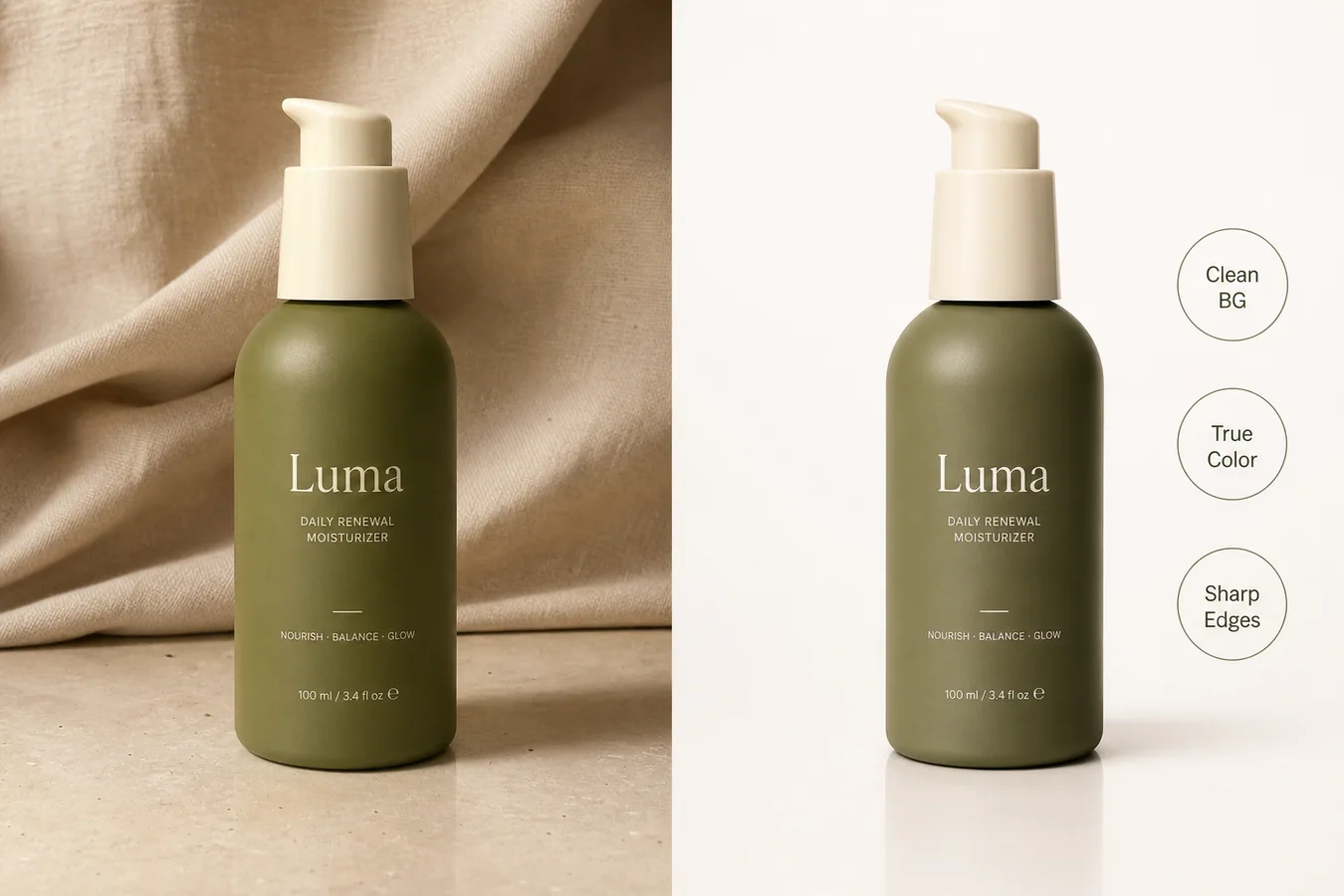
For the Luma serum example above, the important product facts are the cream bottle color, rounded shoulder, pump shape, label position, product name, small copy block, bottle scale, and soft product shadow. The background can change. The bottle should not become a different skincare package.
Start With The Smallest Edit
Most bad product edits come from asking for too much at once. Before using any free ecommerce photo editor, decide which problem is actually blocking the image from being published.
If the background is messy but the product is accurate, use a [product background remover](/tools/ai-background-remover). A clean cutout is often enough for marketplaces, comparison tables, and simple product-page galleries.
If the product is accurate but too small, soft, or low resolution, use an [AI image upscaler](/tools/ai-image-upscaler). After upscaling, inspect label edges, fabric texture, glass highlights, packaging corners, and transparent edges.
If one distraction is hurting the image, use an [AI object eraser](/tools/ai-object-eraser). Brush only the unwanted area and review whether the surrounding texture still looks natural.
If the product needs a new selling context, use an [AI background replacer](/tools/ai-background-replacer). Keep the product dominant and make sure the new surface, shadow, and light direction support the same item.
Free Editing Checklist Before You Publish
Run this check before moving an edited image into a product page, ad, or marketplace draft:
- Product identity: does the edited image still show the same SKU?
- Shape: did the silhouette, cap, handle, zipper, strap, lid, or pump stay the same?
- Color: does the product color still match the real item?
- Material: does glass, leather, ceramic, fabric, metal, or plastic still look believable?
- Label and text: did important packaging text stay in the right place?
- Edges: are cutout edges clean without halos, jagged outlines, or missing parts?
- Shadow: does the product still sit naturally on the surface?
- Resolution: is the final export large enough for the channel without looking over-sharpened?
- Claims: did the edit avoid fake badges, review stars, platform UI, certifications, discounts, or unsupported benefit text?
- Consistency: does this image match the rest of the product gallery?
The point of a free product photo editor is not to make every image dramatic. It is to find the fastest safe edit that turns a usable product photo into a clearer ecommerce asset.
When Free Is Enough
A free-to-start workflow is often enough when you are testing a tool, fixing a small catalog batch, or deciding whether an image is worth publishing. It is especially useful for stores that need to review background removal, object cleanup, image upscaling, and background replacement before scaling the workflow.
Free editing is usually enough for:
- testing one product category before editing a full catalog
- comparing cutout quality on hard edges, glass, fur, fabric, or jewelry
- trying a white-background and lifestyle-background version
- checking whether label detail survives upscaling
- preparing a few draft images for internal review
It is not enough when you need guaranteed volume, team workflows, bulk review, long-term asset storage, or production throughput. In those cases, evaluate cost, export limits, image quality, and review controls before committing to a full editing pipeline.
What Not To Promise Yourself
Do not assume a free product photo editor will give unlimited edits, automatic approval, or policy compliance. Image quality still depends on your source photo, the edit type, and the final human review.
Avoid these mistakes:
- publishing a background-removed image without checking edge quality
- accepting an upscaled image with distorted text or fake texture
- using object erasing when the removed area changes product shape
- replacing a background with a scene that hides the product
- adding badges, stars, discounts, or claim text that the product page cannot support
- treating a good first result as proof that every SKU will edit cleanly
The safest workflow is to test with a few real products, document what passed review, then repeat the same edit type only where it fits.
A Simple KrafLayer Workflow
Use this sequence when you are testing KrafLayer as a free product photo editor for ecommerce images:
- Upload one product photo that already shows the real item clearly.
- Choose one edit job: remove background, erase object, upscale, or replace background.
- Keep the edit narrow so product facts stay intact.
- Compare the edited image against the original product truth list.
- Export only if the product still matches the item being sold.
- Use the result in a product page, ad draft, or internal review only after checking the full image set.
This workflow keeps the editor focused on publish-readiness. If the tool changes the product, that is not a successful edit even if the image looks polished.
FAQ
What is a free product photo editor?
A free product photo editor is a tool you can use to test product-image cleanup before paying for larger production. For ecommerce, it should help with background removal, object cleanup, image upscaling, background replacement, crop, and final quality review without changing the product itself.
Can a free ecommerce photo editor replace a photographer?
Sometimes it can reduce reshoots for cleanup, background changes, and catalog preparation. It should not replace product review. If the original photo does not show the real item clearly, or if buyers need exact material, scale, or fit proof, you may still need better source photography.
What should I check after removing a product background?
Check the product outline, transparent edges, natural shadow, holes, straps, handles, glass reflections, fur, fabric, and thin packaging details. A background removal result is not ready if it cuts into the product or leaves visible halos around the edges.
When should I use upscaling in a product photo editor?
Use upscaling when the image is accurate but too small or soft for your product page. After upscaling, inspect labels, stitching, ports, texture, and product edges. Do not publish if the upscaler invents detail that changes what the product looks like.
Does free mean unlimited product photo editing?
No. Free usually means free-to-start, trial access, limited exports, or a way to evaluate quality before scaling. Check the tool's current pricing, credit, or export rules before planning a full catalog workflow around free editing.
Conclusion
A free product photo editor is valuable when it helps you test a real ecommerce edit before the image goes live. Use it to remove backgrounds, clean distractions, improve resolution, replace weak contexts, and review whether the product still matches the real SKU. KrafLayer helps sellers run those product-photo editing checks in one workflow, so a product image can become clearer and more publishable without turning into a different product.
Keep exploring
Continue the story
More practical guidance on product accuracy, composition, and conversion-ready visuals.
Put it into practice
Take the next step in KrafLayer
Choose a generation or editing workflow that matches what you just learned.