Edit tools
Product Image Editor: Which Edit to Make Before Publishing
TL;DR
Choose the right product image editor workflow before publishing: remove backgrounds, erase distractions, upscale, replace scenes, or create detail crops.
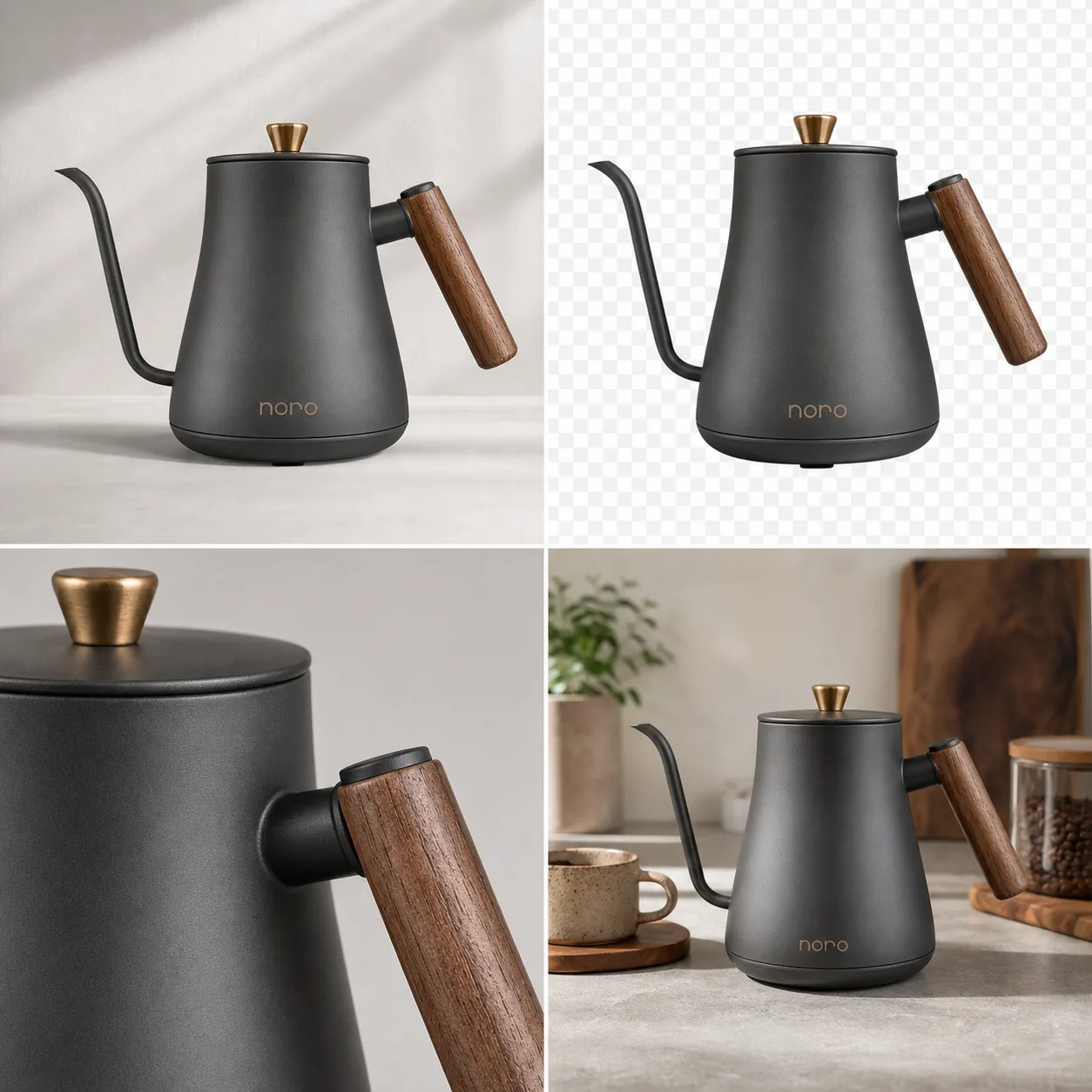
A product image editor is most useful when it helps you choose the smallest edit that makes a product photo publishable. Before you change a background, upscale a file, erase a distraction, or build a lifestyle scene, decide what is actually wrong with the image. The practical rule is simple: fix the publishing blocker, protect the real SKU, then review the result before creating the next image role.
KrafLayer's [product photo editor](/product-photo-editor) fits this workflow because each edit can stay narrow. Use background removal for a clean cutout, object erasing for distractions, upscaling for soft but accurate images, and background replacement when the product needs a better selling context.
Start With The Publishing Problem
Do not open a product image editor and ask it to make the image better in a general way. Name the publishing problem first. A product photo for a store page usually fails for one of five reasons:
- the background is messy, inconsistent, or hard to reuse
- a small object, hand, sticker, reflection, or dust mark distracts from the product
- the source image is accurate but too small or soft
- the product needs context for scale, use, or merchandising
- the gallery lacks a close detail that proves material, hardware, label, or construction
For the Noro kettle example, the protected facts are the matte charcoal body, slim spout, wood handle, brass knob, base mark, product scale, and natural shadow. The edit can change the background or image role. It should not redesign the kettle.
Pick The Right Edit Before Publishing
Use the edit type that matches the image problem. This keeps the workflow faster and makes review easier.
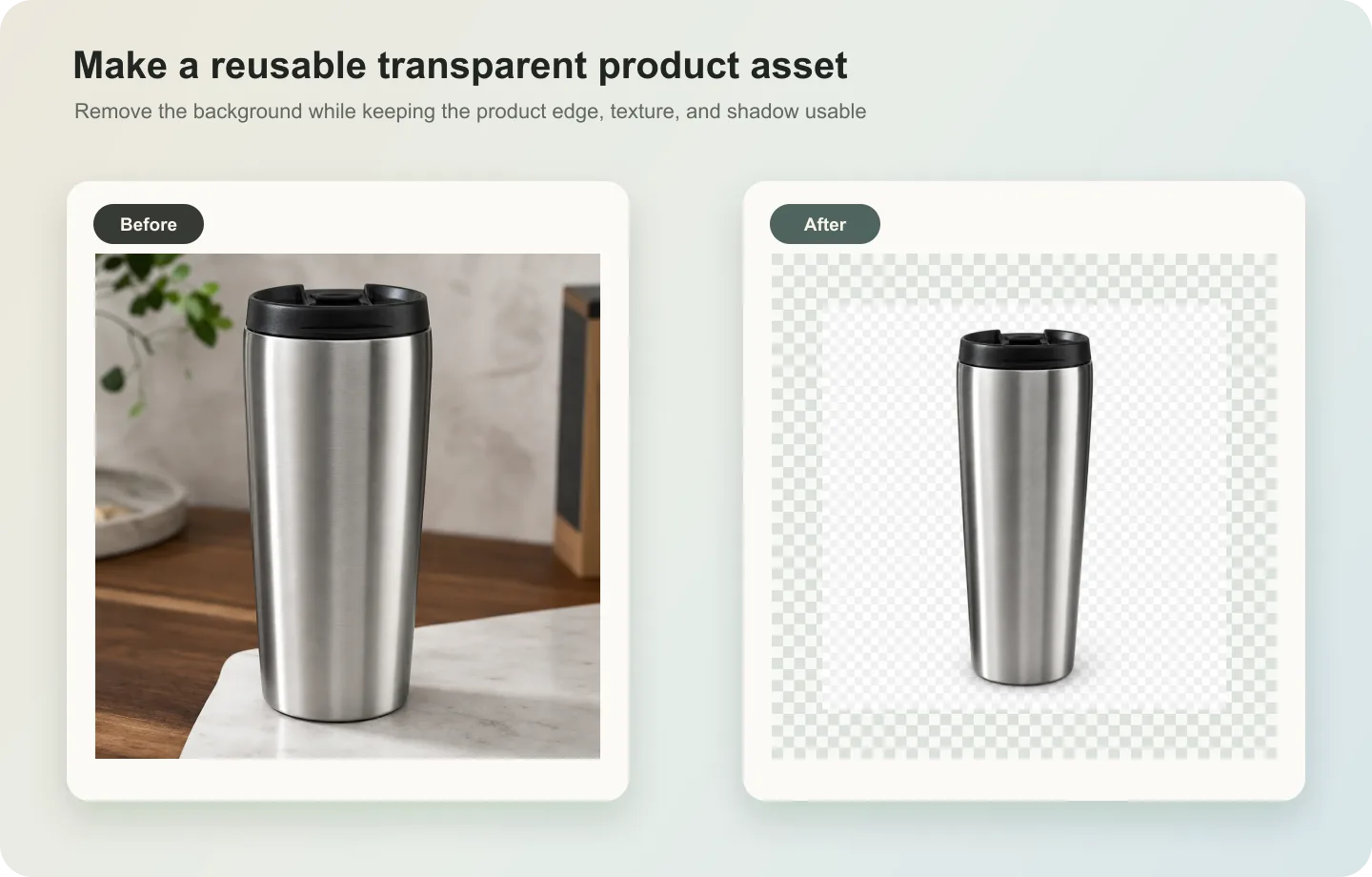
Use a [product background remover](/tools/ai-background-remover) when the product is correct but the background is the problem. A clean cutout is useful for product pages, comparison modules, ad layouts, and channel crops. Review thin areas such as handles, straps, clear plastic, glass, cables, fabric edges, and shadows.
Use an [AI object eraser](/tools/ai-object-eraser) when the product is accurate but one element should not be there. Brush only the distracting area. If the tool changes the product edge, label, texture, or silhouette, the mask was too broad or the source image needs a different approach.
Use an [AI image upscaler](/tools/ai-image-upscaler) when the image already tells the truth but lacks resolution. Upscaling should improve usable size and apparent clarity. It should not invent label text, fabric grain, ports, stitching, watch dials, jewelry prongs, or packaging details.
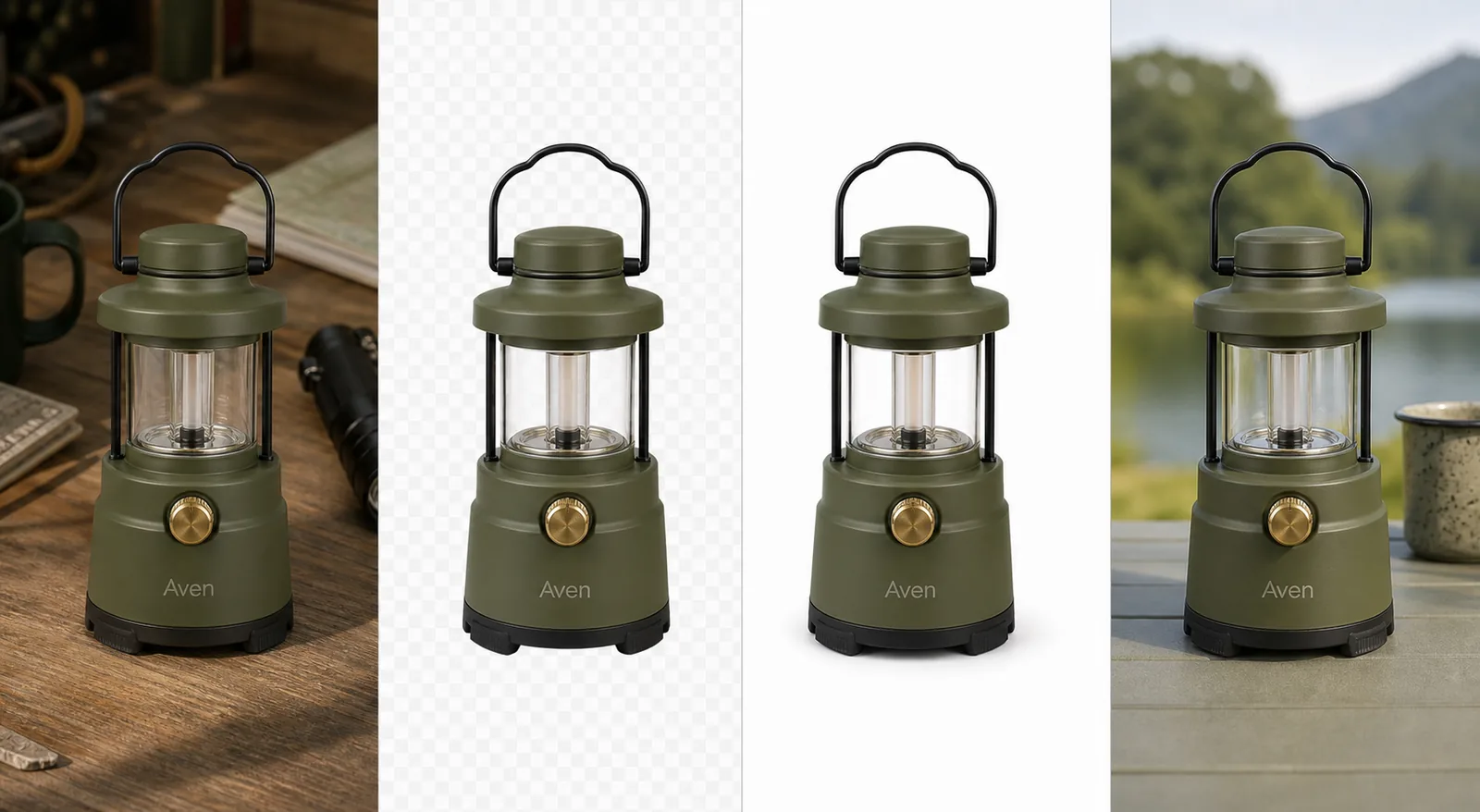
Use an [AI background replacer](/tools/ai-background-replacer) when the product needs selling context. The new scene should support the product with believable light, scale, and contact shadow. It should not make the item look larger, smaller, more premium, or functionally different than it is.
Use a detail crop when the buyer needs proof. A detail image should answer one question: What is the material, closure, texture, label, handle, pump, port, gasket, seam, or finish like?
A Simple Product Image Editor Workflow
Use this sequence before a product image goes live:
- Choose the source photo that best represents the actual SKU.
- Write a product truth list: color, shape, material, label, parts, scale, and details that must stay unchanged.
- Choose one edit job instead of combining every improvement at once.
- Export a draft and compare it with the original product truth list.
- Create the next image role only after the first edit passes review.
- Check the final gallery together so the main image, cutout, detail crop, and lifestyle image still show the same product.
This is the difference between editing for ecommerce and making a generic polished image. A good ecommerce image is clearer, but still honest.
What Each Image Role Should Prove
A product image editor can help turn one strong source photo into several useful roles. Each role should do a different job.
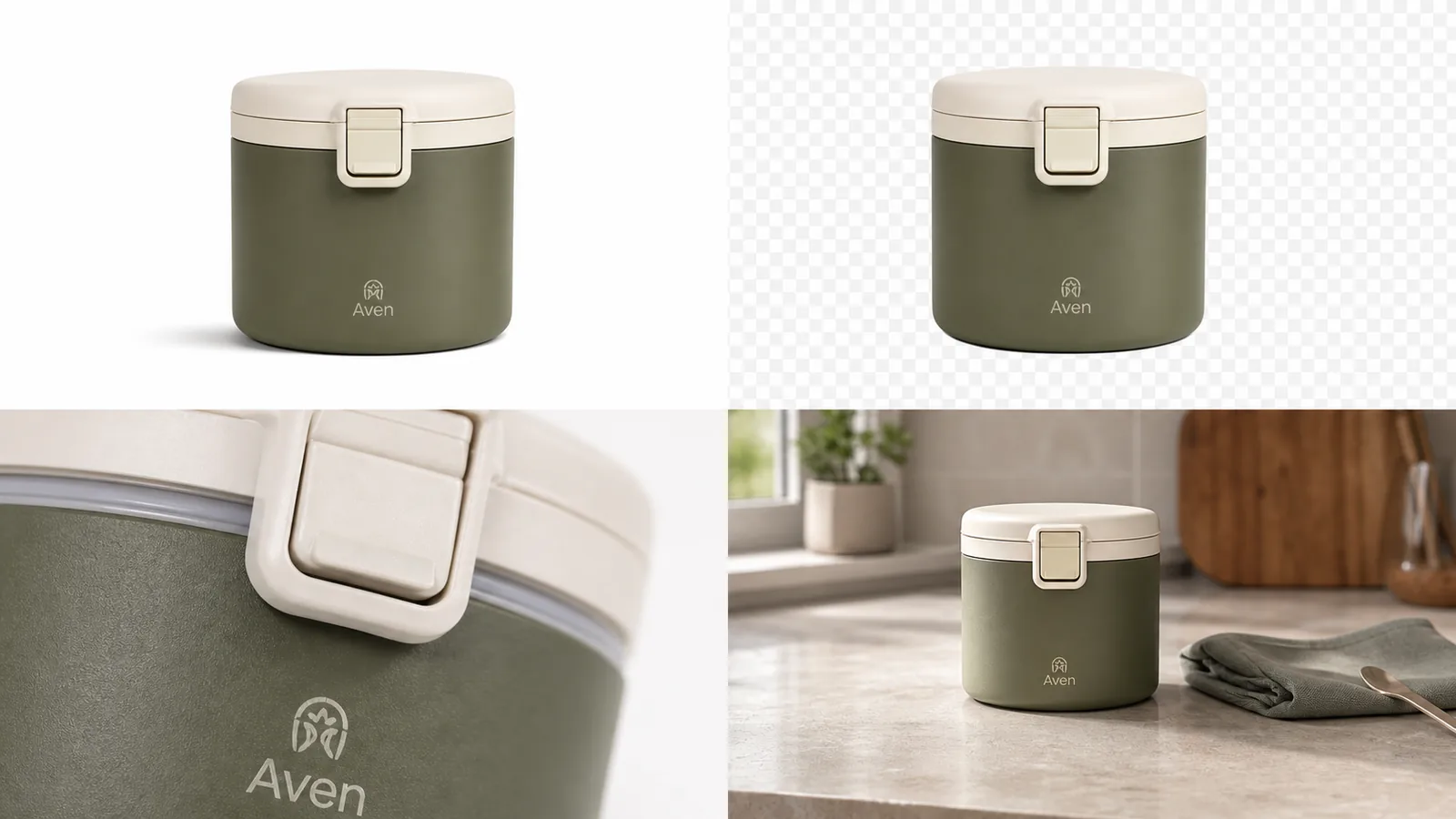
Main image: show the product clearly at a glance. The crop should be simple, the product should be dominant, and the buyer should immediately understand what is being sold.
Cutout preview: make the product reusable in layouts, comparison sections, marketplace drafts, and campaign designs. Cutout quality matters more than dramatic styling. Watch for halos, missing edges, and broken transparent areas.
Detail crop: prove a material, feature, or construction detail. In the kettle example, the handle grain, brass knob, matte ceramic surface, spout shape, and lid edge matter more than a decorative coffee scene.
Lifestyle product photo: show scale, use, or merchandising context. The scene should help the buyer imagine the product, but the product still needs to be easy to inspect.
Pre-Publish Review Checklist
Run this check after using any ecommerce image editor:
- Same SKU: the edited image still shows the same item.
- Shape: the silhouette, handle, cap, lid, zipper, pump, strap, port, or spout did not drift.
- Color: the product color still matches the real product.
- Material: glass, fabric, leather, ceramic, plastic, metal, or paper texture still looks believable.
- Label area: important logo or package text stayed in the right place.
- Edges: cutouts have no halos, missing corners, or jagged transparent edges.
- Shadow: the product still sits naturally on the surface.
- Resolution: the final image is large enough without fake sharpening.
- Claims: the image does not add fake badges, review stars, certifications, discounts, platform UI, or unsupported benefit text.
- Gallery fit: every image in the set supports the same product story.
The image is ready only when it passes the product check and the channel check. A polished edit that changes product facts should not be published.
How KrafLayer Fits
KrafLayer works best as a product image editor when you treat each tool as a specific ecommerce step. Start with the [product photo editor](/product-photo-editor), choose the edit that matches the problem, and keep the product truth list visible while reviewing the output.
If the product image has a bad background, remove it first. If the image is too small, upscale before cropping. If a prop or sticker distracts from the product, erase only that area. If the product needs context, replace the background after the product image itself is accurate.
That sequence protects the owner page intent: KrafLayer is not just making product photos look different. It is helping sellers decide which edit should happen before publishing.
FAQ
What is a product image editor?
A product image editor is a tool for preparing ecommerce product photos before they go live. It can help remove backgrounds, erase distractions, upscale low-resolution files, replace weak scenes, crop images, and create detail views while preserving the real product.
How do I choose the right product-image edit?
Start with the publishing blocker. If the background is the issue, remove or replace it. If the image is soft, upscale it. If one object distracts from the item, erase only that object. If buyers need proof, create a detail crop.
Can a product image editor change the product?
It should not change product facts. The edited image should preserve the same SKU, color, shape, material, label position, scale, and key features. If the edit makes the product look like a different item, redo it or choose a narrower edit.
Should I edit the main image or lifestyle image first?
Edit the main product image first because it is the reference for the rest of the gallery. Once the main image is accurate, create cutouts, detail crops, lifestyle images, or ad crops from the same product truth list.
Does using an ecommerce image editor guarantee marketplace approval?
No. A product image editor can help prepare cleaner ecommerce images, but it does not guarantee marketplace approval. Check the current rules for your selling channel and avoid fake badges, platform UI, review stars, unsupported claims, and misleading product changes.
Conclusion
A product image editor should help you make the right edit before publishing, not push every product photo through the same generic treatment. Start with the real SKU, choose the smallest edit, check the output against product facts, and then build the rest of the gallery. KrafLayer helps sellers handle those product-image editing steps in one workflow so main images, cutouts, detail crops, and lifestyle photos can become clearer without drifting away from the product being sold.
Keep exploring
Continue the story
More practical guidance on product accuracy, composition, and conversion-ready visuals.
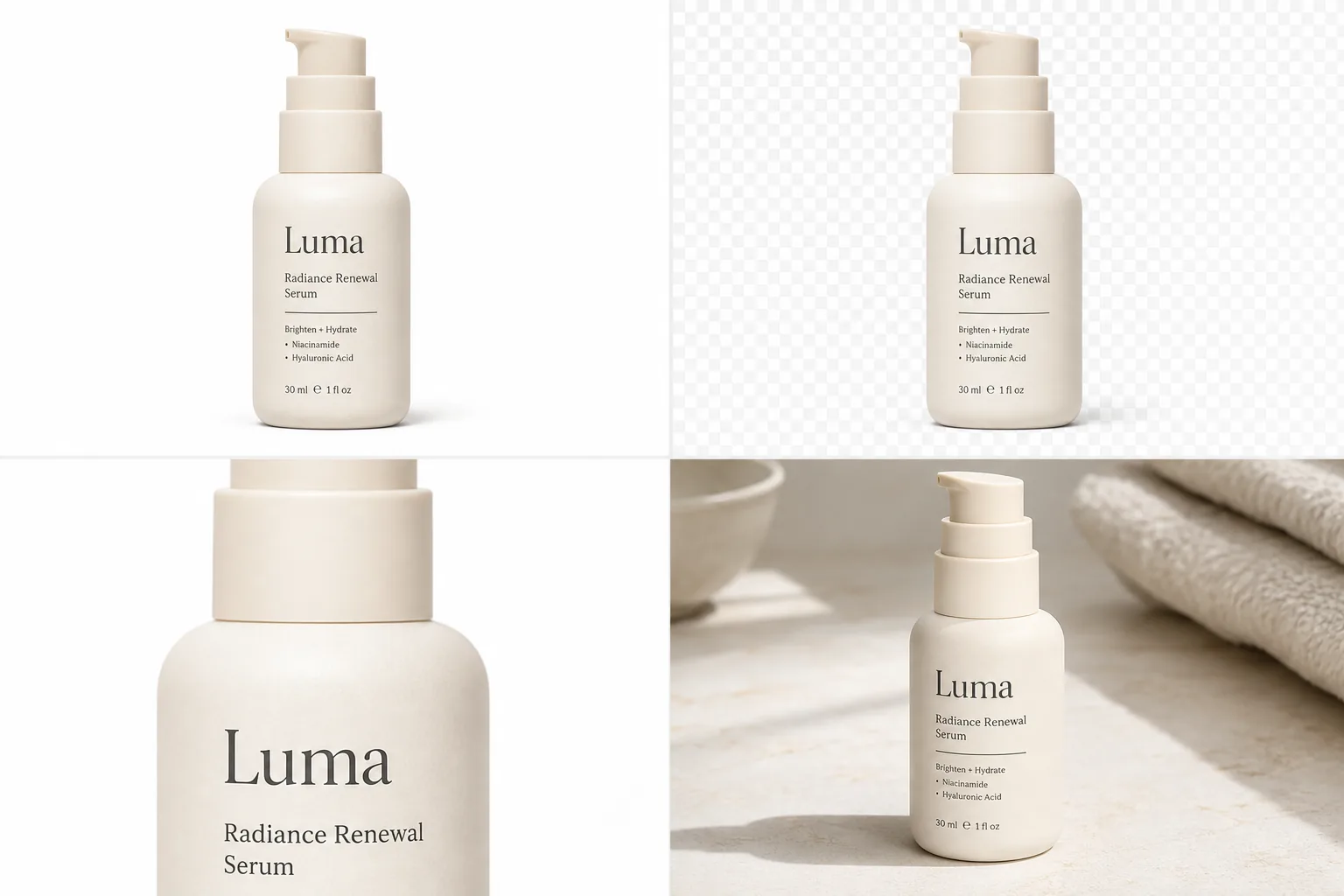
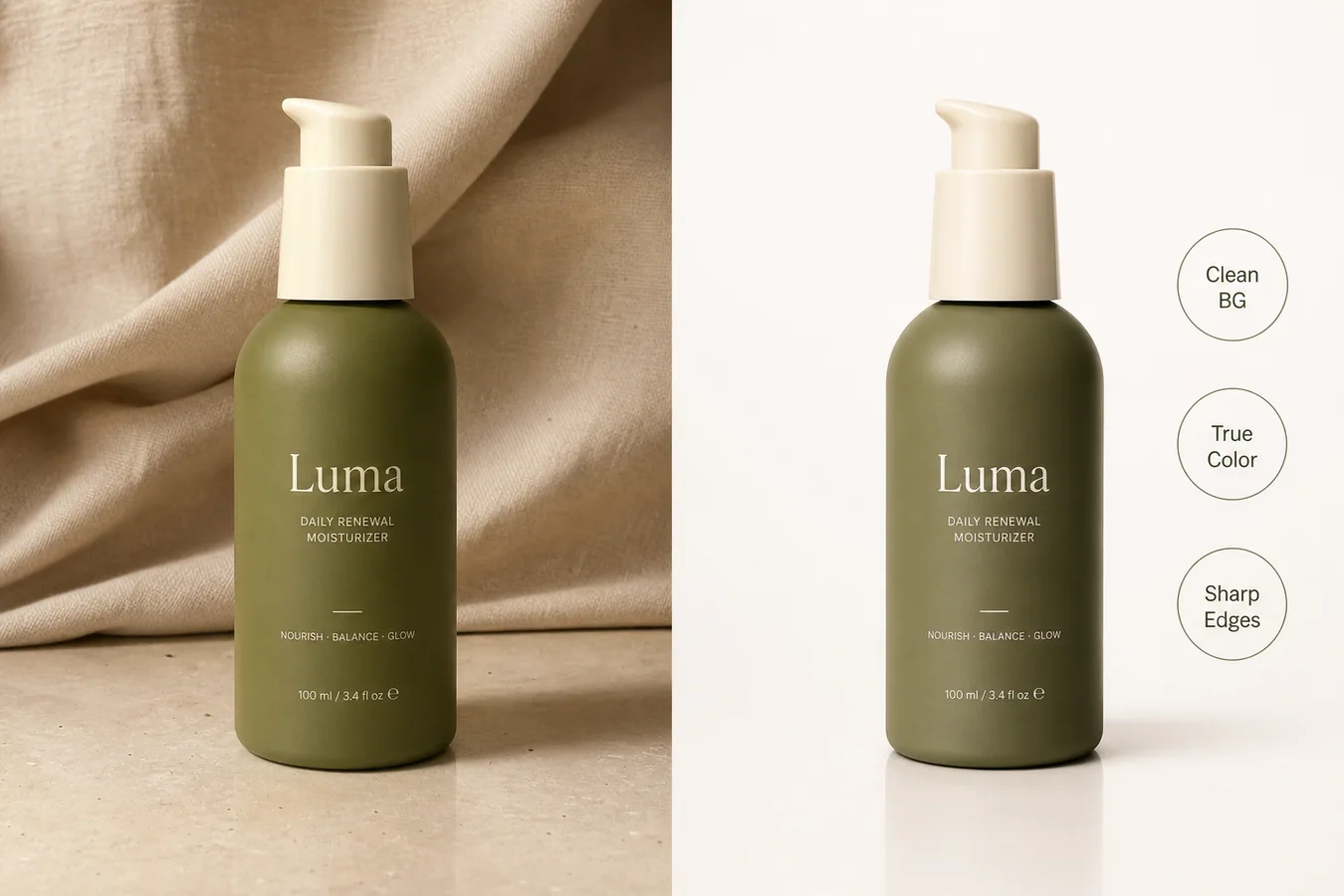
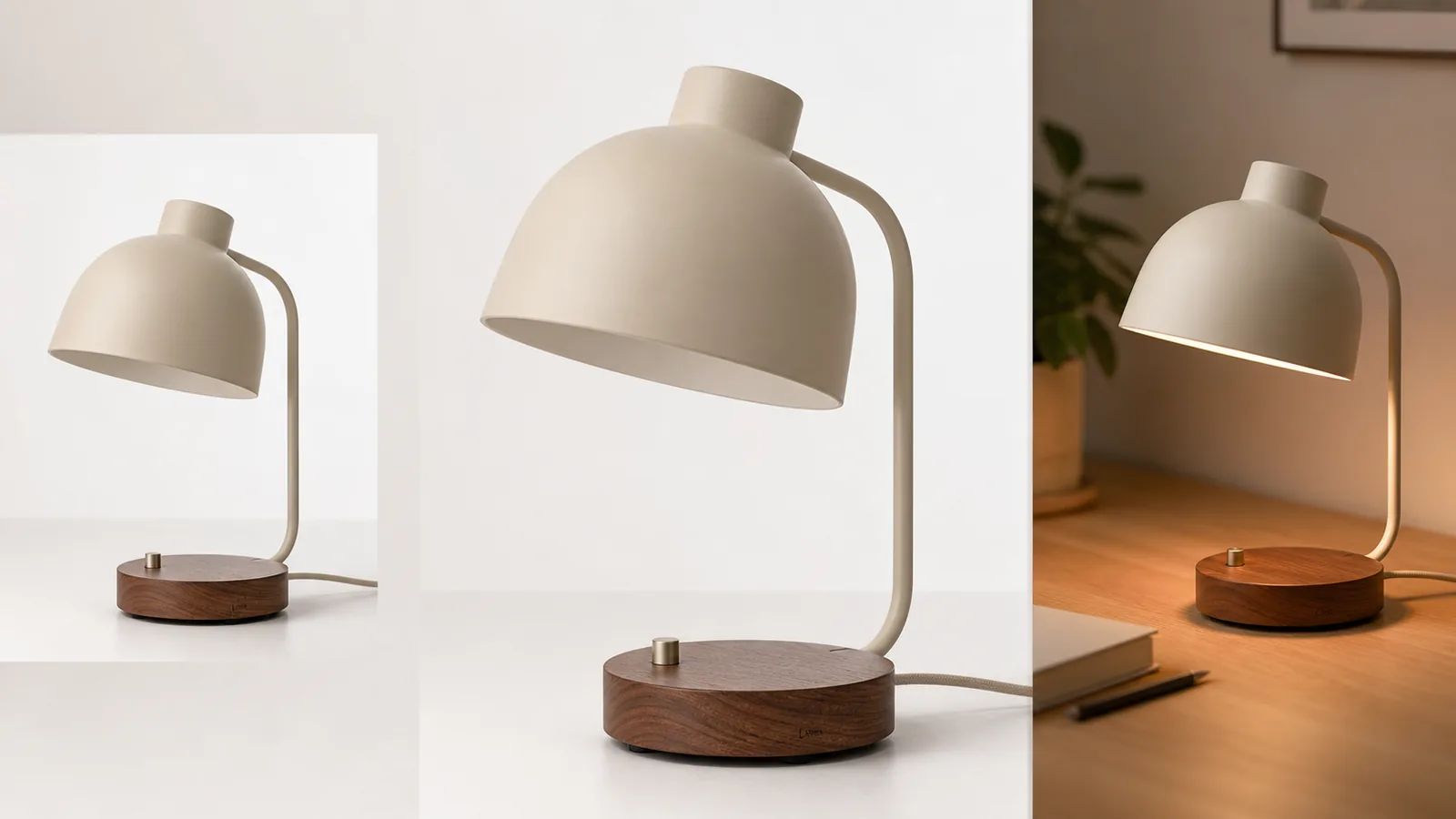
Put it into practice
Take the next step in KrafLayer
Choose a generation or editing workflow that matches what you just learned.