Platforms
How to Create Clean White Background Product Images for Google Shopping
TL;DR
A cautious workflow for preparing clean white-background product images for Google Shopping while preserving product truth.
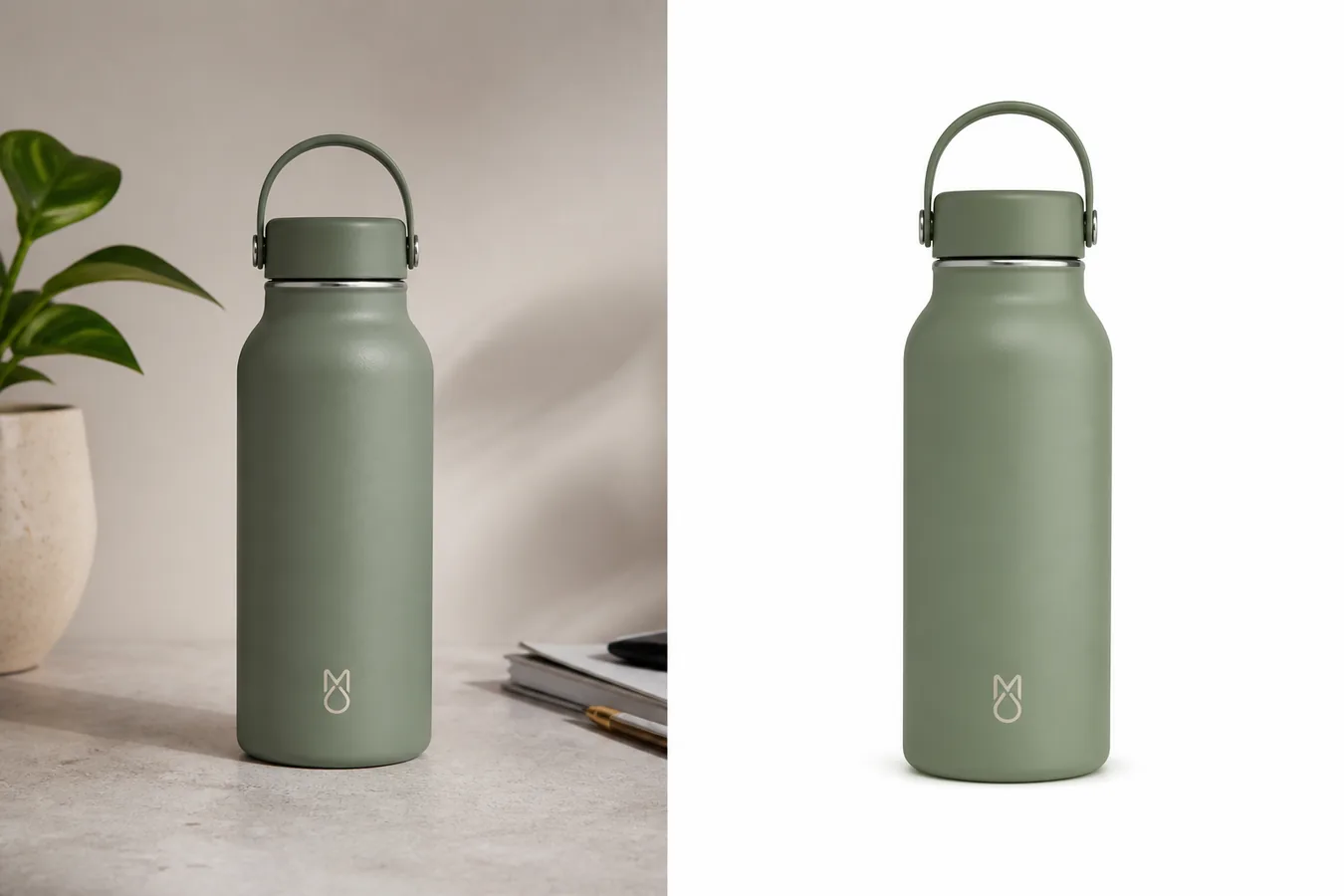
Google Shopping product images white background work best when the buyer sees the actual product clearly, without text overlays, fake badges, watermarks, or distracting props. A clean white or transparent background is usually the safest starting point, but it is not a guarantee of approval. Sellers still need to review current Google Merchant Center diagnostics and Google's official image guidance before submitting or resubmitting product data.
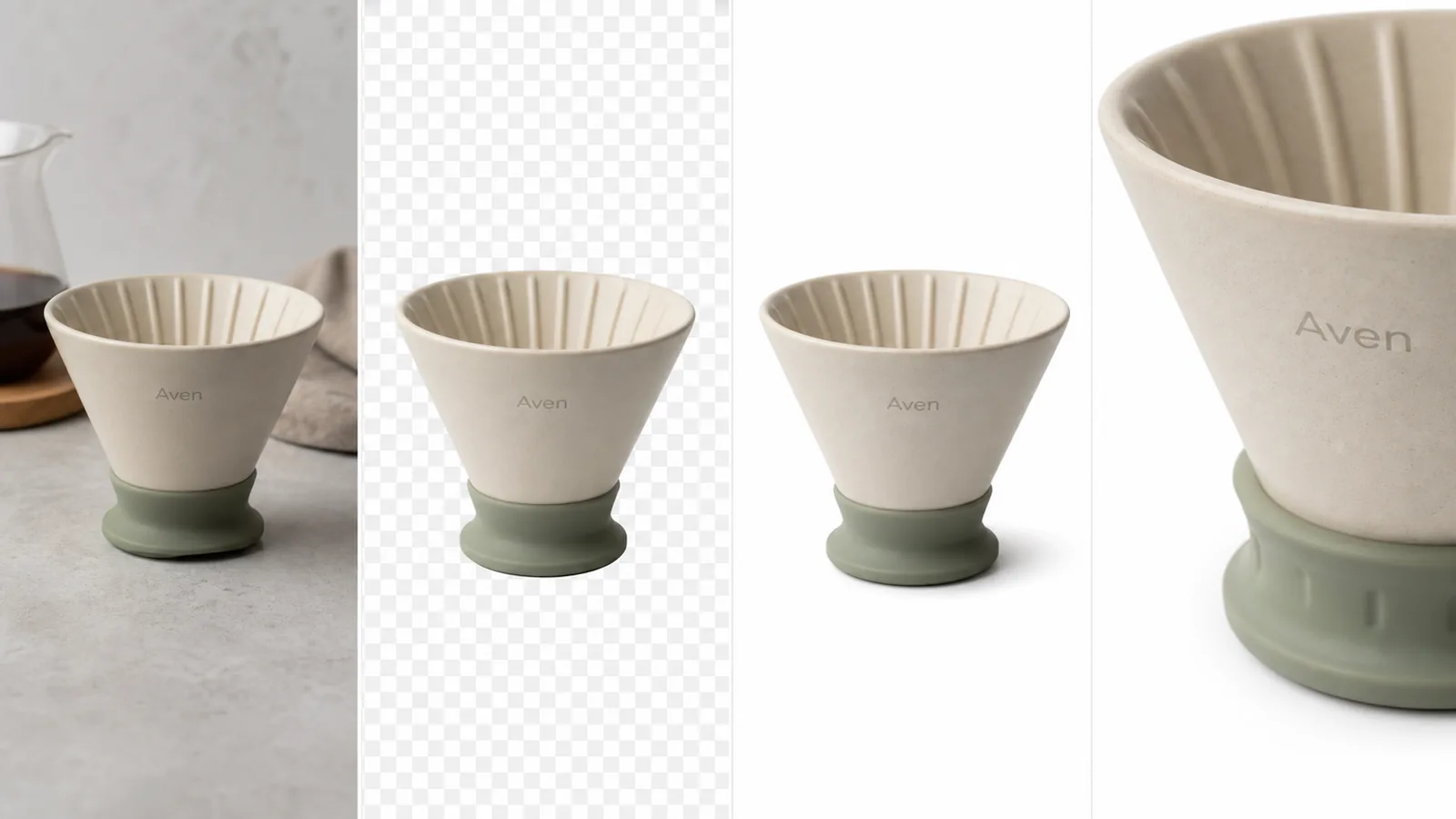
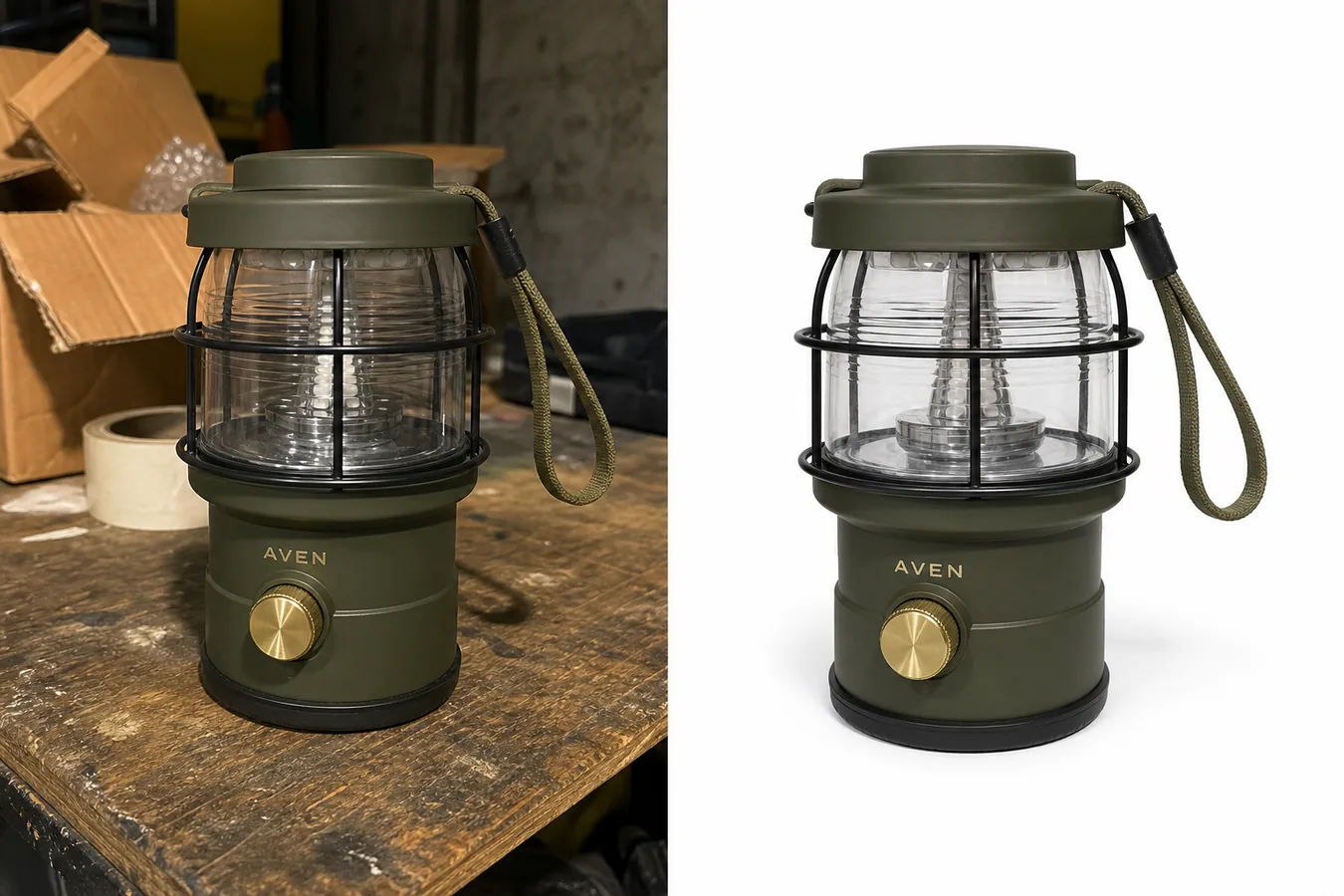
The practical workflow is: start with the real product photo, remove or replace the background, keep the SKU unchanged, check the image for overlays or unsupported claims, then review the result in Merchant Center. In KrafLayer, this usually means using the [product background remover](/tools/ai-background-remover) first, then making any small fixes in the [product photo editor](/product-photo-editor).
What Google Wants The Product Image To Do
Google's image requirements are built around a simple idea: the image should represent the product being sold. The safest Google Shopping product images white background workflow keeps the product prominent, accurate, and free from visual elements that could mislead the buyer.
After verifying Google's current Merchant Center image-link guidance, these are the practical rules a seller should follow:
- Show the real product, not a different color, shape, bundle, or upgraded version.
- Keep the product large enough to inspect.
- Avoid promotional text, price tags, discount labels, watermarks, borders, and fake marketplace marks.
- Use a clean background when the product needs inspection.
- Do not cover the product with props, callouts, or decorative graphics.
- Review any exact size, format, or policy issue against current Merchant Center guidance, because platform rules can change.
White background product images are useful because they reduce ambiguity. The buyer can compare shape, color, material, edges, and scale faster than they can in a busy scene.
When A White Background Is The Right Choice
Use a white background when the image's job is product inspection.
It is a strong fit for:
- Main catalog images.
- Product feeds.
- Shopping ads.
- Variant comparison images.
- Simple accessories, home goods, tools, bottles, apparel, and packaged goods.
- Products where shape, color, or edge detail matters more than lifestyle mood.
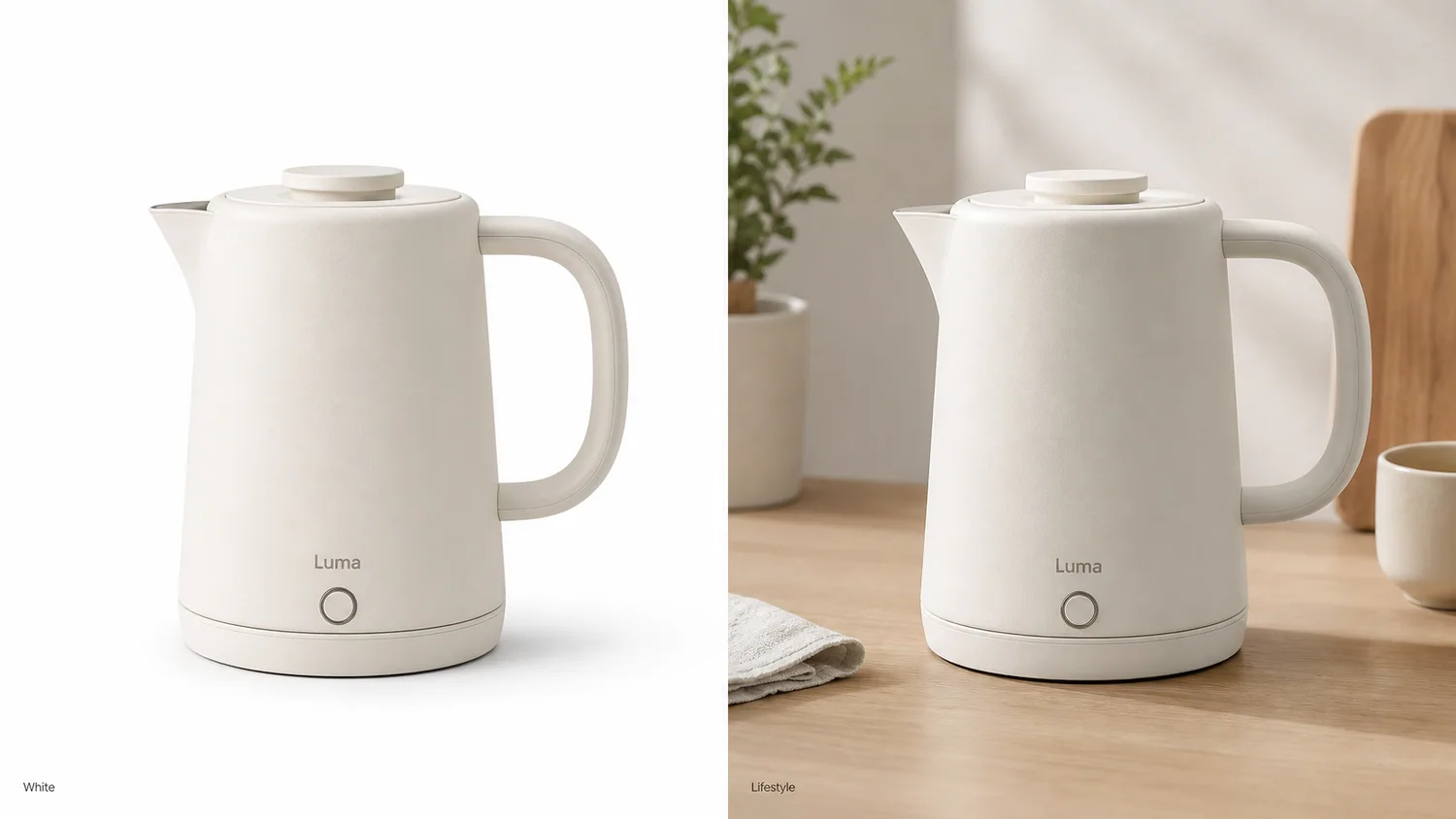
It is weaker when the buyer needs scale or use context. A white-background image can show the product cleanly, but it may not explain how large a lamp is on a table, how a bag sits on the body, or how a handmade ceramic piece feels in a room. In those cases, keep the white-background image as the clean product proof, then add lifestyle or detail images elsewhere in the product gallery.
A Safe Editing Workflow In KrafLayer
Use this sequence before sending product images to Google Merchant Center:
1. Choose the clearest source image. Avoid blurry, cropped, or heavily filtered photos when possible. 2. Use the [AI background remover](/tools/ai-background-remover) to create a clean cutout or white-background version. 3. Check that the product shape, color, material, label area, cap, handle, seam, or hardware did not change. 4. Remove visual clutter, price stickers, or shoot artifacts only when they are not buyer-relevant product information. 5. Keep the shadow soft and natural so the item does not float. 6. Export a clean product image and review it against Merchant Center feedback. 7. If Merchant Center flags an issue, fix the specific issue instead of regenerating a new product from scratch.
KrafLayer is useful here because the goal is narrow: clean the background and prepare a product image, not invent a new product. If an edit changes the SKU, reject it even if the image looks more polished.
What Not To Add To Google Shopping Images
The most common mistake is treating a feed image like an ad banner. Product-feed images should usually be quieter than promotional creative.
Avoid adding:
- Discount text.
- Free shipping labels.
- Review stars.
- Best-seller badges.
- Real platform logos.
- Certification marks you cannot verify.
- Watermarks or ownership marks.
- Decorative borders.
- QR codes or barcodes.
- Before/after claims.
- Medical, safety, organic, waterproof, or performance claims unless the product data and policy context support them.
This does not mean every product image must be plain. It means the feed image should not ask Google or the buyer to separate the actual product from an advertisement.
Product Facts To Protect During Background Removal
A clean product image background is only useful if the product stays true. Before publishing, inspect the result at full size.
Protect:
- Exact product color.
- Material texture and finish.
- Silhouette and proportions.
- Label or logo placement.
- Buttons, ports, seams, zippers, caps, handles, or hardware.
- Transparent edges, glass thickness, fabric texture, or metal highlights.
- Natural contact shadow.
- Variant-specific details.
If the original product is sage green, the clean version should not become gray. If the source bottle has a rounded shoulder and loop cap, the white-background version should not turn into a different bottle shape. Product accuracy matters more than making the image feel artificially perfect.
Quick Checklist Before Uploading
Use this checklist for Google Merchant Center product images:
- The product is the main subject.
- The background is clean, usually white or transparent for inspection images.
- There are no text overlays, watermarks, badges, or fake platform marks.
- The product is not cropped in a way that hides buyer-relevant details.
- The color and material match the real SKU.
- The image does not imply a bundle unless the product listing sells that bundle.
- The file is sharp enough for buyers to inspect.
- Any platform warning is checked against current Merchant Center guidance.
- The final image is reviewed by a human before resubmission.
This is also a good [ecommerce product photography](/ecommerce-product-photography) habit outside Google Shopping. Clean images convert better when they let the buyer understand the item quickly.
FAQ
Do Google Shopping product images need a white background?
A white or transparent background is often the safest choice for clean product inspection, but sellers should not treat it as the only requirement. The product must be accurately represented, visible, and free from overlays or misleading elements. Always check current Google Merchant Center guidance and diagnostics for the exact issue.
Can I use AI to create Google Merchant Center product images?
AI can help clean the background, improve crop, or prepare a sharper product image, but the final image still needs human review. Do not use AI to change product color, shape, bundle contents, labels, or buyer-relevant details. The image should represent the product being sold.
What is the safest KrafLayer tool for this workflow?
Start with the AI background remover when the main job is a clean white or transparent background. Use the product photo editor for smaller cleanup tasks after the product is isolated. Avoid broad creative regeneration unless you have a strong product reference and can review the result carefully.
Should I add text or badges to a Google Shopping image?
For feed-style product images, avoid text overlays, promotional badges, review stars, watermarks, and platform-like marks. Keep selling claims in your product data, landing page, or approved ad creative instead of placing them directly on the clean product image.
What if Merchant Center disapproves the image?
Read the specific diagnostic first. Then fix that issue: remove an overlay, improve clarity, correct a mismatch, replace a misleading image, or adjust the background. Do not assume a new AI-generated image will solve the problem unless it still preserves the exact product.
Conclusion
Google Shopping product images white background should make the product easy to inspect without turning the feed image into an ad banner. Use a clean background, protect the real SKU, avoid overlays and unsupported claims, and verify current Merchant Center guidance when a policy issue appears. KrafLayer helps with the practical part: remove the background, clean the product image, and prepare a review-ready ecommerce asset without changing what the seller is actually selling.
Keep exploring
Continue the story
More practical guidance on product accuracy, composition, and conversion-ready visuals.
Put it into practice
Take the next step in KrafLayer
Choose a generation or editing workflow that matches what you just learned.