Image generation
Handbag Detail Images: Show Real Leather Texture
TL;DR
Create handbag detail images that prove real leather grain, finish, stitching, edge paint, hardware, function, and scale without inventing material evidence.
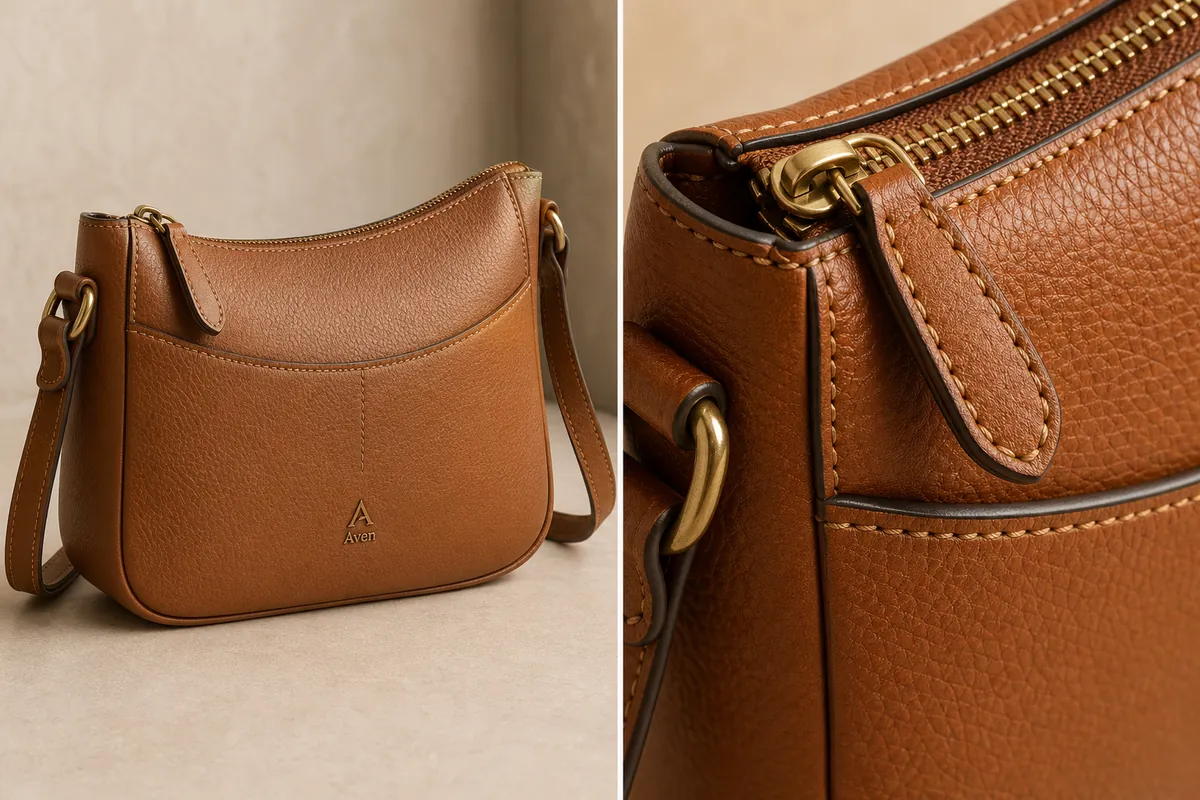
A strong handbag detail image proves material and construction. Start with real texture evidence, match lighting to the leather finish, keep crop scale credible, and reject any generated grain, stitching, edge paint, or hardware that differs from the SKU.
AI handbag detail images that show leather texture work when the buyer can inspect the material, stitching, zipper, edge paint, and hardware without wondering whether the bag changed. The point of a detail image is not to make the product look more expensive than it is. The point is to make the real selling details easier to see.
For leather bags, the best workflow is to lock the full handbag first, then create one close-up detail image from the same product truth. Leather texture product photos only help buyers when the grain, stitch spacing, zipper pull, strap anchor, hardware color, and bag proportions still match the real item. In KrafLayer, use the handbag reference as the source, generate a main image and a detail image separately, and review whether those facts still match.
Why Leather Detail Images Matter
Handbag shoppers use detail images to judge quality. A main image tells them the shape and style. A detail image tells them whether the leather looks smooth, pebbled, waxed, soft, structured, coated, or handmade.
A useful handbag detail image should prove five things:
- The leather grain matches the main product view.
- The stitching is straight, evenly spaced, and in the right place.
- The zipper teeth and pull look physically attached to the same bag.
- The edge paint, piping, strap anchor, and seams follow the real construction.
- The hardware finish stays consistent across the main image and detail crop.
If the detail image shows beautiful texture but changes the zipper, strap connector, or panel layout, it is not a trustworthy ecommerce asset.
Start With A Product-Truth List
Before using an [AI product image generator](/ai-product-image-generator), write down the bag facts that cannot change. This list is more useful than a vague prompt such as "make a premium leather detail shot."
For a leather handbag, lock these facts:
- Bag silhouette, height-to-width ratio, and bottom shape.
- Leather color, grain size, and finish.
- Front panel shape, pocket seam, and stitch paths.
- Zipper color, tooth size, pull shape, and opening position.
- Strap width, anchor rings, buckle, and side tabs.
- Hardware material, color, and reflectivity.
- Edge paint or piping color.
- Brand mark or label placement, if the product has one.
The product-truth list gives the model less room to invent a better-looking but different SKU.
Build The Main Image Before The Detail Crop
Create the main image first. It should show the whole handbag clearly enough that a buyer can understand shape, scale, strap position, pocket layout, and hardware placement. This main image becomes the reference point for every detail image.
For ecommerce product photography, a good handbag main image is usually a three-quarter view with enough side depth to show construction. Keep the bag large in the frame, use soft light to reveal grain, and avoid props that cover the straps or zipper.
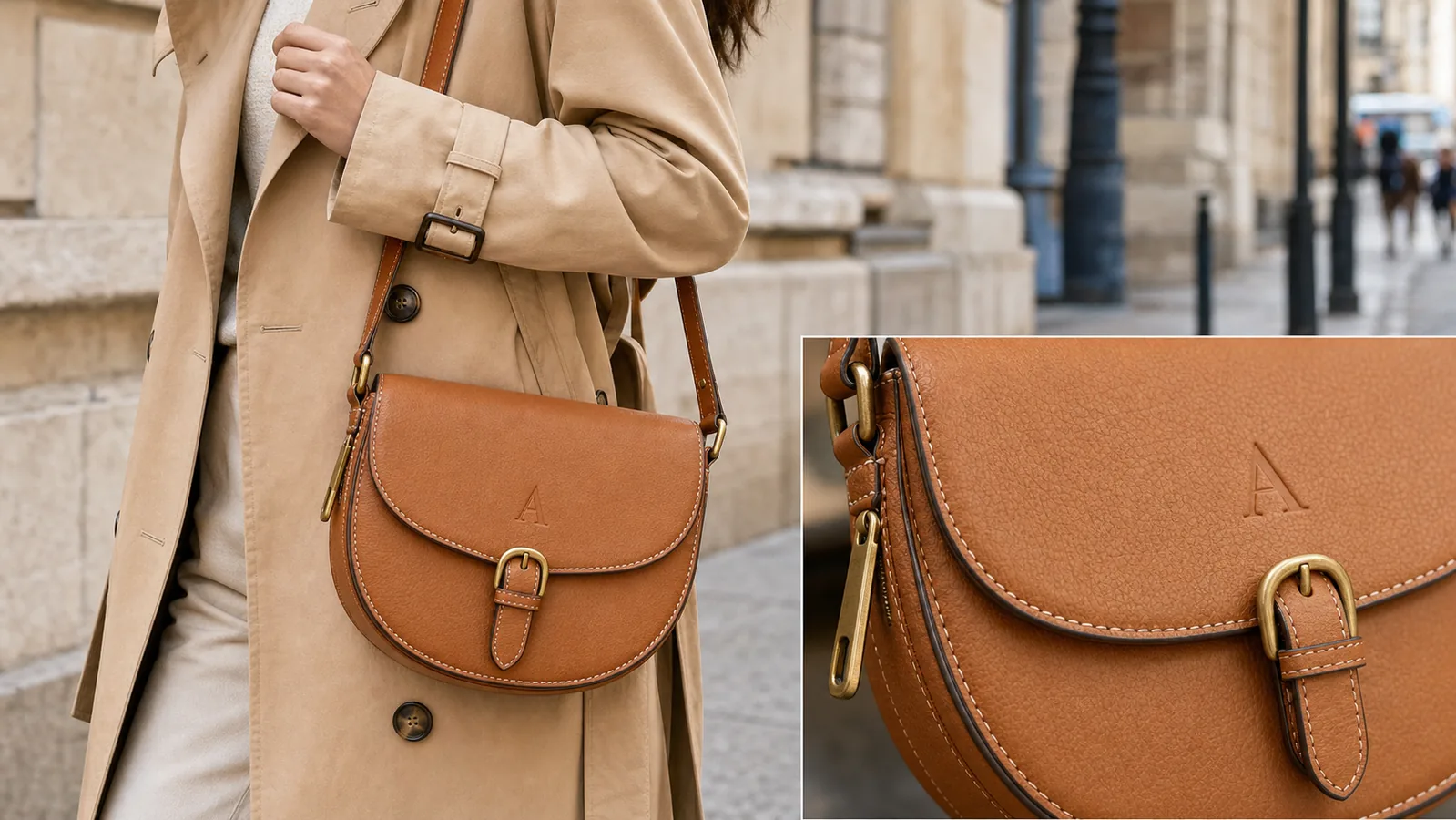
After the main image is accurate, create the detail image. Do not ask the AI to invent a random macro shot. Ask for a close crop of the same bag area: zipper corner, side ring, strap anchor, front panel stitch, edge paint, or leather grain near the pocket seam.
The practical rule is simple: the detail crop must make one product fact easier to inspect.
Prompt Pattern For Handbag Leather Texture
Use a prompt that protects construction first, then describes the texture goal.
Generate an ecommerce handbag product image from this reference. Preserve the same tan leather crossbody bag, curved top opening, front panel seam, zipper teeth, zipper pull, strap anchor rings, brass hardware, stitch spacing, edge paint, leather grain, product scale, and natural contact shadow. Create a clean main product view with visible pebbled leather texture and believable soft studio light. Do not change the bag shape, add extra pockets, alter the strap, redesign the hardware, imitate a real brand, add badges, add barcodes, add QR codes, or hide the construction details.
For the detail image, narrow the request:
Create a close handbag detail image of the same bag. Focus on the zipper corner, pebbled leather grain, stitch line, edge paint, and brass ring hardware. Preserve the same leather color, grain scale, zipper pull, hardware finish, strap connection, panel seam, and lighting direction. Make the texture clear enough for an ecommerce detail page without turning it into a different handbag.
The second prompt should feel smaller, not more dramatic. Detail images sell trust by being specific.
What To Check In The Generated Detail Image
Look at the detail crop before you publish it. Texture can look convincing at first glance while the construction quietly changes.
Check for:
- Leather grain that becomes too large, plastic, cracked, or inconsistent with the main image.
- Stitching that changes color, spacing, or direction.
- Zipper teeth that float above the leather or become different sizes.
- A zipper pull that changes shape between the main and detail image.
- Hardware that shifts from brass to gold, bronze, or black.
- Edge paint that appears only in the detail crop but not on the real bag.
- A strap anchor that moves to a new panel.
- A logo or label that becomes a fake real-world brand mark.
If the main image is strong but one small area is wrong, use a [product photo editor](/product-photo-editor) workflow for local correction instead of regenerating the whole composition.
Use Detail Images For Buyer Questions
Each detail image should answer a buyer question. Do not make three close-ups that all say "premium leather."
Use one close-up for each message:
- Leather grain: shows material finish and texture.
- Stitching: shows construction quality.
- Zipper and pull: shows closure durability.
- Strap anchor: shows carrying strength.
- Edge paint or piping: shows finishing detail.
- Interior opening: shows usability when the product reference supports it.
This is where [ecommerce product photography](/ecommerce-product-photography) becomes more than decoration. A detail image should reduce uncertainty about the product, especially for tactile categories like bags, shoes, apparel, and accessories.
A Practical Handbag Detail Workflow
1. Upload the clearest handbag reference you have. 2. Generate a clean main image that preserves the bag shape, panel layout, strap, and hardware. 3. Review the main image for product truth before making any detail crops. 4. Choose one selling detail: leather grain, zipper, stitching, hardware, strap anchor, or edge finish. 5. Generate a close detail image of that exact area. 6. Compare the main image and detail crop side by side. 7. Fix small local issues, then export the final WebP or platform-ready product image.
Do not skip step six. The side-by-side review is where most AI detail-image problems become obvious.
Photograph texture evidence before generating context
AI cannot prove a leather texture that the source never captured. Create a small evidence set under controlled light:
- a straight-on view of one uninterrupted leather panel;
- a grazing-light view that reveals grain depth without harsh glare;
- a macro view of stitching, edge paint, or embossing;
- a hardware view showing finish, engraving, and attachment;
- a neutral-light color reference;
- a scale reference for grain and stitch spacing.
Use the cleanest factual view as the reference for the detail image. If the grain is blurred or compressed, reshoot it. Sharpening or generation can make an unclear surface look more detailed while quietly inventing the material.
Match lighting to the leather finish
Different finishes need different evidence. Smooth leather is defined by controlled highlights and subtle pores. Pebbled leather needs side light that reveals raised grain without turning every bump into a hard crater. Suede and nubuck need directional nap. Patent leather needs a clean reflection shape that shows gloss without hiding the bag.
Do not use the same “luxury leather” treatment for every SKU. Heavy contrast, wet-looking highlights, and exaggerated grain can turn coated synthetic material into apparent full-grain leather or make real smooth leather look cracked.
Build a five-image handbag detail set
Assign one buyer question to each image:
1. Surface: What does the grain or finish look like at normal inspection distance? 2. Construction: Are stitching, edge paint, piping, and panel joins clean and consistent? 3. Hardware: What are the real color, shape, engraving, and attachment points? 4. Function: How do the zipper, clasp, strap adjustment, pockets, and opening work? 5. Scale and interior: What fits inside, and how large is the bag relative to familiar objects or verified dimensions?
Google asks product images to match the listed color, pattern, and material and allows additional images to show the product from different angles or in use ([Google product image requirements](https://support.google.com/merchants/answer/6324350?hl=en), 2026). Treat every close-up as evidence, not decoration.
Keep scale consistent in macro-style crops
A close crop can make fine grain look coarse or small hardware look oversized. Include a stable feature such as stitch spacing, a zipper tooth, or the known width of a strap when scale matters. Record the crop area in the asset manifest so another color variant can use the same level of magnification.
Avoid generating a “macro” view that could not be derived from the source resolution. When the detail is not visible in the reference, take a macro photograph rather than asking AI to guess.
Reject common leather-detail artifacts
Do not publish when:
- grain repeats in obvious tiles or changes direction across one panel;
- stitching count, spacing, or thread color differs from the source;
- edge paint becomes a seam or disappears;
- pores cross over embossing, logos, or hardware;
- reflections imply a different finish;
- hardware engraving becomes unreadable invented text;
- the detail crop uses a different product color or construction.
Compare the generated detail with the full bag and source close-up side by side. Repair one masked region when possible. If the artifact changes the material claim, replace the image with a real photograph.
FAQ
How do I create AI handbag detail images that show leather texture?
Start with a clear product reference, lock the handbag facts, and generate the main image before the detail crop. Then request a close view of one area, such as the zipper corner or front seam. Review leather grain, stitching, hardware, strap anchor, and zipper shape before publishing.
What should a handbag detail image show?
A handbag detail image should show one useful selling fact: leather grain, stitch quality, zipper teeth, edge paint, hardware finish, strap construction, or pocket detail. It should not be a random macro texture that could belong to any bag.
Can AI make leather look more premium?
AI can improve lighting, crop, and texture visibility, but it should not misrepresent the product. If the original handbag has subtle grain, the detail image should make that grain easier to see, not turn it into a different leather finish or higher-tier material.
Why do AI handbag images often change the hardware?
Small metal parts are easy for image models to reinterpret because they combine reflections, geometry, and tiny repeated shapes. Protect hardware in the prompt by naming the exact ring, buckle, zipper pull, tooth size, color, finish, and position.
Should I use one image or multiple detail images on a product page?
Use enough detail images to answer real buyer questions, but keep each one focused. For many handbags, one main image plus two or three detail images covering leather grain, zipper/hardware, and strap construction is more useful than a large gallery of similar beauty shots.
Conclusion
Handbag detail images work best when they turn texture and construction into visible product proof. KrafLayer helps sellers create AI product images from a handbag reference, then produce main images and leather-detail views that keep grain, stitching, zipper, hardware, edge paint, and scale connected to the same SKU. For fashion ecommerce teams, the advantage is faster product imagery that still gives buyers concrete material and construction details to inspect.
Keep exploring
Continue the story
More practical guidance on product accuracy, composition, and conversion-ready visuals.
Put it into practice
Take the next step in KrafLayer
Choose a generation or editing workflow that matches what you just learned.