Image generation
How to Create Watch Product Images Without Losing Dial Details
TL;DR
A practical workflow for creating watch product images that preserve dial markers, hands, subdials, crown, case, strap stitching, and finish.
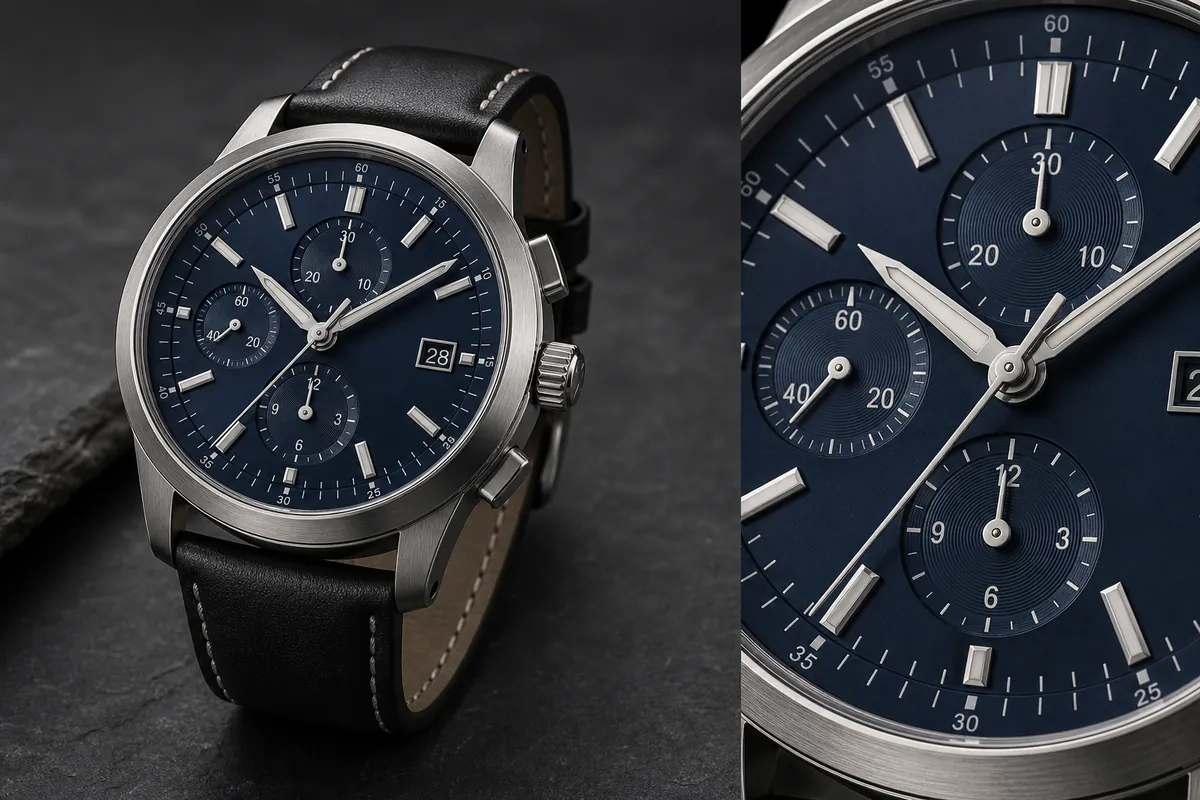
An AI watch product poster with accurate dial details works only when the watch still looks like the same SKU after the image is polished. The dial is not decoration. Buyers use the marker layout, hands, subdials, date window, crown, bezel, strap stitching, and case finish to decide whether the product feels trustworthy.
The practical rule is simple: generate the watch image around the dial facts first, then add the poster mood. In KrafLayer, start from a clean watch reference, create one main product image, create one dial-detail image if needed, and review every small feature before using the result in a listing, campaign, or product page. AI can improve lighting and composition, but it should not invent a different watch.
Why Watch Dial Details Need Special Care
Watch product images are less forgiving than many ecommerce categories. A handbag detail can survive a small lighting change. A watch image can fail if the second hand disappears, the date window moves, the hour markers drift, or the crown changes shape.
Accurate dial details matter because they prove product identity. A useful watch image should protect:
- Hour marker positions and marker style.
- Hour, minute, and second hand shape.
- Subdial count, position, ring texture, and hand placement.
- Date window shape and location.
- Crown, pushers, bezel, lugs, and case edge geometry.
- Strap material, stitch spacing, buckle direction, and lug attachment.
- Dial color, glass reflection, metal brushing, and scale.
Do not ask AI to make a "luxury watch poster" until those details are locked. That prompt is too open and often creates a prettier but different watch.
Build A Product-Truth List Before Prompting
Before using an [AI product image generator](/ai-product-image-generator), write a short product-truth list from the real watch photo. This is the checklist you compare against the generated image.
For a watch, include:
- Case shape: round, square, tonneau, diver, chronograph, or dress case.
- Dial color and texture.
- Number of hands.
- Marker type: batons, numerals, dots, indices, or mixed markers.
- Subdial count and placement.
- Date window position.
- Crown and pusher count.
- Strap or bracelet material.
- Stitching, links, buckle, or clasp shape.
- Finish: brushed steel, polished steel, gold tone, black PVD, ceramic, leather, nylon, or rubber.
This list helps the model keep accurate dial details instead of treating the watch as generic jewelry.
Create The Main Watch Image First
Start with a main product image. It should show the complete watch, not just an atmospheric crop. A good main image makes the case, strap, dial, crown, and scale readable in one glance.
For ecommerce, a three-quarter angle often works well because it shows case depth and strap construction. Use controlled reflections on the glass, but avoid glare across the dial. Keep the watch large enough for the buyer to inspect the face without zooming excessively.
If the main image looks right, create a second dial-detail image or product-poster crop. The detail image should clarify one selling point: dial finish, chronograph layout, brushed case edge, crown detail, leather stitch quality, or crystal reflection.
The detail crop should prove the same watch. If it introduces a new subdial, different marker style, or different crown, reject it.
Prompt Pattern For Accurate Watch Product Images
Use a prompt that names the protected watch facts before the mood or background.
Generate a premium ecommerce watch product image from this reference. Preserve the same analog wristwatch, dark navy dial, hour marker positions, hand shapes, subdial count and placement, date window, crown, pushers, bezel, lugs, brushed stainless steel case, black leather strap, stitching, glass reflection, product scale, and natural contact shadow. Use controlled studio lighting on a restrained dark stone surface. Make the image suitable for a product page or watch product poster. Do not change the dial layout, invent a real brand logo, add certification marks, add QR codes, add barcodes, add marketplace UI, or hide the watch face.
For the dial-detail view, narrow the instruction:
Create a close dial detail image of the same watch. Focus on the markers, hands, subdials, date window, crown edge, brushed case, crystal reflection, and dial texture. Keep the same marker layout, subdial count, hand shapes, strap material, and lighting direction. The detail should look sharp enough for ecommerce review without changing the watch design.
The second prompt is not a license to redesign the dial. It is a magnifying glass for product facts.
Review The Dial Before Publishing
Watch images can look expensive while still being wrong. Review the image at normal size and zoomed in.
Check for:
- Markers that are missing, duplicated, rotated, or unevenly spaced.
- Hands that bend, split, blur, or point from the wrong center.
- Subdials that change count or placement between the main and detail view.
- Date windows that move or show unreadable fake text.
- Crowns or pushers that multiply or merge into the case.
- Strap stitching that changes color, spacing, or direction.
- Brushed metal that becomes plastic or chrome-like.
- Fake real-world branding, certification marks, or marketplace badges.
If the composition is strong but the image is slightly soft, use an [AI image upscaler](/tools/ai-image-upscaler) and inspect the markers, hands, text, and case edges again. Upscaling should improve readability, not hallucinate new detail.
If only one small dial area is wrong, use [AI mask edit](/tools/ai-mask-edit) for a local correction instead of regenerating the whole watch.
Use Poster Mood After Product Accuracy
An AI watch product poster can use darker surfaces, cinematic reflections, campaign lighting, or a close hero crop. Those choices should support the product, not cover it.
Good poster choices:
- A clean dark surface that contrasts with the case and strap.
- Controlled side light that reveals brushed metal.
- A close dial crop that shows texture and marker depth.
- Enough negative space for store layout, not fake text overlays.
- A product angle where the crown, strap, and dial stay readable.
Risky poster choices:
- Heavy glare across the dial.
- Shadows that hide the date window or subdials.
- Extreme macro crops that remove product context.
- Fake logo plates, badges, seals, barcodes, or luxury claims.
- Background props that become more important than the watch.
For high-detail categories, polish is useful only after the buyer can still identify the product.
A Practical KrafLayer Workflow
1. Upload the clearest watch reference available. 2. Write the product-truth list for the dial, case, crown, and strap. 3. Generate the main watch product image first. 4. Compare the generated image with the reference before creating detail crops. 5. Generate one dial-detail view or poster crop from the same product truth. 6. Review markers, hands, subdials, date window, crown, pushers, lugs, strap, and finish. 7. Upscale only after the layout is correct. 8. Use local mask edits for small corrections instead of restarting the whole composition.
This workflow keeps watch product images useful for selling rather than just visually dramatic.
FAQ
How do I create an AI watch product poster with accurate dial details?
Start with a clear watch reference, lock the dial facts, then generate the main image before adding poster lighting or a close dial crop. Review marker positions, hands, subdials, date window, crown, case, and strap after generation. Do not publish the image if the dial layout changed.
Why do AI watch product images often change the dial?
Watch dials contain many small repeated elements: markers, hands, subdials, date windows, rings, and tiny markings. Image models can reinterpret those details while improving style. Naming the protected details in the prompt and reviewing the output reduces the risk.
Should I use AI upscaling on watch product images?
Use upscaling after the image is structurally correct. An AI image upscaler can make edges, metal, strap texture, and dial markings easier to inspect, but it can also sharpen mistakes. Check the dial again after upscaling.
Can AI create readable tiny watch text?
AI can suggest small dial markings, but you should not rely on it for exact microtext, legal marks, model numbers, or brand copy. If exact text matters, add or correct it in a controlled design/editing step and review it manually.
What should a watch detail image show?
A watch detail image should clarify one buyer-relevant fact: dial texture, marker depth, hand shape, subdial layout, date window, crown machining, case brushing, crystal reflection, strap stitching, or clasp detail. It should not be a random luxury macro crop.
Conclusion
AI watch product images need a stricter review process than broad lifestyle visuals. The dial, hands, subdials, date window, crown, case, strap, and finish are product facts, not styling suggestions. KrafLayer helps sellers start from a watch reference, generate a product-facing main image, create a dial-detail or poster view, then use upscaling or mask edits only after the watch identity is intact.
Keep exploring
Continue the story
More practical guidance on product accuracy, composition, and conversion-ready visuals.
Put it into practice
Take the next step in KrafLayer
Choose a generation or editing workflow that matches what you just learned.