Platforms
Fix Google Merchant Center Image Issues: 8 Causes
TL;DR
Diagnose Merchant Center image issues by separating URL, file, content, product identity, and recrawl causes before editing.

Google Merchant Center image disapprovals are easier to fix when you separate four causes: the image file or URL cannot be processed, the picture violates content rules, the product shown does not match the feed, or Google has not recrawled the corrected asset yet. Editing pixels solves only the second category.
The troubleshooting guide uses Google Merchant Center documentation checked on August 11, 2026. The cleanser comparison is a KrafLayer demonstration, not a real Merchant Center account case or approval guarantee.
Quick Summary
Start in Products > Needs attention and copy the exact issue name. Validate the URL and file first, then correct overlays, borders, crop, background, resolution, or product mismatch. Use a new image filename and URL after replacing an asset; Google says unchanged URLs can take up to six weeks to be detected again.
Abstract
Do not edit blindly. Map the reported issue to URL, file, policy, identity, or recrawl. Google says corrected image changes usually appear in 24–72 hours, but changing pixels behind the same URL may delay detection for up to six weeks. Preserve the real product while fixing presentation.
Key Takeaways
- The exact Merchant Center issue name determines the repair.
- An image URL must return an actual supported image, not an HTML page.
- Google forbids promotional overlays, borders, and unrelated items in the main image.
- A new filename and URL can trigger faster recrawling.
- Editing does not guarantee approval; Google makes the final policy decision.
Table of Contents
1. [Diagnosis](#diagnose-before-editing) 2. [Issue map](#image-issue-to-fix-map) 3. [Content repair](#fixing-visible-image-violations) 4. [URL repair](#fixing-image-url-and-processing-errors) 5. [Resubmission](#resubmit-and-wait-without-creating-new-errors) 6. [Bulk workflow](#a-bulk-repair-workflow) 7. [Frequently asked questions](#frequently-asked-questions)
Diagnose Before Editing
Google reports image problems in the Merchant Center Needs attention view. The image-link specification says unsupported formats, blocked crawling, wrong URLs, insufficient size, inaccurate products, overlays, and borders can all prevent an image from serving ([Google image link specification](https://support.google.com/merchants/answer/6324350?hl=en), 2026).
Record the item ID, issue name, current `image_link`, HTTP status, content type, pixel dimensions, and last image change before touching the asset. That small log prevents a policy edit from masking a URL problem.
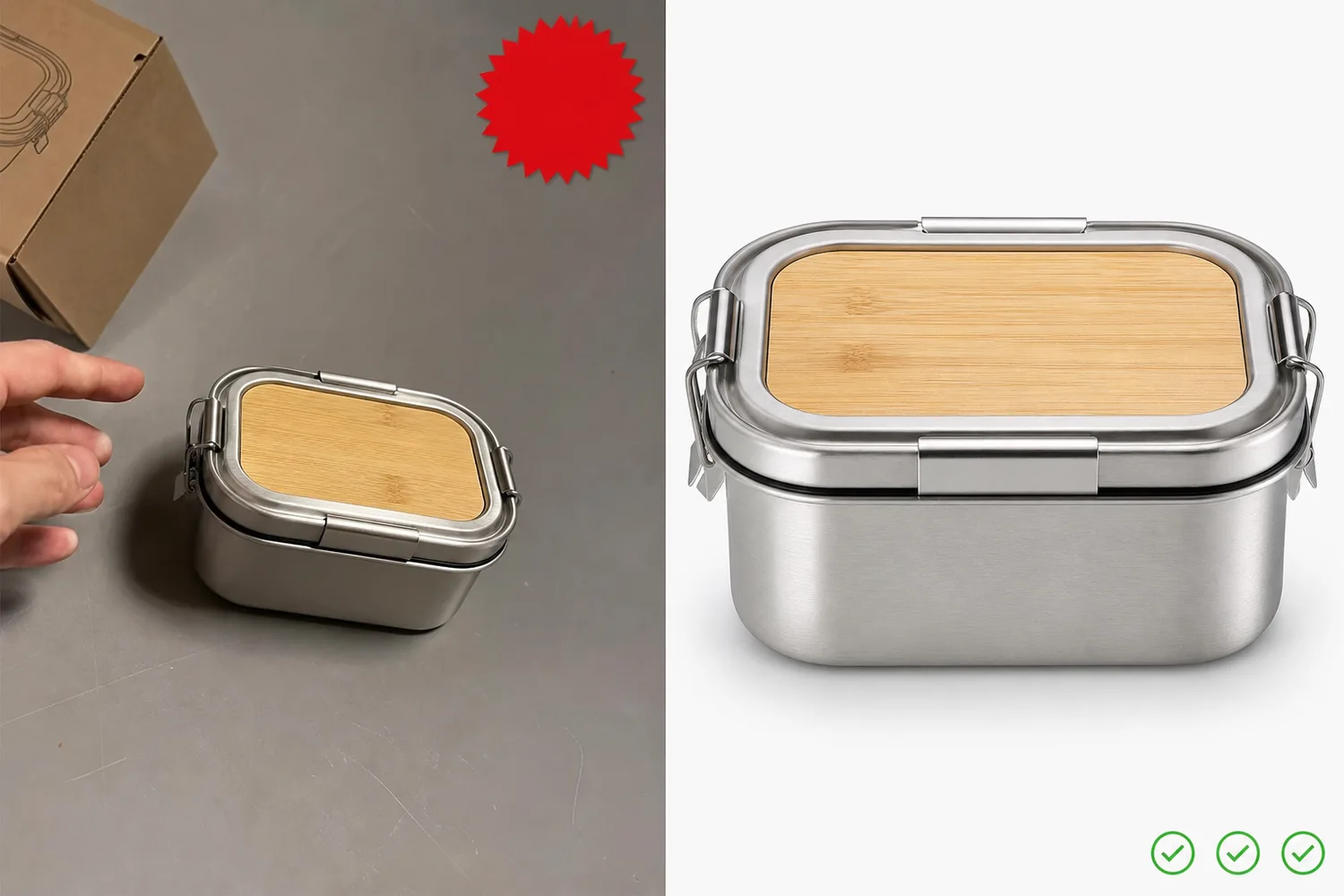
*KrafLayer demonstration comparison. Removing the discount badge addresses a promotional overlay; the corrected image still needs a crawlable URL, correct dimensions, and the actual product variant.*
Image Issue-to-Fix Map
Google will require images of at least 500 × 500 pixels from January 31, 2027, recommends around 1500 × 1500 or larger, and caps files at 64 megapixels and 16 MB. Those numbers apply alongside content and URL rules ([Google Merchant Center](https://support.google.com/merchants/answer/6324350?hl=en), 2026).
| Symptom or issue | Likely layer | First check | Correct action |
|---|---|---|---|
| Image not processed | URL/file | HTTP 200, actual image content type, supported format | Replace invalid link or file; submit a new URL |
| Image too small | Resolution | Original pixel dimensions | Use a larger real source; do not enlarge a thumbnail |
| Promotional overlay | Content | Price, discount, shipping, CTA, watermark | Remove overlay from main image |
| Border around image | Content | Visible frame or padded graphic border | Export borderless canvas |
| Generic or placeholder image | Identity | Does image show actual item? | Photograph or use correct product image |
| Variant mismatch | Feed identity | Color, pattern, material, customization | Assign unique correct image to each variant |
| Crop or excessive staging | Composition | Entire product and product fill | Reframe with minimal staging and 75%–90% fill |
| Old image persists | Recrawl/cache | Was URL reused? | Change filename and URL; allow processing time |
Fixing visible image violations
Google prohibits calls to action, prices, free-shipping messages, promotional adjectives, watermarks, external logos, barcodes, and borders in the primary product image. It also requires the image to show the full actual product with minimal or no staging ([Google Merchant Center](https://support.google.com/merchants/answer/6324350?hl=en), 2026).
Use the narrowest repair. Remove a discount sticker with an [Object Eraser](/tools/ai-object-eraser) only if the fill does not touch or change the product. Use the [Background Remover](/tools/ai-background-remover) for a distracting main-image scene. Use the [Image Upscaler](/tools/ai-image-upscaler) only when the source already contains truthful readable detail.
Fix the reported defect, then compare with the source
Open the [KrafLayer Product Photo Editor](/product-photo-editor), choose the operation that matches the Merchant Center issue, and reject any edit that changes the SKU while cleaning the presentation.
Fixing Image URL and Processing Errors
Google supports JPEG, WebP, PNG, GIF, BMP, and TIFF when the extension matches the format. URLs must begin with HTTP or HTTPS, comply with RFC 3986, return an image rather than a webpage, and allow Googlebot plus Googlebot-Image to crawl ([Google Merchant Center](https://support.google.com/merchants/answer/6324350?hl=en), 2026).
Check the URL outside your logged-in store session. A CDN link that requires a cookie, expires, redirects to an HTML error, blocks bots, or returns the wrong MIME type will not be fixed by retouching the image.
Google's Image not processed help page says the system retries within three days. If you replace the image behind the same URL, detection can take up to six weeks. A changed filename and URL is usually checked within 72 hours ([Google: Image not processed](https://support.google.com/merchants/answer/12157889?hl=en), 2026).
Resubmit and Wait Without Creating New Errors
After updating the image and feed, reupload or reprocess the product data. Google says changes may take 24–72 hours to appear in Needs attention. Do not keep changing the asset every few hours; each revision makes it harder to know which fix Google evaluated ([Google: Image not processed](https://support.google.com/merchants/answer/12157889?hl=en), 2026).
Use a versioned stable URL such as `sku-front-main-v2.jpg`. Keep it stable after submission. Request a review only when Merchant Center offers that option and the underlying issue is genuinely resolved; Google notes that support cannot shorten a review cooldown ([Google review requests](https://support.google.com/merchants/answer/13585221?hl=en), 2026).
A Bulk Repair Workflow
Google recommends downloading affected items from Needs attention, cross-referencing them with uploaded product data, correcting image links, and reuploading the data source for bulk fixes ([Google: Image not processed](https://support.google.com/merchants/answer/12157889?hl=en), 2026).
Export the affected item IDs and exact issue names, then group them by URL, file, content, identity, and recrawl cause. Correct a small sample from each group before changing the full catalog. Validate the public URL, dimensions, and source fidelity; submit versioned URLs where pixels changed. Wait 72 hours before evaluating ordinary processing, then apply the verified repair to the rest of that group.
| Bulk checkpoint | Evidence to retain | Why it matters |
|---|---|---|
| Before repair | Item ID, issue name, old URL, dimensions | Preserves the original diagnosis |
| Sample submitted | New URL, file hash, submission time | Identifies the exact asset under review |
| 72-hour check | Current status and served image | Separates processing delay from failed repair |
| Catalog rollout | Affected group and repair rule | Keeps unlike causes from receiving one blanket edit |
Verdict
The fastest repair starts with the issue name, not an editor. Fix transport errors as URLs, policy errors as content, variant errors as feed identity, and stale assets with versioned URLs plus patience.
Frequently Asked Questions
How long does Google take to process a corrected image?
Google says updates commonly take 24–72 hours. Its image-processing guidance warns that changing an image while keeping the same URL can take up to six weeks to detect. Use a new filename and URL for a genuinely replaced asset.
Can AI guarantee Merchant Center approval?
No. AI can remove overlays, clean backgrounds, or prepare resolution, but Google evaluates the final image, feed, URL, product identity, and policy compliance. Review every edit and check the exact current issue in Merchant Center.
Should I upscale an image that is too small?
Use a larger original whenever possible. Google says not to upscale thumbnails. An AI upscaler can create plausible detail, but it cannot prove text, texture, or edges that the source never captured.
Why does Merchant Center still show my old image?
The old URL may be cached or awaiting recrawl. Google says a same-URL replacement can take up to six weeks to detect. Submit a stable new URL and allow 24–72 hours for ordinary processing.
Where do I find the reason for disapproval?
Open Products and the Needs attention tab in Merchant Center, filter for image issues, and inspect the affected product. Copy the exact issue name before choosing a repair or requesting review.
References
1. [Google Merchant Center: Image link requirements](https://support.google.com/merchants/answer/6324350?hl=en), accessed August 11, 2026. 2. [Google Merchant Center: Image not processed](https://support.google.com/merchants/answer/12157889?hl=en), accessed August 11, 2026. 3. [Google Merchant Center: Request a review](https://support.google.com/merchants/answer/13585221?hl=en), accessed August 11, 2026.
Keep exploring
Continue the story
More practical guidance on product accuracy, composition, and conversion-ready visuals.


Put it into practice
Take the next step in KrafLayer
Choose a generation or editing workflow that matches what you just learned.