Image generation
AI Earring Model Photos: Scale, Placement and 6 Checks
TL;DR
Create credible AI earring model photos with verified dimensions, on-ear placement, clasp and material evidence, source hierarchy, and six fidelity checks.
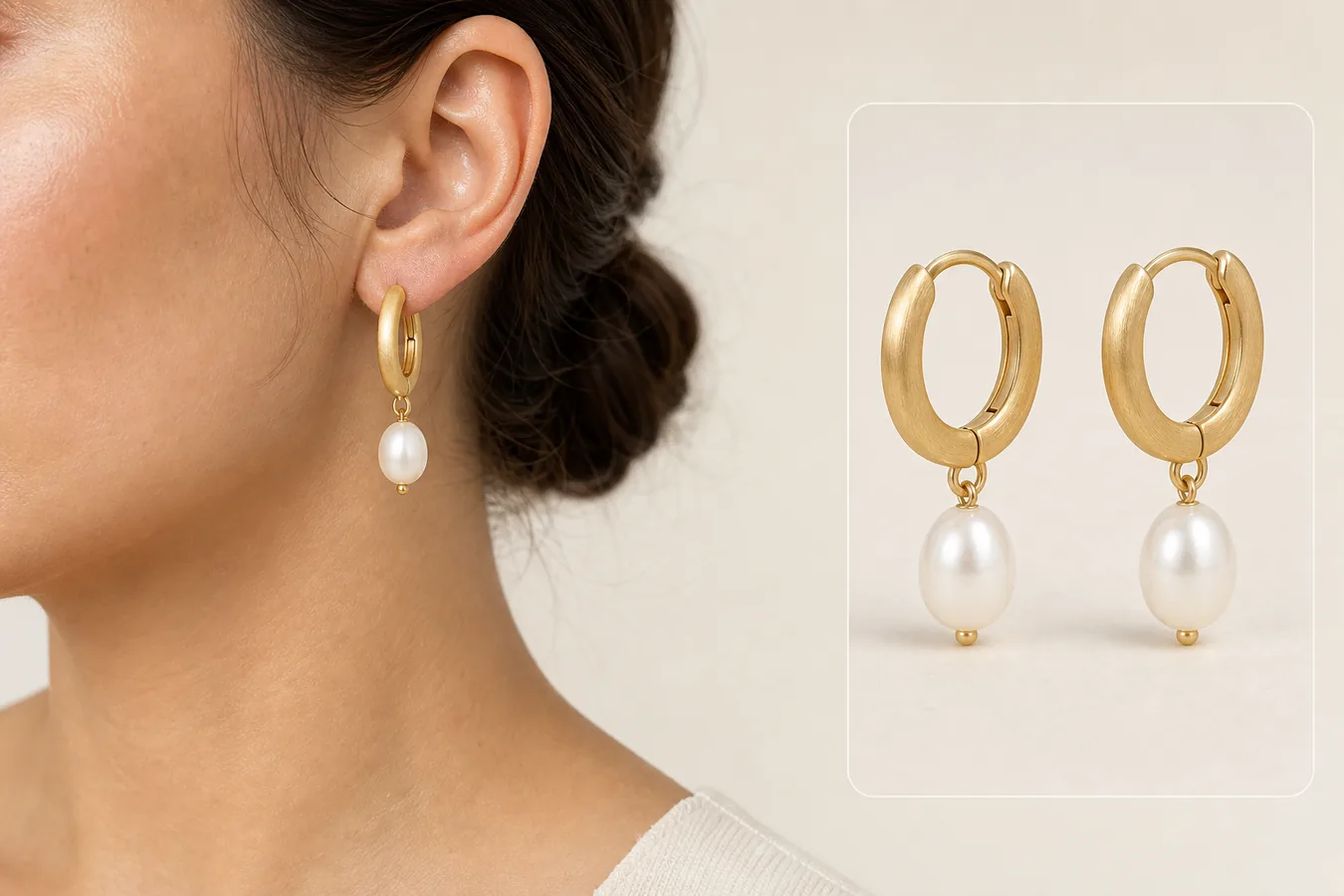
AI can place earrings on a model, but a plausible portrait is not enough. The generated image must preserve the earring's diameter, drop length, clasp, stone count, metal color, and left-right orientation. Treat the model view as a scale and styling image. Keep a plain product view beside it so buyers can inspect the item without hair, skin, or perspective hiding the construction.
The workflow below uses current Google and Amazon image guidance plus the limitations visible in the source-to-model demonstration. The images are KrafLayer demonstration assets, not customer results or a controlled model benchmark.
Quick Summary
Google recommends showing non-clothing accessories alone in the main image and on a model in secondary views. Use the product-only view as the identity anchor, add verified dimensions, generate a restrained on-ear view, then reject any output that changes scale, clasp, stones, symmetry, or metal finish.
Abstract
An earring model image has two jobs: show believable wearing scale and preserve the exact SKU. Start with front, side, clasp, and measurement references. Generate one ear angle at a time. Review product geometry separately from skin, hair, light, and portrait quality.
Key Takeaways
- Keep the accessory alone in the main image and use model views as secondary views.
- Millimeter dimensions are more reliable than visual scale alone.
- Earrings need clasp and side-view references, not only a front beauty shot.
- Hair should frame the product without hiding the closure or drop.
- A changed stone count or hoop diameter is a hard rejection.
Table of Contents
1. [Evidence and limits](#evidence-and-limits) 2. [Source image set](#the-reference-set-an-earring-needs) 3. [Scale control](#controlling-on-ear-scale) 4. [Prompt structure](#a-prompt-that-protects-the-sku) 5. [Review matrix](#the-earring-fidelity-review) 6. [Gallery roles](#where-the-model-image-belongs) 7. [Reshoot boundary](#when-generation-is-the-wrong-tool) 8. [Frequently asked questions](#frequently-asked-questions)
Evidence and Limits
Google recommends showing shoes, handbags, and accessories alone in main images, then on a model in secondary views. Amazon identifies scale and detailed shots as separate product-photo roles. Together, the guidance supports a simple division: product-only images prove construction; on-model images explain wearing scale and style ([Google Merchant Center](https://support.google.com/merchants/answer/6324350?hl=en); [Amazon](https://sell.amazon.com/blog/product-photos), 2026).
We did not run the same earring through multiple commercial generators. The visual below is useful because it puts the on-ear image and product pair in one frame, making geometry and scale easier to compare.
*KrafLayer demonstration composite. Compare hoop diameter, brushed finish, pearl shape, connecting ring, clasp opening, and the drop relative to the earlobe.*
The Reference Set an Earring Needs
Google requires the image to show the correct variant, color, pattern, and material. One front view can anchor the visible design, but it cannot prove clasp depth, post position, rear hardware, or the way a drop attaches ([Google Merchant Center](https://support.google.com/merchants/answer/6324350?hl=en), 2026).
| Reference | What it proves | Common omission |
|---|---|---|
| Front pair | Shape, symmetry, stone count, color | Clasp and depth |
| Side view | Thickness, post, hinge, drop attachment | Front decoration |
| Open clasp | Closure type and usable opening | Wearing scale |
| Macro detail | Texture, setting, engraving, pearl surface | Whole-product proportion |
| Measurement photo | Hoop diameter, drop length, width | Material appearance |
Photograph the actual pair, not one earring duplicated in software. Small asymmetries, stone orientation, and hardware may be real product facts.
Controlling On-Ear Scale
Amazon defines a scale image as a view that helps customers judge size through a familiar reference. An ear provides context, but ear anatomy varies, so include the verified millimeter measurement elsewhere in the gallery rather than asking one portrait to communicate exact size ([Amazon](https://sell.amazon.com/blog/product-photos), 2026).
Use the real dimensions to check the render. A 12 mm hoop should not become a 25 mm statement hoop because the portrait composition looks stronger. Watch the distance from piercing to lower edge, the relation between hoop width and earlobe, and the drop's vertical length.
| Scale signal | Pass | Reject |
|---|---|---|
| Piercing point | Hardware enters the lobe plausibly | Earring floats or pierces the wrong area |
| Hoop diameter | Matches stated dimensions relative to ear | Product becomes a different size class |
| Drop length | Follows gravity and verified length | Pearl hangs too low or clips into skin |
| Pair consistency | Left and right products match | Mirroring changes clasp or decorative direction |
Generate the wearing view from a factual product reference
Use [AI Product Photography](/ai-product-photography) to create one restrained on-model view, then compare it with the original pair and measurement references before building more variants.
A Prompt That Protects the SKU
Photoroom warns that AI Product Staging can differ from the original, especially with complex patterns, shapes, and text. Jewelry has the same identity risk at a smaller scale: a tiny change can produce a different SKU ([Photoroom Help](https://help.photoroom.com/en/articles/11155705-show-a-product-in-a-realistic-scene-with-product-staging), 2026).
Write the prompt in two parts. First, lock the product: exact hoop shape, verified diameter, metal color and finish, clasp type, number and placement of stones or pearls, and drop length. Second, describe a simple portrait: one visible ear, hair tucked behind it, neutral skin texture, soft side light, no extra jewelry, and enough resolution for the earring to remain inspectable.
Do not ask for several poses, dramatic hair, colored gels, or elaborate clothing in the first pass. Those variables compete with product review.
The earring fidelity review
Amazon recommends files larger than 1,000 pixels on each side for zoom. Review the generated result at full size because a thumbnail can hide mutated clasps, doubled stones, softened texture, and broken connecting rings ([Amazon](https://sell.amazon.com/blog/product-photos), 2026).
| Check | Compare with source | Hard rejection |
|---|---|---|
| Silhouette | Hoop, stud, drop, and setting outline | Diameter or profile changes |
| Components | Post, hinge, clasp, rings, stones | Part added, removed, or fused |
| Material | Gold tone, polish, brushing, pearl luster | Metal becomes plastic or wrong color |
| Pair orientation | Left-right construction and decorative direction | Invalid mirroring |
| Contact | Piercing point and gravity | Floating, embedded, or tilted hardware |
| Occlusion | Hair and ear overlap | Product fact needed for purchase is hidden |
Portrait quality is reviewed afterward. A realistic face does not compensate for the wrong earring.
Where the Model Image Belongs
Google favors an accessory-only main image and permits model views as secondary views. A practical jewelry gallery begins with the plain pair, then detail, clasp, measurement, and on-model scale. Lifestyle styling can follow once the buyer has seen the factual construction ([Google Merchant Center](https://support.google.com/merchants/answer/6324350?hl=en), 2026).
The model image should answer how the earring wears. It should not be the only place where buyers see the SKU, and it should not imply a material, size, or fastening method that the product page cannot verify.
When Generation Is the Wrong Tool
Reshoot when the source cannot show the clasp, post, engraving, stone setting, or true metal color. Use a manual composite when the exact product pixels must remain unchanged, particularly for high-value jewelry, regulated material claims, or asymmetric designs.
If generation repeatedly changes the same component, the problem is usually missing reference coverage rather than a weak adjective in the prompt.
Verdict
The safest on-model earring image starts from measurement and construction evidence. Let the model supply context, not product identity. If the generated portrait passes scale but fails the clasp, stone count, or finish, it still fails.
How should you prove earring size and placement?
Google recommends at least 512 × 512 images for apparel and accessories, ideally 1024 pixels or higher, and says accessories should appear alone in main images and on a model in additional images. That split is useful for earrings: the plain image proves the exact pair, while the model image explains scale and wearing context ([Google Merchant Center](https://support.google.com/merchants/answer/7348545?hl=en), 2026).
Do not ask the model to infer size from a product cutout. Record the earring's real height and widest point in millimeters, then use a source photo with a ruler or a verified on-ear image to establish scale. For hoops, measure outer diameter. For drops, measure from the piercing point to the lowest edge. For studs, record the visible face rather than the post.
Use a three-image proof set:
| Image | What it proves | Reject when |
|---|---|---|
| Plain pair | Shape, stones, finish, clasp, left/right match | The model view later changes any part |
| On-ear view | Scale, drop length, placement, hair interaction | The earring floats or sits off the piercing point |
| Macro detail | Setting, edge finish, texture, fastening | AI invents facets, stones, engraving, or metal color |
The on-ear image should look physically ordinary. Gravity pulls a drop earring downward. A hoop follows the ear's angle. Hair may overlap slightly in a lifestyle image, but it should not hide the clasp or signature detail in the only model view.
Which errors matter most for jewelry?
Google requires the image to match the listed color, pattern, and material. For jewelry, that means a warm lighting grade cannot turn silver into gold, a polished finish cannot become brushed, and an AI sparkle cannot imply stones that are not part of the SKU ([Google product image requirements](https://support.google.com/merchants/answer/6324350?hl=en), 2026).
Inspect these failure points at full resolution:
- count every stone, link, bead, and hanging element;
- compare the clasp, post, hook, and backing with the source;
- check that left and right earrings remain a real pair;
- verify metal color under neutral light before judging the styled frame;
- reject mirrored logos, invented engraving, or softened hallmark text;
- compare earring scale with the verified measurement, not with intuition.
One incorrect component is enough to reject the image. Jewelry is small, so a change that looks minor on screen can describe a different product.
Frequently Asked Questions
Can AI put my exact earrings on a model?
AI can create a useful wearing view, but it does not guarantee exact product preservation. Supply front, side, clasp, detail, and measurement references. Compare the generated earring with the source at full resolution and reject any changed component.
How do I keep the earring size accurate?
Record hoop diameter, width, and total drop in millimeters. Check those dimensions against the relation between product and ear, then include a separate measurement image in the gallery. Visual scale alone is not exact because ears vary.
Should hair cover part of the earring?
A small natural overlap can make a portrait believable, but the hair should not hide the clasp, full drop, or decorative feature the buyer needs to inspect. Start with hair tucked behind the ear and add looser styling only after fidelity passes.
Can the model image be the Amazon or Google main image?
Google recommends showing non-clothing accessories alone in main images and on a model in secondary views. Amazon main-image requirements also favor a factual white-background product view. Use the on-model render as secondary scale or lifestyle evidence.
How many model variations should I generate?
Begin with two to four candidates using one ear angle and one lighting setup. More variation is useful only after the product remains stable. If every candidate changes the same feature, add a better reference or use manual compositing.
References
1. [Google Merchant Center: Image link requirements](https://support.google.com/merchants/answer/6324350?hl=en), accessed August 11, 2026. 2. [Amazon: Six tips for product photos](https://sell.amazon.com/blog/product-photos), accessed August 11, 2026. 3. [Photoroom: Product Staging limitations](https://help.photoroom.com/en/articles/11155705-show-a-product-in-a-realistic-scene-with-product-staging), accessed August 11, 2026.
Keep exploring
Continue the story
More practical guidance on product accuracy, composition, and conversion-ready visuals.
Put it into practice
Take the next step in KrafLayer
Choose a generation or editing workflow that matches what you just learned.