Edit tools
Batch Change Clothing Colors in Model Photos With AI
TL;DR
Batch recolor clothing in model photos with a verified color-to-SKU map, golden-image approval, material-aware edits, and variant checks.
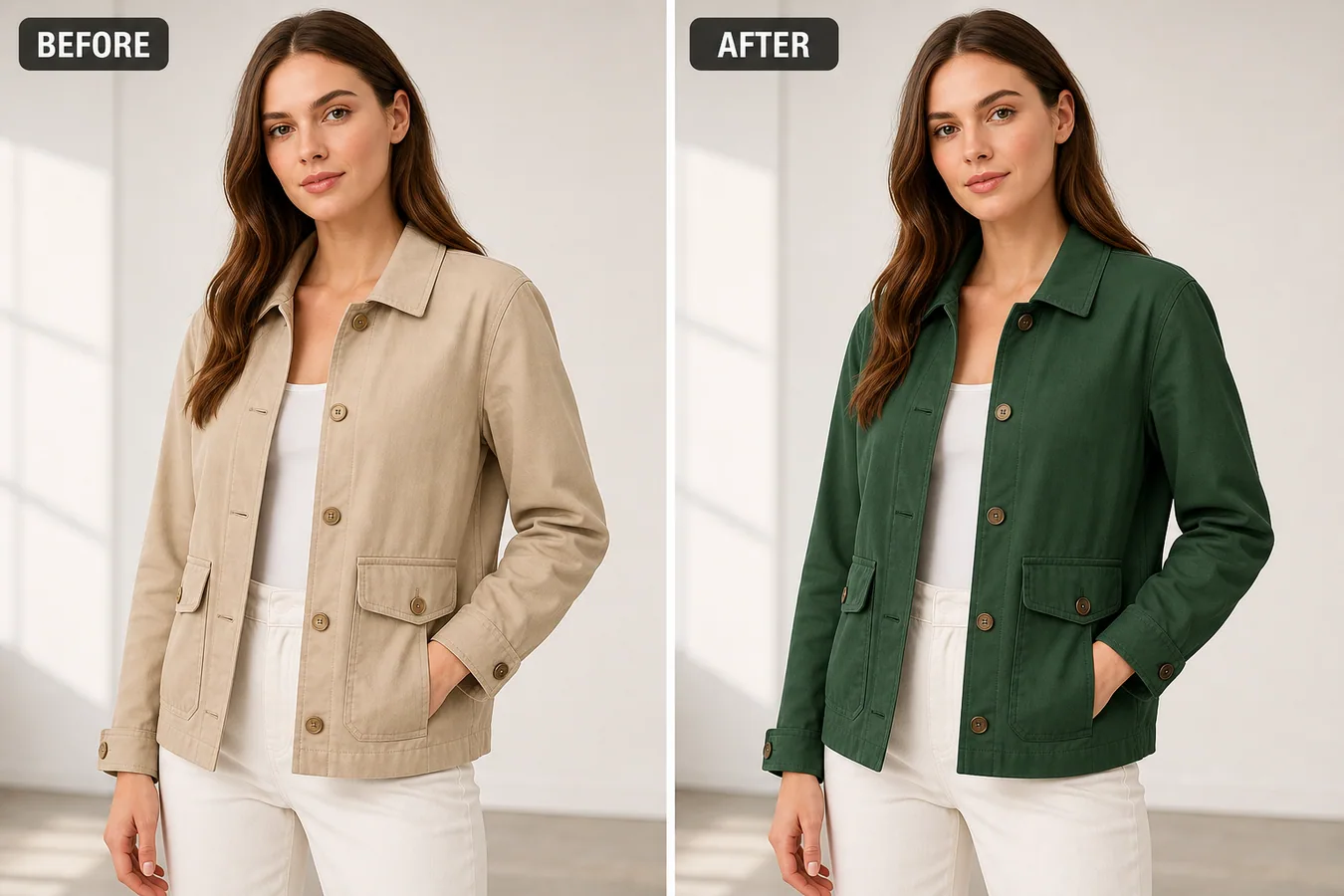
Batch clothing recoloring is safe only when every output maps to a real SKU. Lock the garment and model first, approve one golden image, then process the batch with material-aware color targets and variant-level review.
TL;DR
For Batch Change Clothing Colors in Model Photos, use KrafLayer for controlled local changes or reference-guided edits. Use Mask Edit for a local change with a short instruction, or Reference Image Editor when the result needs a visual example. The finished image should still prove that fit, fabric, shoulder line, garment length, and real color are still intact.
Batch changing clothing color in model photos is useful when the same jacket, shirt, dress, or activewear style has several variants but only one clean model shoot. The edit should change the garment color only; it should not change the fit, seam placement, buttons, fabric weave, model pose, lighting, or the buyer's understanding of the product.
KrafLayer is an AI-powered visual editor for ecommerce product photography. For apparel sellers, it can help turn one approved model photo into variant-ready product images while keeping the garment structure grounded in the original photo.
In the example, the jacket color changes from beige to deep green, but the collar, cuffs, pockets, buttons, seams, folds, model pose, white inner top, and studio lighting stay consistent. That is the standard to aim for: color variation without product drift.
Why Apparel Color Edits Go Wrong
Color replacement looks simple until the model photo includes hair, skin, hands, shadows, buttons, stitching, and layered clothing. A broad prompt may recolor the inner top, soften the seams, change the button color, alter the pocket shape, or make the fabric look like plastic.
For ecommerce, those changes are not cosmetic. They can make the variant image less trustworthy than a quick supplier photo. A good AI edit protects the garment facts that affect fit and buying confidence.
Lock the Product Details Before Editing
Before generating a color variant, write down what must stay unchanged:
- garment silhouette, fit, collar, cuffs, hem, pocket shape, seam paths, and button count
- fabric weave, wrinkles, folds, stitching, and edge thickness
- model pose, crop, hand position, hair, skin, and background
- lighting direction, contact shadows, color contrast, and camera angle
- non-target clothing such as inner tops, pants, shoes, or accessories
Only the target garment color should move. If the output changes the jacket structure, fabric, model, or surrounding outfit, it is not a usable ecommerce variant.
A Prompt for Batch Clothing Color Changes
Use a local edit prompt in [KrafLayer](https://kraflayer.com):
Change only the jacket color from warm beige to deep forest green. Preserve the exact same model pose, garment fit, collar shape, cuffs, pocket placement, button count and button color, seam paths, fabric texture, wrinkles, shadows, studio background, inner white top, pants, skin, hair, crop, and camera angle. Do not redesign the jacket, change the model, recolor non-target clothing, add logos, remove buttons, smooth away fabric detail, or make the garment look synthetic.
For a batch, keep the protected-detail section the same and change only the target color line. That gives each variant a shared visual language.
How to Review a Batch
Check the full set together, not just one output. The buyer should feel they are seeing one product in multiple colors, not several AI-redesigned garments.
- all variants keep the same fit and scale
- seams, pockets, buttons, and cuffs remain in the same positions
- fabric texture is visible after recoloring
- skin, hair, background, and inner clothing are not tinted
- shadows still match the original light direction
- each color looks like a believable fabric dye, not a flat overlay
The strongest batch usually keeps the model and background stable. That makes the color options easier to compare on Shopify, Amazon, TikTok Shop, lookbooks, and product detail pages.
When Not to Use AI Color Replacement
Do not use AI color replacement to invent a variant you do not actually sell. Also avoid using it when color accuracy is legally or commercially sensitive and the generated color cannot be checked against a real sample.
Use it when you have a real variant plan, a supplier color reference, or an approved color target. The workflow is best for reducing reshoots, filling missing variant images, and keeping model photography consistent across a catalog.
Where KrafLayer Fits
When you apply this Batch Change Clothing Colors in Model Photos workflow in KrafLayer, the tool choice matters: use Mask Edit for a local change with a short instruction, or Reference Image Editor when the result needs a visual example. After generation, judge the image by the channel it serves, listing images, detail pages, or ad assets, and check that fit, fabric, shoulder line, garment length, and real color are still intact.
Build a verified color-to-SKU map first
Google requires the color value in product data to match the landing page and recommends submitting both `color` and the new `variant_option` attribute when color identifies a variant. Each visible color needs its own accurate product record and image ([Google color attribute](https://support.google.com/merchants/answer/6324487?hl=en), 2026).
Create a table before editing:
| Field | What to record |
|---|---|
| SKU or variant ID | Exact internal identifier |
| Merchant color name | Same wording used on the product page |
| Standard color family | Useful for search and filtering |
| Neutral reference | Photograph or approved swatch under controlled light |
| Material | Cotton, satin, denim, knit, leather, and finish |
| Source model image | Pose and garment construction to preserve |
| Output URL | Unique file assigned to the correct variant |
Do not create a color that is not manufactured. A realistic generated blue shirt is still the wrong listing image when only black and green are in stock.
Recolor material behavior, not only pixels
Different materials carry color differently. Satin keeps sharp specular highlights. Velvet has directional depth. Denim shows warp, weft, and worn edges. Knit needs visible loops and shadow between yarns. A flat hue replacement can preserve the outline while destroying the product.
Mask only the garment and exclude skin, hair, jewelry, buttons, zippers, labels, prints, and background. Use a verified color reference rather than a color name alone. “Burgundy” can describe several materially different shades.
Example Mask Edit instruction:
```text Change only the masked jacket fabric to match the uploaded approved deep burgundy color reference. Preserve the original weave, seams, lapels, buttons, lining, folds, highlights, shadows, model, skin, hair, pose, and background. Do not recolor hardware, labels, or unmasked areas. ```
Use a golden image before processing the batch
Approve one representative image for each material and lighting setup before scaling. That golden image defines acceptable shade, mask boundaries, texture, and highlight behavior.
Then sample the batch deliberately:
- review the first and last output;
- review every lighting or pose change;
- inspect dark, midtone, and light target colors;
- include garments with hair overlap, crossed arms, or accessories;
- compare every output to the approved color reference and original construction.
Do not approve only easy centered poses. Edge cases reveal color leaking into skin, background, buttons, and hair.
Create a batch failure policy before export
A batch needs clear stop conditions. Do not let a questionable output proceed because most of the image looks right. Mark the result for manual repair or a real photograph when you find:
- color bleeding into skin, hair, jewelry, buttons, or the background;
- lost stitching, ribbing, grain, print, embroidery, or contrast trim;
- different shades across panels that should match;
- identical flat color across highlights and shadows;
- changed garment length, neckline, sleeves, pockets, or silhouette;
- a target color that cannot be matched under the source lighting;
- a colorway that has no verified physical SKU.
Separate failures into mask errors, color-reference errors, source-photo errors, and generation errors. That distinction tells the operator whether to redraw the mask, replace the swatch, choose a cleaner source, or stop using AI for that variant.
Review color in a controlled environment
The same file can look different on an uncalibrated screen, a phone with adaptive color enabled, and a bright office monitor. Review approved variants on a color-managed desktop display, then perform a practical phone check because that is where many shoppers will see the listing.
Compare three references side by side: the physical garment or approved neutral-light photograph, the golden image, and the batch output. Do not compare the batch only with another generated image. Record the approved source file and reviewer so a later campaign does not silently introduce a different burgundy, navy, or cream.
Export in a consistent color space supported by your storefront workflow. Avoid repeated conversions and aggressive compression, which can shift dark tones and create banding in smooth fabric gradients.
Name files so variants cannot be mixed up
Use filenames that remain useful outside the editing tool. A pattern such as `style-sku-color-view-version.webp` is safer than `final-3.webp`. For example:
```text linen-shirt-LS104-toasted-walnut-front-v2.webp linen-shirt-LS104-toasted-walnut-side-v2.webp ```
The filename is not the product database, but it gives reviewers and uploaders one more way to catch a mapping error. Keep the SKU, merchant color name, approved source, generation date, and output URL in the same manifest.
Before publishing, click every storefront color selector and confirm that the selected label, image, price, availability, and URL all describe the same variant. Repeat that check after CDN or theme changes.
Connect every image to the correct variant
Google says color variants should show one variant per image and requires unique image URLs for differing variants. Reusing one URL across visible color variants can trigger data-quality problems ([Google variant image fix](https://support.google.com/merchants/answer/12472588?hl=en); [Google image requirements](https://support.google.com/merchants/answer/6324350?hl=en), 2026).
Export stable, uniquely named files and map them to the matching SKU. Check the product page selection: choosing “Toasted Walnut” should load the exact Toasted Walnut image, price, availability, and product data.
When should you photograph the real colorway?
Photograph the real variant when color is central to the purchase, the material is highly reflective or iridescent, the shade is hard to reproduce, the item has contrast stitching or printed artwork, or regulated color accuracy matters. AI recoloring is useful for controlled merchandising, not proof that an unphotographed variant looks exactly the same in real light.
FAQ
Can AI batch change clothing colors in model photos?
Yes, AI can batch change clothing colors when the edit is limited to the target garment and the prompt protects fit, seams, fabric texture, buttons, pose, and lighting.
How do I keep the model photo realistic after recoloring clothes?
Mask only the garment, keep non-target clothing untouched, and review fabric texture, wrinkles, shadows, skin, hair, and background for unwanted color spill.
Is AI color replacement safe for ecommerce apparel listings?
It is useful when the color variant is real and the output is checked against the actual product. Do not use it to create variants or material finishes that do not exist.
Conclusion
Batch recoloring can reduce repetitive production work, but it cannot create a trustworthy colorway from an unverified swatch. Build a color-to-SKU map, approve a golden image, preserve material behavior, and connect each export to the correct variant. KrafLayer can accelerate the controlled edit while your real product data remains authoritative.
Keep exploring
Continue the story
More practical guidance on product accuracy, composition, and conversion-ready visuals.
Put it into practice
Take the next step in KrafLayer
Choose a generation or editing workflow that matches what you just learned.