Platforms
How to Keep WooCommerce Product Gallery Images at a Consistent Ratio
TL;DR
A practical workflow for making WooCommerce product gallery images consistent across main, angle, detail, and lifestyle views.
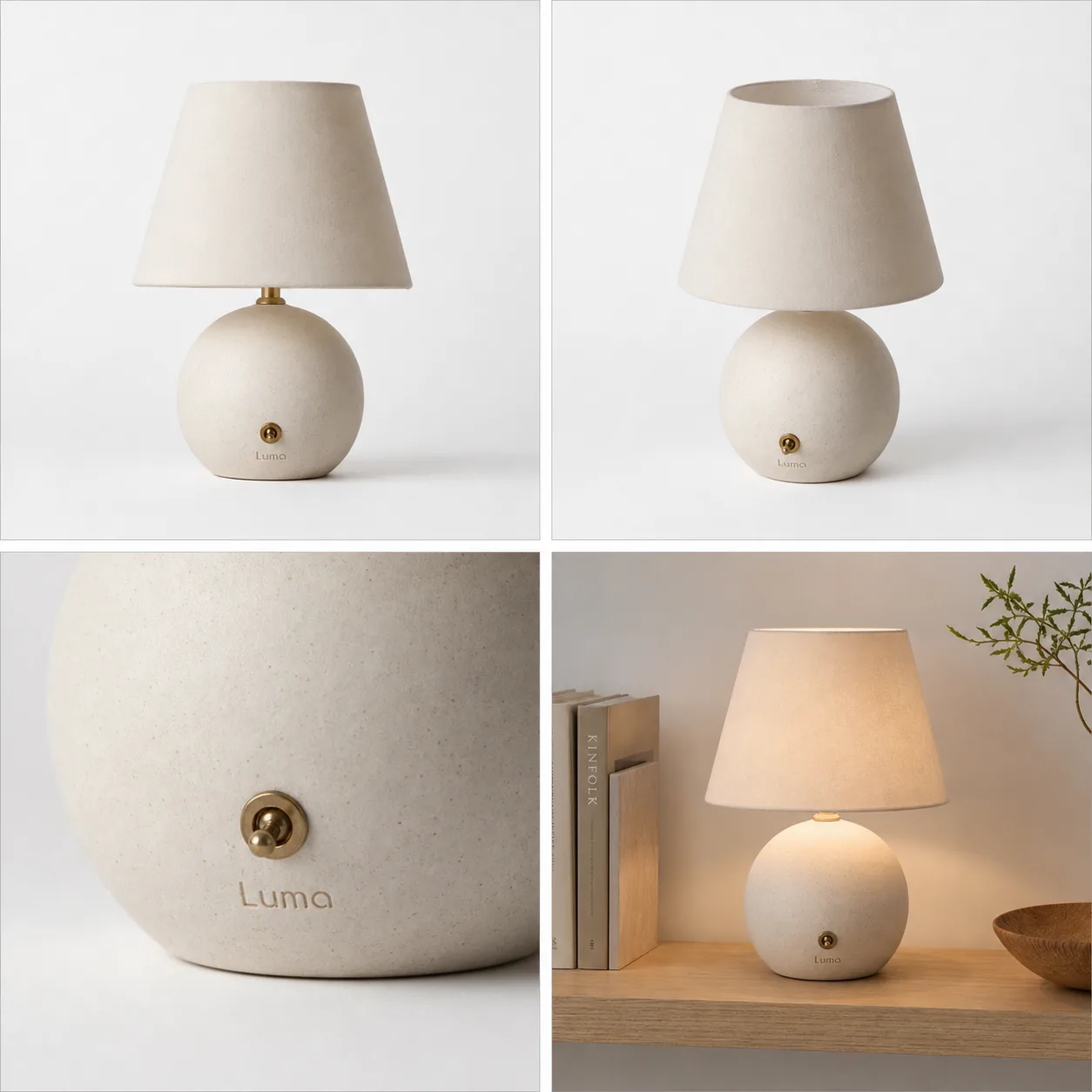
A WooCommerce product gallery image ratio should make every product page feel deliberate. Main image, angle view, detail crop, and lifestyle image can show different information, but they should follow the same crop logic so the product does not jump in size, shift off-center, or look like a different SKU.
The practical rule is simple: choose one gallery frame, then edit every image into that frame before upload. In KrafLayer, use the [product photo editor](/product-photo-editor) to clean weak source photos, remove background clutter, improve image quality, and build a consistent gallery set before the images reach WooCommerce.
Why Product Gallery Ratio Matters
Inconsistent gallery images make a product page feel unfinished. One photo may be tightly cropped, another may leave too much empty space, a detail image may be blurry, and a lifestyle image may use a different color temperature. The buyer has to work harder to understand the product.
A consistent product image ratio gives the gallery a stable rhythm. It helps the buyer compare the main product, inspect details, and understand scale without feeling that each image came from a different shoot.
For WooCommerce product gallery images, consistency usually matters more than using the most dramatic crop. A cleaner set should preserve:
- product scale across the gallery
- centered product placement
- stable background color or scene mood
- matching lighting direction
- natural shadow behavior
- enough margin around the product
- sharp detail crops for material, texture, label, switch, strap, zipper, or hardware
- no accidental product redesign between images
The image ratio is the container. Product truth is still the priority.
Start With The Gallery Role, Not The Crop Tool
Before editing, decide what each gallery image should do.
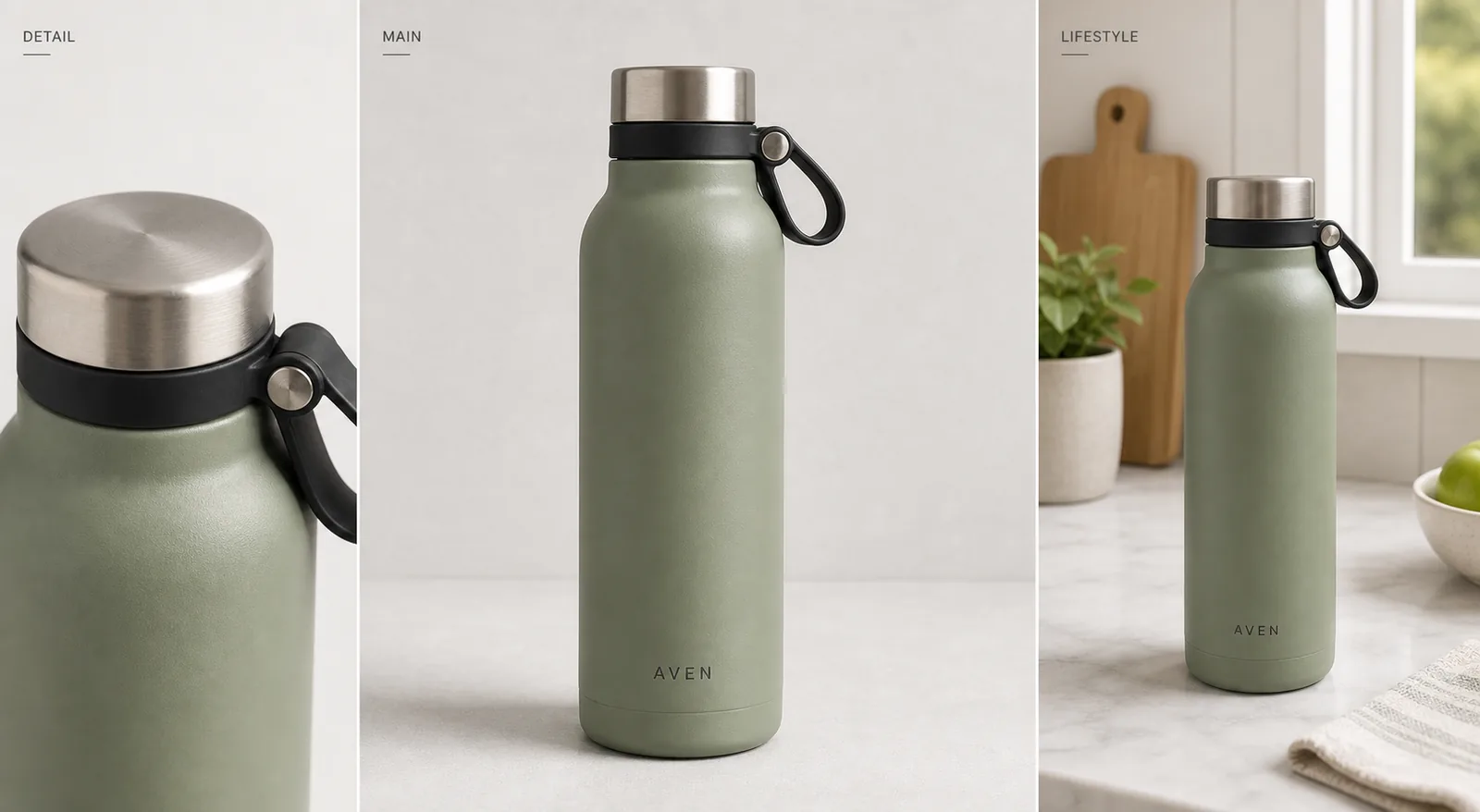
Use a simple four-image set for most products:
- Main image: clear product recognition on a clean background.
- Angle image: shape, depth, thickness, handle, opening, strap, or profile.
- Detail image: texture, material, closure, stitching, switch, label, or finish.
- Lifestyle image: restrained use context that shows scale or placement.
Once each image has a role, the ratio decision becomes easier. A square gallery can work well when the product needs clean comparison and balanced thumbnails. A portrait gallery can work when the item is tall or worn. A landscape gallery can work when the product is wide or scene-dependent. The key is to choose once for the page and keep the set consistent.
How To Normalize WooCommerce Product Gallery Images
Use this workflow when your source images come from different shoots, phone photos, supplier images, or AI-generated assets.
1. Pick the final gallery ratio before editing. 2. Choose the best main image as the product truth reference. 3. Clean background distractions first. 4. Match product scale across the gallery. 5. Keep the same margin around the product. 6. Use upscaling only when the source has enough real detail to recover. 7. Create one detail image that proves material or function. 8. Keep lifestyle context restrained so it supports the product instead of replacing it. 9. Review all images as thumbnails and full-size gallery views. 10. Reject any image that changes color, shape, label placement, scale, or important product details.
If a gallery image looks good alone but breaks the set, fix it before upload. Product gallery consistency is judged across the group.
Where KrafLayer Fits
KrafLayer is useful before the WooCommerce upload step. It helps you turn uneven product sources into a cleaner gallery set without treating every image as a new product shoot.
For common gallery problems:
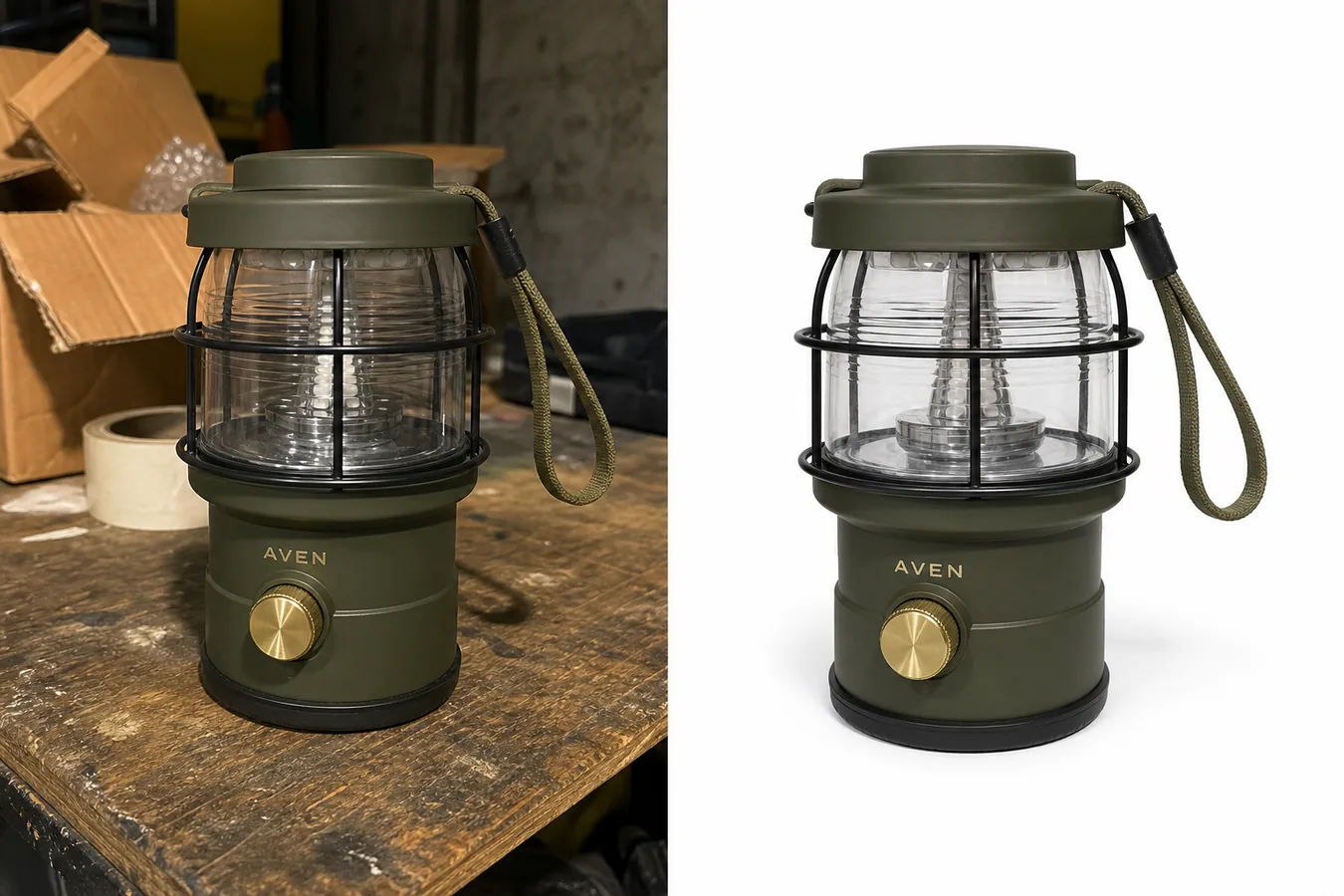
- Use the [AI background remover](/tools/ai-background-remover) when supplier photos have inconsistent floors, hands, shadows, or room clutter.
- Use the [AI image upscaler](/tools/ai-image-upscaler) when a useful angle or detail photo is too small for a polished product page.
- Use the product photo editor when the gallery needs cleaner crop, stronger product focus, or a more consistent ecommerce look.
The goal is not to make every image identical. The goal is to make every image feel like it belongs to the same product page.
Product Facts To Protect
Ratio cleanup should never hide or rewrite the product. While editing, protect the buyer-relevant details that affect trust.
For apparel, protect true color, fabric texture, collar, sleeve, hem, seams, buttons, pockets, and drape.
For bags, protect silhouette, strap length, zipper shape, stitching, hardware finish, leather or canvas texture, and panel seams.
For electronics, protect ports, buttons, screen shape, vents, seams, LED placement, finish, and scale.
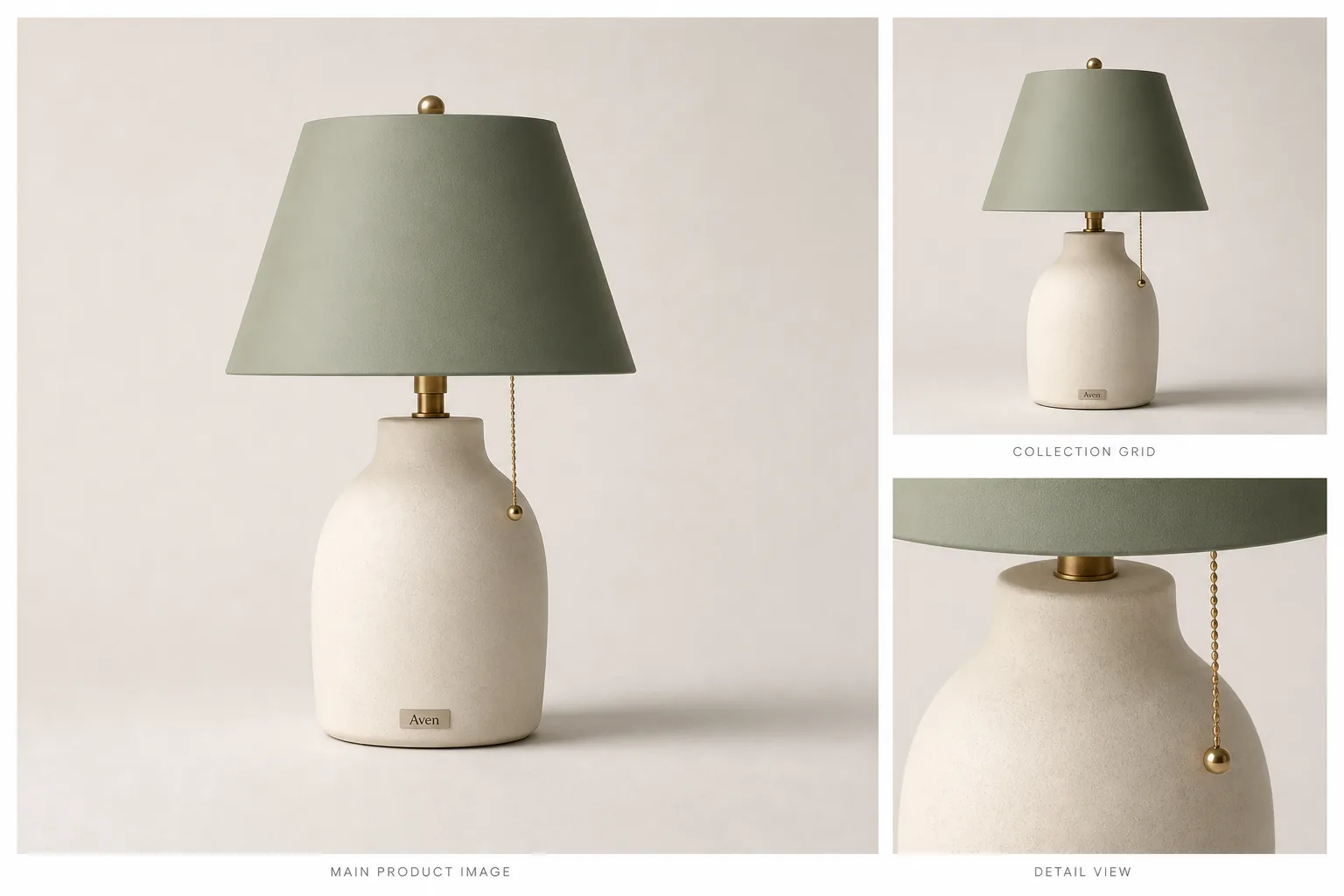
For home goods, protect material grain, legs, handles, shade shape, switch placement, edge profile, and contact shadow.
For packaging, protect label position, package shape, cap, closure, color, window, and any approved artwork. Do not invent certification marks, barcodes, QR codes, nutrition facts, or unsupported claims.
If a crop removes a detail buyers need to inspect, make a separate detail image instead of forcing the main image to do everything.
A Practical Editing Brief
Use this brief when creating a consistent product gallery set:
Create a WooCommerce product gallery image set for the same product. Keep the same square image ratio, centered product placement, consistent scale, natural shadow, and matching light direction. Preserve product color, material, label or logo position, silhouette, hardware, texture, and buyer-relevant details. Create a main product image, an angle image, a close detail image, and a restrained lifestyle image. Do not add real marketplace logos, badges, QR codes, barcodes, review stars, certification marks, sale stickers, or unsupported claims.
For an existing product photo, use a tighter edit instruction:
Keep this exact product unchanged. Adjust crop, background, scale, and image ratio so it matches the rest of the WooCommerce gallery. Preserve true color, shape, material, label placement, shadow, and scale. Do not remove product-defining details or invent new features.
The brief should tell the editor what must stay stable before it asks for a cleaner visual.
Check The Gallery Before Upload
Review the final images as a group, not only one by one.
A strong WooCommerce gallery passes these checks:
- all thumbnails share the same ratio
- the product sits in a predictable position
- main and angle images use similar scale
- detail image clearly belongs to the same SKU
- lifestyle image does not imply a false bundle or use case
- color temperature does not jump between images
- shadows look natural instead of pasted
- no image looks soft, stretched, or over-upscaled
- product details stay accurate after editing
This review step is where many AI-assisted gallery workflows either become useful or become risky. Do not publish the set until the product still looks like the product.
FAQ
What is a good WooCommerce product gallery image ratio?
A good WooCommerce product gallery image ratio is the one you can apply consistently across the product page. Many ecommerce teams use square images for balanced thumbnails, but the exact choice should follow the product shape and store design. The important part is consistent crop, scale, background, and detail visibility.
How do I make WooCommerce product gallery images consistent?
Start by choosing one ratio and one crop style. Edit the main image, angle image, detail image, and lifestyle image into that same system. Keep product scale, background mood, lighting direction, color, and shadow consistent. Use AI editing only after defining which product facts must stay unchanged.
Can AI fix different product image ratios?
AI can help extend backgrounds, clean clutter, upscale weak images, and recompose product photos into a consistent product image ratio. It still needs review. Check that the product color, silhouette, label, material, scale, and buyer-relevant details did not change during the edit.
Should detail images use the same ratio as main product images?
Usually yes for a clean gallery, but the detail crop can fill the frame more tightly. Keep the same outer ratio so the thumbnail grid stays stable. Use detail images to show material, hardware, texture, label quality, or function without changing the product identity.
Can KrafLayer help prepare product photos for WooCommerce?
Yes. KrafLayer can help clean source photos, remove backgrounds, upscale useful images, and create more consistent ecommerce product visuals before upload. For WooCommerce product gallery images, the best workflow is to define the ratio and protected product details first, then edit the whole set against that standard.
Conclusion
WooCommerce product gallery image ratio is not just a formatting detail; it shapes how stable and trustworthy the product page feels. KrafLayer helps sellers prepare cleaner main images, angle views, detail images, and restrained lifestyle visuals by improving weak source photos while preserving product color, scale, material, and buyer-relevant details. For WooCommerce stores, the advantage is a more consistent product gallery that looks intentional without turning every photo into a separate manual editing project.
Keep exploring
Continue the story
More practical guidance on product accuracy, composition, and conversion-ready visuals.
Put it into practice
Take the next step in KrafLayer
Choose a generation or editing workflow that matches what you just learned.