Platforms
How to Prepare Product Images for Shopify Without Reshooting
TL;DR
A practical Shopify image workflow for turning existing product photos into clean main images, detail crops, variants, and campaign assets.
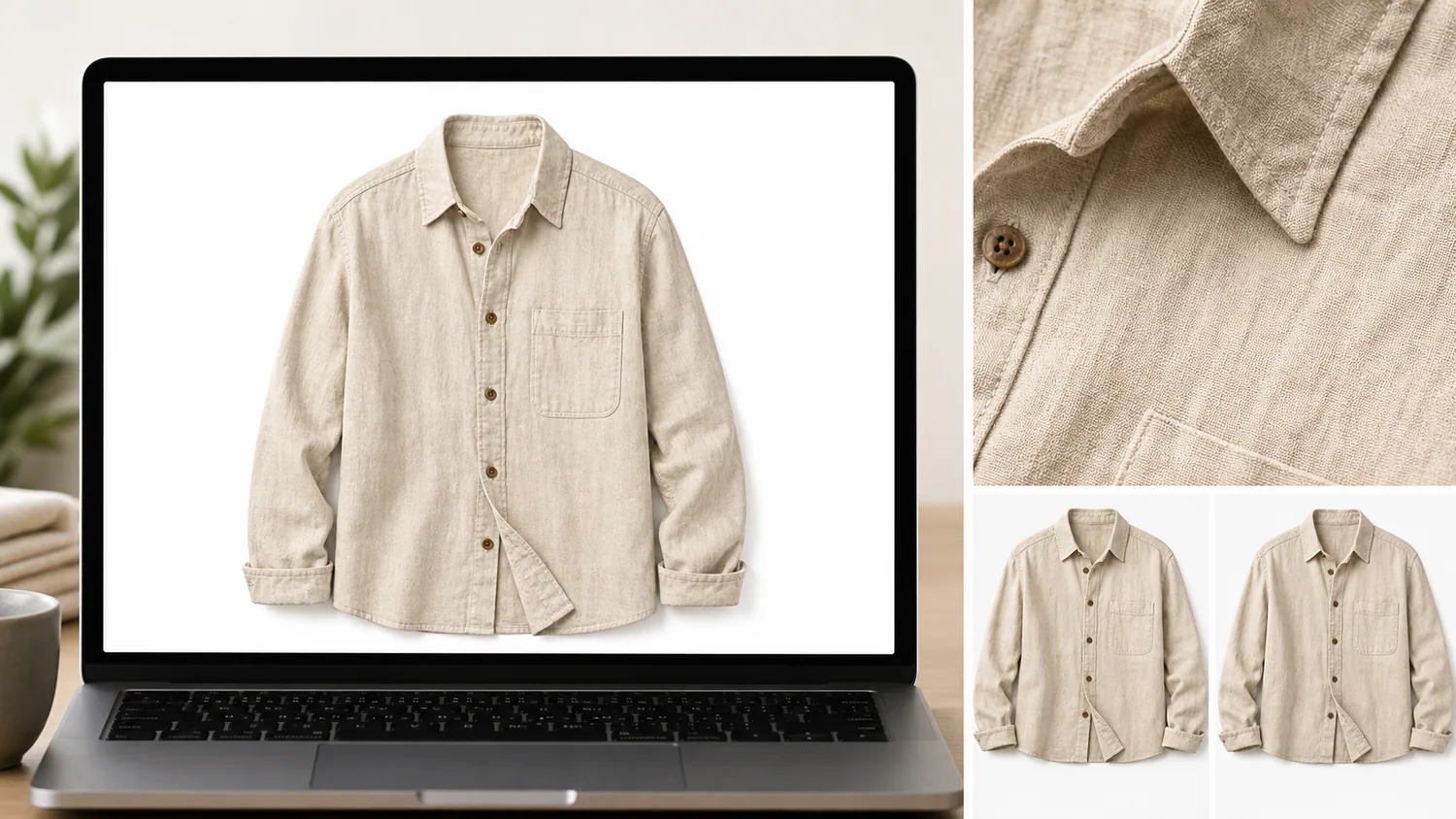
You can prepare product images for Shopify without reshooting by treating the photos you already have as source material, then rebuilding the image set around four jobs: a clear main image, consistent variant images, detail images that prove material or construction, and simple campaign images for collections or ads. The goal is not to make every image look more dramatic. The goal is to make the product easy to recognize, compare, and trust.
KrafLayer fits this workflow when you have usable product photos but they are not yet store-ready. You can clean backgrounds, upscale soft files, generate product-reference images, and keep the visual system consistent before uploading to Shopify.
Quick Answer: The Shopify Image Set To Build First
For most Shopify products, prepare these image roles before worrying about extra creative assets:
1. main image with the product readable at a glance 2. second angle or variant image with the same crop logic 3. close detail image for material, texture, packaging, hardware, or fit 4. simple lifestyle or use-context image when it helps the buyer understand scale 5. collection or ad crop only after the product-page images are consistent
Practical rule: if a buyer cannot identify the product in the first image within one second, the image is not ready for Shopify yet. Fix the product hierarchy before adding style.
Start With A Product Audit, Not A New Shoot
Before generating or editing anything, sort the source photos into three groups:
| Source photo type | Keep it for | Common fix |
|---|---|---|
| Sharp photo with cluttered background | Main image or variant image | Remove or replace the background |
| Soft but usable photo | Detail or secondary image | Upscale, sharpen, then inspect edges and text |
| Phone photo with awkward lighting | Reference for generation or cleanup | Rebuild lighting while protecting product color |
| Cropped or inconsistent angle | Secondary image only | Extend margins or align crop logic |
| Photo with wrong props or dust | Editing input | Erase distractions without changing the product |
This audit keeps the workflow honest. Some photos can become Shopify-ready with one edit. Others are better used as references for a new product image. A weak source photo should not be forced into the main image slot just because it already exists.
A No-Reshoot Workflow In KrafLayer
Use this workflow when the product is real, the existing photos are imperfect, and you want a cleaner Shopify image set.
1. Pick The Reference Photo
Choose the photo that best shows the real product shape, color, material, and proportions. It does not need to be beautiful. It needs to be accurate.
For apparel, protect collar shape, sleeve length, button count, pocket position, fabric texture, drape, and true color. For skincare, protect bottle shape, cap, label area, liquid tone, and shadow. For electronics, protect ports, seams, buttons, screen edges, and scale.
2. Build The Main Image
Use a clean product-forward image first. If the source photo is already close, start with the [AI product photo editor](/product-photo-editor). If the background is the main problem, use the [AI background remover](/tools/ai-background-remover) to create a clean cutout or a simple white-background asset.
The main image should answer one question: what exactly is being sold?
3. Create Detail Images
Detail images should not repeat the main image with a tighter crop. They should prove something the buyer cares about:
- fabric weave, stitching, zipper, or button detail
- glass thickness, label quality, pump, cap, or texture
- leather grain, hardware color, clasp, strap, or lining
- ports, buttons, seams, screen edge, or material finish
If the source detail is soft, use the [AI image upscaler](/tools/ai-image-upscaler), then inspect product edges, small text, and material texture. Upscaling should recover useful detail, not invent a different product.
4. Make Variant Images Consistent
Shopify variant images should feel like one catalog system. Keep product angle, crop margin, shadow softness, and background logic consistent so only the real variant difference stands out.
If you sell apparel colors, the product shape and fabric texture should stay stable. If you sell packaging variants, the pouch, bottle, or box geometry should stay fixed. If you sell hardware or electronics, ports and seams should not drift between variants.
5. Add A Simple Lifestyle Image
Lifestyle images are useful when they explain scale, material, or use. They are risky when they make the product smaller, add too many props, or hide buyer-relevant details.
Use the [Shopify product images guide](/marketplace-product-images/shopify-product-images) as the owner-page workflow, then treat lifestyle generation as a supporting asset. The product page still needs a strong main image and clear detail images.
Prompt Template For Reference-Based Shopify Images
Use a prompt like this for reference-image generation:
Use this product reference to create a Shopify product image set. Create one clean main image, one material detail image, and one simple lifestyle image. Preserve the product shape, color, material texture, button or cap details, label area, seams, crop readability, scale, and natural shadow. Do not add logos, fake badges, certification marks, extra products, or new features.
This prompt works because it names the product facts before the style. For ecommerce, preservation is the creative constraint.
What To Check Before Uploading To Shopify
Do a final review before publishing the images:
- The first image shows the product clearly without visual clutter.
- Variant images use consistent angle, crop, background, and scale.
- Detail images prove a real material, feature, or use point.
- Product color stays believable across the set.
- Small details such as seams, caps, ports, labels, and buttons do not drift.
- Backgrounds support the product instead of competing with it.
- The file is sharp enough for product-page zoom and collection thumbnails.
- No image includes fake badges, unsupported claims, or misleading product features.
When exact Shopify theme behavior or marketplace policy matters, check the current Shopify admin, theme, or channel guidance before locking final dimensions. This article is a production workflow, not a substitute for platform-specific policy review.
When You Still Need A Reshoot
AI editing cannot solve every source problem. Reshoot when the product is hidden, out of focus beyond recovery, shown in the wrong variant, missing an important side, or photographed in a way that misrepresents color, scale, or condition.
A useful rule: use AI to remove production friction, not to hide product truth. If the image would cause a buyer to expect a different item, do not publish it.
FAQ
Can I use old product photos for Shopify?
Yes, if the photos still show the real product accurately. Old photos can work as main images, detail crops, variant references, or generation references. Check sharpness, color, scale, product condition, and missing angles before deciding whether to edit, upscale, regenerate, or reshoot.
What is the fastest way to make Shopify product images look consistent?
Start by standardizing the main image: similar crop, background, angle, shadow, and product scale. Then apply the same logic to variant images and detail images. Consistency usually comes from image roles and review rules, not from applying the same visual effect to every photo.
Should Shopify product images have a white background?
A white or simple background is often the clearest choice for main product images, but it is not the only useful format. Detail images and lifestyle images can use context when that context explains material, scale, or use. Avoid backgrounds that make the product harder to inspect.
Can AI create Shopify images from one product photo?
AI can create useful Shopify image variations from one product reference when the reference clearly shows product shape, color, material, and key details. You still need to review the output against the source product. Reject images that change buyer-relevant features.
How does KrafLayer help prepare Shopify product images?
KrafLayer helps sellers turn existing product photos into cleaner ecommerce assets through product-reference generation, background removal, upscaling, and product-photo editing. The workflow is useful when you need main images, detail images, variant consistency, or simple campaign assets without starting from a new shoot.
Conclusion
Preparing product images for Shopify without reshooting is mostly a workflow problem: choose the most accurate source photo, build a clear main image, add detail proof, keep variants consistent, and review every output against the real product. KrafLayer helps sellers turn existing product photos into Shopify-ready visuals by combining generation, background cleanup, upscaling, and product-photo editing in one practical image-production flow.
Keep exploring
Continue the story
More practical guidance on product accuracy, composition, and conversion-ready visuals.
Put it into practice
Take the next step in KrafLayer
Choose a generation or editing workflow that matches what you just learned.