Edit tools
How to Remove Objects from Cluttered Product Photos with AI
TL;DR
A practical workflow for removing clutter from product photos: isolate distractions, rebuild background surfaces, preserve product edges, and avoid over-retouching. Includes how to do it in KrafLayer.
TL;DR
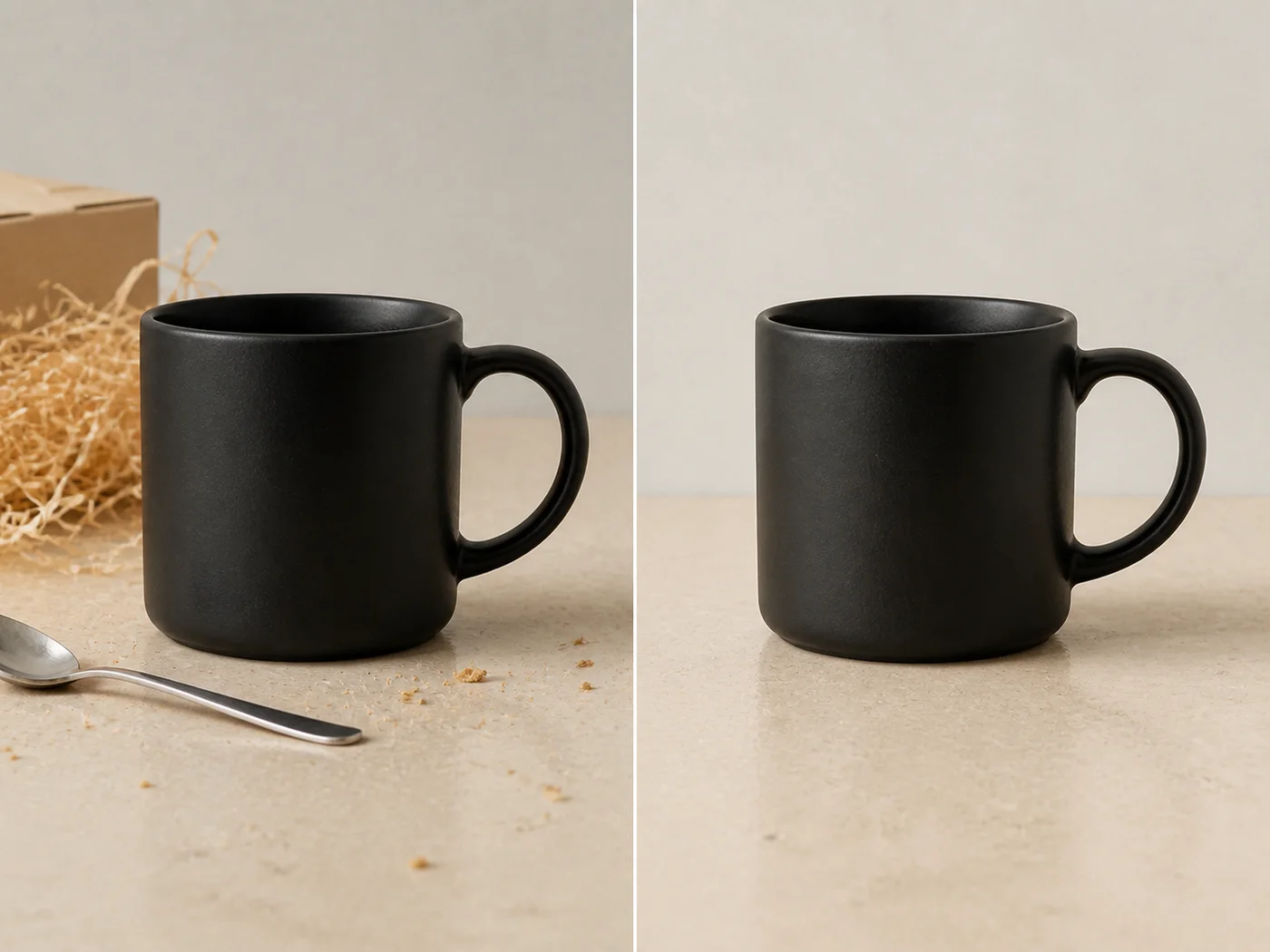
For Remove Objects from Cluttered Product Photos, KrafLayer works best as a local cleanup tool: brush only the unwanted area in Erase and let the model fill from the surrounding pixels. Avoid regenerating the whole image; the result is only useful if shape, material, labels, color, scale, and accessories still match the source SKU.
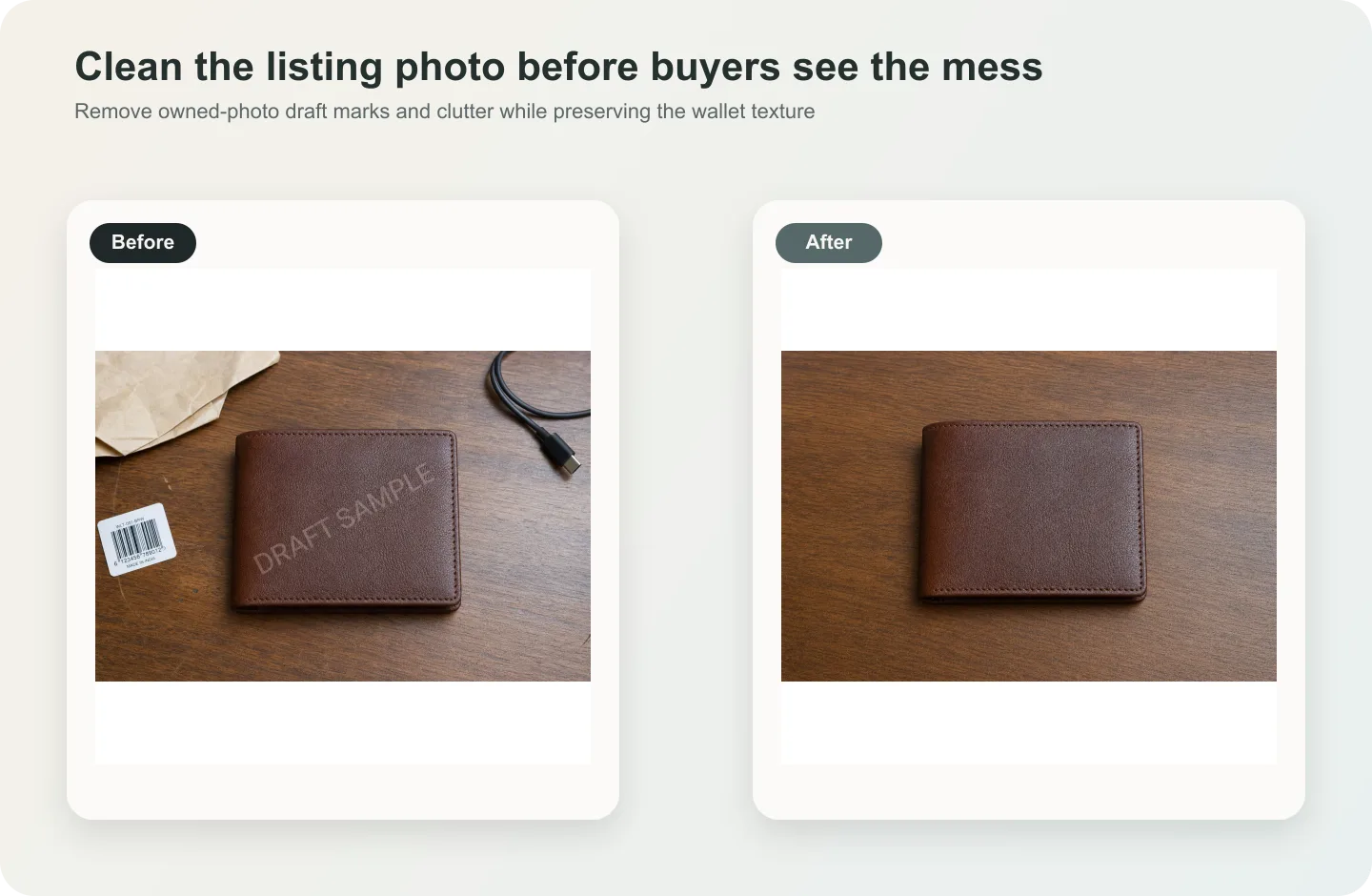
Clutter removal is useful when a product photo has a good subject but a messy environment. The edit should make the product easier to judge, not turn the entire image into a new scene.
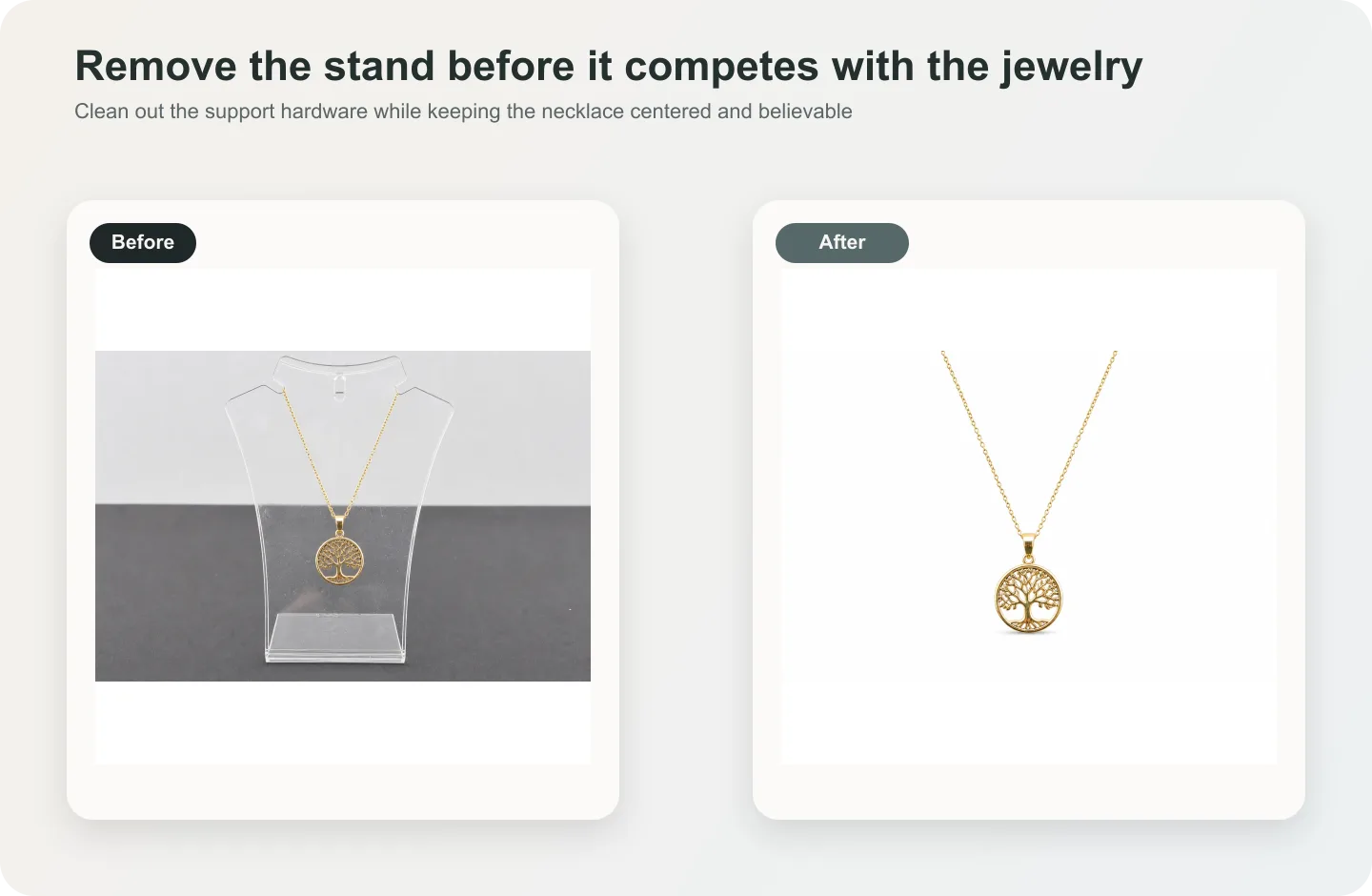
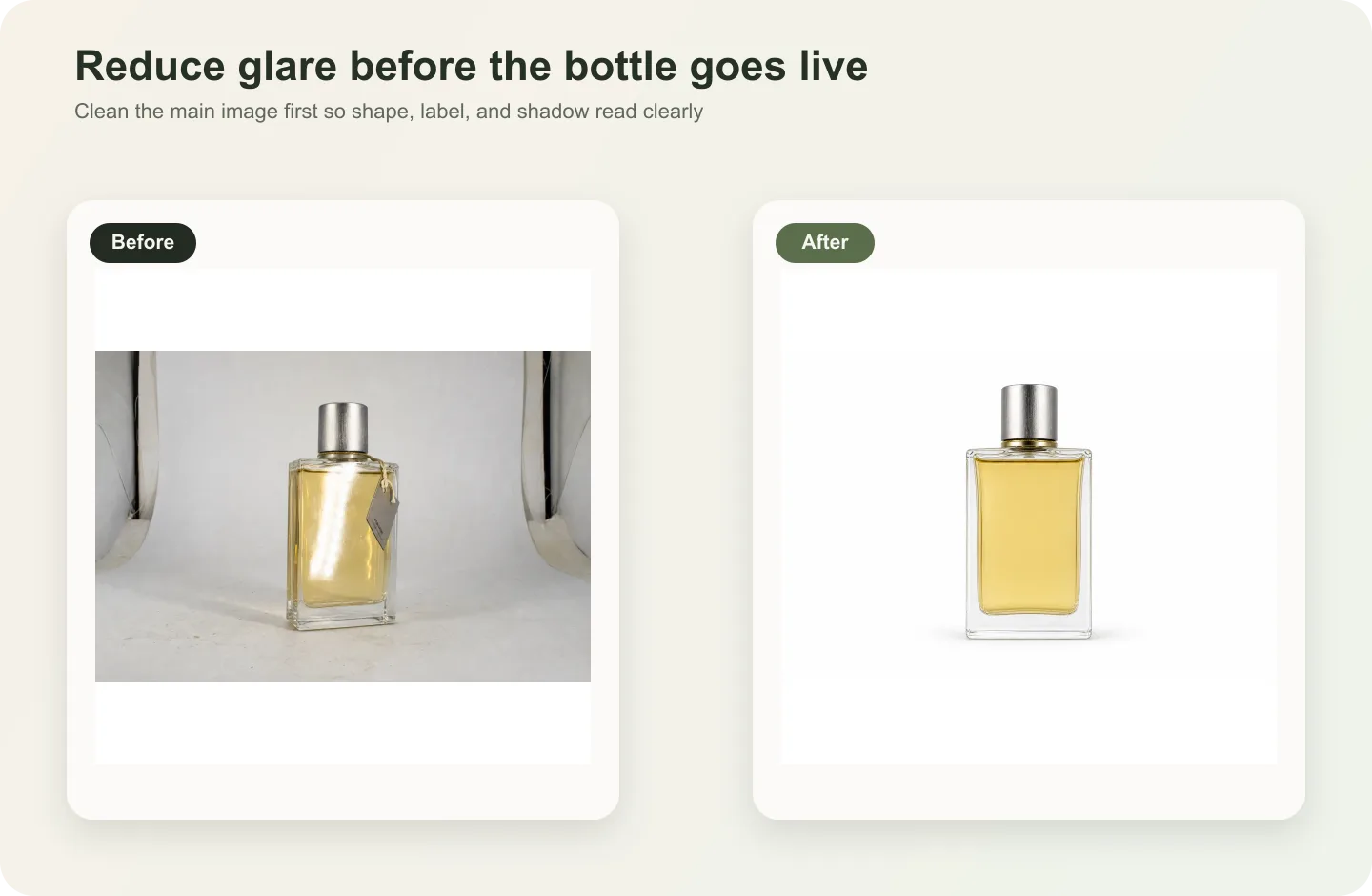
Use it for table clutter, cables, packaging scraps, tools, hands, random props, dust objects, or background distractions that weaken a listing image.
What to remove first
Start with objects that touch buyer attention but not product identity: background items, table clutter, stray props, and visible setup tools. Be more careful with objects touching the product edge, because AI may need to rebuild hidden product geometry.
If clutter covers a label, handle, strap, or important product feature, review the repair carefully before using it commercially.
Workflow
1. Remove one category of clutter at a time instead of selecting the whole background. 2. Describe what should replace the object: tabletop, paper sweep, wall, fabric, or shadow. 3. Protect product edges, material, label, handle, rim, and contact shadow. 4. Keep the original crop unless the image also needs a composition fix. 5. Check for repeated texture patterns or blurry patches after removal.
Where KrafLayer Fits
When you apply this Remove Objects from Cluttered Product Photos workflow in KrafLayer, the tool choice matters: brush only the unwanted area in Erase and let the model fill from the surrounding pixels. After generation, judge the image by the channel it serves — listing images, detail pages, or ad assets — and check that shape, material, labels, color, scale, and accessories still match the source SKU.
Steps in KrafLayer
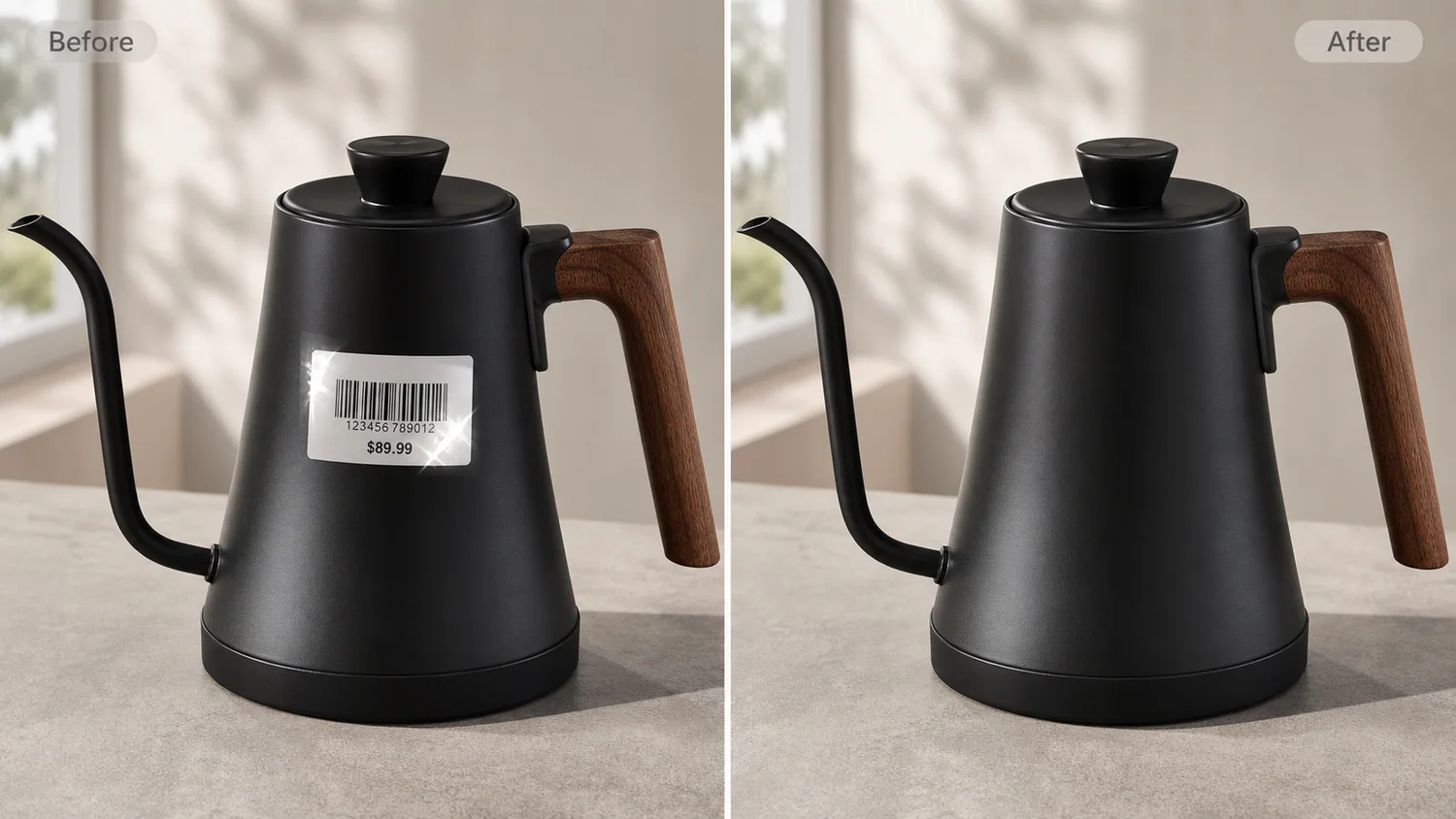
Use Erase with a brush mask: paint only the distracting object, sticker, hand, dust, or reflection area, then run the fill. There is no free-form prompt; mask accuracy controls the result.
1. Upload or choose the product image. 2. Run the tool according to its interaction model: one-click tools generate directly; Erase-style tools need a brush mask first. 3. Zoom in to check edges, text, material, shadow, and product scale before downloading or continuing the edit.
Summary
Object removal works best as a precise repair. Remove the things that distract from the product, rebuild the missing background, and leave the SKU unchanged.
FAQ
Can AI remove several objects at once?
Yes, but smaller passes are safer. Multiple objects often touch different surfaces, so one broad edit can create blurry or inconsistent background repairs.
What if the clutter overlaps the product?
Ask for conservative boundary repair and compare against the original. If important product details are hidden, use another reference rather than letting AI guess.
Should I replace the whole background instead?
Only if the environment is broadly unusable. If the product and setting are mostly good, local clutter removal is usually more realistic.
Keep exploring
Continue the story
More practical guidance on product accuracy, composition, and conversion-ready visuals.
Put it into practice
Take the next step in KrafLayer
Choose a generation or editing workflow that matches what you just learned.