Edit tools
How to Make Product PNG Images with Transparent Backgrounds
TL;DR
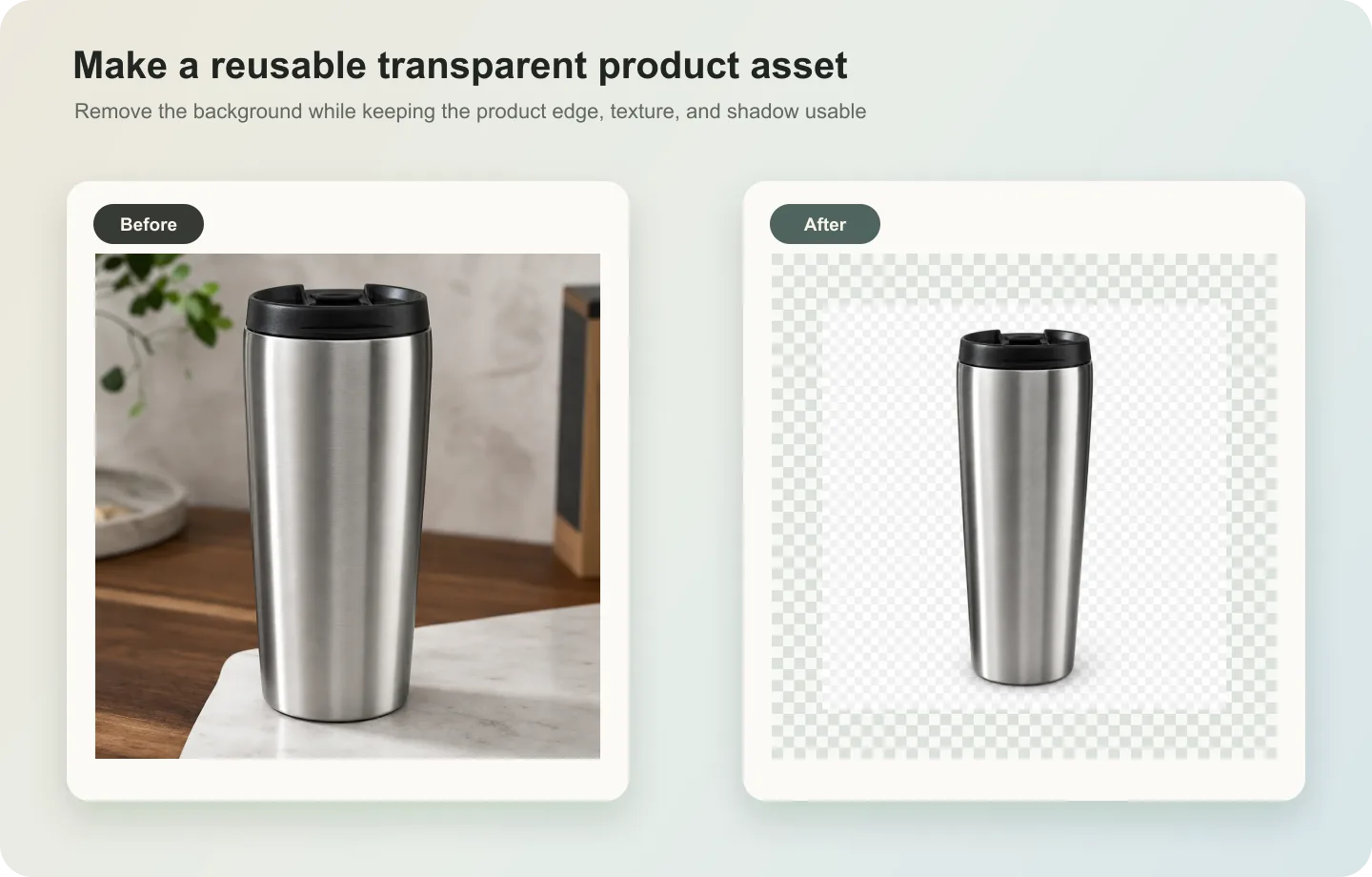
A transparent PNG workflow for ecommerce product assets: remove backgrounds, preserve edges, export reusable cutouts, and avoid halo or shadow problems. Includes how to do it in KrafLayer.
TL;DR
For Make Product PNG Images with Transparent Backgrounds, use KrafLayer as a fast pre-publishing edit step: upload the product photo, run Remove BG, and inspect the cutout edge and transparent areas. It is most useful for listing images, detail pages, or ad assets, as long as shape, material, labels, color, scale, and accessories still match the source SKU.
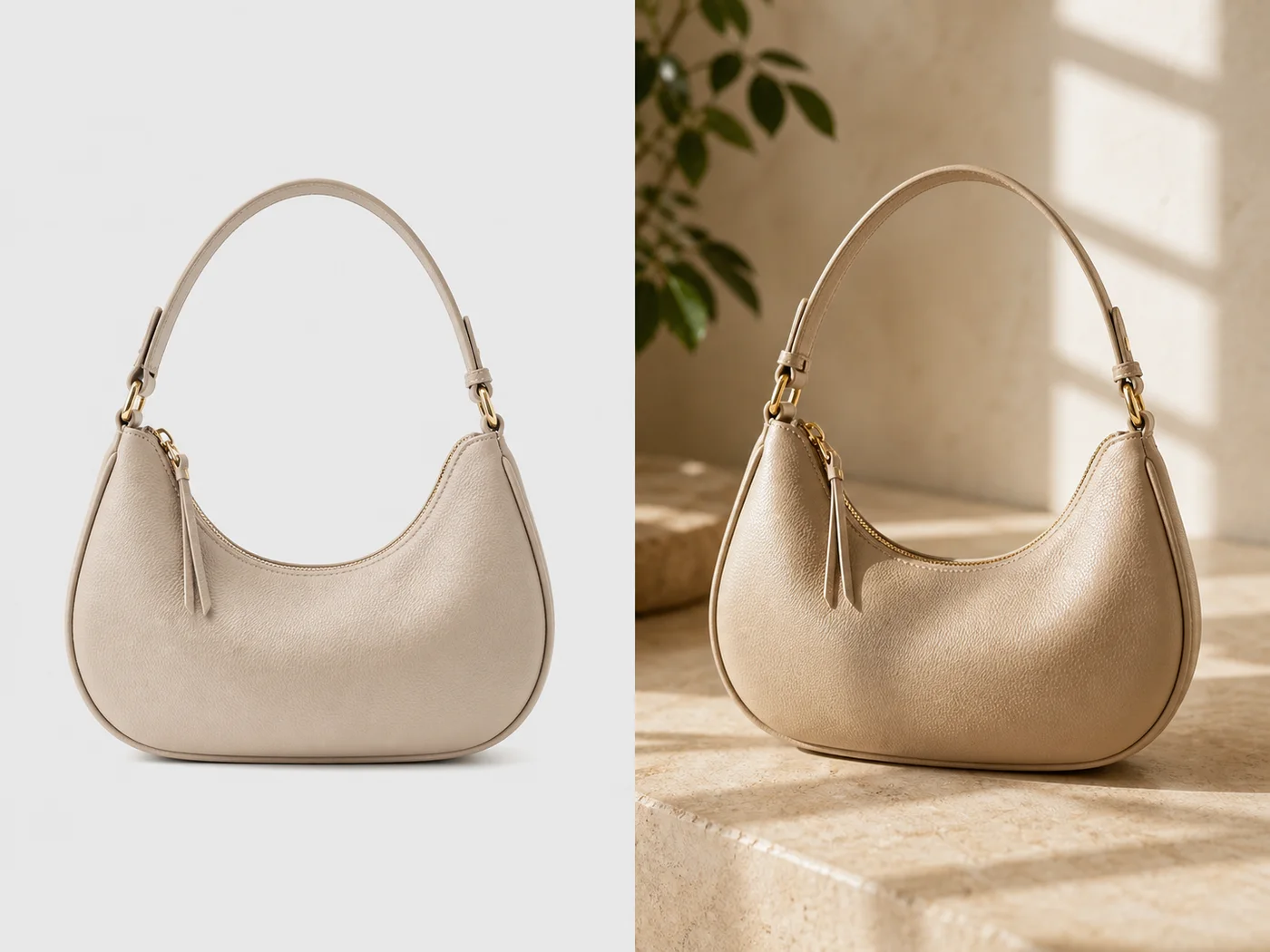
A product PNG with a transparent background is a reusable ecommerce asset. It can power ads, banners, comparison tables, product modules, email graphics, and marketplace support images. The hard part is not removing the background; it is keeping clean edges and useful shadows.
What a good transparent PNG needs
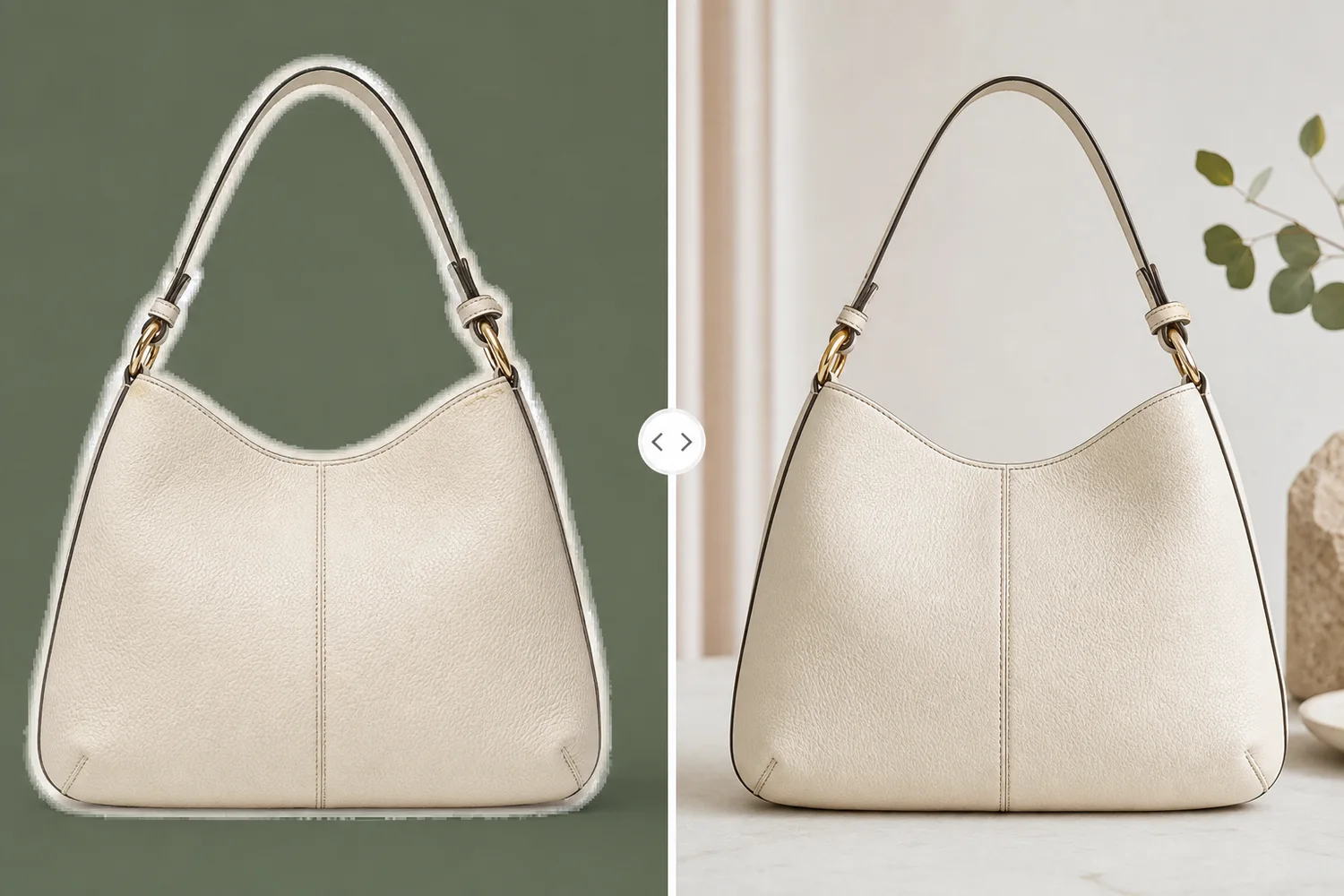
The cutout should preserve holes, straps, laces, handles, glass edges, soft fabric, fur, mesh, and product texture. A white halo or chopped shadow will make the asset look pasted into every future design.
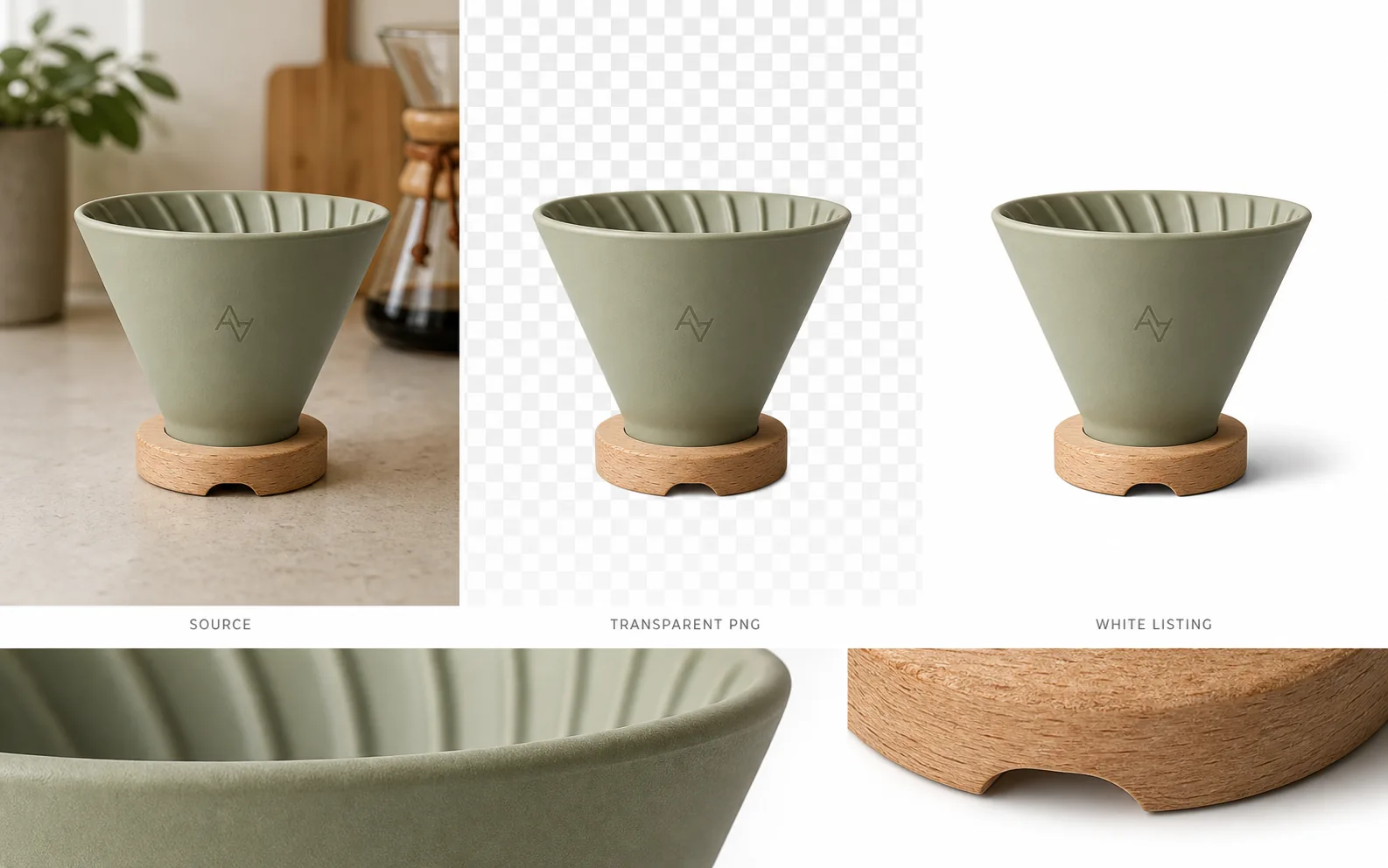
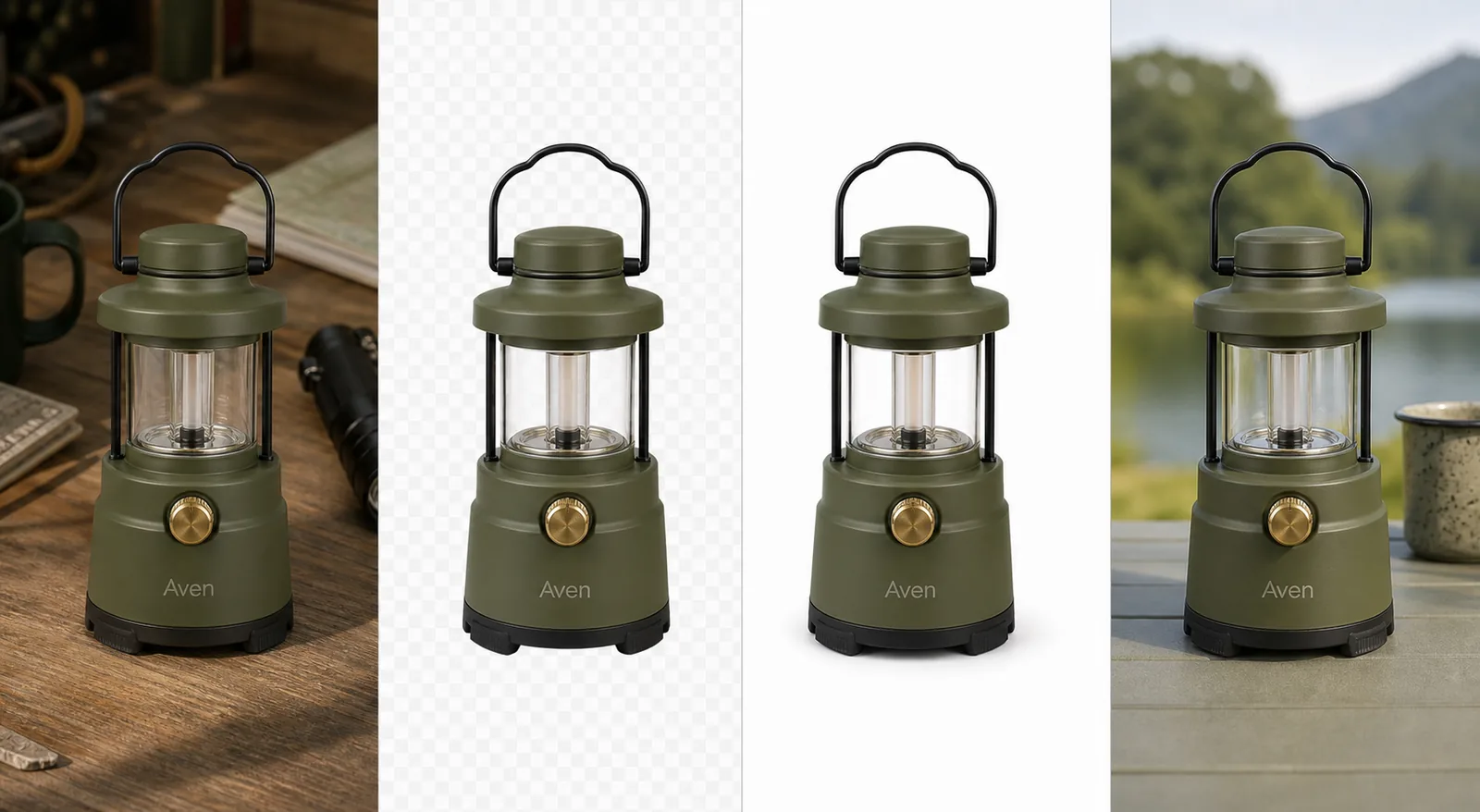
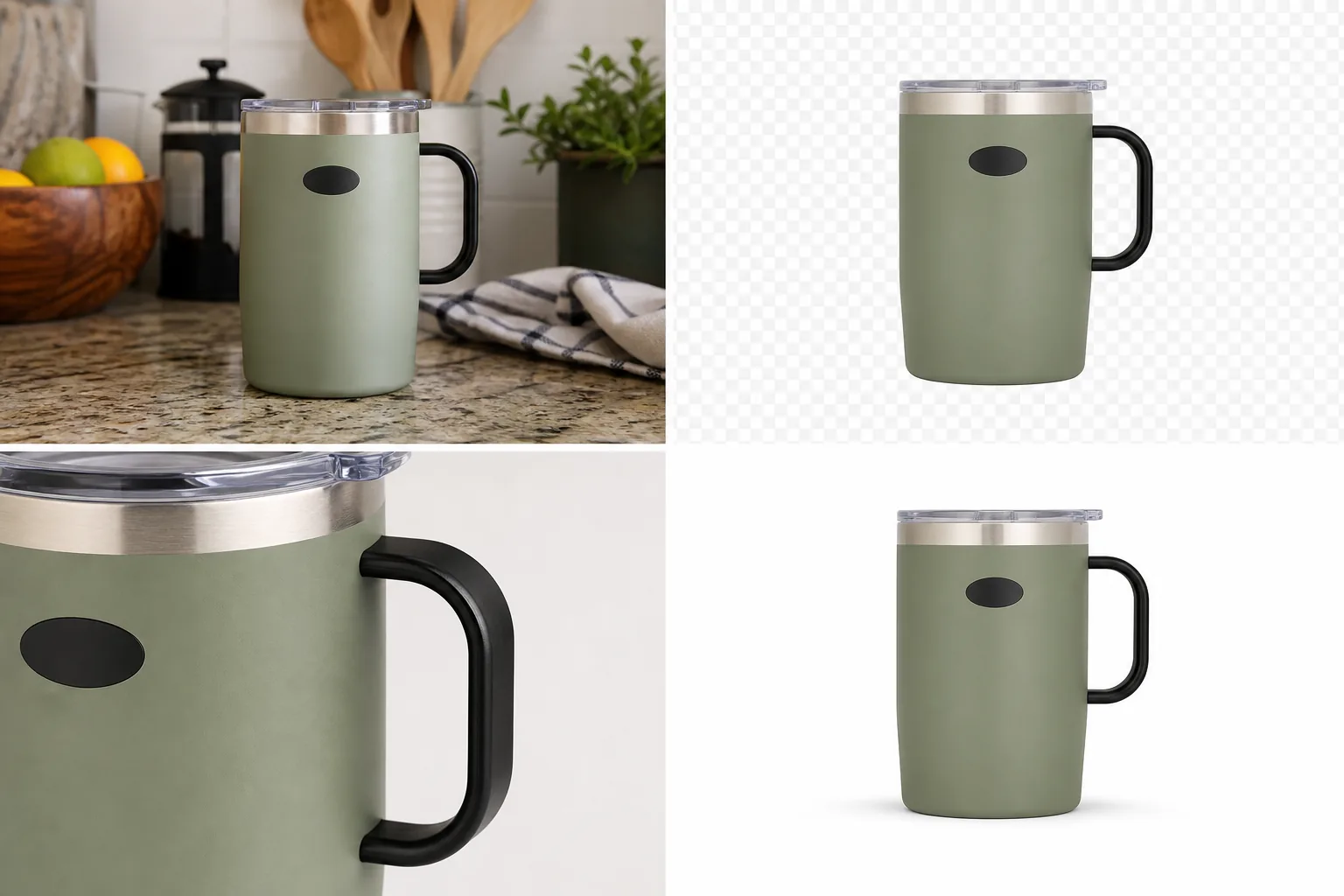
Decide whether the PNG should include a shadow. For flexible design work, export one clean transparent cutout and one grounded listing version with a soft shadow.
Workflow
1. Use the highest-resolution source image. 2. Remove the background while protecting delicate edges. 3. Test the PNG on white, black, and colored backgrounds. 4. Save separate versions for transparent asset and marketplace image. 5. Keep the original source file for later re-edits.
Where KrafLayer Fits
When you apply this Make Product PNG Images with Transparent Backgrounds workflow in KrafLayer, the tool choice matters: upload the product photo, run Remove BG, and inspect the cutout edge and transparent areas. After generation, judge the image by the channel it serves — listing images, detail pages, or ad assets — and check that shape, material, labels, color, scale, and accessories still match the source SKU.
Steps in KrafLayer
Use Remove BG as a one-click tool: upload the product image, run the automatic background remover, then download the transparent PNG or continue editing. It does not require a prompt or brush mask.
1. Upload or choose the product image. 2. Run the tool according to its interaction model: one-click tools generate directly; Erase-style tools need a brush mask first. 3. Zoom in to check edges, text, material, shadow, and product scale before downloading or continuing the edit.
FAQ
Should a transparent PNG include a shadow?
Usually no for reusable design assets. Keep a separate white-background version with a natural contact shadow for listing use.
Why does my PNG look bad on dark backgrounds?
The old background color may remain on the edge. Always test cutouts on dark and colored backgrounds before publishing.
What file should I keep as the master?
Keep the original source and the transparent PNG. The original is needed if you later want a better cutout or a different shadow treatment.
Keep exploring
Continue the story
More practical guidance on product accuracy, composition, and conversion-ready visuals.
Put it into practice
Take the next step in KrafLayer
Choose a generation or editing workflow that matches what you just learned.