Edit tools
How to Replace Product Backgrounds Without a Reshoot
TL;DR
A practical workflow for replacing product backgrounds without reshooting: match lighting, preserve product edges, keep shadows believable, and adapt one SKU for listings or campaigns. Includes how to do it in KrafLayer.
TL;DR
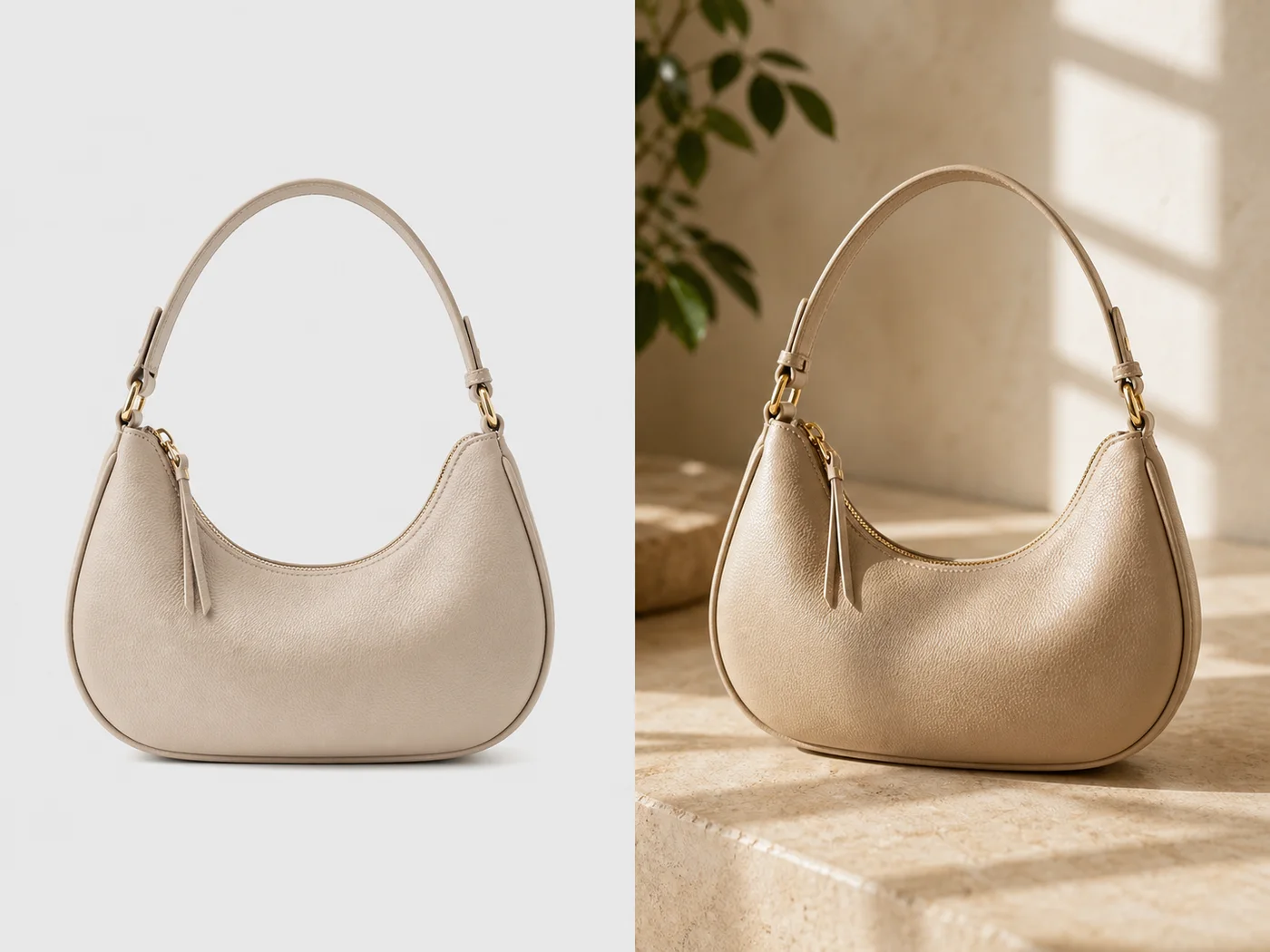
For Replace Product Backgrounds Without a Reshoot, KrafLayer helps when the product is real but the surrounding scene needs work. Use Replace BG for a prompted or reference-based scene, or Scene Compose when product position and scale must match a base scene. Use the scene to support listing images, detail pages, or ad assets, then check that shape, material, labels, color, scale, and accessories still match the source SKU.
Replacing a product background is not the same as dropping a cutout onto a prettier scene. Buyers notice when a handbag, bottle, shoe, or device does not belong in the space around it. The product may be sharp, the background may be beautiful, and the final image can still feel fake.
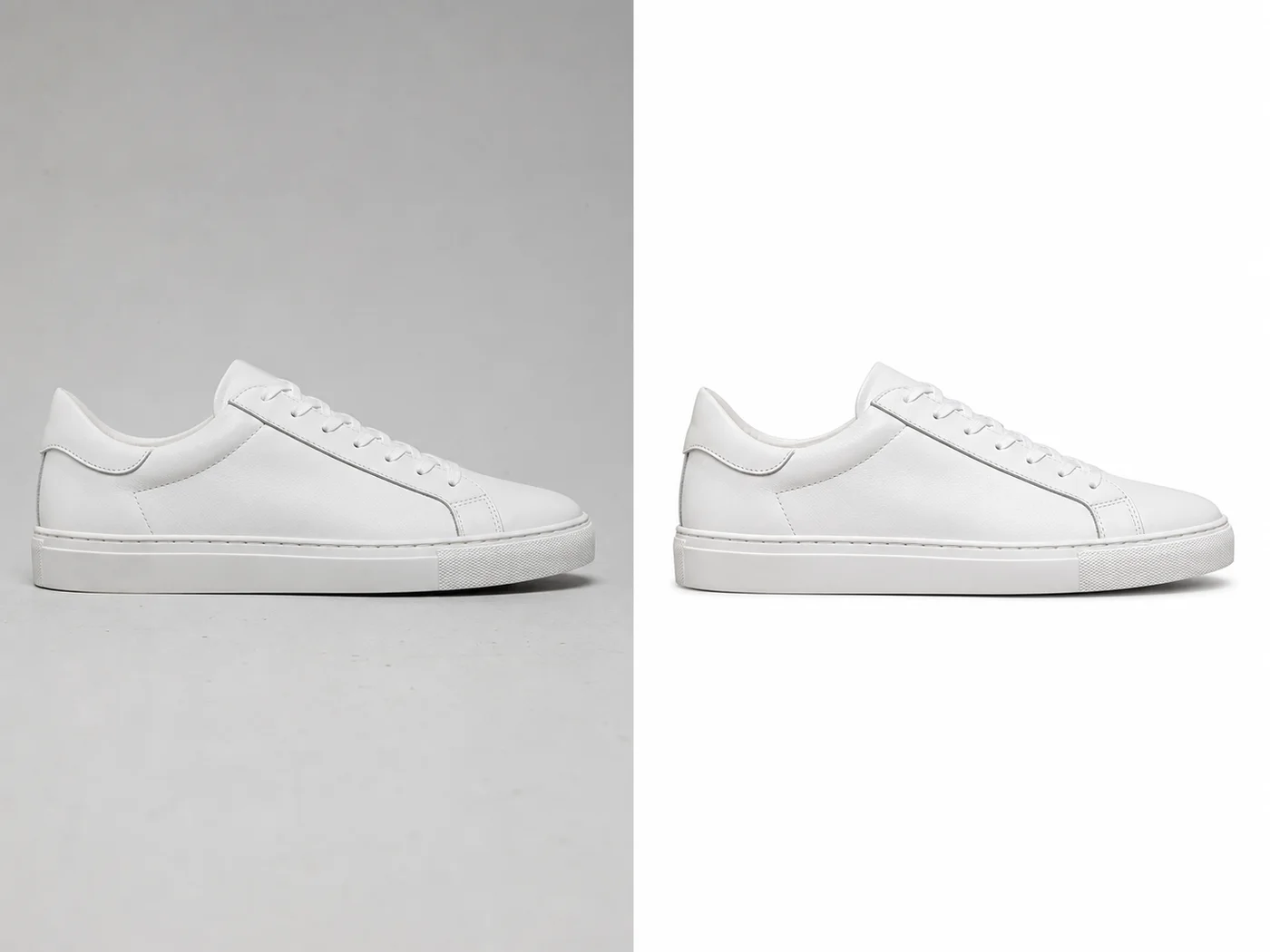
Use this workflow when the product itself is correct but the setting is weak: a supplier table, a crowded room, an off-brand surface, or a plain image that needs a campaign version. The job is to move the same SKU into a better selling context without changing what the product is.
When background replacement is worth doing
Replace the background when the original product angle is good but the environment does not support the offer. For example, a beige handbag can move from a flat supplier image into a warm boutique surface, a summer campaign crop, or a clean product-page hero.
Do not use background replacement to hide a product problem. If the product is blurry, warped, or missing a strap, fix the product reference first.
The three things that make it believable
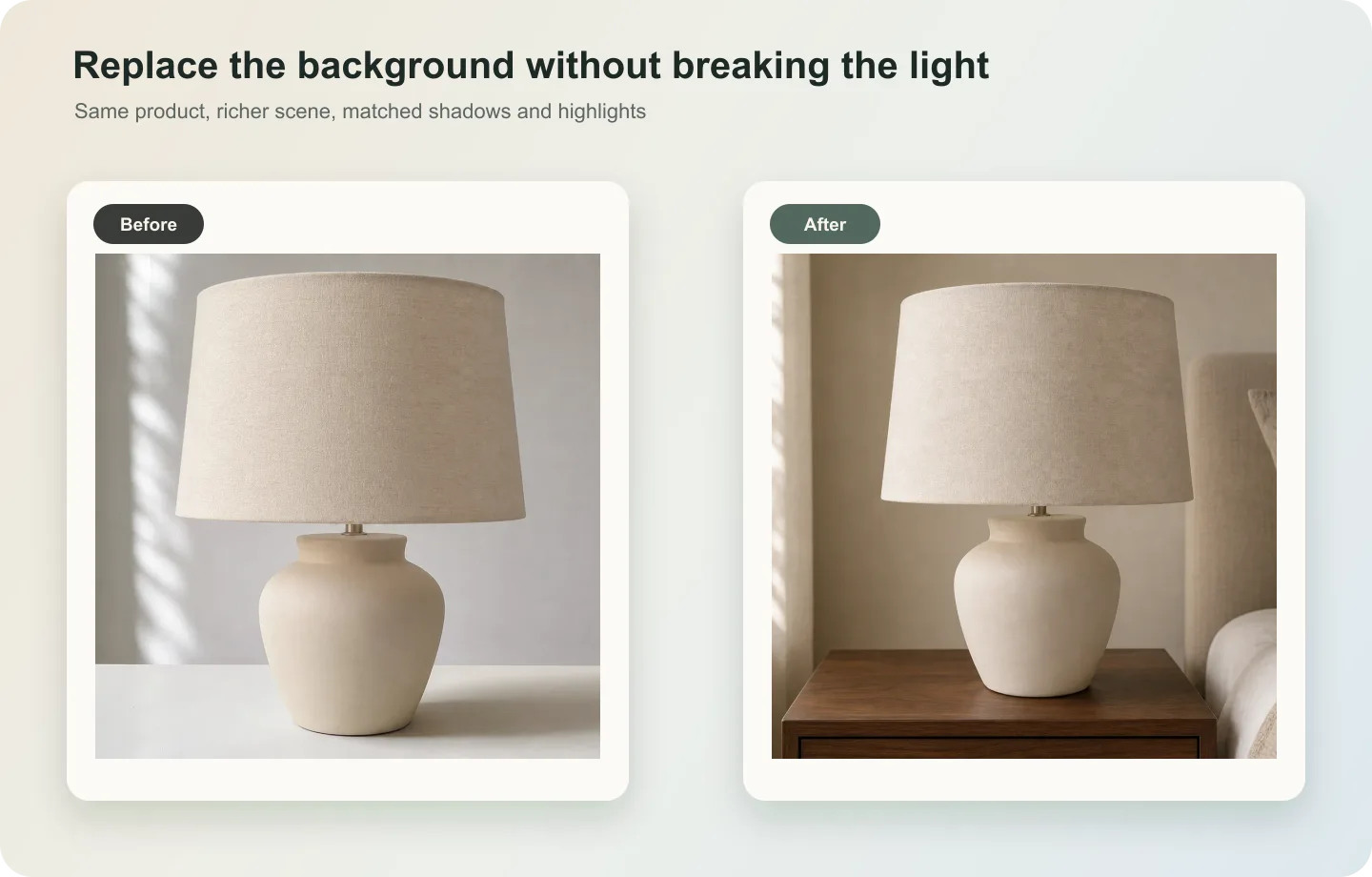
Light direction: The background light should agree with the product light. If the product is lit from upper left, the new scene should not suggest hard light from the opposite side.
Contact shadow: Bags, shoes, boxes, and bottles need a grounded shadow. Without it, the product floats.
Scale cues: Surface texture, props, and camera angle should make the product feel the right size. A handbag should not look like a toy because the table grain is too large.
Step-by-step workflow
1. Identify the product facts: silhouette, handles, straps, hardware, stitching, label, material, and color. 2. Choose one commercial job: marketplace support image, Shopify hero, ad creative, seasonal campaign, or email banner. 3. Describe the new background in terms of surface, light, depth, and mood. Avoid overloading it with props. 4. Ask KrafLayer to match lighting and rebuild the contact shadow. 5. Compare the output with the original product photo before you judge the style.
Where KrafLayer Fits
When you apply this Replace Product Backgrounds Without a Reshoot workflow in KrafLayer, the tool choice matters: use Replace BG for a prompted or reference-based scene, or Scene Compose when product position and scale must match a base scene. After generation, judge the image by the channel it serves — listing images, detail pages, or ad assets — and check that shape, material, labels, color, scale, and accessories still match the source SKU.
Prompt to use in KrafLayer
~~~text Use the uploaded product as the exact SKU reference. Replace the original background with a clean ecommerce scene for [channel/use case]. Keep the product silhouette, handle shape, strap placement, hardware, stitching, material, color, label area, and scale unchanged. Match the new background lighting to the product, rebuild a natural contact shadow, and keep the product as the clear hero. Do not redesign the product, add extra straps, change hardware, distort edges, add fake logos, or let props cover the item. ~~~
For a simpler product-page version:
~~~text Create a clean product-page background with soft light, neutral surface, enough margin for cropping, and no distracting props. Preserve the product exactly. ~~~
What to check before using the image
- Does the shadow touch the product in the right place?
- Do highlights on metal, glass, leather, or plastic match the scene?
- Is the product still the main subject, or did the background become the image?
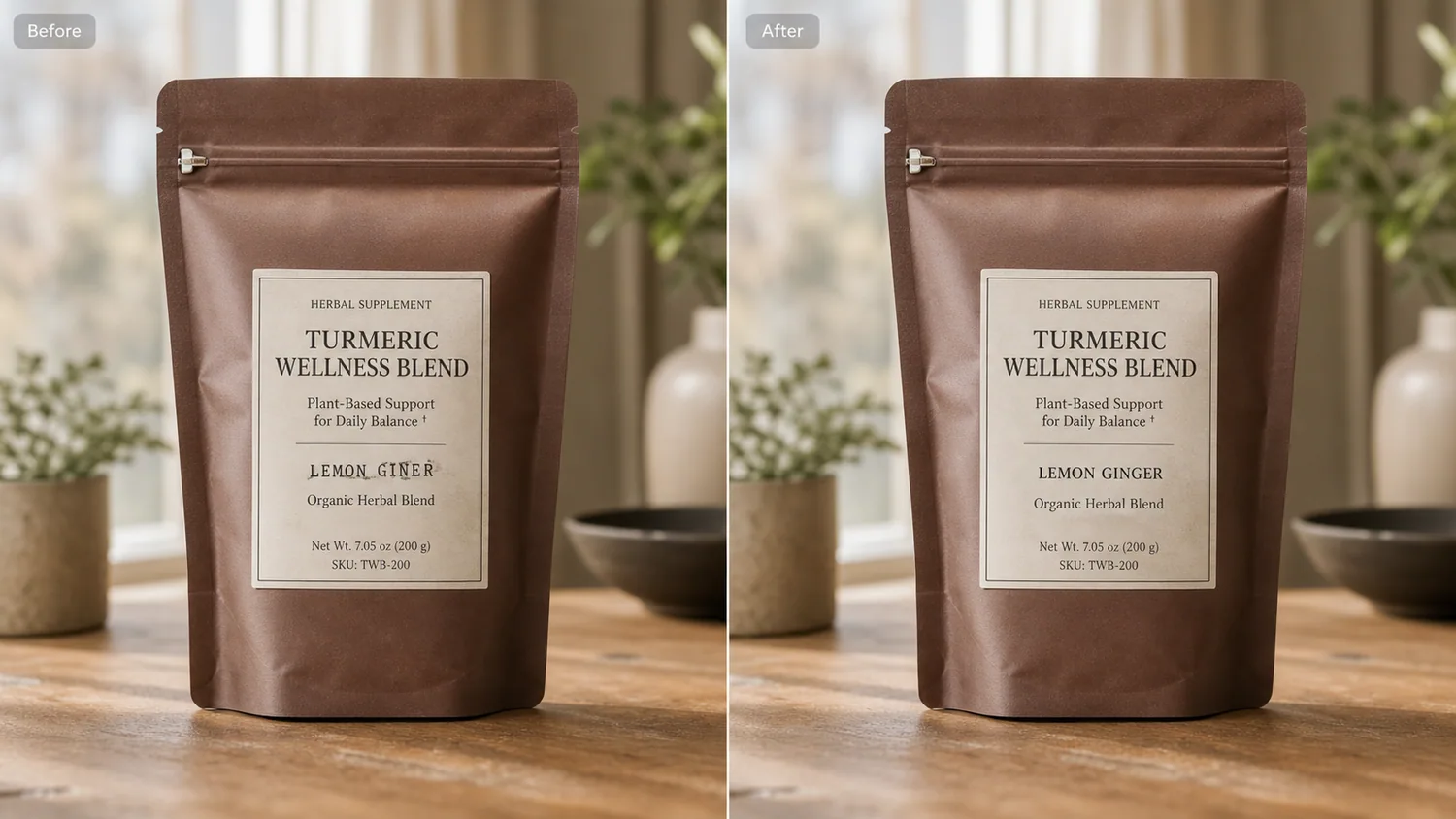
- Are straps, handles, transparent edges, or labels still accurate?
- Would the image still make sense next to the rest of the product gallery?
Summary
A good background replacement should feel like the product was photographed there. Keep the product facts locked, make the scene support the selling job, and judge the result by lighting, scale, and trust, not just by aesthetics.
FAQ
Can I use one product photo to create several backgrounds?
Yes, if the product reference is clear. Create one accurate master edit first, then vary the background for product page, ads, email, or seasonal campaigns.
Why do AI background replacements look fake?
Usually the light, shadow, or scale does not match. A beautiful background will not save the image if the product appears pasted on top.
Should I include props?
Use props only when they explain the product or strengthen the campaign. If they compete with the SKU, remove them.
Keep exploring
Continue the story
More practical guidance on product accuracy, composition, and conversion-ready visuals.
Put it into practice
Take the next step in KrafLayer
Choose a generation or editing workflow that matches what you just learned.