Edit tools
How to Replace Wrong Label Text on Product Images with AI
TL;DR
A practical local-editing workflow for fixing a wrong product label, flavor line, or small printed text error without rebuilding the whole ecommerce photo. Includes how to do it in KrafLayer.
TL;DR
For Replace Wrong Label Text on Product Images, use KrafLayer for controlled local changes or reference-guided edits. Use Mask Edit for a local change with a short instruction, or Reference Image Editor when the result needs a visual example. The finished image should still prove that shape, material, labels, color, scale, and accessories still match the source SKU.
If a product image has one wrong label line, do not regenerate the whole photo. Replace only the label area, then check that the package shape, material, lighting, shadow, and small layout details still match the original SKU.
KrafLayer is an AI-powered visual editor for ecommerce product photography. For this task, use local editing to fix the incorrect label text while keeping the rest of the image stable enough for a product listing, detail page, or ad creative.
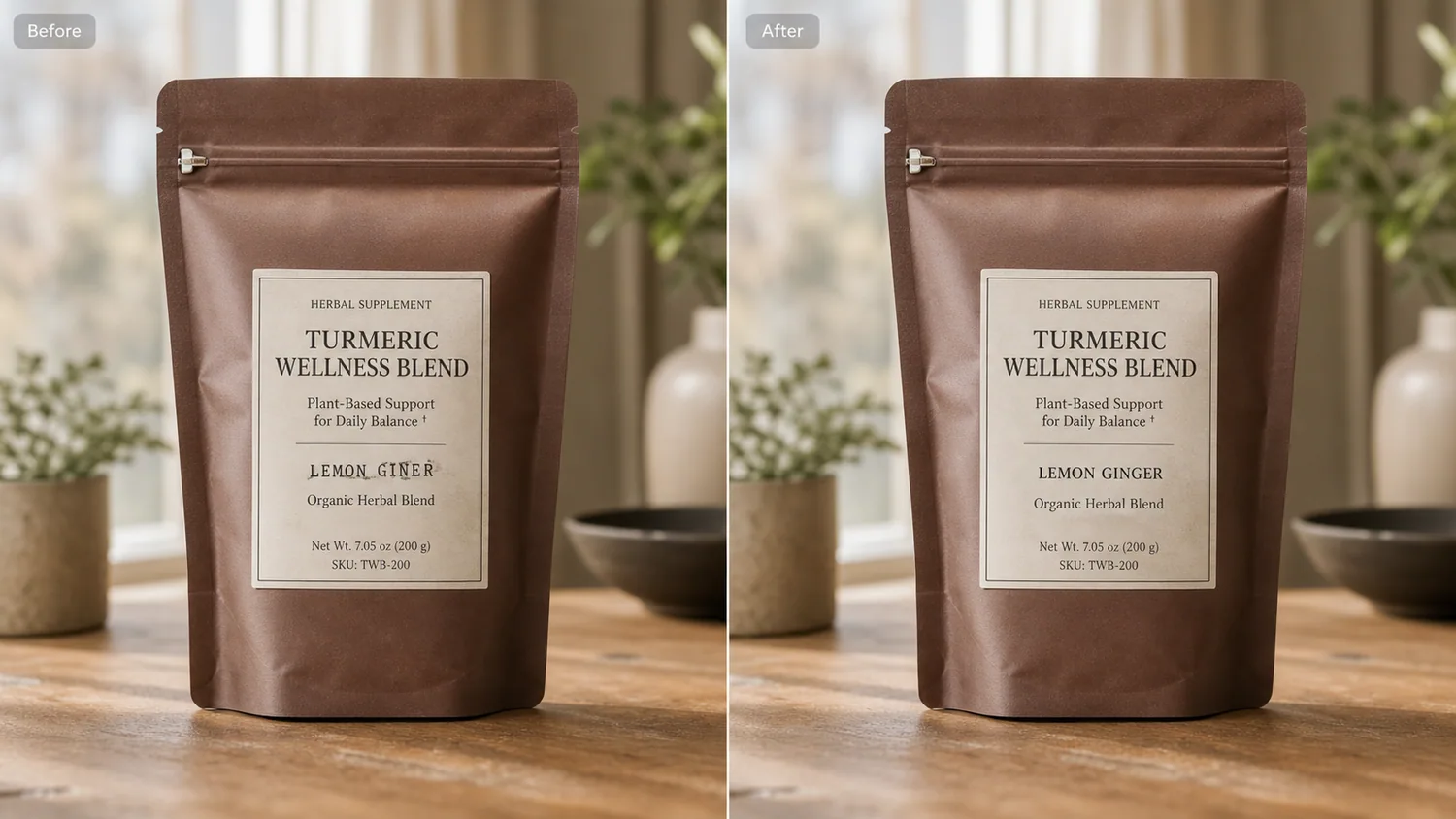
The example uses one amber supplement pouch. The before image has a misspelled flavor line on the front label. The after image keeps the same pouch, zipper, paper texture, tabletop, and contact shadow, but replaces the bad label text with a clean line a seller could actually use.
Why Label Errors Need a Narrow Edit
Small label mistakes are expensive because the rest of the photo may already be good. The product is centered, the light is usable, and the material reads well, but one typo or outdated variant name makes the asset unsafe to publish.
The mistake is to ask AI to “make a better product photo.” That often changes the pouch shape, moves the label, invents a brand mark, or changes the package finish. The correct request is narrower: replace this label area and preserve everything else.
Protect the Product Facts First
Before editing, write down what must not change. For the supplement pouch in the example, protect the pouch silhouette, zipper position, side folds, matte material, cream paper label, net-weight area, tabletop shadow, and camera angle.
For other products, the protected facts may be different:
- skincare bottles: cap shape, pump height, glass thickness, label placement
- food packaging: bag folds, window cutout, seal line, printed nutrition area
- electronics: port layout, button position, model number area
- apparel packaging: hang tag position, fabric texture, size sticker
If the after image fixes the text but redesigns these details, it is not a usable ecommerce edit.
A Prompt for Replacing Wrong Label Text
Use a local edit prompt inside [KrafLayer](https://kraflayer.com):
Replace only the incorrect label text on the front label. Change the flavor line to “LEMON GINGER” and keep the same package shape, label size, paper texture, typography style, lighting, tabletop, shadow, crop, and camera angle. Do not redesign the product, add a new logo, change the pouch material, change the SKU area, add props, or alter any other printed details.
The exact replacement text should be short. Long copy is harder to keep clean, and it can make the image look like a fake packaging render.
Check the Result Like a Listing Operator
After the edit, zoom in on the label and then zoom back out to thumbnail size. Both views matter. A good label replacement should be readable close up and still look natural in a catalog grid.
Use this review list:
- the corrected text says exactly what you requested
- the label stays attached to the package surface
- paper grain, ink weight, and border lines still match
- shadows and wrinkles around the label are not erased
- no fake brand logo or extra claim was added
- the package shape and scale stayed unchanged
This is a trust edit. The buyer should feel that the image shows the real product, just with the seller-side label error corrected.
When to Use This Workflow
Use AI label replacement when the photo is otherwise sellable and the change is small: flavor text, variant name, typo, size line, outdated batch wording, or a misplaced short claim. It is useful for Shopify product images, Amazon detail images, marketplace catalogs, and campaign assets where one typo can block launch.
Do not use it to hide required information, rewrite regulated claims, or make packaging say something the real item does not say. The visual should match what the buyer receives.
Where KrafLayer Fits
When you apply this Replace Wrong Label Text on Product Images workflow in KrafLayer, the tool choice matters: use Mask Edit for a local change with a short instruction, or Reference Image Editor when the result needs a visual example. After generation, judge the image by the channel it serves — listing images, detail pages, or ad assets — and check that shape, material, labels, color, scale, and accessories still match the source SKU.
FAQ
Can AI replace product label text accurately?
AI can replace short product label text when the edit area is narrow and the prompt protects the original packaging. Keep the requested text simple and verify the final spelling manually.
Should I regenerate the whole product photo to fix a label typo?
Usually no. If the photo is already usable, local replacement is safer because it reduces the chance of changing the product shape, packaging material, or lighting.
Can I use this for marketplace product listings?
Yes, if the corrected label matches the real product and does not add false claims. Use the workflow to fix seller-side production errors, not to misrepresent the item.
Keep exploring
Continue the story
More practical guidance on product accuracy, composition, and conversion-ready visuals.
Put it into practice
Take the next step in KrafLayer
Choose a generation or editing workflow that matches what you just learned.