Ecommerce
How to Turn Flat Lay Clothing Photos into Model Shots with AI
TL;DR
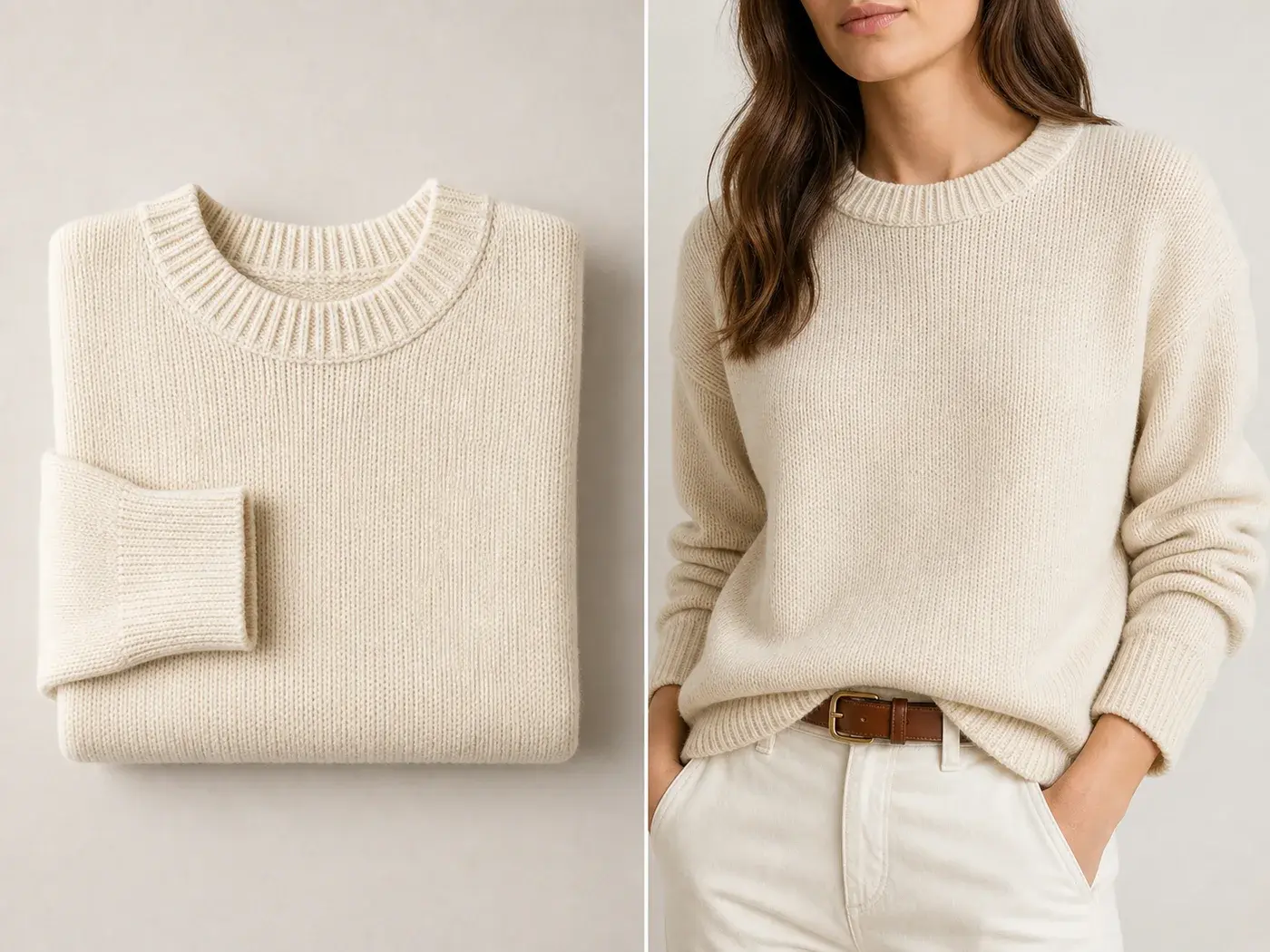
A product-on-model workflow for turning flat lay clothing photos into model images while preserving garment fit, seams, texture, color, and ecommerce accuracy. Includes how to do it in KrafLayer.
TL;DR
For Turn Flat Lay Clothing Photos into Model Shots, KrafLayer is useful when a real product reference needs to become a usable asset for listing images, detail pages, or ad assets. Treat it as production editing, not product reinvention; the test is whether fit, fabric, shoulder line, garment length, and real color are still intact.
Turning a flat lay into a model shot is useful when the garment is clear but shoppers need to understand fit, scale, and styling. The goal is not to create a random fashion image. The goal is to show the same garment on a believable model without changing the product.
This workflow works best for sweaters, shirts, jackets, dresses, activewear, and simple accessories where the flat lay shows enough construction detail.
What must stay true
Flat lay images often show the garment more honestly than a styled model image. Preserve shoulder width, sleeve length, neckline, hem, ribbing, buttons, pocket placement, fabric texture, and true color. The model, pose, and background can change; the garment facts should not.
Workflow
1. Use the flat lay as the product reference, not just as style inspiration. 2. Define the model briefly: body type, crop, mood, and pose family. 3. Ask for natural wear, not a complex pose that bends the garment into a new shape. 4. Keep hands and arms simple, especially near sleeves, bags, and accessories. 5. Compare the model result against the flat lay before publishing.
Where KrafLayer Fits
When you apply this Turn Flat Lay Clothing Photos into Model Shots workflow in KrafLayer, start from the clearest product reference, then decide whether the asset needs cleanup, lighting, background work, detail support, or an ad version. Before using it for listing images, detail pages, or ad assets, check that fit, fabric, shoulder line, garment length, and real color are still intact.
Prompt to use in KrafLayer
~~~text Use the uploaded flat lay clothing image as the exact garment reference. Create a realistic ecommerce model shot showing the same garment worn naturally. Preserve the garment color, knit or fabric texture, neckline, shoulder width, sleeve length, hem, seams, buttons, pocket placement, fit character, and overall silhouette. Use a clean model pose and simple styling that supports the product. Do not redesign the garment, change the fabric, alter the fit, add extra details, or hide key construction features. ~~~
QA checklist
- Does the garment still match the flat lay reference?
- Did the fit become too tight, too long, or too short?
- Are sleeves, neckline, hem, and pockets still in the right place?
- Is fabric texture believable at detail-page size?
- Does the model image support the product page rather than replace product facts?
Summary
A good flat-lay-to-model image keeps the garment honest. Use AI to add scale and styling context, not to redesign the clothing.
FAQ
Can AI infer the back view from a flat lay?
Only loosely. If you need an accurate back view, upload a back reference. Otherwise, treat the output as a styling image, not definitive construction proof.
Why does the garment fit change on the model?
The prompt may be too fashion-oriented. Put fit, silhouette, and construction details before model styling instructions.
Should I use model shots as the main product image?
For fashion stores, model shots can be strong, but keep flat lay or ghost mannequin images nearby so buyers can verify construction and details.
Keep exploring
Continue the story
More practical guidance on product accuracy, composition, and conversion-ready visuals.
Put it into practice
Take the next step in KrafLayer
Choose a generation or editing workflow that matches what you just learned.