Ecommerce
How to Blend Products into AI-Generated Backgrounds
TL;DR
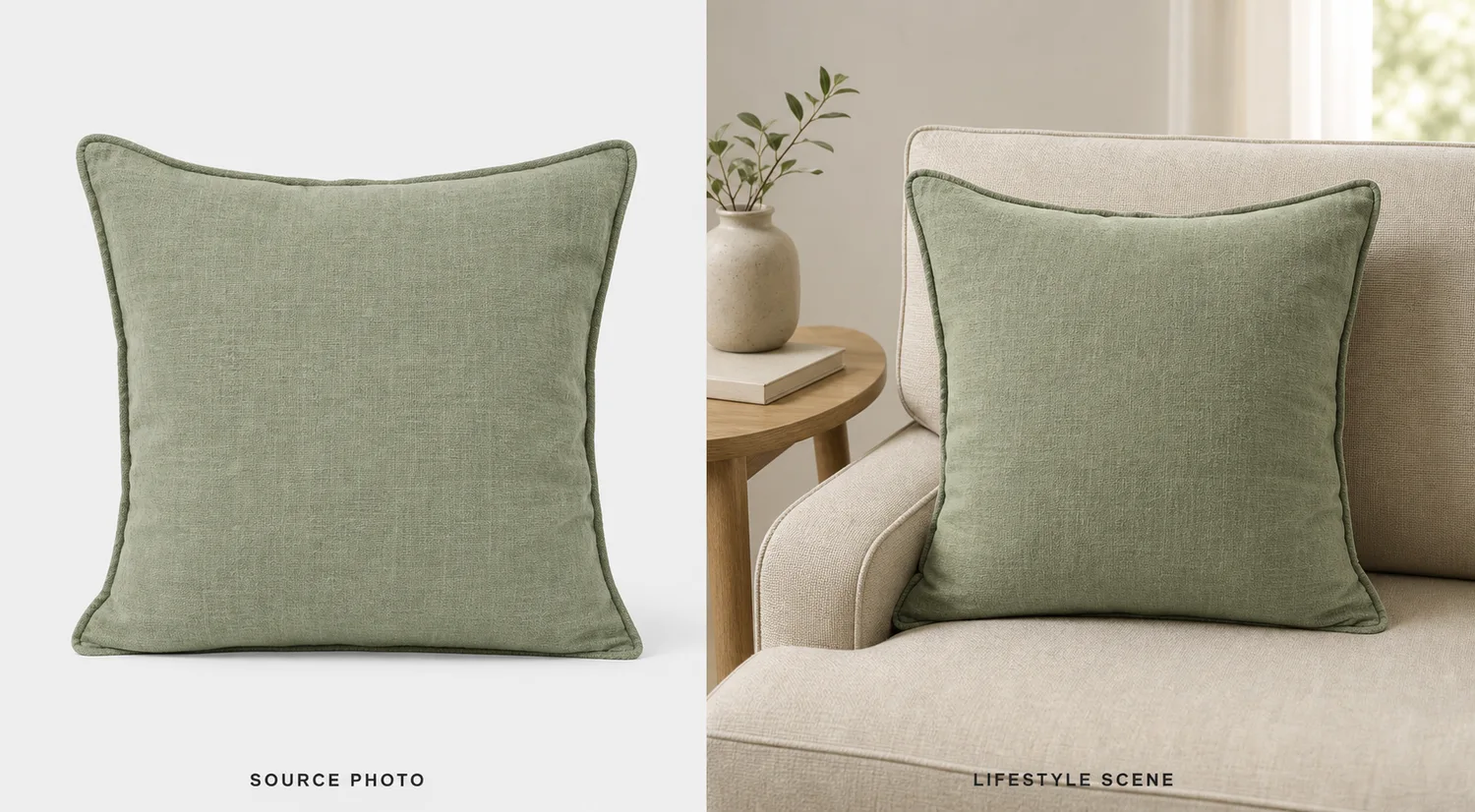
A realistic product-background blending workflow: match light, scale, edge quality, shadow, and material so products do not look pasted into AI scenes. Includes how to do it in KrafLayer.
TL;DR
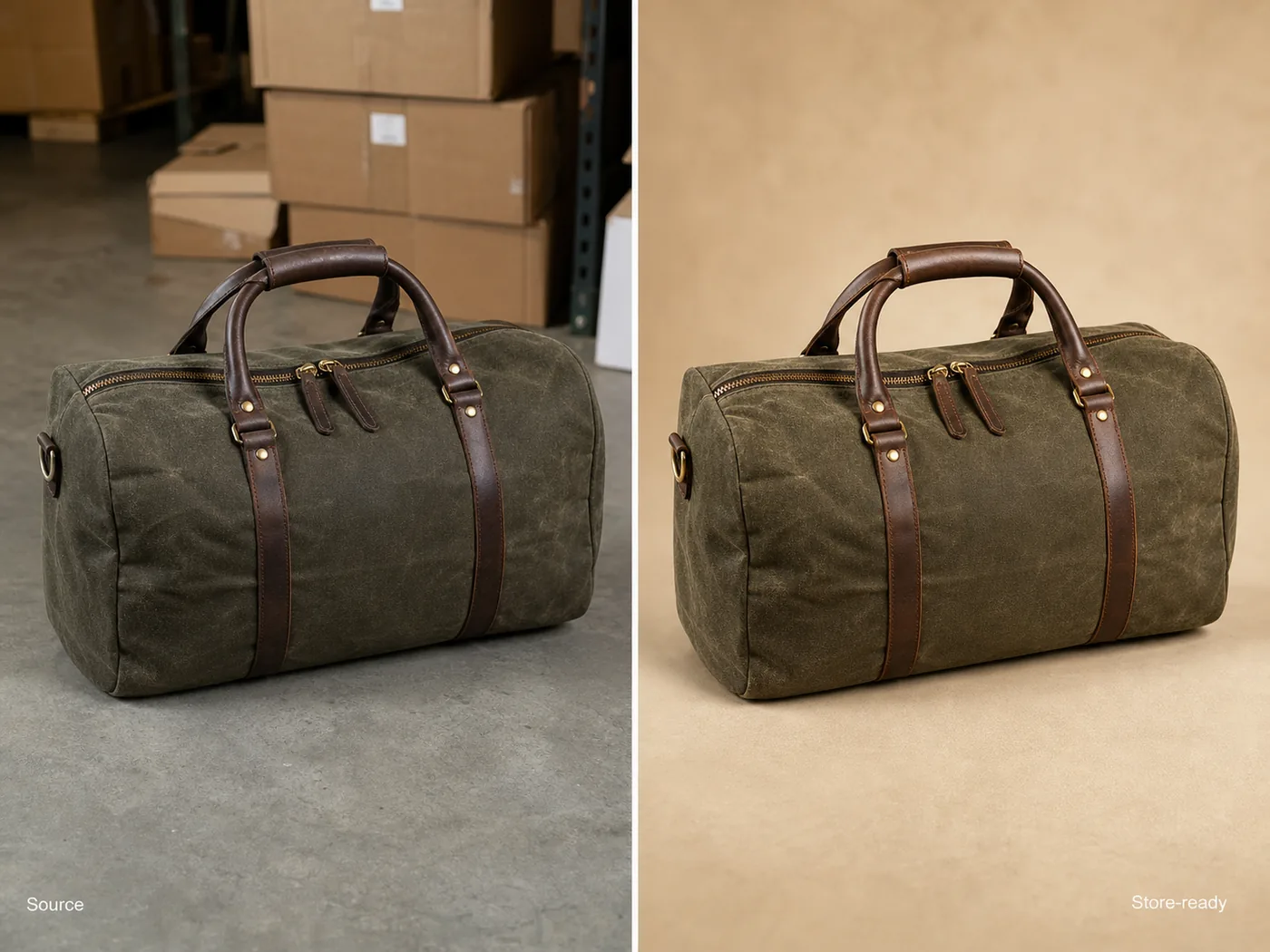
For Blend Products into AI-Generated Backgrounds, KrafLayer helps when the product is real but the surrounding scene needs work. Use Replace BG for a prompted or reference-based scene, or Scene Compose when product position and scale must match a base scene. Use the scene to support listing images, detail pages, or ad assets, then check that shape, material, labels, color, scale, and accessories still match the source SKU.
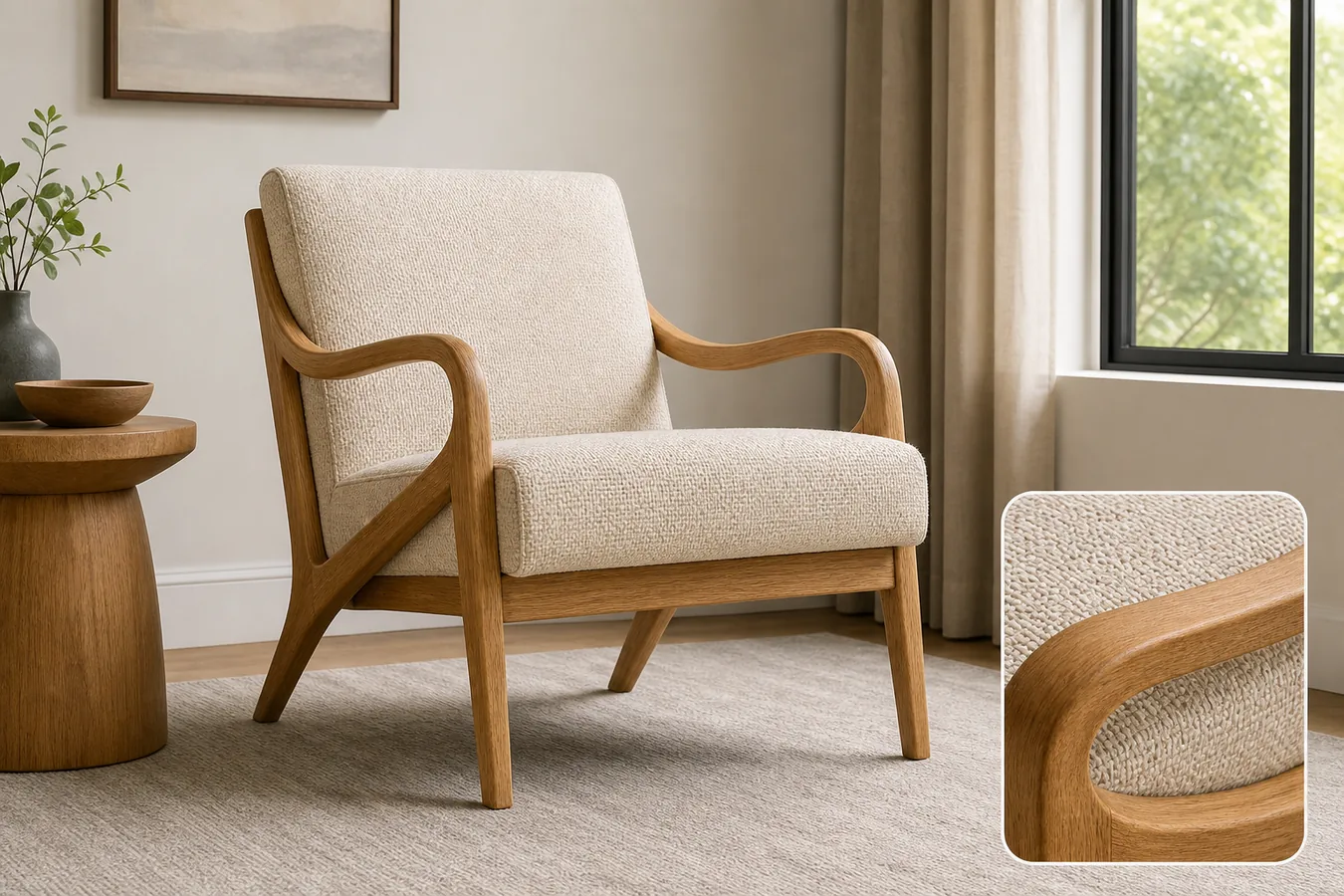
A product is blended well into an AI background when the buyer stops noticing the edit. The product should feel photographed in the scene, with matching light, scale, contact shadow, and edge quality.
What makes blending believable
The background must agree with the product. Light direction, camera height, surface contact, shadow softness, and product scale all need to match. If any one is wrong, the product looks pasted.
Workflow
1. Start with a clean product cutout or reference. 2. Define the scene surface and light direction. 3. Match product scale to nearby surfaces or props. 4. Add a natural contact shadow. 5. Check edges on both light and dark areas.
Where KrafLayer Fits
When you apply this Blend Products into AI-Generated Backgrounds workflow in KrafLayer, the tool choice matters: use Replace BG for a prompted or reference-based scene, or Scene Compose when product position and scale must match a base scene. After generation, judge the image by the channel it serves — listing images, detail pages, or ad assets — and check that shape, material, labels, color, scale, and accessories still match the source SKU.
Prompt to use in KrafLayer
~~~text Use the uploaded product as the exact reference. Blend it naturally into an AI-generated ecommerce background for [scene/use case]. Preserve product shape, color, material, texture, label area, and scale. Match lighting direction, perspective, contact shadow, surface reflection, and edge softness so the product feels photographed in the scene. Do not redesign the product, hide edges, distort scale, or let the background overpower it. ~~~
FAQ
Why does my product look pasted into the background?
Usually the light, shadow, or scale does not match. Fix those before adding more style.
Should I generate the background first?
Often yes. Approve the background direction, then blend the product into it with product-preservation instructions.
Can I use props?
Yes, but props should support scale and story. If they compete with the product, remove them.
Keep exploring
Continue the story
More practical guidance on product accuracy, composition, and conversion-ready visuals.
Put it into practice
Take the next step in KrafLayer
Choose a generation or editing workflow that matches what you just learned.