Ecommerce
How to Turn One Backpack Photo into Platform-Ready Product Images with AI
TL;DR
A backpack product-image workflow for turning one supplier photo into cleaner platform-ready assets while preserving straps, zippers, pockets, fabric, and scale. Includes how to do it in KrafLayer.
TL;DR
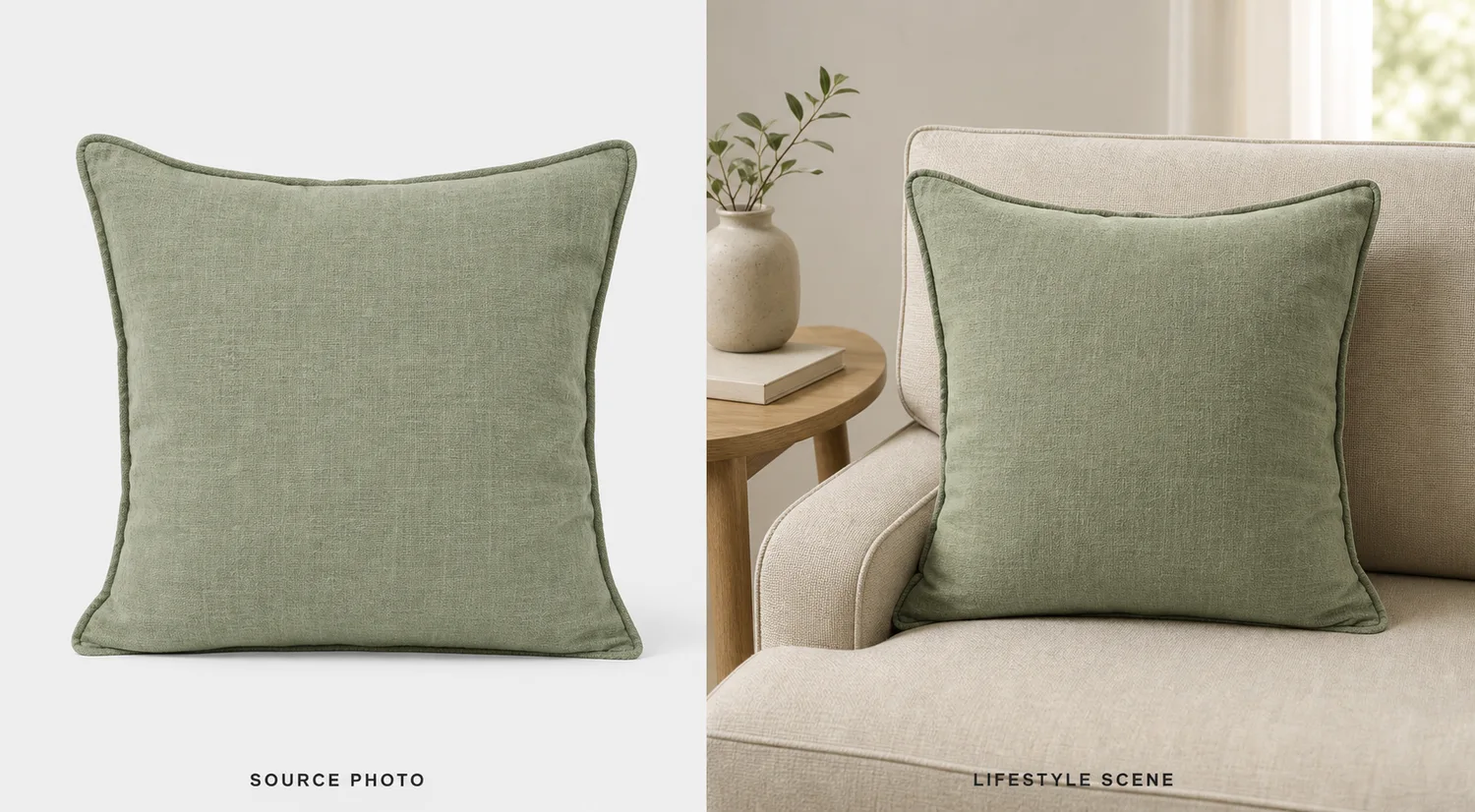
For Turn One Backpack Photo into Platform-Ready Product Images, KrafLayer is useful when a real product reference needs to become a usable asset for listing images, detail pages, or ad assets. Treat it as production editing, not product reinvention; the test is whether shape, material, labels, color, scale, and accessories still match the source SKU.
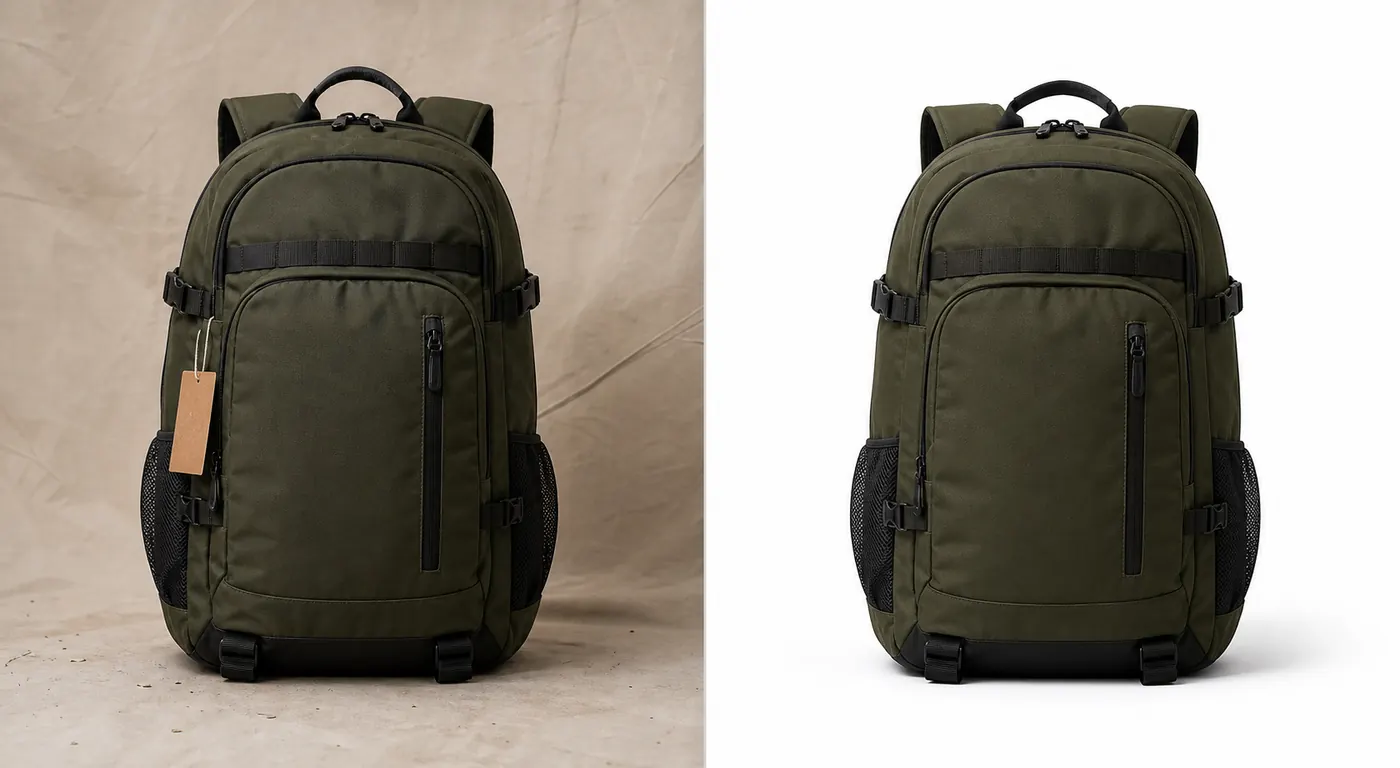
One backpack photo can become several useful ecommerce assets if the product is clear. The goal is to build a small image set for different channels without changing the bag’s structure.
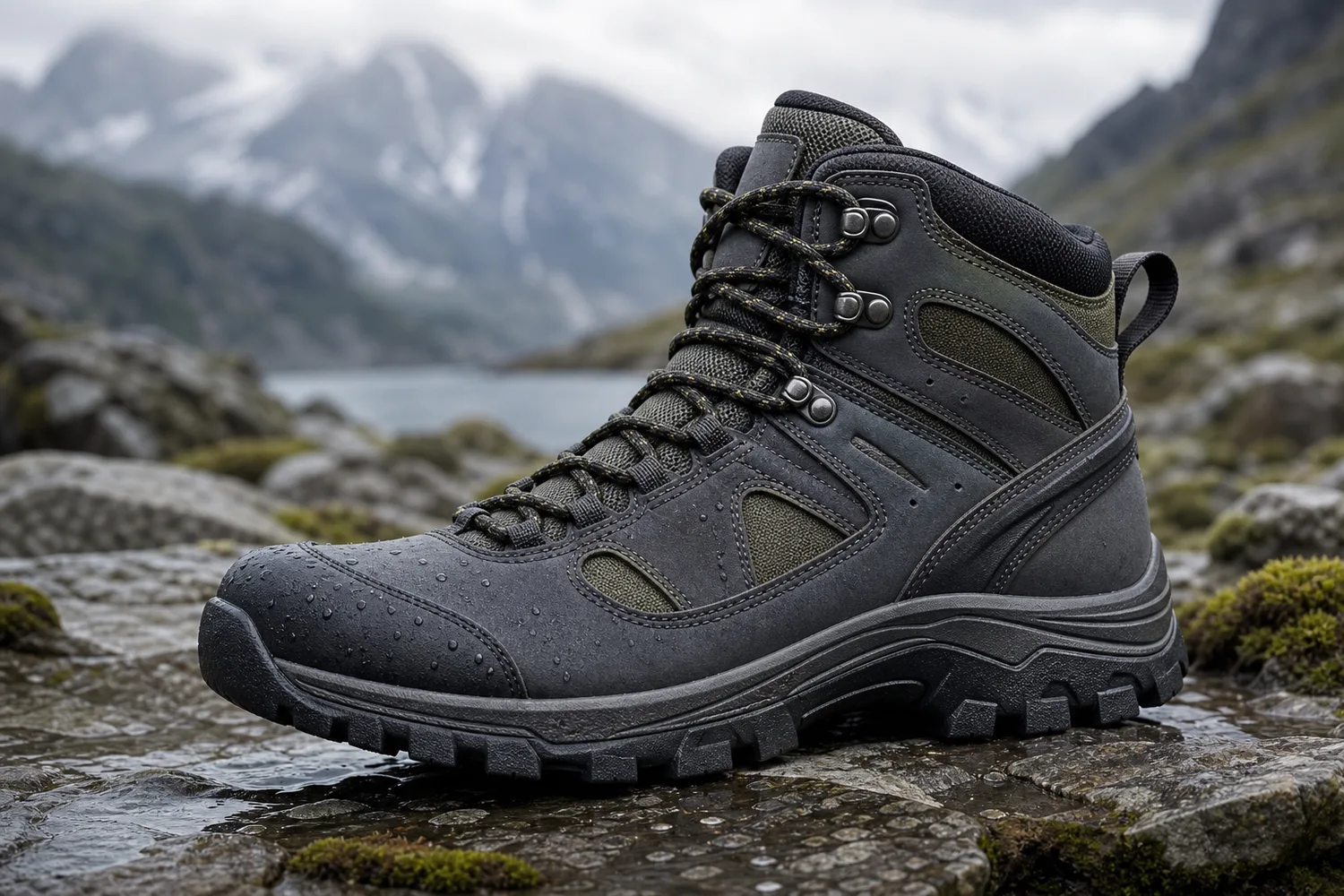
For backpacks, accuracy lives in the straps, zipper paths, pockets, handle shape, logo area, fabric texture, and volume. If those drift, the image stops representing the real product.
Useful outputs from one backpack photo
Start with a clean main image. Then create a detail crop for fabric or zippers, a lifestyle support image, a social ad crop, and a transparent PNG if the product will be used in banners.
Do not ask for all versions in one uncontrolled generation. Create the master product image first.
Workflow
1. Clean the original photo and correct lighting. 2. Preserve backpack silhouette, straps, zipper line, pockets, buckles, handle, logo, and fabric. 3. Create a platform-specific crop: marketplace square, Shopify gallery, ad vertical, or social cover. 4. Generate detail images only from the approved master. 5. Review every version as the same SKU.
Where KrafLayer Fits
When you apply this Turn One Backpack Photo into Platform-Ready Product Images workflow in KrafLayer, start from the clearest product reference, then decide whether the asset needs cleanup, lighting, background work, detail support, or an ad version. Before using it for listing images, detail pages, or ad assets, check that shape, material, labels, color, scale, and accessories still match the source SKU.
Prompt to use in KrafLayer
~~~text Use the uploaded backpack photo as the exact SKU reference. Create a platform-ready ecommerce product image. Preserve the backpack silhouette, shoulder straps, handle, zipper paths, pockets, buckles, logo area, fabric texture, color, volume, and scale. Clean the background and improve lighting for [platform/channel]. Do not redesign the bag, add or remove pockets, change strap placement, invent logos, or distort the product volume. ~~~
FAQ
Can one backpack photo create a full product gallery?
It can create a starter gallery, but additional angles are better for serious product pages. Use one photo for main, detail, and ad variants only when the visible product information is enough.
Why do AI backpack images change straps?
Straps are visually complex. Name strap placement and handle shape explicitly, and reject outputs with extra or missing straps.
Which platform version should I make first?
Make the clean marketplace or Shopify product image first. Use that approved version as the source for creative crops.
Keep exploring
Continue the story
More practical guidance on product accuracy, composition, and conversion-ready visuals.
Put it into practice
Take the next step in KrafLayer
Choose a generation or editing workflow that matches what you just learned.