Edit tools
How to Make Phone Product Photos Look Like DSLR Shots with AI
TL;DR
A practical AI editing workflow for turning phone product photos into cleaner DSLR-style ecommerce shots while preserving the real product, color, texture, and scale. Includes how to do it in KrafLayer.
TL;DR
For Make Phone Product Photos Look Like DSLR Shots, use KrafLayer as a fast pre-publishing edit step: run Restore on a usable source photo, then compare color, exposure, and recovered detail against the original. It is most useful for listing images, detail pages, or ad assets, as long as shape, material, labels, color, scale, and accessories still match the source SKU.
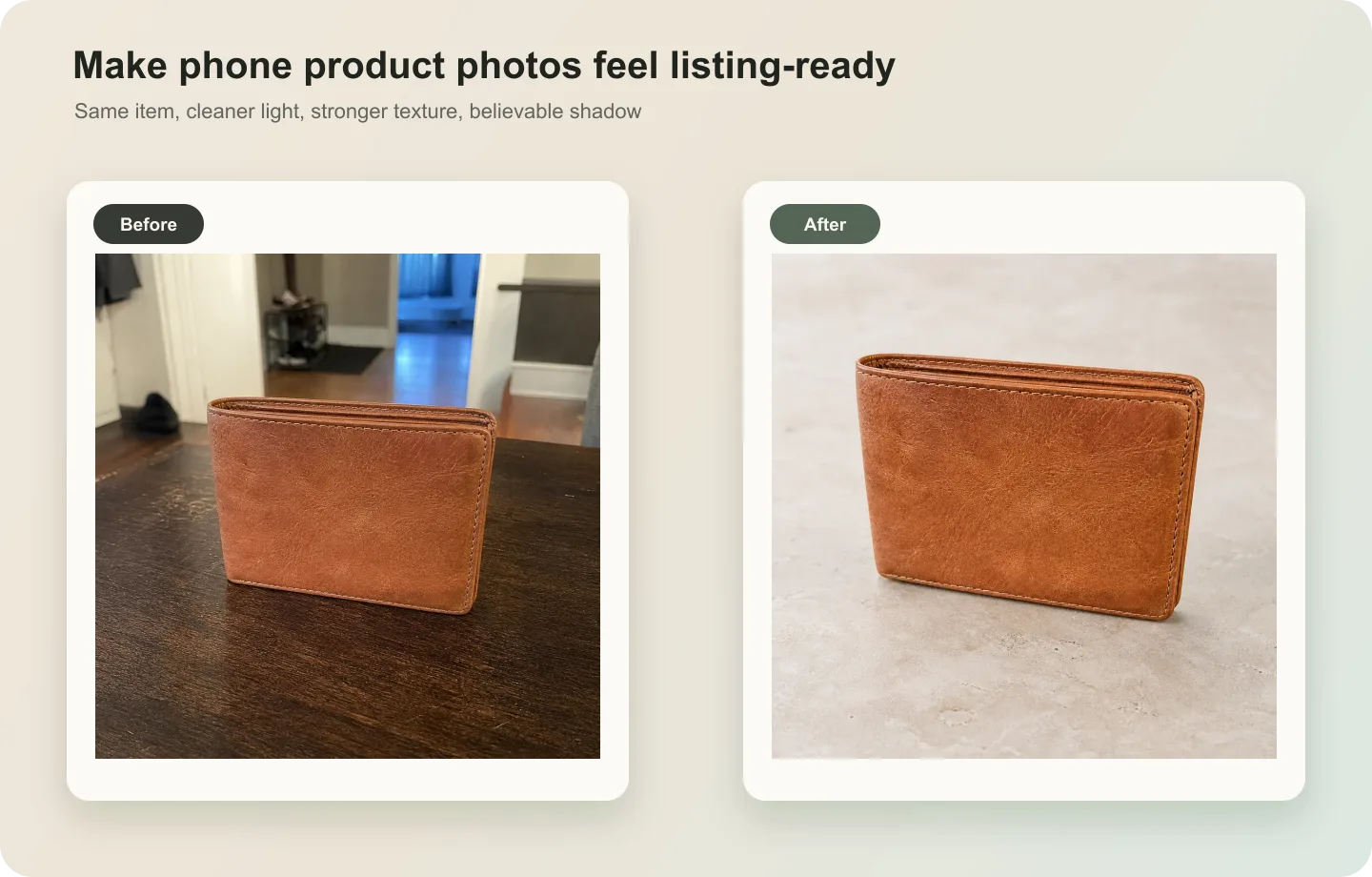
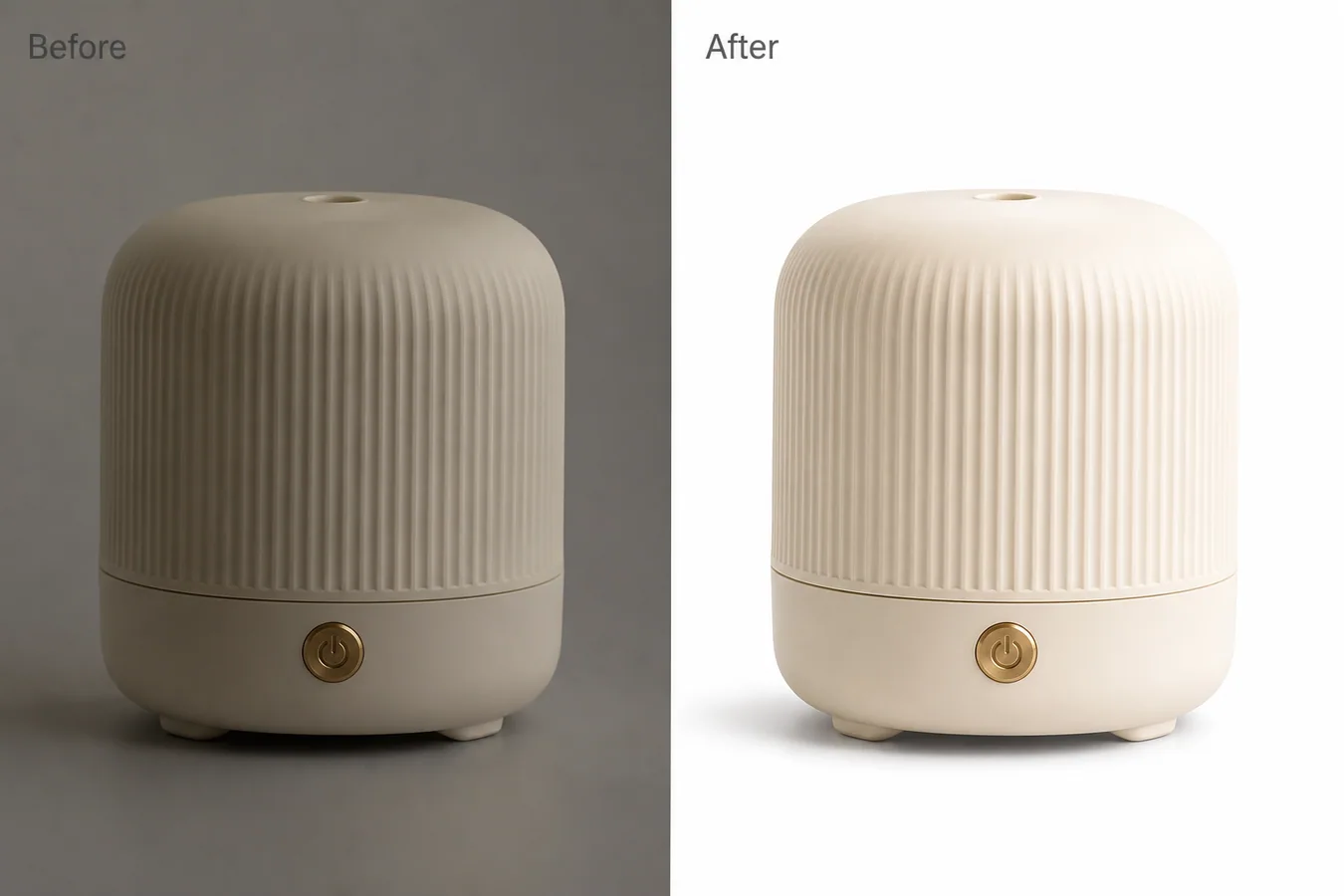
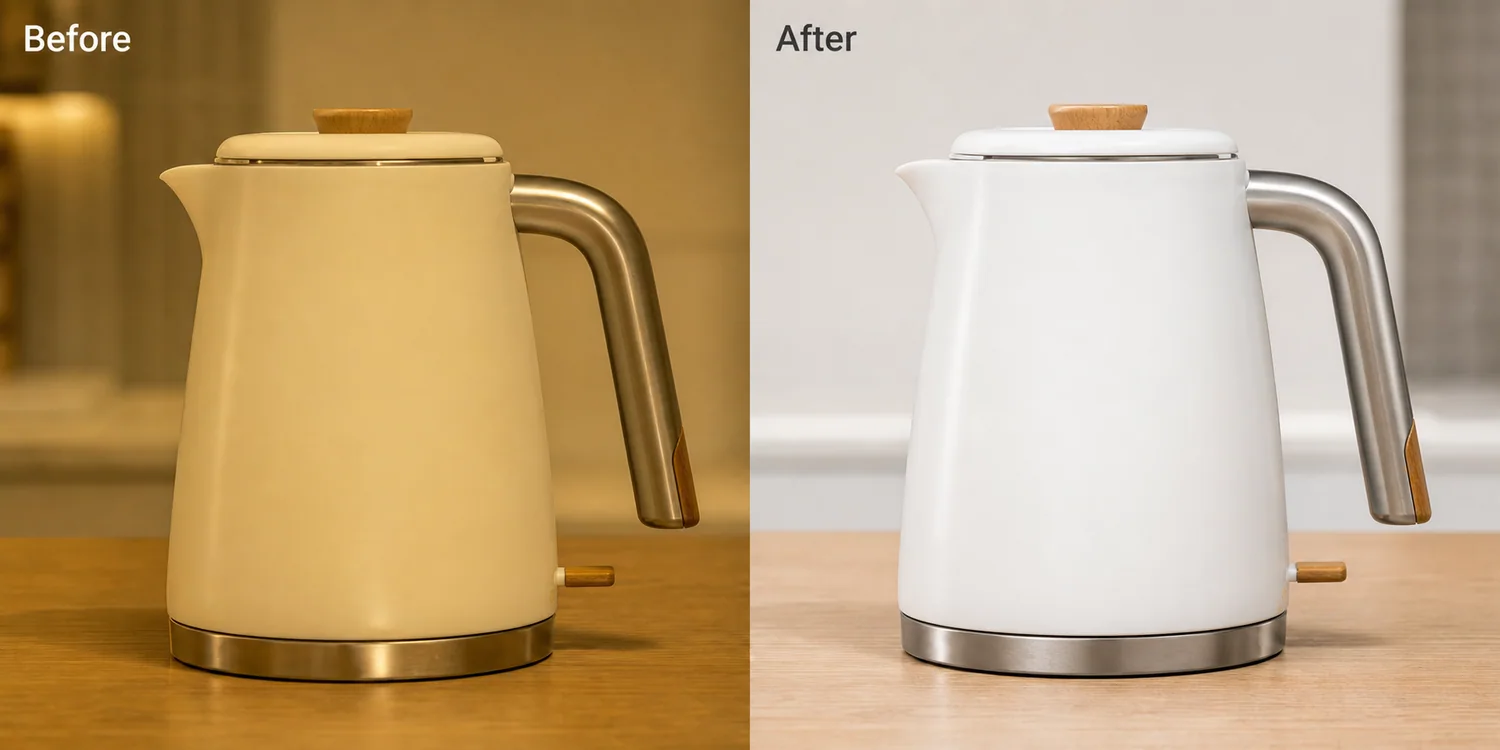
A phone product photo can often be saved if the product is sharp enough and the angle is usable. The DSLR look does not come from fake blur or heavier contrast; it comes from cleaner light, better color, controlled perspective, and a product edge that feels intentional.
Use this workflow when a phone shot has the right SKU but looks casual: mixed indoor light, noisy shadows, a busy surface, weak depth, or a slightly flat lens feel. The edit should make the image more commercial without pretending the product was a different sample.
What a DSLR-style edit should change
A good edit improves light falloff, shadow softness, background cleanliness, color balance, and micro-contrast. It should not change the leather grain, stitching, logo position, product thickness, or true color variant.
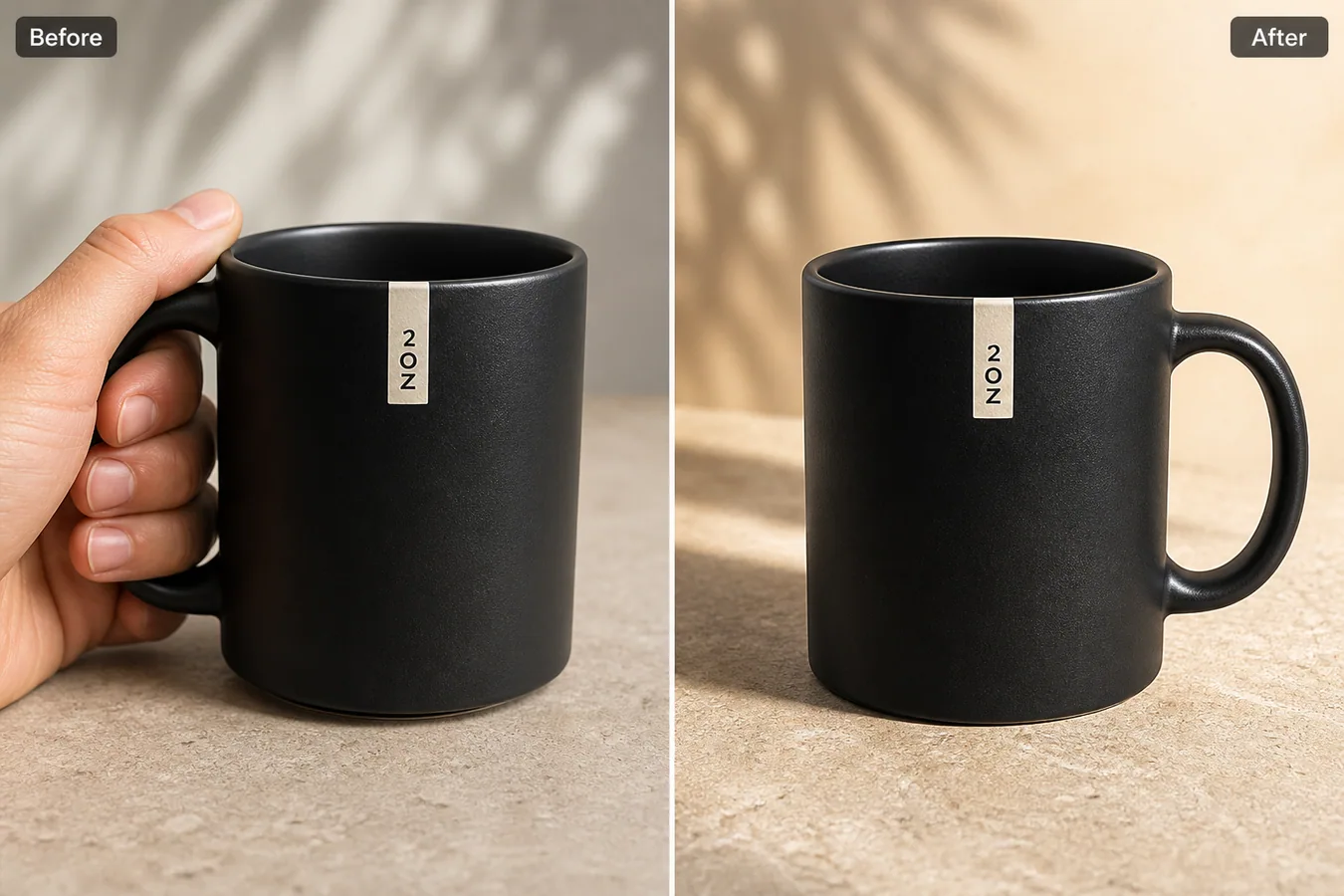
If the product photo was shot too close with phone wide-angle distortion, ask for perspective correction carefully. Do not ask for a new camera angle unless you are comfortable with AI reconstructing product geometry.
Step-by-step workflow
1. Start by correcting exposure and white balance before asking for style. 2. Clean the surface or background so the product feels intentionally photographed. 3. Add controlled depth with softer background separation, not fake heavy bokeh around the product edge. 4. Preserve material cues such as leather grain, metal shine, fabric texture, glass transparency, or plastic finish. 5. Review the final image beside the original product reference, then check it as a listing thumbnail.
Where KrafLayer Fits
When you apply this Make Phone Product Photos Look Like DSLR Shots workflow in KrafLayer, the tool choice matters: run Restore on a usable source photo, then compare color, exposure, and recovered detail against the original. After generation, judge the image by the channel it serves — listing images, detail pages, or ad assets — and check that shape, material, labels, color, scale, and accessories still match the source SKU.
Steps in KrafLayer
Use Restore for automatic cleanup when the image is noisy, soft, compressed, or poorly lit. It is an automated restoration pass, so the important work is choosing a usable source image and comparing the output.
1. Upload or choose the product image. 2. Run the tool according to its interaction model: one-click tools generate directly; Erase-style tools need a brush mask first. 3. Zoom in to check edges, text, material, shadow, and product scale before downloading or continuing the edit.
Summary
The best phone-to-DSLR product edit is controlled and believable. Improve the photograph around the product, but keep the product itself honest.
FAQ
Can AI make any phone product photo look professional?
Only if the source photo contains enough product information. AI can improve light, background, and clarity, but it cannot reliably recover hidden labels, missing edges, or badly blurred material details.
Should I ask for shallow depth of field?
Use it carefully. A slight lens separation can help, but strong fake bokeh often damages product edges and makes marketplace images look less trustworthy.
What is the biggest mistake in DSLR-style AI edits?
The biggest mistake is asking for a beautiful studio shot without protecting product facts. The image may look expensive while quietly changing color, texture, thickness, or logo placement.
Keep exploring
Continue the story
More practical guidance on product accuracy, composition, and conversion-ready visuals.
Put it into practice
Take the next step in KrafLayer
Choose a generation or editing workflow that matches what you just learned.