Poshmark listing photos
Home / Marketplace product images / AI Listing Photos for Poshmark
Poshmark Listing Photos With a Clean Covershot
On Poshmark the Covershot is the listing: it is what shoppers see in the feed and in search. Poshmark's own photography guide suggests a white or simple background and a consistent style across your closet. KrafLayer cleans up the background of photos you already took, so a bedroom floor does not compete with the item.
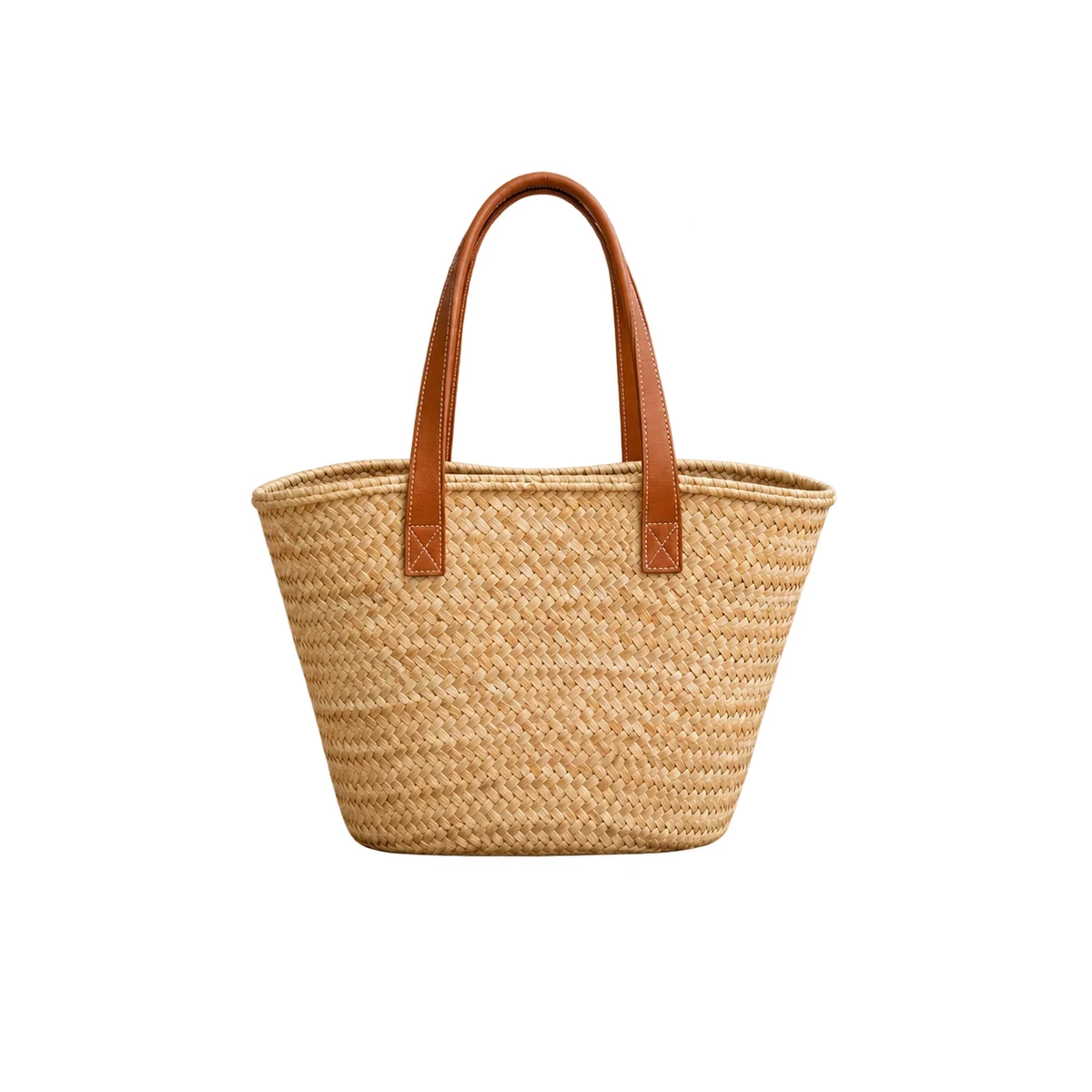
Best for
A product-focused Covershot
Poshmark recommends keeping the Covershot focused on the product with a white or simple background. Remove or replace a busy background instead of reshooting.
One look for the whole closet
Pick flat lay, hanger, mannequin, or modeled, and keep it consistent. Use the same background color for every Covershot so your closet looks like a shop.
Details stay real
Detail photos should show tags and any rips, stains, or wear. Clean the background, never the flaws.
What Poshmark asks for
What Poshmark's guides say about listing photos, and where KrafLayer helps.
| Requirement | What to check | KrafLayer action |
|---|---|---|
| Number of photos | Poshmark's listing guide gives a maximum of 16 photos per listing; its photography guide also mentions adding a video. | Prepare a Covershot plus detail photos from the same shoot. |
| Covershot | Keep it product-focused with a white or simple background. | Background Remover or Background Replacer on the first photo. |
| Lighting | Natural light near a window is recommended; household bulbs can add a yellow cast. | Use Image Restoration for dull or noisy photos, and compare color with the item. |
| Flaws and tags | Include photos of any rips, stains, or signs of wear, plus the size tag. | Leave these photos unedited apart from cropping. |
Summarized from Poshmark's Guide to Poshmark and the Poshmark Listing Photography Guide as read on 2026-11-16. Photo cropping and display in the app have changed over time, so check how your Covershot looks in the app before publishing.
Guide to Poshmark: how to list an item · The Poshmark Listing Photography Guide
Useful tools
- Background remover
Cut out product backgrounds for clean marketplace-ready listing images. - Background replacer
Place products into polished commercial scenes without reshooting. - Object eraser
Remove props, dust, marks, unwanted labels, or distractions from product photos. - Image restoration
Refresh noisy or degraded catalog photos for reuse in modern ecommerce pages. - Product-on-model photos
Create product-on-model or lifestyle image sets when human context helps the product sell. - Product photo editor
Clean, retouch, upscale, restore, outpaint, and repair product photos before publishing.
Related ecommerce paths
Compare this channel workflow with nearby product categories and other selling-channel pages before you create the final asset set.
Other marketplace product image pages
- AI Product Photos for Amazon: Use KrafLayer to prepare Amazon product photos with AI. Follow a listing image requirements checklist, clean backgrounds, upscale, and create detail images.
- AI Product Images for Shopify: Learn Shopify product image size guidance and create AI product images for product pages, collections, lifestyle scenes, and campaigns.
- AI Product Photos for Etsy: Learn Etsy product photo size guidance and create AI photos for handmade goods, jewelry, gifts, home decor, listing thumbnails, and detail shots.
- AI Product Photos for Walmart Marketplace: Create Walmart Marketplace product photos with AI for clean listing images, retail packs, lifestyle visuals, and product detail assets.
- AI Product Images for WooCommerce: Create WooCommerce product images with AI for WordPress stores, product pages, category visuals, listing sets, and campaign assets.
- AI Product Photos for eBay: Prepare eBay listing photos that follow eBay's picture policy: at least 500 px on the longest side, no borders, added text, or watermarks. Clean backgrounds with AI.
- AI Product Images for Google Shopping: Prepare Google Merchant Center product images: no promotional text, watermarks, or borders, product filling 75–90% of the frame, and clean backgrounds made with AI.
- AI Product Images for Instagram Shop: Create Instagram Shop and Meta catalog product images: JPEG or PNG, at least 500 x 500 px, up to 8 MB, plus lifestyle images made from one product photo with AI.
- AI Listing Photos for Mercari: Make Mercari listing photos that sell: a strong first photo on a plain background, up to 12 photos, flaws shown clearly, and AI cleanup for cluttered backgrounds.
Product categories
- AI Beauty: Create AI beauty product photos for skincare, cosmetics, fragrance, bath sets, and campaign visuals with ecommerce-ready lighting and composition.
- AI Consumer Packaged Goods: Generate AI product images for packaged goods, drinks, snacks, supplements, and retail campaigns with bold ecommerce-ready visuals.
- AI Jewelry: Generate AI jewelry model photos and product shots: earrings, necklaces and rings on a model, macro detail images, and clean studio photos for ecommerce listings.
- AI Fashion Models: Create AI fashion model photos for apparel, accessories, sunglasses, scarves, lifestyle campaigns, and on-model ecommerce imagery.
- AI Furniture: Place furniture product photos into realistic room scenes with AI. Generate lifestyle images, background swaps, and catalog visuals with correct scale and shadows.
- AI Technology: Generate AI product images for electronics, gadgets, keyboards, headphones, devices, tech accessories, PDP details, and ecommerce ads.
- AI Handbags: Create product photos for handbags using AI. Explore studio, lifestyle, and detail image ideas for ecommerce product listings.
- AI Food: Create AI food product images for drinks, snacks, packaged food, meal kits, ingredient ads, and ecommerce campaigns.
- AI Footwear: Create AI footwear product photos for sneakers, running shoes, detail images, on-model looks, lifestyle scenes, and ecommerce listings.
- AI Pet Products: Create AI pet product photos for collars, leashes, pet food, beds, and toys: clean listing images, home lifestyle scenes, and detail shots for ecommerce.
- AI Baby Products: Create AI baby product photos for toys, bottles, clothing, and strollers: soft nursery scenes, clean listing images, and detail shots for ecommerce.
- AI Sports and Fitness: Create AI product photos for sports and fitness gear: yoga mats, dumbbells, bottles, and backpacks in studio, gym, and outdoor scenes for ecommerce.
- AI Home Decor: Create AI home decor product photos for vases, candles, wall art, and textiles: styled room scenes, clean listing images, and detail shots for ecommerce.
- AI Kitchenware: Create AI kitchenware product photos for cookware, knives, and storage jars: kitchen scenes, clean listing images, and detail shots for ecommerce.
- AI Eyewear: Create AI eyewear product photos for sunglasses and optical frames: clean listing images, styled flat lays, and lifestyle scenes for ecommerce.
Workflow
- Shoot the item in natural light: one full view plus tags, details, and any flaws.
- Remove the background of the Covershot or replace it with plain white.
- Erase small distractions such as hangers, lint, or clutter at the edges.
- Keep detail and flaw photos accurate; crop only.
- Upload up to 16 photos with the cleaned photo first.
FAQ
How many photos can a Poshmark listing have?
Poshmark's listing guide states a maximum of 16 photos per listing.
What background is best for Poshmark photos?
Poshmark's photography guide recommends a white or simple background for the Covershot so the product stays the focus, and a consistent style across listings.
Can I edit Poshmark photos with AI?
Cleaning the background and removing clutter helps the item stand out. Do not change the item itself or hide flaws, since buyers rely on photos to judge condition.
Should I use flat lay or modeled photos?
Poshmark lists flat lay, mannequin, hanging, and modeled photos as options and recommends staying consistent. Choose the one you can repeat for every listing.