Edit tools
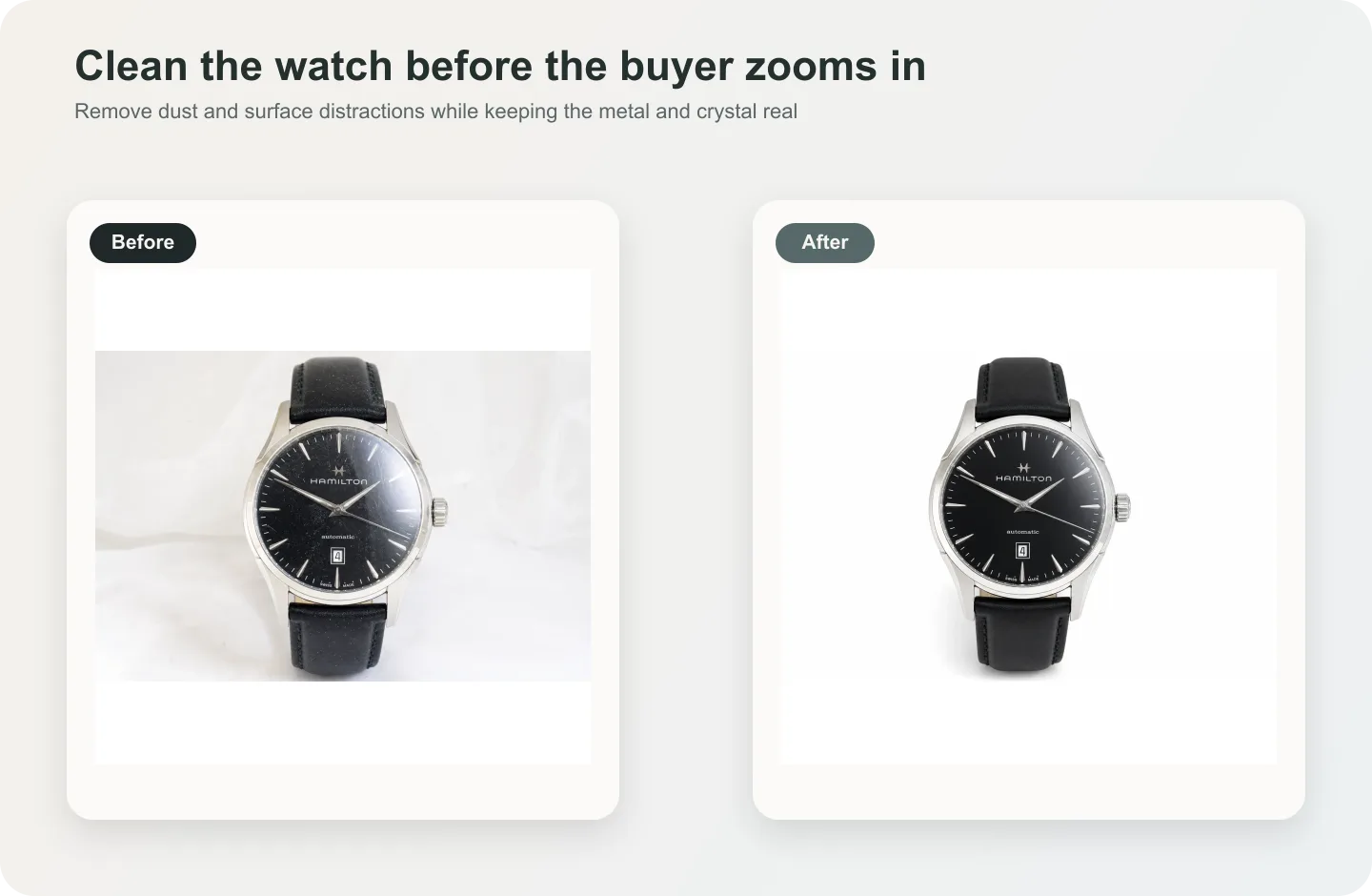
How to Clean Dust and Scratches from Watch Detail Images with AI
TL;DR
A careful watch-retouching workflow for removing dust and light scratches while preserving dial markings, hands, case shape, metal finish, engraving, and strap texture. Includes how to do it in KrafLayer.
TL;DR
For Clean Dust and Scratches from Watch Detail Images, KrafLayer works best as a local cleanup tool: brush only the unwanted area in Erase and let the model fill from the surrounding pixels. Avoid regenerating the whole image; the result is only useful if metal color, stone scale, support cleanup, and macro detail remain accurate.
Watch detail images need retouching that is almost invisible. Dust, lint, and small surface scratches can make a listing feel careless, but over-cleaning can erase the very details buyers use to judge quality.
Use AI cleanup when the watch is correctly photographed but has distracting dust on the crystal, marks on the case, lint on the strap, or tiny scratches that are not part of the product condition you want to show. Do not use it to misrepresent damage on used or collectible watches.
What can be cleaned safely
Dust on glass, lint on the strap, fingerprints on polished metal, and small temporary marks can usually be cleaned. Dial text, minute markers, hands, date window, bezel markings, crown shape, engraving, and strap grain should be protected.
For pre-owned watches, be careful: removing real wear can become a trust problem. Use retouching to present the item clearly, not to hide condition.
Workflow
1. Separate temporary dirt from product condition. Decide what should truly be removed. 2. Clean small areas first: crystal, bezel highlight, strap lint, or background specks. 3. Protect dial text, hand shape, indices, crown, case geometry, and engraving. 4. Keep metal highlights believable. A watch without reflection often looks fake. 5. Compare the final image against the source at 100% zoom.
Where KrafLayer Fits
When you apply this Clean Dust and Scratches from Watch Detail Images workflow in KrafLayer, the tool choice matters: brush only the unwanted area in Erase and let the model fill from the surrounding pixels. After generation, judge the image by the channel it serves — detail-page modules — and check that metal color, stone scale, support cleanup, and macro detail remain accurate.
Steps in KrafLayer
Use Erase with a brush mask: paint only the distracting object, sticker, hand, dust, or reflection area, then run the fill. There is no free-form prompt; mask accuracy controls the result.
1. Upload or choose the product image. 2. Run the tool according to its interaction model: one-click tools generate directly; Erase-style tools need a brush mask first. 3. Zoom in to check edges, text, material, shadow, and product scale before downloading or continuing the edit.
Summary
Watch cleanup is about restraint. Remove temporary visual noise, keep the craftsmanship visible, and never let the retouch change model-defining details.
FAQ
Can AI remove scratches from a watch crystal?
It can reduce visible scratches, but use judgment. For new product imagery, cleanup is often appropriate. For used watches, removing real condition marks may mislead buyers.
Why does my watch dial text get distorted?
Text and tiny markers are fragile in AI edits. Protect dial text explicitly and avoid regenerating the whole watch when only dust or a small mark needs cleanup.
Should reflections be removed from watch photos?
Not completely. Controlled reflections show crystal, metal, and shape. Remove distracting glare or fingerprints, but keep believable highlight behavior.
Keep exploring
Continue the story
More practical guidance on product accuracy, composition, and conversion-ready visuals.
Put it into practice
Take the next step in KrafLayer
Choose a generation or editing workflow that matches what you just learned.