Edit tools
How to Upscale Low-Resolution Product Images Without Losing Detail
TL;DR
A safe AI upscaling workflow for ecommerce photos: improve resolution while preserving labels, edges, material texture, product shape, and true color. Includes how to do it in KrafLayer.
TL;DR
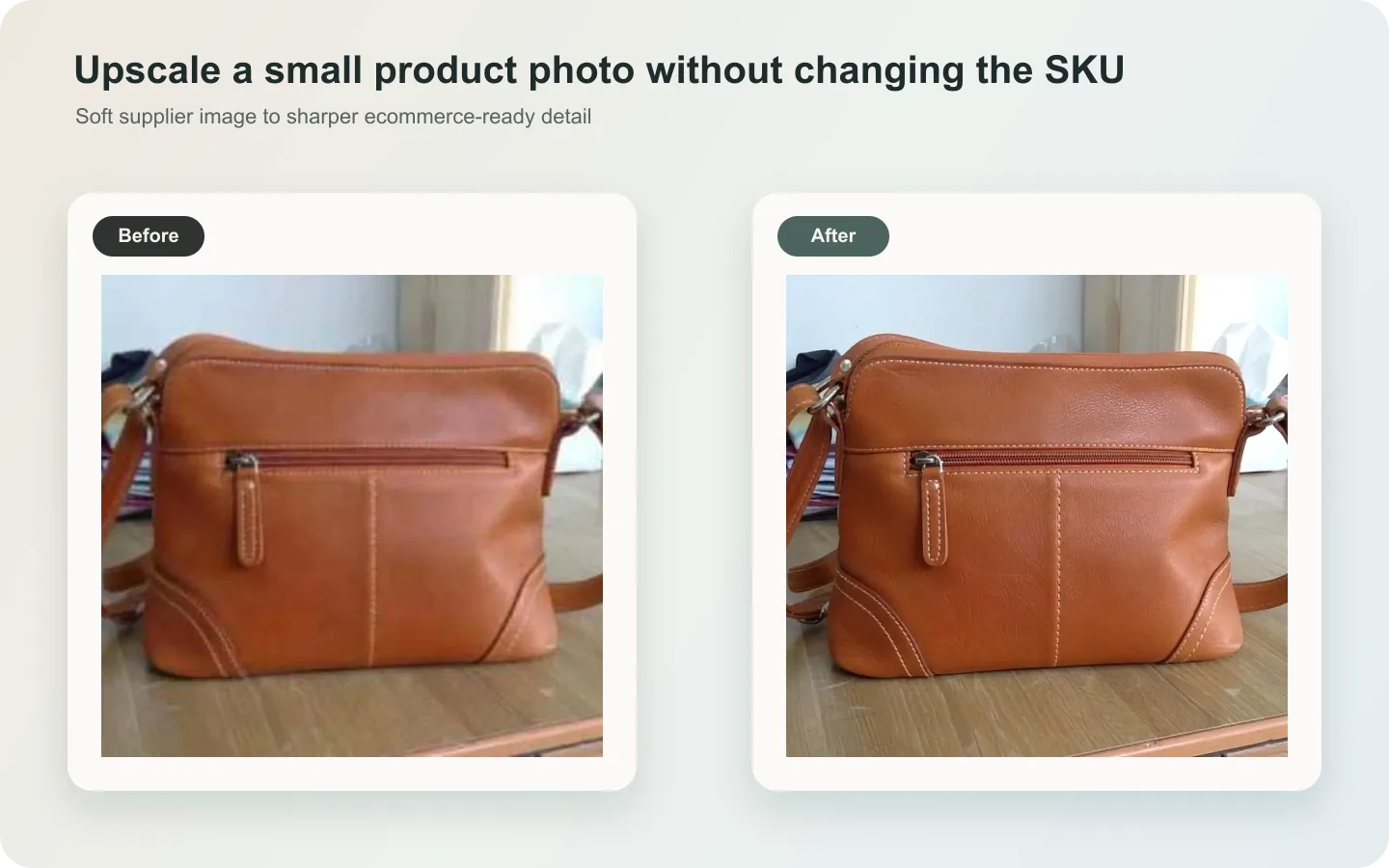
For Upscale Low-Resolution Product Images Without Losing Detail, use KrafLayer as a fast pre-publishing edit step: run Upscale directly and inspect texture, edges, labels, and small text afterward. It is most useful for detail-page modules, as long as shape, material, labels, color, scale, and accessories still match the source SKU.
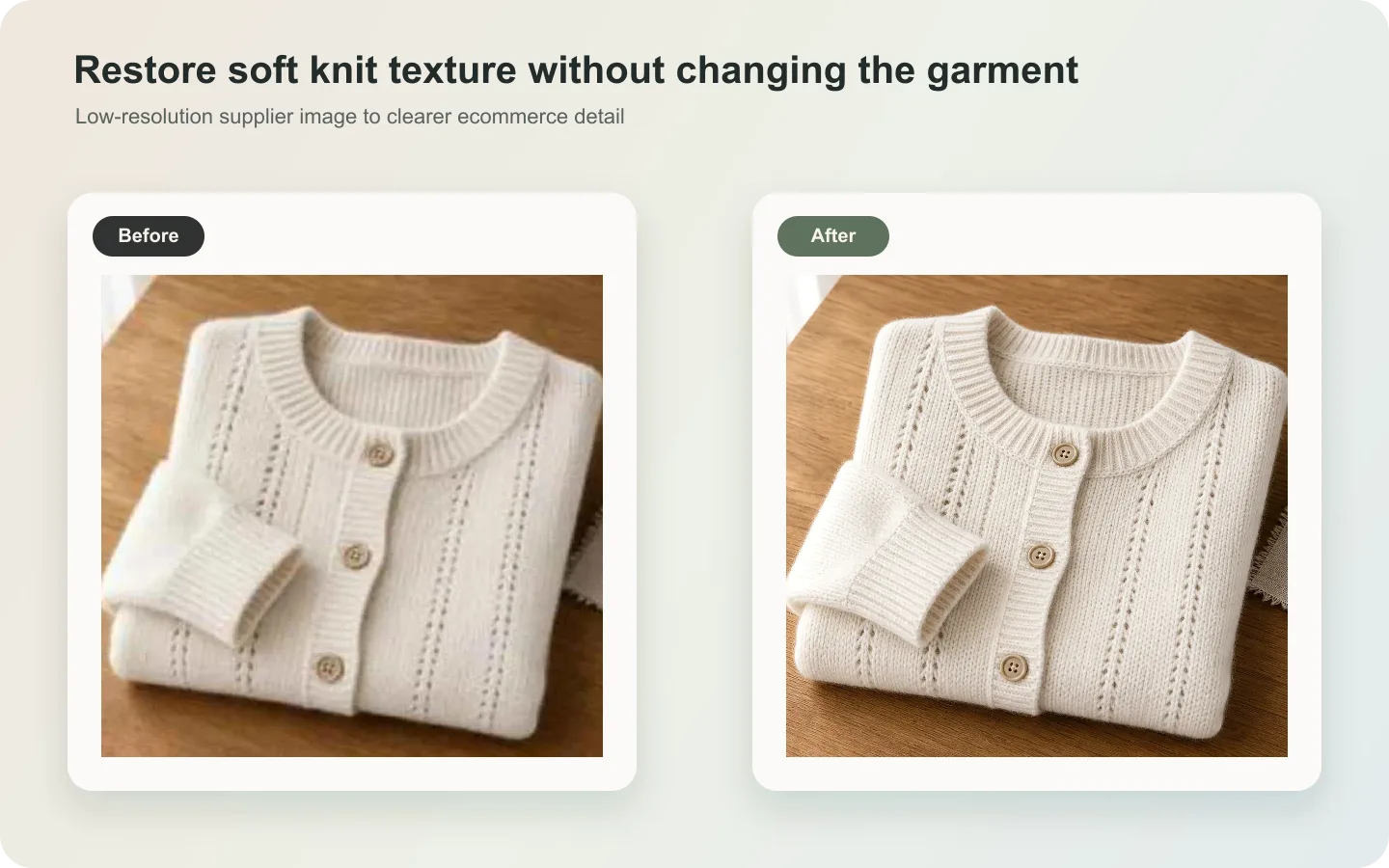
Low-resolution product images can often be improved, but AI upscaling should not invent product details. A bigger image is useful only if it remains truthful to the SKU.

What upscaling can and cannot do
It can improve edge clarity, reduce compression softness, and make material easier to read. It cannot honestly recover fully missing label text, hidden stitching, or product geometry that was never visible.
Workflow
1. Use the original file, not a screenshot. 2. Upscale before heavy cropping when possible. 3. Preserve product shape, labels, texture, color, and shadow. 4. Avoid maximum-sharpness prompts. 5. Compare the result with the source at 100% zoom.
Where KrafLayer Fits
When you apply this Upscale Low-Resolution Product Images Without Losing Detail workflow in KrafLayer, the tool choice matters: run Upscale directly and inspect texture, edges, labels, and small text afterward. After generation, judge the image by the channel it serves — detail-page modules — and check that shape, material, labels, color, scale, and accessories still match the source SKU.
Steps in KrafLayer
Use Upscale as a one-click tool: choose the image, run the upscaler, and review edge, texture, and text fidelity. It does not take a prompt.
1. Upload or choose the product image. 2. Run the tool according to its interaction model: one-click tools generate directly; Erase-style tools need a brush mask first. 3. Zoom in to check edges, text, material, shadow, and product scale before downloading or continuing the edit.
FAQ
Can AI recover unreadable text?
Not reliably. If text is important, use a higher-quality reference or verified artwork.
Why does upscaling create fake texture?
The model tries to fill missing detail. Ask for conservative enhancement and reject invented seams, grain, or labels.
Should I upscale before background removal?
If the product edge is clear, upscale first. If the background confuses the edge, clean the background first, then upscale carefully.
Related articles
Edit tools · 6 min read
Product Photo Background Replacement for Ecommerce Scenes and Ads
Learn how to replace product photo backgrounds for ecommerce scenes and ads while preserving scale, material, light, and product truth.
Edit tools · 5 min read
Replace Product Backgrounds With AI Without Making Products Look Fake
Learn how to replace a product background with AI while keeping lighting, scale, shadow, and product details believable.
Edit tools · 5 min read
Transparent Product Image PNG: When Ecommerce Sellers Need Cutouts
Learn when ecommerce sellers need transparent product PNG cutouts, how to create them with AI background removal, and what to check before reuse.
Edit tools · 5 min read
How to Remove Backgrounds From Product Images Without Manual Masking
Remove backgrounds from product images with a one-click AI workflow, then review edges, cutouts, white backgrounds, and channel-ready reuse.
Edit tools · 5 min read
Product Image Background Remover for Listings, Stores, and Ads
Use a product image background remover to create transparent cutouts, white-background listing images, store assets, and ad crops without changing the SKU.
Edit tools · 5 min read
Remove Background From a Product Photo: AI Workflow and Quality Checks
Remove a background from one product photo, then check edge quality, material detail, shadow, and channel readiness before publishing.
Related KrafLayer tools
- AI product image tools — Browse the full tool list for ecommerce image editing and product visual workflows.
- Ecommerce product photography — Plan listing images, lifestyle scenes, detail shots, and store-ready ecommerce product photos.
- Listing main and detail images — Generate ecommerce listing main images and detail-page product visuals from product references.
- On-model product photos — Create product-on-model and lifestyle visuals when human context helps the product sell.
- Marketplace product images — Choose product image workflows for Shopify, Amazon, Etsy, Walmart, WooCommerce, and other selling channels.
- Product category image styles — Browse category-specific product image pages for beauty, jewelry, fashion, furniture, tech, food, and more.
- Product photo editor — Clean, retouch, upscale, restore, outpaint, and repair product photos before publishing.
- Reference-style product images — Generate ecommerce product images from competitor, brand, or campaign reference styles while preserving your own product identity.
- AI background remover — Create clean transparent product cutouts for listings, ads, and layout work.
- AI object eraser — Remove props, text, clutter, or distractions from product images.
- AI image upscaler — Increase product image resolution for listings, ads, and detail-page assets.
- AI image restoration — Refresh damaged, low-quality, or older product photos before reuse.
- AI background replacer — Move a product into a cleaner studio, lifestyle, or campaign background.
- AI mask edit — Edit selected regions while keeping the rest of the product image stable.
- AI reference image editor — Use extra references to guide product identity, material, style, or composition changes.
- AI scene compose — Place products into controlled commercial scenes without losing product clarity.