Edit tools
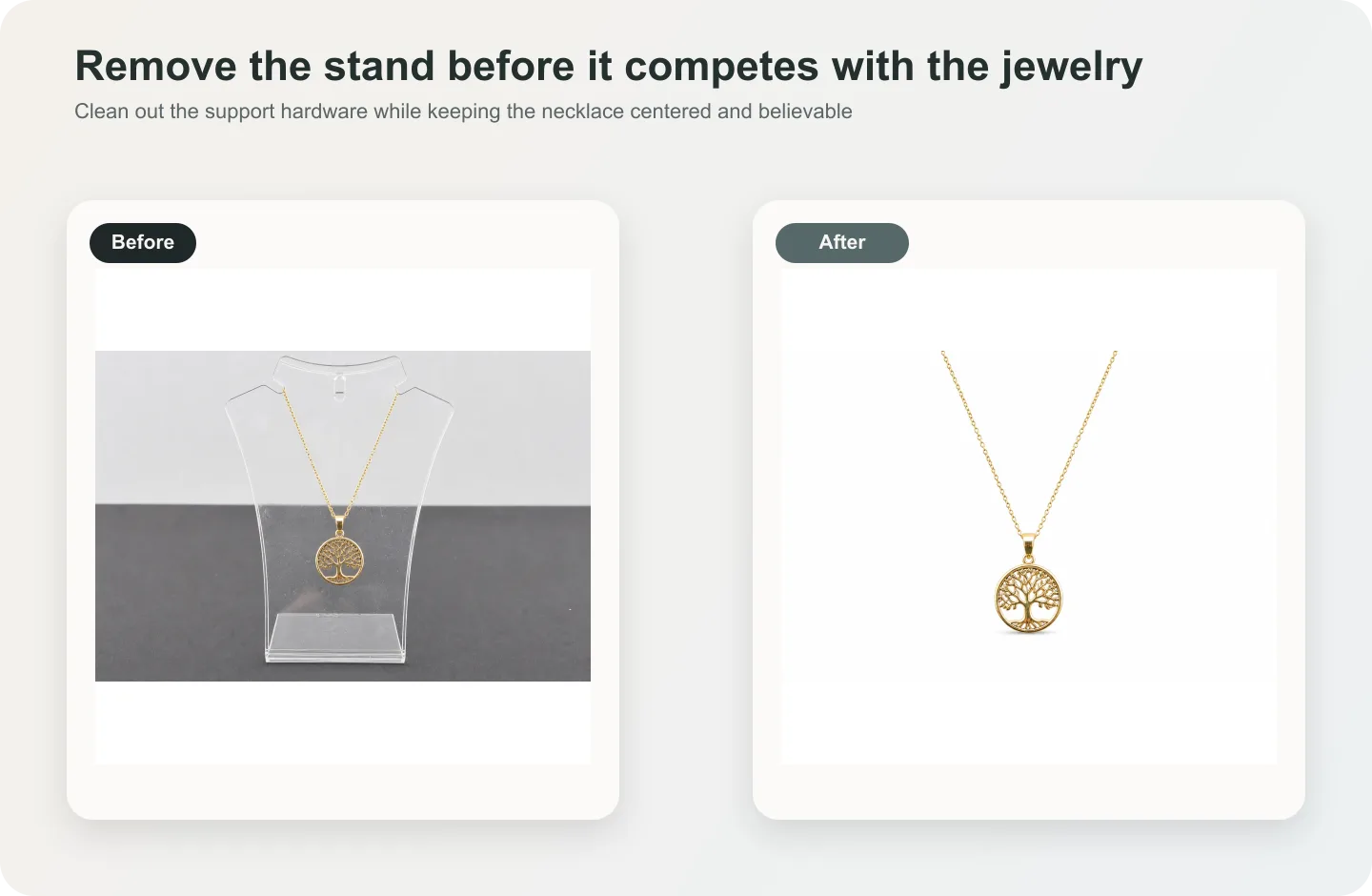
How to Remove Jewelry Support Stands from Product Photos with AI
TL;DR
A careful jewelry retouching workflow for removing support stands while preserving chain shape, pendant scale, metal finish, gemstone detail, and natural shadows. Includes how to do it in KrafLayer.
TL;DR
For Remove Jewelry Support Stands from Product Photos, KrafLayer works best as a local cleanup tool: brush only the unwanted area in Erase and let the model fill from the surrounding pixels. Avoid regenerating the whole image; the result is only useful if metal color, stone scale, support cleanup, and macro detail remain accurate.
Jewelry support stands are useful during shooting, but they can make a product image feel unfinished. Removing them is a delicate edit because the stand often touches chains, pendants, stones, reflections, or shadows.
The goal is not to make the jewelry float in a fantasy space. The goal is to remove the support while keeping the piece physically believable and commercially clear.
What makes this edit hard
Jewelry is small, reflective, and structure-sensitive. A necklace chain cannot change link size. A pendant should not move. Gemstone shape, prongs, engraving, clasp, and metal color must stay accurate.
If the stand hides too much of the jewelry, AI may invent missing chain or metal structure. Use a cleaner reference when exact accuracy matters.
Workflow
1. Select the visible stand, not the entire jewelry area. 2. Tell the AI what should replace it: background, shadow, or hidden chain continuation. 3. Protect metal color, chain links, pendant geometry, stone shape, clasp, and engraving. 4. Keep a subtle shadow or reflection so the piece does not float unnaturally. 5. Compare the edited jewelry against the source at full size.
Where KrafLayer Fits
When you apply this Remove Jewelry Support Stands from Product Photos workflow in KrafLayer, the tool choice matters: brush only the unwanted area in Erase and let the model fill from the surrounding pixels. After generation, judge the image by the channel it serves — listing images, detail pages, or ad assets — and check that metal color, stone scale, support cleanup, and macro detail remain accurate.
Steps in KrafLayer
Use Erase with a brush mask: paint only the distracting object, sticker, hand, dust, or reflection area, then run the fill. There is no free-form prompt; mask accuracy controls the result.
1. Upload or choose the product image. 2. Run the tool according to its interaction model: one-click tools generate directly; Erase-style tools need a brush mask first. 3. Zoom in to check edges, text, material, shadow, and product scale before downloading or continuing the edit.
Summary
Jewelry stand removal should be almost invisible. Remove the support, keep the construction, and preserve the reflections that make the material feel real.
FAQ
Can AI rebuild hidden chain links?
Only if enough adjacent chain structure is visible. For high-value jewelry, use additional reference images instead of relying on AI guesses.
Should jewelry shadows be removed too?
Not always. A light shadow helps the item feel grounded. Remove only shadows that belong clearly to the stand.
Why does the metal look dull after editing?
The cleanup probably removed real highlights. Ask for support removal while preserving metal reflections and edge shine.
Keep exploring
Continue the story
More practical guidance on product accuracy, composition, and conversion-ready visuals.
Put it into practice
Take the next step in KrafLayer
Choose a generation or editing workflow that matches what you just learned.