Edit tools
How to Remove Hands from Product Photos Without Changing the Product
TL;DR
A practical AI editing workflow for removing hands from product photos while preserving product shape, material, scale, labels, shadows, and listing-ready selling detail. Includes how to do it in KrafLayer.
TL;DR
For Remove Hands from Product Photos Without Changing the Product, KrafLayer works best as a local cleanup tool: brush only the unwanted area in Erase and let the model fill from the surrounding pixels. Avoid regenerating the whole image; the result is only useful if shape, material, labels, color, scale, and accessories still match the source SKU.
If a hand is holding the product in an otherwise useful photo, treat the edit as product cleanup, not product regeneration. The goal is to remove the hand, rebuild only the hidden edge or handle area, and keep the same SKU, material, label, scale, camera angle, and natural shadow.
KrafLayer is an AI-powered visual editor for ecommerce product photography. For mugs, bottles, accessories, cosmetics, tools, and small home goods, it can turn a casual hand-held source photo into a listing-ready product image without making the item look like a different product.
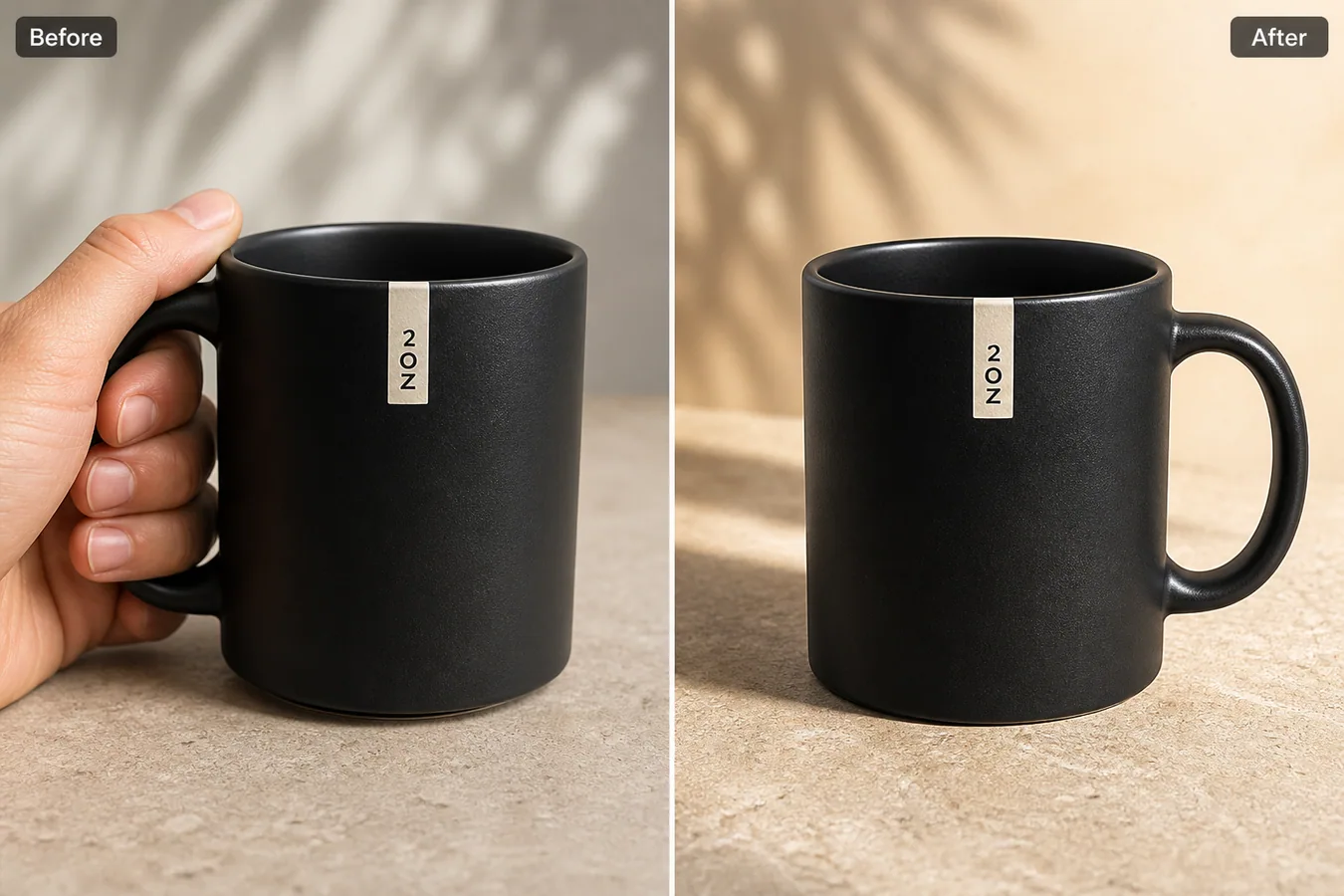
In the example, the before image is usable but the hand competes with the mug and covers part of the handle. The after image removes the hand, restores the handle, keeps the matte ceramic texture and small front label, and gives the product a cleaner main-image role.
Why Hand-Held Product Photos Often Need Cleanup
Hand-held photos are common when sellers shoot samples quickly in a warehouse, office, or home. The problem is that the hand changes the buyer's attention. Instead of reading the product shape, finish, handle, label, and scale, the shopper notices fingers, skin color, grip pressure, or blocked details.
For some lifestyle images, a hand can be useful. For a marketplace main image, catalog grid, product detail page, or ad variation, it often makes the asset feel unfinished. Removing the hand gives the product a cleaner hierarchy while still using the original shoot.
Protect Product Facts Before You Remove the Hand
Write down what must stay unchanged before generating the edit:
- product silhouette, rim, base, handle, seams, edges, and openings
- label or logo position, size, and orientation
- material texture such as ceramic grain, leather pores, metal brushing, fabric weave, or plastic gloss
- product color, scale, camera angle, crop, and contact shadow
- any hardware, buttons, stitching, caps, clasps, or functional details
The hand should disappear; the SKU should not. If the AI returns a cleaner image but changes the handle curve, label position, surface finish, or product proportions, reject it.
Edit Prompt for Removing Hands from Product Photos
Use a local edit prompt in [KrafLayer](https://kraflayer.com):
Remove the hand holding this product and rebuild only the covered product edge and background. Keep the exact same product shape, handle position, rim ellipse, front label, matte black ceramic texture, color, scale, camera angle, tabletop surface, lighting, crop, and natural contact shadow. Make the result look like a realistic ecommerce product photo. Do not redesign the mug, change the label, add a logo, alter the handle, change the material, or make the product float.
This prompt keeps the edit narrow. It tells the model that the hidden area should be repaired, but the visible product facts are locked.
How to Review the Result
Check the after image in two sizes: a small grid thumbnail and a full product-page view.
- the hand is fully removed, including fingertips and skin-colored reflections
- the rebuilt product edge matches the visible product geometry
- the handle, cap, strap, or covered component still makes structural sense
- the material texture continues across the repaired area
- the contact shadow grounds the product on the surface
- no extra props, fake text, new logo, or invented feature appeared
The best result is not the cleanest possible cutout. It is the one a merchant could realistically use in a main-image slot or detail-image slot without misleading the buyer.
When to Keep the Hand Instead
Keep the hand when it explains scale, use, grip, or texture better than a standalone product photo. Jewelry, phone cases, small tools, stationery, and beauty accessories sometimes need a hand shot as a secondary detail image.
Remove the hand when it blocks a core selling detail, distracts from the product, creates inconsistent catalog thumbnails, or makes the listing look like an unedited supplier photo. One product can have both: a clean main image and a human-scale detail image.
Where KrafLayer Fits
When you apply this Remove Hands from Product Photos Without Changing the Product workflow in KrafLayer, the tool choice matters: brush only the unwanted area in Erase and let the model fill from the surrounding pixels. After generation, judge the image by the channel it serves — listing images, detail pages, or ad assets — and check that shape, material, labels, color, scale, and accessories still match the source SKU.
FAQ
Can AI remove a hand from a product photo?
Yes, AI can remove a hand from a product photo when the edit is local and the prompt protects product shape, material, scale, labels, and shadows.
Will removing the hand change the product?
It can if the prompt is too broad. Protect visible product facts and reject outputs that change proportions, hardware, label placement, material, or variant color.
Is a hand always bad in ecommerce product photos?
No. Hand shots can explain scale or usage. They are usually weaker for main images when the hand blocks the product or competes with the item in a catalog grid.
Keep exploring
Continue the story
More practical guidance on product accuracy, composition, and conversion-ready visuals.
Put it into practice
Take the next step in KrafLayer
Choose a generation or editing workflow that matches what you just learned.