Edit tools
How to Upscale Soft Knitwear Texture Without Losing Detail with AI
TL;DR
A careful AI upscaling workflow for knitwear product photos: recover yarn texture, protect fit and color, avoid fake weave patterns, and prepare sharper ecommerce images. Includes how to do it in KrafLayer.
TL;DR
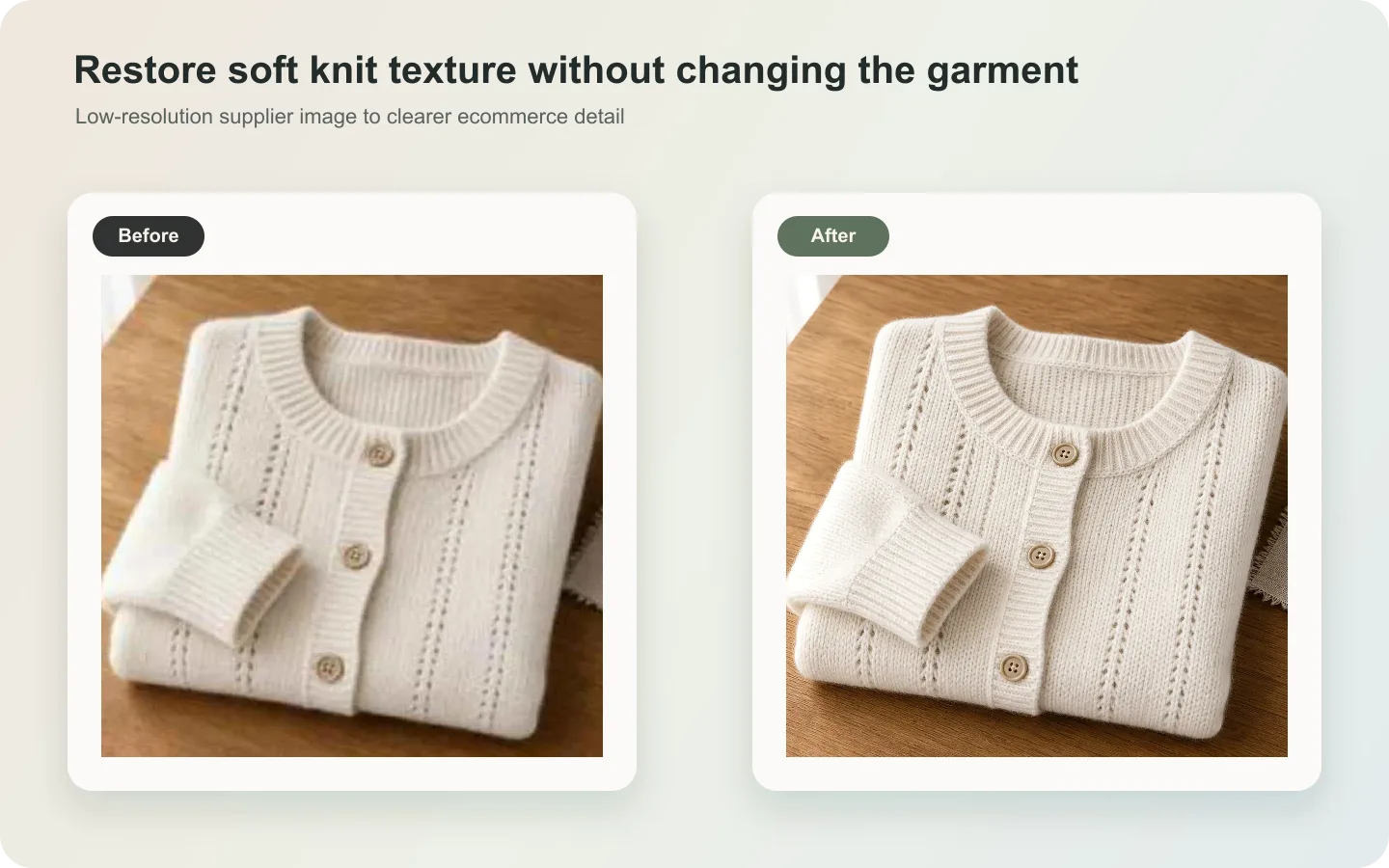
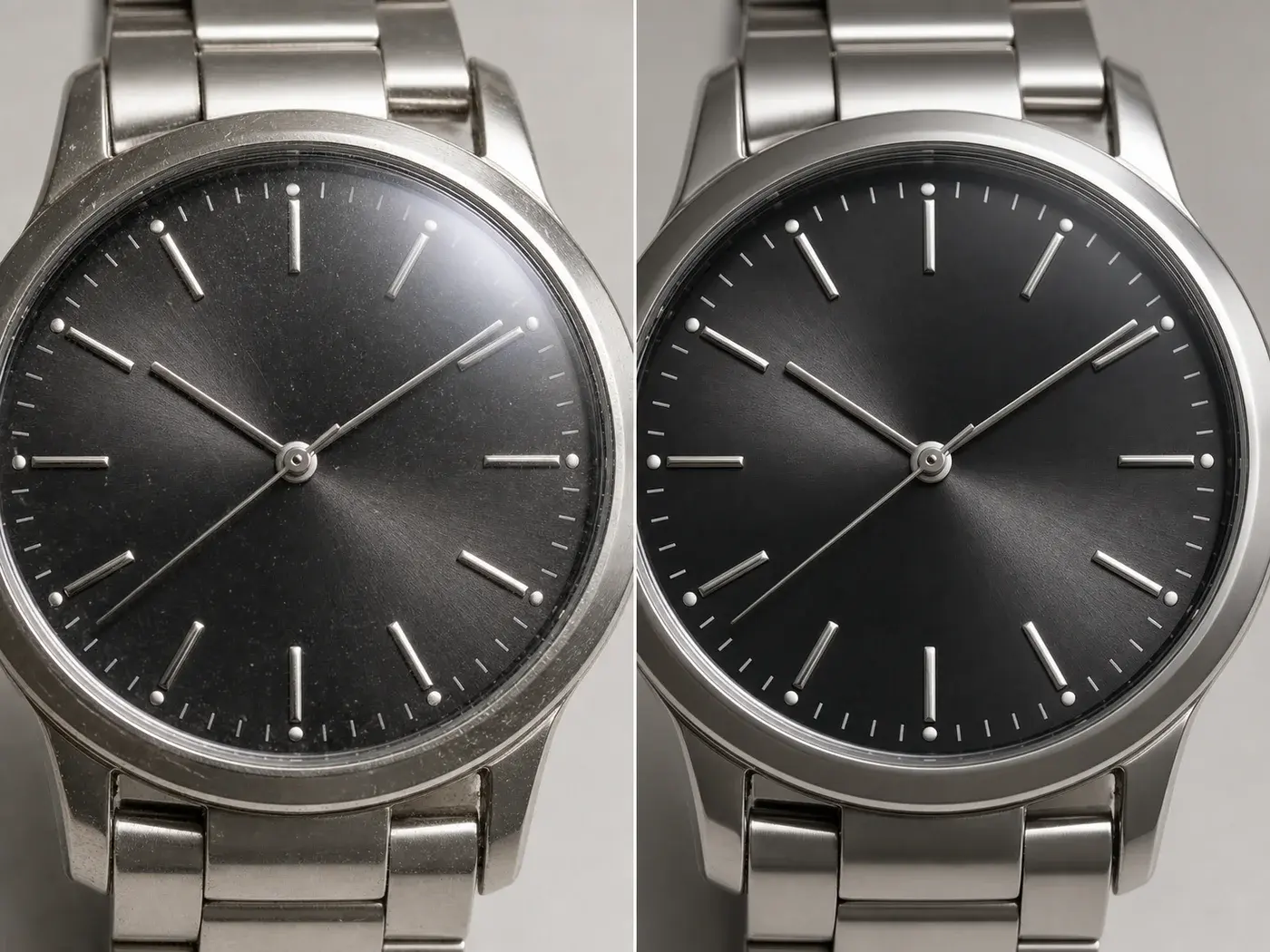
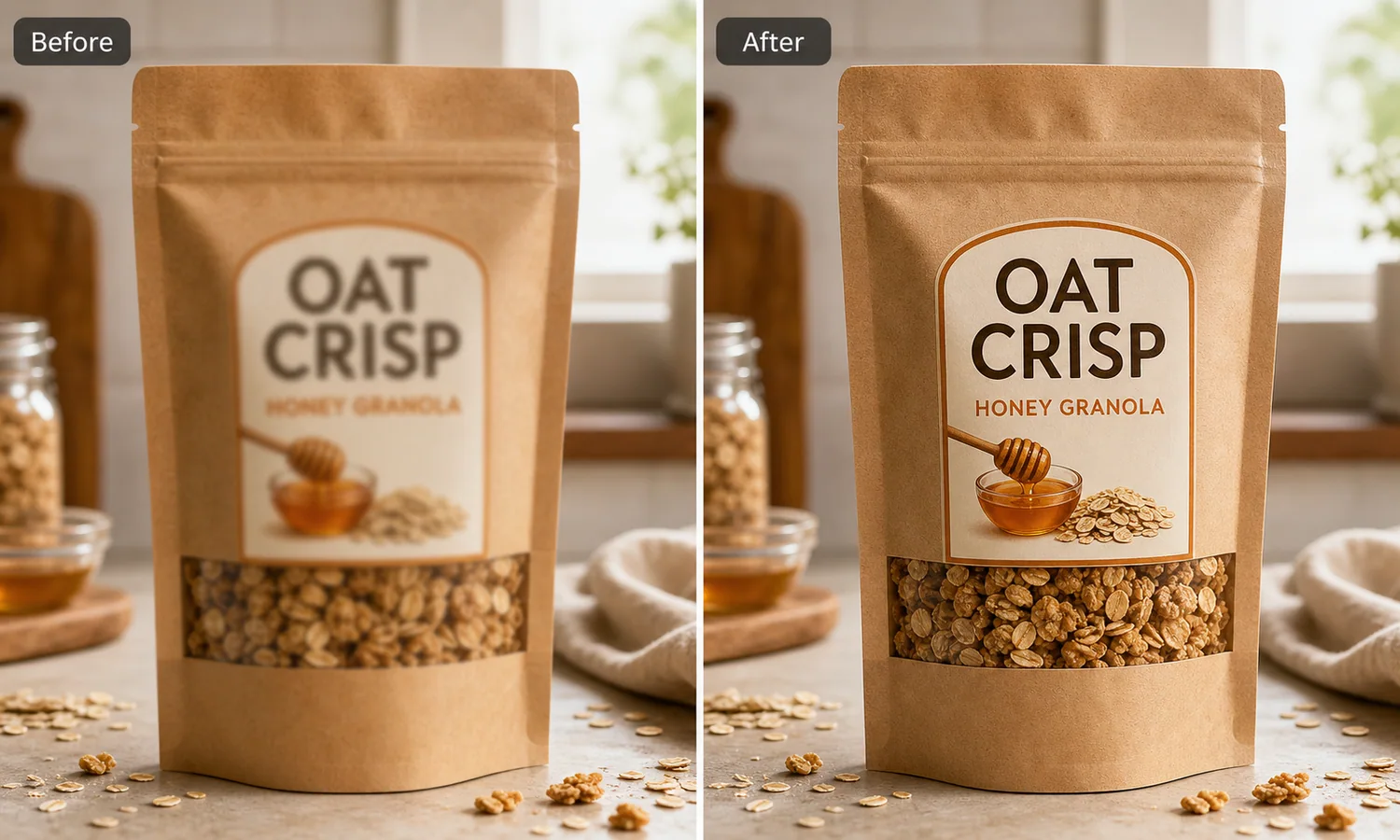
For Upscale Soft Knitwear Texture Without Losing Detail, use KrafLayer as a fast pre-publishing edit step: run Upscale directly and inspect texture, edges, labels, and small text afterward. It is most useful for detail-page modules, as long as fit, fabric, shoulder line, garment length, and real color are still intact.
Knitwear is one of the easiest product categories to ruin with aggressive upscaling. A sharper image is not automatically a better image. If AI invents a fake rib pattern, smooths the yarn into plastic, or changes the cardigan shape, the picture may look polished but become less truthful.
Use AI upscaling when the original knitwear photo has the right product, angle, and color, but the image is too small or too soft for a product page. The job is to recover useful texture, not redesign the fabric.
When AI upscaling helps knitwear
This workflow is useful for supplier photos, older catalog images, compressed marketplace downloads, and phone shots where the garment is correct but the yarn texture does not read clearly. It is especially helpful for cardigans, sweaters, ribbed tops, scarves, beanies, and soft knit sets.
It is not a fix for a wrong sample. If the garment is wrinkled into the wrong shape, photographed in poor color, or missing important construction details, upscale only after you solve those problems.
What to protect before you sharpen
Knitwear buyers look at more than color. They look for thickness, softness, stitch density, rib direction, cuff shape, neckline structure, and how the fabric falls. Write these details into the prompt before asking for enhancement.
The most important rule: do not ask AI to make the texture “perfect.” Real knitwear has slight unevenness. If every yarn line becomes too crisp, the image starts to look synthetic.
A practical workflow
1. Use the cleanest original image, not a screenshot from a marketplace page. 2. Upscale the full product first, then make detail crops from the improved version. 3. Ask for yarn texture recovery, not fabric redesign. 4. Protect garment shape: shoulder width, sleeve length, rib direction, buttons, pockets, hem, and neckline. 5. Compare the result with the original at 100% zoom and at product-card size.
Where KrafLayer Fits
When you apply this Upscale Soft Knitwear Texture Without Losing Detail workflow in KrafLayer, the tool choice matters: run Upscale directly and inspect texture, edges, labels, and small text afterward. After generation, judge the image by the channel it serves — detail-page modules — and check that fit, fabric, shoulder line, garment length, and real color are still intact.
Steps in KrafLayer
Use Upscale as a one-click tool: choose the image, run the upscaler, and review edge, texture, and text fidelity. It does not take a prompt.
1. Upload or choose the product image. 2. Run the tool according to its interaction model: one-click tools generate directly; Erase-style tools need a brush mask first. 3. Zoom in to check edges, text, material, shadow, and product scale before downloading or continuing the edit.
Summary
The best knitwear upscale is quiet. It makes yarn and construction easier to see without turning a soft garment into a fake render. Use AI to recover clarity, then judge the result by fit, texture, and buyer trust.
FAQ
Can AI restore knitwear texture from a blurry image?
It can improve a slightly soft image, but it cannot honestly recover details that were never visible. If the original is very blurry, use AI for a cleaner presentation, not as proof of exact yarn structure.
Why does enhanced knitwear sometimes look plastic?
The prompt is usually too broad, or the upscale is too strong. Ask for soft yarn texture and natural fabric character instead of maximum sharpness.
Should I upscale before or after background editing?
If the product edge is already clean, upscale first so texture and edges improve together. If the background is messy and confusing the product boundary, clean the background first, then upscale conservatively.
Keep exploring
Continue the story
More practical guidance on product accuracy, composition, and conversion-ready visuals.
Put it into practice
Take the next step in KrafLayer
Choose a generation or editing workflow that matches what you just learned.