Edit tools
How to Clean Stains and Dust from Shoe Product Photos
TL;DR
A practical shoe-photo retouching workflow for removing dust, lint, and small stains while keeping suede texture, mesh, stitching, outsole shape, and true color intact. Includes how to do it in KrafLayer.
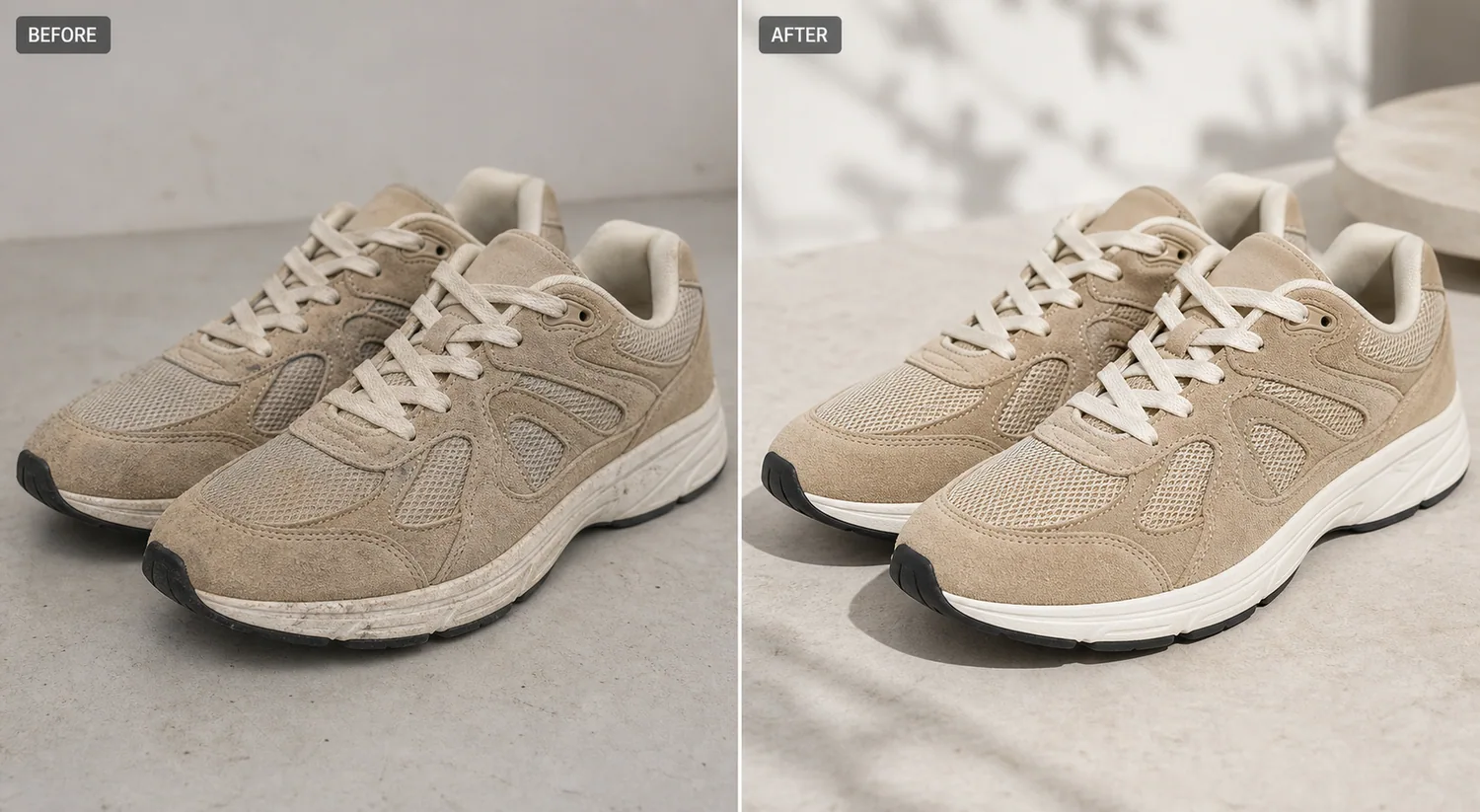
TL;DR
For Clean Stains and Dust from Shoe Product Photos, KrafLayer works best as a local cleanup tool: brush only the unwanted area in Erase and let the model fill from the surrounding pixels. Avoid regenerating the whole image; the result is only useful if shoe shape, sole pattern, material, and contact shadow remain believable.
To clean stains and dust from shoe product photos, keep the edit narrow. Remove the marks that make the sneaker look neglected, but do not make the shoe look like a different SKU. Buyers still need to read the suede nap, mesh panels, stitching, laces, outsole edge, and true beige color.
KrafLayer is an AI-powered visual editor for ecommerce product photography. For shoe cleanup, use it as a controlled retouching pass between the source photo and the final Shopify, Amazon, marketplace, or ad asset.
The example uses one pair of beige suede-and-mesh running sneakers. The before side has warehouse dust, small midsole marks, and dull light. The after side is cleaner and more product-page ready, but the panel layout, laces, mesh, suede texture, outsole shape, black toe detail, camera angle, and scale stay consistent.
Why Shoe Dust Shows Up So Fast
Sneakers collect visual noise quickly. Suede catches dust, mesh holds lint, white midsoles show every dark mark, and textured outsoles create shadow that can look like dirt in a thumbnail. A buyer may read that as poor condition even when the product is new or lightly handled for a shoot.
For ecommerce, shoe cleanup is not about making a fake perfect product. It is about removing shoot-side distractions so the buyer judges the actual material, color, and construction.
Protect the Shoe Facts First
Before editing, list what must not move:
- toe box shape and front bumper
- lace count, lace crossing, and eyelet positions
- suede nap and mesh texture
- stitching paths and panel edges
- midsole grooves and outsole shape
- color blocking, scale, crop, and natural shadow
If the AI removes dust but changes the sole, smooths away mesh, invents a new logo, or turns suede into plastic, reject the image. A cleaner photo is only useful when it still represents the same product.
Edit Prompt for Shoe Dust and Stain Cleanup
Use a narrow prompt in [KrafLayer](https://kraflayer.com):
Clean the dust, lint, and small surface stains from this shoe product photo for an ecommerce listing. Keep the same sneaker pair, angle, crop, beige suede color, mesh texture, laces, stitching, panel layout, eyelets, outsole shape, scale, and natural contact shadow. Make the midsole cleaner and the material easier to inspect, but do not redesign the shoe, add logos, change colors, remove real construction details, or make the suede look plastic.
This tells the AI what to remove and what to protect. That second part matters more than most sellers expect.
Review the After Image Like a Buyer
Open the image at listing size and at detail size. The after image should feel cleaner immediately, but it should still show believable material.
Check these points before using it:
- the suede still has fine grain and nap
- mesh holes and weave remain readable
- laces have texture, not painted-white ribbons
- midsole marks are gone without losing grooves
- stitching follows the same paths as the source
- shadows still connect the shoe to the surface
- both shoes still match each other as a pair
If the cleaned image looks too smooth, ask for less retouching. Shoes need texture to feel real.
When This Workflow Helps
Use this workflow for supplier photos, warehouse images, returned-sample photos, resale listings, boutique catalog updates, and small shoe brands that need cleaner ecommerce assets without a full reshoot.
Do not use it to hide condition problems that buyers should know. A product-photo cleanup can remove dust from handling and small shoot distractions. It should not hide cracks, heavy wear, sole separation, deep stains, or damage.
Where KrafLayer Fits
When you apply this Clean Stains and Dust from Shoe Product Photos workflow in KrafLayer, the tool choice matters: brush only the unwanted area in Erase and let the model fill from the surrounding pixels. After generation, judge the image by the channel it serves — listing images, detail pages, or ad assets — and check that shoe shape, sole pattern, material, and contact shadow remain believable.
FAQ
Can AI remove dust from shoe product photos?
Yes. AI can remove visible dust, lint, and small surface marks from shoe photos when the prompt protects the shoe shape, material texture, stitching, laces, outsole, color, and shadow.
Should shoe cleanup remove all texture?
No. Suede, mesh, leather, canvas, and rubber need visible texture. The goal is to remove distracting dirt, not flatten the material into a plastic render.
Is it okay to clean resale shoe photos with AI?
It is okay to remove shoot-side dust and distractions, but do not hide wear, damage, deep stains, or condition details that buyers need to evaluate.
Keep exploring
Continue the story
More practical guidance on product accuracy, composition, and conversion-ready visuals.
Put it into practice
Take the next step in KrafLayer
Choose a generation or editing workflow that matches what you just learned.