Edit tools
How to Enhance Blurry Text on Food Packaging Product Photos
TL;DR
A practical AI editing workflow for making food package labels readable while keeping the pouch shape, paper texture, real product scale, and ecommerce selling context intact. Includes how to do it in KrafLayer.
TL;DR
For Enhance Blurry Text on Food Packaging Product Photos, use KrafLayer as a fast pre-publishing edit step: run Upscale directly and inspect texture, edges, labels, and small text afterward. It is most useful for food delivery menu images, as long as portion size, ingredients, packaging, and serving style remain honest.
Blurry food packaging text should be fixed as a controlled clarity edit, not as a package redesign. The goal is to make the product name, flavor line, and key label edges readable enough for a listing while keeping the same pouch shape, material, lighting, crop, and product facts.
KrafLayer is an AI-powered visual editor for ecommerce product photography. For food, snacks, tea, coffee, supplements, and dry goods, use it to improve label readability without inventing new claims or changing the package a buyer will receive.
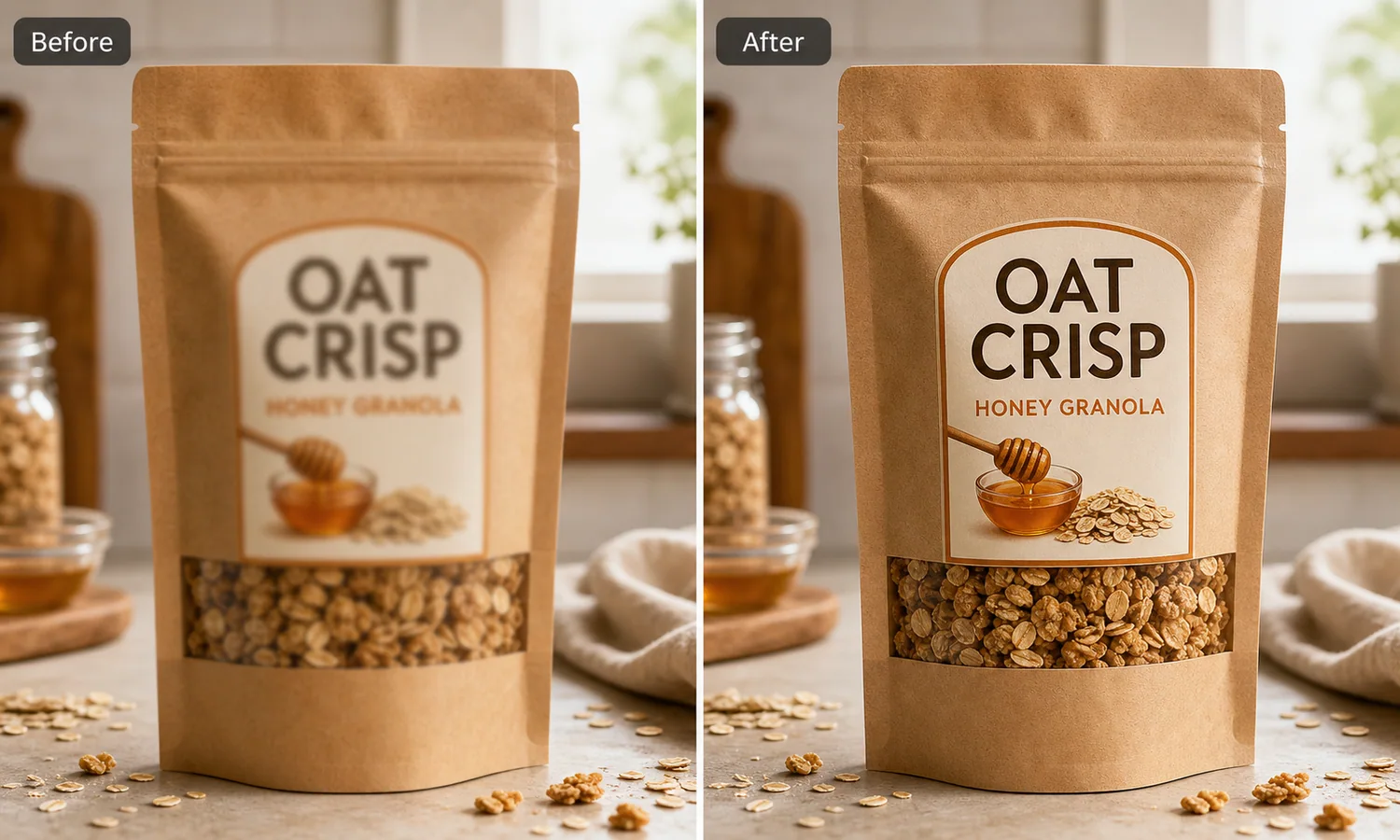
The example uses one kraft granola pouch. The before side has soft label text and weak package detail, so the buyer can recognize a pouch but cannot read the selling information. The after side keeps the same product and kitchen counter context, but the product name, flavor line, window detail, paper texture, and shadow become clearer.
Why Blurry Package Text Hurts Conversion
Food packaging is not just decoration. The label tells the shopper what the product is, what flavor it is, and whether the listing looks trustworthy. If the product name is soft, the whole photo feels like a supplier screenshot or a low-quality crop.
A good edit improves readable detail without rewriting the product. Do not ask AI to “make the package premium” unless you also protect the real label layout. That kind of broad prompt can change the flavor, add fake badges, invent nutrition claims, or turn a simple pouch into a different SKU.
Protect the Package Facts First
Before editing, write down the parts that must stay fixed:
- pouch silhouette, zipper top, side notches, bottom gusset, and seam lines
- label shape, label position, color blocks, and illustration placement
- product window size and visible food texture
- flavor wording, if it already exists and is correct
- paper grain, plastic window, shadow, crop, and camera angle
For regulated categories, be stricter. Do not let AI add health claims, certifications, nutrition numbers, ingredient claims, origin claims, or safety marks. If text needs to be replaced, use approved copy from the real package or listing sheet.
Edit Prompt for Enhancing Blurry Food Package Text
Use a local edit prompt inside [KrafLayer](https://kraflayer.com):
Enhance the clarity of the blurry text and label edges on this kraft granola pouch product photo. Keep the exact same pouch shape, zipper top, paper texture, clear product window, oats, honey illustration, countertop, lighting, crop, scale, and contact shadow. Make the existing product name and flavor line crisp enough for an ecommerce listing. Do not redesign the package, add new claims, add badges, change the product, change the flavor, add a logo, or invent nutrition information.
This prompt keeps the task narrow. It tells the model that the selling issue is readability, not a new packaging concept.
What the After Image Should Prove
The after image should answer a buyer quickly: what is the product, what flavor or variant is being sold, and does the packaging look real enough to trust?
Check the output at thumbnail size and full PDP size:
- the main product text is easier to read
- the label border and illustration edges are sharper
- the paper pouch texture is still natural
- the clear product window still matches the food inside
- the pouch shape, gusset, zipper, and seams did not change
- no fake badges, claims, barcodes, or brand marks appeared
If the text becomes sharp but the package changes shape, reject the result. Listing images need both readability and product accuracy.
When This Workflow Works Best
Use this workflow when the source photo is usable but softened by camera shake, compression, low resolution, poor crop, or platform resizing. It is useful for Shopify product pages, Amazon detail images, marketplace thumbnails, paid ads, and email product blocks.
Do not use it to fabricate labels for products that do not have approved packaging yet. If the package artwork is still changing, edit from the final design file or a clean product reference before generating listing assets.
Where KrafLayer Fits
When you apply this Enhance Blurry Text on Food Packaging Product Photos workflow in KrafLayer, the tool choice matters: run Upscale directly and inspect texture, edges, labels, and small text afterward. After generation, judge the image by the channel it serves — food delivery menu images — and check that portion size, ingredients, packaging, and serving style remain honest.
FAQ
Can AI make blurry food package text readable?
AI can improve soft label edges and product-name readability when the edit is local and the source text is still recoverable. It should not invent missing regulated information.
What should I avoid when fixing food packaging photos?
Avoid adding health claims, certifications, ingredient promises, nutrition facts, fake logos, or new flavor names. Protect the real package layout and approved copy.
Is this better than retaking the photo?
If the photo is badly out of focus, retake it. If the photo is mostly good but the label is slightly soft from compression or small motion blur, a controlled AI clarity edit can save the asset.
Keep exploring
Continue the story
More practical guidance on product accuracy, composition, and conversion-ready visuals.
Put it into practice
Take the next step in KrafLayer
Choose a generation or editing workflow that matches what you just learned.