Edit tools
How to Fix Overexposed Highlights in Metal Product Photos
TL;DR
A practical AI editing workflow for reducing blown metal glare while keeping brushed texture, edge shape, material realism, and ecommerce-ready product hierarchy. Includes how to do it in KrafLayer.
TL;DR
For Fix Overexposed Highlights in Metal Product Photos, use KrafLayer as a fast pre-publishing edit step: run Restore on a usable source photo, then compare color, exposure, and recovered detail against the original. It is most useful for listing images, detail pages, or ad assets, as long as shape, material, labels, color, scale, and accessories still match the source SKU.
Overexposed highlights on metal product photos should be repaired with a narrow local edit, not a full image regeneration. The goal is to bring back readable metal texture, edge shape, and natural shadow while keeping the same product, camera angle, scale, and surface.
KrafLayer is an AI-powered visual editor for ecommerce product photography. For stainless steel, chrome, jewelry, tools, and hardware, use it to control glare without changing the product facts a buyer relies on.
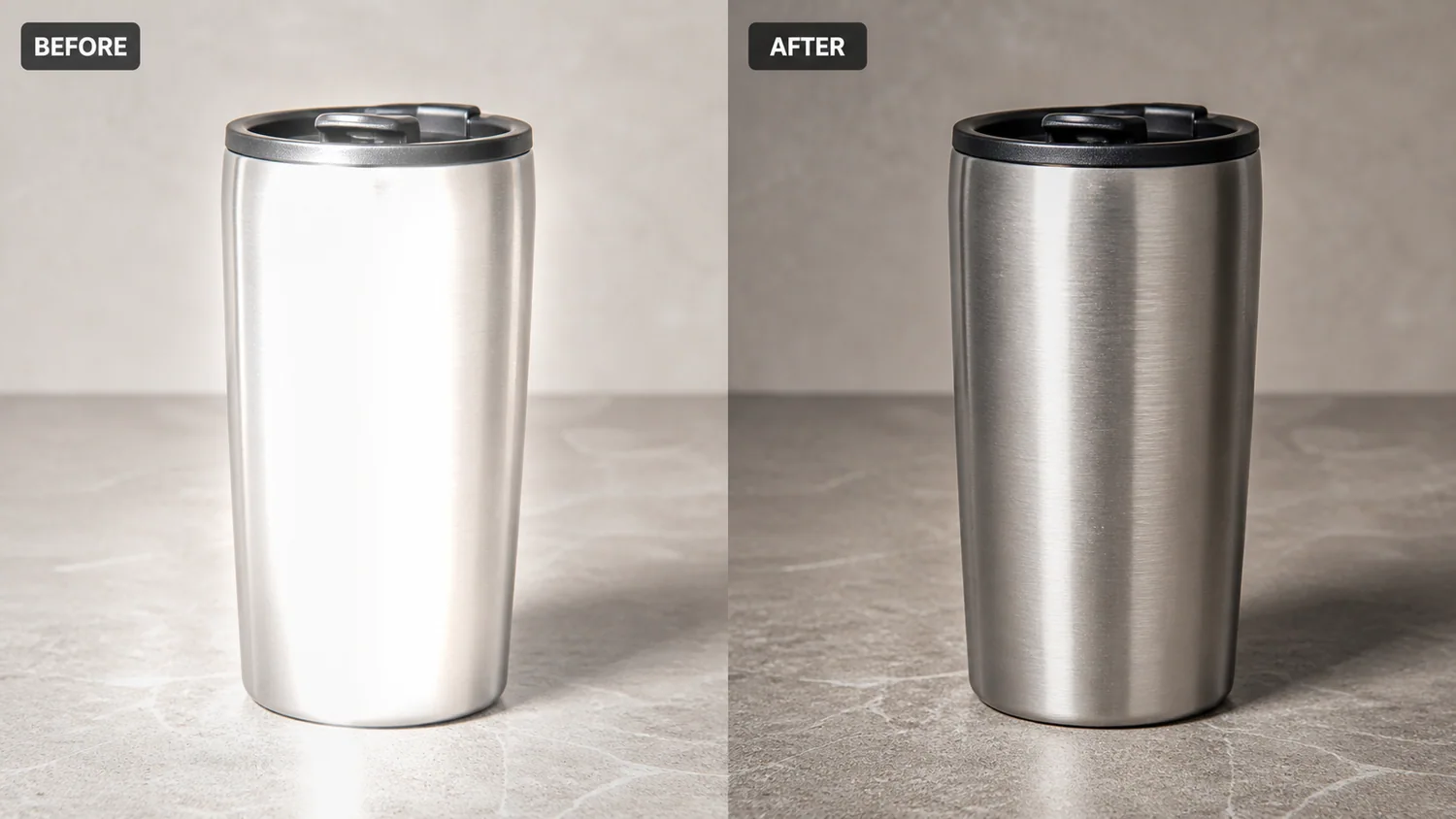
The example uses one brushed stainless steel travel tumbler. The before side has clipped white glare that erases the curved body and makes the metal look cheap. The after side keeps the same tumbler, lid, tabletop, and shadow, but the highlight is softer and the brushed finish becomes visible again.
Why Metal Highlights Break Product Images
Metal needs highlights. Without them, the product looks flat. The problem starts when the bright area clips to pure white and covers the texture, seam, curve, logo area, brushed grain, or edge line.
In a product listing, that creates two problems. The buyer cannot judge the material quality, and the item may look like a render instead of a real product photo. A good edit lowers the glare enough to restore information, but leaves enough reflection to prove the surface is metallic.
Protect These Product Facts First
Before editing, write down the details that must not change. For a tumbler, protect the cylinder shape, lid diameter, rim edge, brushed grain direction, bottom curve, tabletop contact, shadow, crop, and color temperature.
For other metal products, protect the facts that identify the SKU:
- watches: bezel shape, crown position, dial markings, bracelet links
- tools: screw holes, machined edges, coating, handle texture
- cookware: handle attachment, rim thickness, interior curve, lid fit
- electronics: ports, button placement, seams, antenna lines
- jewelry: prongs, stone count, band width, metal color
If the AI output removes glare but changes these details, it is not a usable ecommerce edit.
Edit Prompt for Fixing Blown Metal Glare
Use a local edit prompt inside [KrafLayer](https://kraflayer.com):
Reduce the overexposed highlight on this brushed stainless steel travel tumbler. Restore visible brushed metal texture and a natural curved reflection, but keep the exact same tumbler shape, black lid, rim edge, bottom curve, camera angle, tabletop, crop, scale, and contact shadow. Keep the product realistic and ecommerce-ready. Do not redesign the tumbler, change the lid, add text, add props, remove all reflections, or make the metal look plastic.
This prompt tells the model what to repair and what to leave alone. That matters more than asking for a generally “premium” product image.
What the After Image Should Prove
A corrected metal product image should answer a buyer quickly: what is the product, what material is it, and does the finish look trustworthy?
Check the output at full size and thumbnail size:
- the bright area is no longer clipped flat white
- brushed grain or metal texture is visible
- edge lines remain crisp and unchanged
- the product still has natural reflection
- the shadow still anchors it to the surface
- the color does not shift into yellow, blue, or gray mud
Do not overcorrect the image into a matte object. A controlled highlight is usually better than a spotless surface.
When This Workflow Works Best
Use this workflow when the source photo is basically good but a lamp, window, softbox, or phone reflection has blown out one part of the metal. It is useful for Amazon main images, Shopify product pages, detail crops, marketplace listings, and paid ad creative.
Do not use it to hide real dents, scratches, tarnish, rust, or damage that the buyer should know about. Use it for shooting-side glare that blocks the product from being read clearly.
Where KrafLayer Fits
When you apply this Fix Overexposed Highlights in Metal Product Photos workflow in KrafLayer, the tool choice matters: run Restore on a usable source photo, then compare color, exposure, and recovered detail against the original. After generation, judge the image by the channel it serves — listing images, detail pages, or ad assets — and check that shape, material, labels, color, scale, and accessories still match the source SKU.
FAQ
Can AI fix overexposed highlights on metal product photos?
AI can reduce blown highlights when the edit is local and the prompt protects the product shape, edges, texture, color, and shadow. It should restore detail, not redesign the SKU.
Should metal product photos have no glare?
No. Metal needs controlled reflection so buyers can understand the material. The goal is to soften clipped glare while keeping realistic highlights.
What should I check after editing metal glare?
Check the product outline, brushed grain, seams, lid or hardware shape, color temperature, and contact shadow. These details show whether the edited image still represents the real product.
Keep exploring
Continue the story
More practical guidance on product accuracy, composition, and conversion-ready visuals.
Put it into practice
Take the next step in KrafLayer
Choose a generation or editing workflow that matches what you just learned.