Ecommerce
How to Create Cross-Border Wig and Hair Product Main Images with AI
TL;DR
A cross-border wig image workflow: create clear main images that show lace, hairline, texture, color, density, and length without misleading shoppers. Includes how to do it in KrafLayer.
TL;DR
For Create Cross-Border Wig and Hair Product Main Images, KrafLayer is useful when a real product reference needs to become a usable asset for listing images, detail pages, or ad assets. Treat it as production editing, not product reinvention; the test is whether shape, material, labels, color, scale, and accessories still match the source SKU.
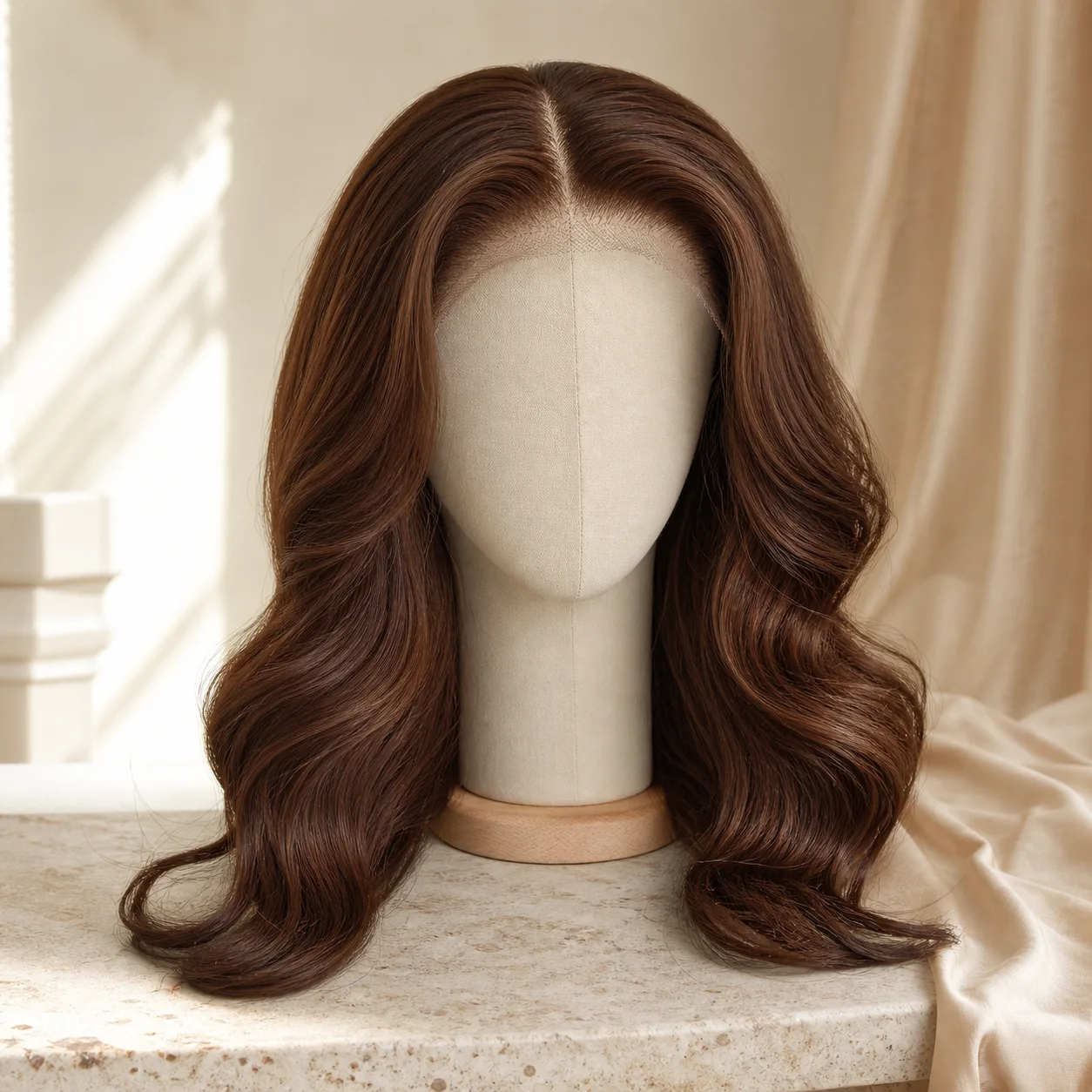
Wig and hair product main images need clarity more than decoration. Shoppers look for hairline, lace quality, density, length, color, curl pattern, parting, and texture. If AI makes the hair prettier by changing those facts, the image becomes risky.
What buyers need to see
For cross-border ecommerce, the main image should make the product type obvious at a glance. Show the wig shape clearly, avoid messy backgrounds, and preserve the real texture and color family.
Workflow
1. Start with the clearest wig reference. 2. Preserve lace front, hairline, parting, length, density, color, curl or wave pattern. 3. Use a clean model, mannequin, or product-first presentation depending on channel. 4. Keep background simple and bright enough for thumbnail recognition. 5. Review whether the result over-promises volume or length.
Where KrafLayer Fits
When you apply this Create Cross-Border Wig and Hair Product Main Images workflow in KrafLayer, start from the clearest product reference, then decide whether the asset needs cleanup, lighting, background work, detail support, or an ad version. Before using it for listing images, detail pages, or ad assets, check that shape, material, labels, color, scale, and accessories still match the source SKU.
Prompt to use in KrafLayer
~~~text Use the uploaded wig product as the exact reference. Create a clear cross-border ecommerce main image. Preserve lace front, hairline, parting, hair length, density, color, curl or wave pattern, texture, cap shape, and product scale. Use clean lighting and a simple background suitable for marketplace thumbnails. Do not change hair type, exaggerate volume, invent lace details, alter color, or hide the product edge. ~~~
FAQ
Should wig main images use models?
Models help show styling, but product-first images can be clearer for marketplaces. Use both when possible: one clean main image and supporting model images.
Why does AI change curl pattern?
Hair texture is easy for AI to beautify. Name curl pattern, density, and length explicitly.
What should I avoid in wig images?
Avoid over-smoothed hair, unrealistic shine, hidden lace, unclear hairline, and backgrounds that reduce thumbnail clarity.
Keep exploring
Continue the story
More practical guidance on product accuracy, composition, and conversion-ready visuals.
Put it into practice
Take the next step in KrafLayer
Choose a generation or editing workflow that matches what you just learned.