Edit tools
How to Fix Logo and Text Position on Product Images
TL;DR
A practical AI editing workflow for correcting misplaced logo and product-name text on ecommerce photos without redesigning the SKU. Includes how to do it in KrafLayer.
TL;DR
For Fix Logo and Text Position on Product Images, use KrafLayer for controlled local changes or reference-guided edits. Use Mask Edit for a local change with a short instruction, or Reference Image Editor when the result needs a visual example. The finished image should still prove that shape, material, labels, color, scale, and accessories still match the source SKU.
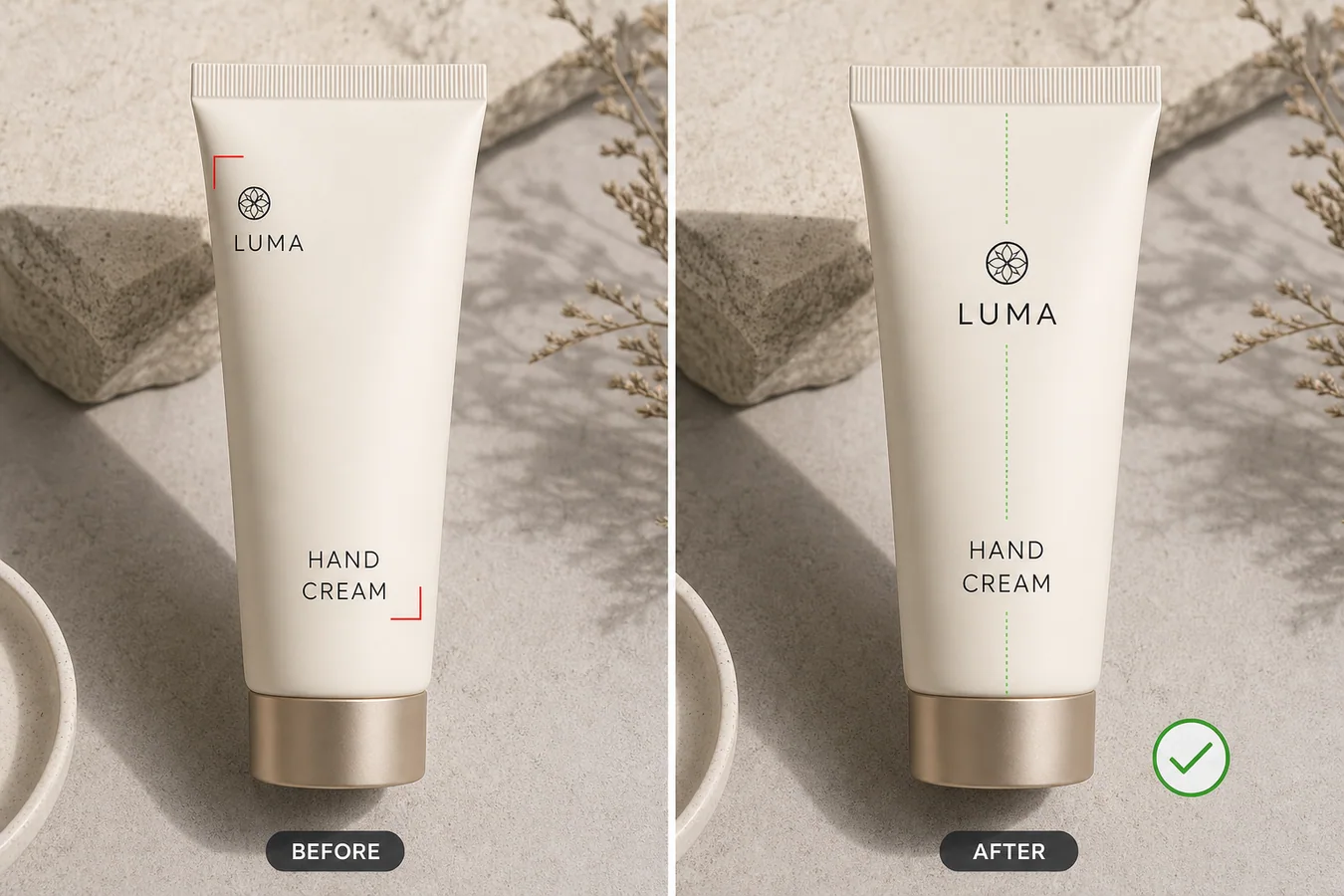
To fix logo and text position on a product image, keep the edit local. Move only the misplaced logo, product name, or label block, then protect the package shape, material, lighting, crop, color, and every buyer-relevant detail.
KrafLayer is an AI-powered visual editor for ecommerce product photography. For this task, use it like a controlled label-retouching step: correct the visual alignment problem without asking AI to redesign the package.
The example uses one ivory hand cream tube. In the before image, the logo sits too far left and the product-name text is low and off-center. In the after image, the same tube keeps its cap, shape, material, camera angle, and lighting, but the logo and text block align with the product axis. That is the edit sellers usually need: cleaner presentation, not a new package.
Why Small Alignment Errors Hurt Ecommerce Photos
A crooked logo or drifting product-name block makes a product look less finished, even when the product itself is fine. Buyers may not notice the exact design problem, but they feel the listing is rushed. On a detail page, bad alignment also makes the image harder to reuse in ads, comparison tables, and marketplace thumbnails.
This is common with supplier photos, rushed sample shoots, packaging mockups, and local retouching passes where one small label area moved but the rest of the image stayed usable.
Keep the Correction Narrow
Do not treat this as a full packaging redesign. The safest workflow is to mark the problem area and fix only that area.
Protect these facts:
- package outline, cap, seal, folds, and edge geometry
- true material finish, such as matte tube, paper label, foil, plastic, or glass
- approved brand mark, product name, and label hierarchy
- camera angle, crop, light direction, and contact shadow
- real product color and scale
- any regulated or buyer-facing information that should not be invented
If the AI changes the logo, rewrites claims, shifts the package shape, or creates a cleaner but different label, reject the result.
A Prompt for Local Logo and Text Alignment
Use a direct prompt in [KrafLayer](https://kraflayer.com):
Correct only the logo and product-name text placement on this ecommerce product image. Align the logo and text block to the vertical center of the package and improve spacing so the label looks ready for a product listing. Preserve the exact same package shape, cap, material texture, color, lighting, camera angle, crop, shadow, logo style, approved text, and label hierarchy. Do not redesign the packaging, change the product name, invent claims, add badges, add new text, remove real details, or alter the product body.
This prompt gives AI a small job. The result should look like a careful production retouch, not a new creative direction.
Check the Result Like a Listing Operator
After generating the corrected image, compare the before and after at three sizes: full view, product-page width, and thumbnail. Alignment that looks fine at full size can still feel off in a small card.
Use this checklist:
- logo sits on the intended visual axis
- product-name text is centered or intentionally aligned
- spacing between logo and text feels balanced
- label text stays readable and unchanged
- product edges, cap, texture, and shadow match the source
- no new claims, badges, fake certifications, or decorative clutter appear
The corrected image should make the product easier to trust. It should not make the buyer wonder whether the package itself changed.
When to Use This Workflow
Use this workflow when the image is mostly usable but one local label area is wrong: a logo is too high, product text is too low, a flavor line is shifted, or a label block is not centered after resizing. It works well for cosmetics, supplements, food packaging, candles, skincare bottles, and small consumer goods.
If the source file has legal, nutrition, ingredient, or regulated claims, do not ask AI to improvise those areas. Use the approved copy from your packaging file, then run the image through a human QA pass before uploading it.
Where KrafLayer Fits
When you apply this Fix Logo and Text Position on Product Images workflow in KrafLayer, the tool choice matters: use Mask Edit for a local change with a short instruction, or Reference Image Editor when the result needs a visual example. After generation, judge the image by the channel it serves — listing images, detail pages, or ad assets — and check that shape, material, labels, color, scale, and accessories still match the source SKU.
FAQ
How do I fix logo and text position on product images?
Use a local AI edit that moves only the misplaced logo or text block while preserving the package shape, material, lighting, approved wording, crop, and shadow.
Can AI fix label alignment without redesigning the packaging?
Yes, if the prompt limits the edit to placement and explicitly protects the logo style, product name, label hierarchy, package geometry, and material texture.
Should AI rewrite blurry or wrong product text?
Only if you provide the approved replacement text. Do not let AI invent claims, certifications, ingredients, nutrition facts, or regulated information.
What makes a label-position edit look fake?
Changed logo shapes, new claims, warped packaging, mismatched shadows, and text that looks sharper than the surrounding label usually make the edit feel fake.
Keep exploring
Continue the story
More practical guidance on product accuracy, composition, and conversion-ready visuals.
Put it into practice
Take the next step in KrafLayer
Choose a generation or editing workflow that matches what you just learned.