Edit tools
How to Enlarge Small Product Images to Ecommerce Size
TL;DR
A practical AI upscaling workflow for turning undersized product photos into listing-ready images without changing the product shape, material, crop, or selling details. Includes how to do it in KrafLayer.
TL;DR
For Enlarge Small Product Images to Ecommerce Size, use KrafLayer as a fast pre-publishing edit step: run Upscale directly and inspect texture, edges, labels, and small text afterward. It is most useful for listing images, detail pages, or ad assets, as long as shape, material, labels, color, scale, and accessories still match the source SKU.
If a product image is too small for ecommerce, do not just stretch it in a design tool. Stretching gives you a larger file, but it does not restore the details buyers need: edge clarity, material texture, stitching, label readability, hardware, and a clean crop for product cards.
The better workflow is to upscale the image to the target listing size, then inspect whether the product still matches the original SKU. KrafLayer is an AI-powered visual editor for ecommerce product photography, and this task works best when the prompt treats size as a production requirement, not as a creative redesign.
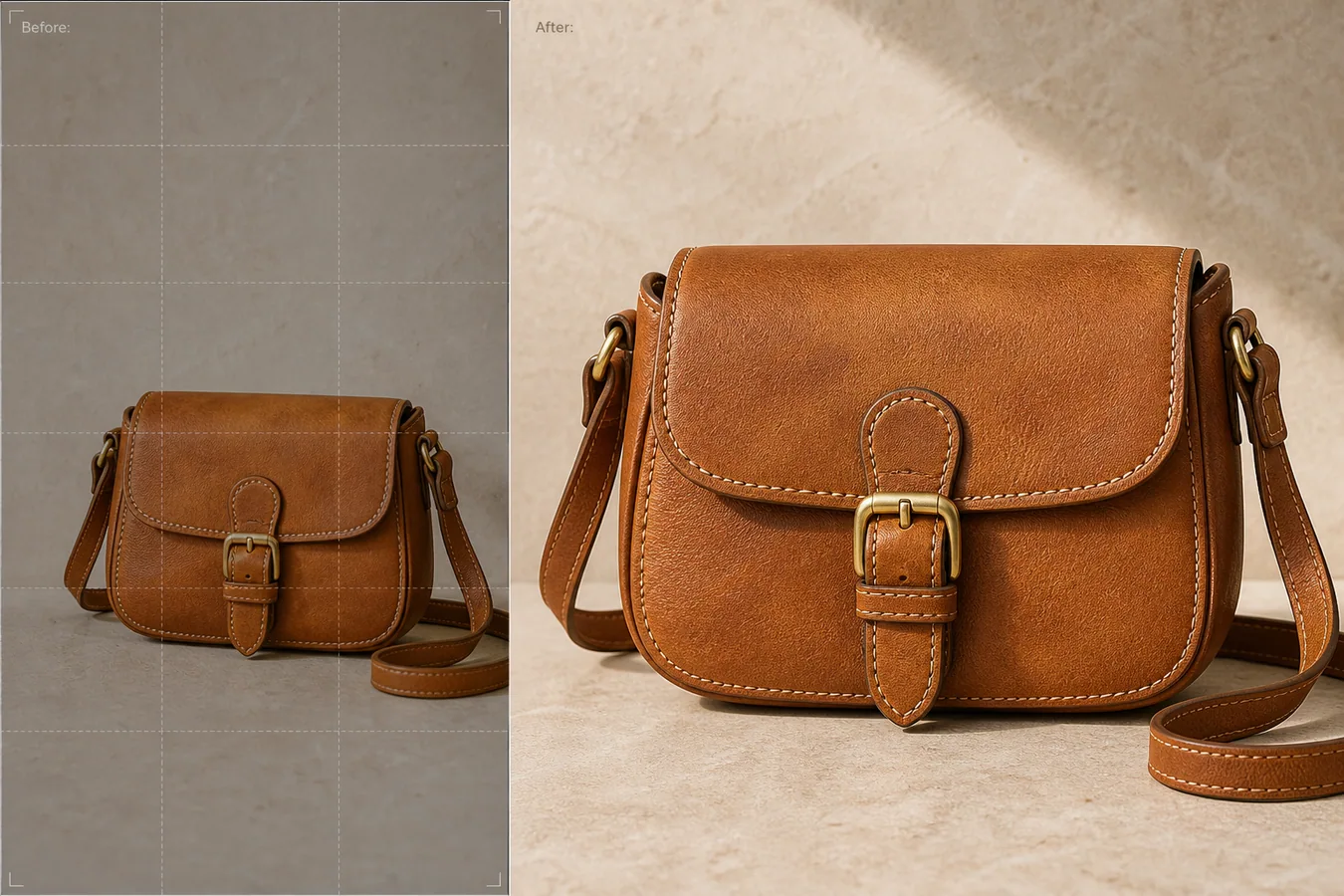
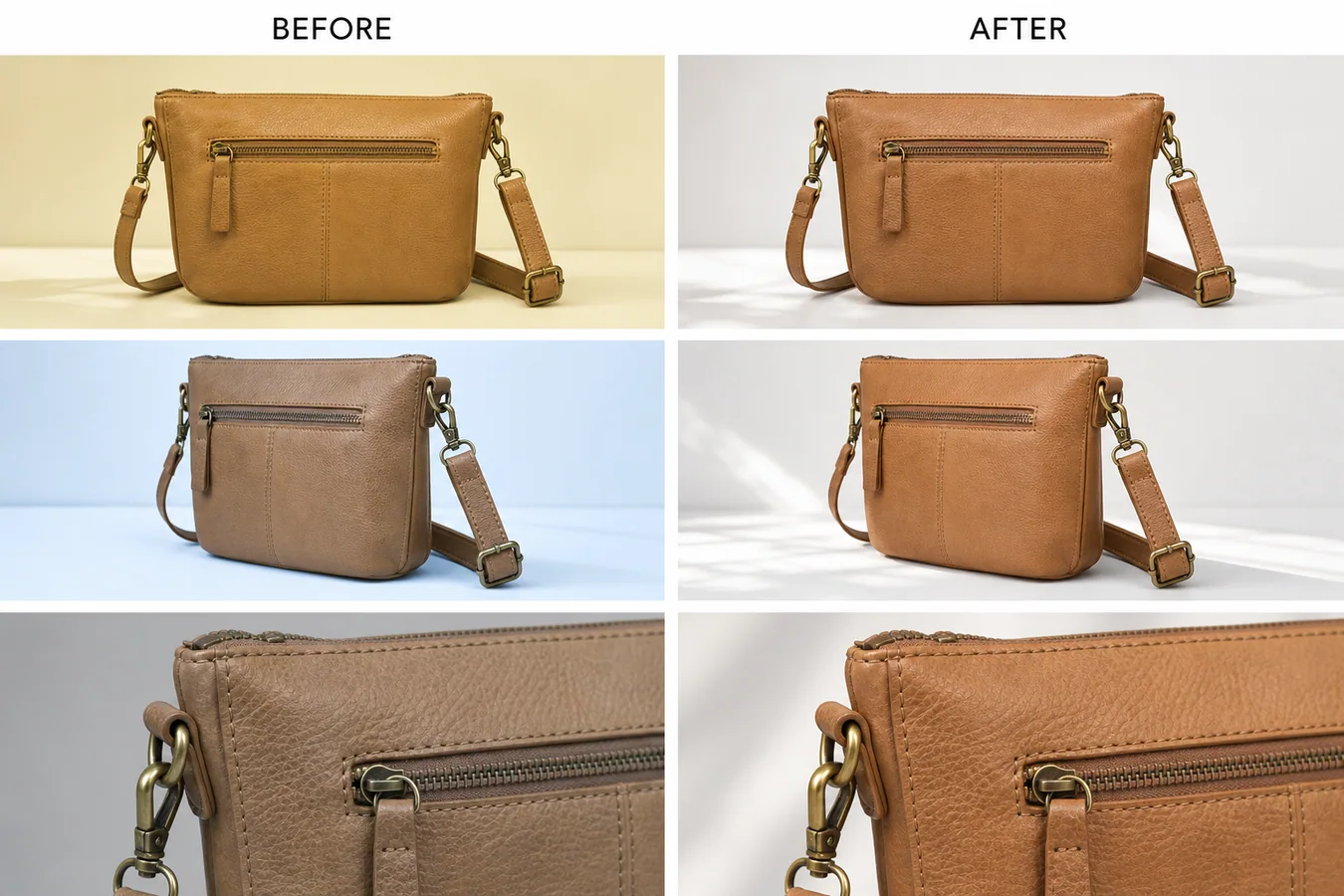
The example uses one tan leather crossbody bag. The before side is too small in the frame and not useful for a marketplace main image. The after side gives the same bag a larger listing-ready presence, clearer leather grain, visible stitching, readable brass hardware, natural contact shadow, and enough margin for square or card crops.
What Ecommerce Size Really Means
Ecommerce size is not only pixel count. A good listing image needs enough resolution and enough product presence. A 2000 px file can still fail if the item only occupies a small corner. A 900 px file can also fail when the product fills the frame but the texture turns soft.
For most product pages, check three things before editing:
- the product fills the crop without touching the edges
- important details remain readable after mobile compression
- the background and shadow support the item instead of hiding it
- square, vertical, and card crops can be made without cutting the product
- the file can export as WebP without muddying texture or labels
The goal is not to create a huge image. The goal is to create a usable commerce asset.
Protect Product Facts During Upscaling
AI upscaling can quietly invent detail if the prompt is loose. A bag may gain a different buckle, a skincare bottle may get fake text, or a shoe may receive sharper but incorrect stitching. That makes the image more polished but less trustworthy.
For the bag example, protect the same silhouette, strap shape, buckle, flap curve, seam paths, stitch spacing, leather color, brass finish, product scale, and tabletop contact shadow. The edit should improve size and detail, not create a new bag.
Use this rule: if a buyer would receive a different product than the image suggests, the upscale failed.
Edit Prompt for Enlarging Product Images to Listing Size
Use this in [KrafLayer](https://kraflayer.com) when the source photo is small but the product identity is still clear:
Enlarge this product photo into an ecommerce-ready listing image. Keep the exact same product identity: tan leather crossbody bag silhouette, strap shape, flap curve, brass buckle, seam paths, stitch spacing, leather grain, color, scale, camera angle, and natural contact shadow. Improve resolution, edge clarity, material texture, and crop margin so the image can work as a main product image and product-card thumbnail. Do not change the bag design, hardware, proportions, color, shadow direction, or add logos, text, hands, props, packaging, or extra products.
If the image is extremely tiny, first ask whether the source still contains enough product information. AI cannot honestly recover details that are completely missing. In that case, use the output as a draft for a better reshoot or request a supplier image.
Check the Image After Upscaling
Open the before and after at the same display size. Do not judge only from the full-size preview. Check the parts buyers care about:
- are edges sharper without looking cut out?
- is the material texture clearer but still natural?
- did hardware, labels, seams, holes, ports, or buttons stay in the same place?
- does the product still have a believable shadow?
- does the crop leave enough margin for marketplace thumbnails?
- does the image still look good after WebP export?
For apparel, inspect seams and fabric weave. For beauty packaging, inspect label area and cap geometry. For electronics, inspect ports and buttons. For bags and shoes, inspect stitching, panels, and hardware.
Size Up for the Final Placement
Do not upscale every image to the same giant number. Match the output to the placement:
- main listing image: enough pixels for zoom and clean square crop
- product card: strong subject size and readable edges
- detail image: closer crop with texture or feature emphasis
- ad creative: product-forward crop with room for one short message
- PDP gallery: consistent crop and scale across the full image set
This is where KrafLayer is useful in a real production flow. Upload the small source image, upscale it with product facts protected, review the after image, then export WebP for the store, marketplace, or campaign asset.
When Upscaling Is Not Enough
Upscaling cannot fix every source. If the source is motion-blurred, blocked by a hand, badly compressed, or missing a critical side of the product, solve that problem first. You may need object removal, exposure repair, crop extension, or a new reference photo before the size edit.
A practical operator sequence is: clean the image, fix exposure and color, enlarge to the required size, then export. Doing the size step too early can make old defects larger.
Where KrafLayer Fits
When you apply this Enlarge Small Product Images to Ecommerce Size workflow in KrafLayer, the tool choice matters: run Upscale directly and inspect texture, edges, labels, and small text afterward. After generation, judge the image by the channel it serves — listing images, detail pages, or ad assets — and check that shape, material, labels, color, scale, and accessories still match the source SKU.
FAQ
How do I enlarge small product images to ecommerce size?
Use AI upscaling with a prompt that protects the product identity, then verify edges, material texture, labels, hardware, crop margin, and shadow before exporting the image as WebP.
Can AI make a low-resolution product photo listing-ready?
Yes, when the source still contains enough product information. AI can improve usable detail and crop presence, but it should not invent different product features.
What should I check after product image upscaling?
Check whether the product shape, color, texture, seams, labels, hardware, scale, and shadow still match the original product. Then test the image in the actual product-card or listing crop.
Should I upscale product photos before or after editing?
Usually edit obvious problems first, such as color cast, clutter, exposure, or bad crop. Upscale after the image is clean enough, then export the final WebP.
Keep exploring
Continue the story
More practical guidance on product accuracy, composition, and conversion-ready visuals.
Put it into practice
Take the next step in KrafLayer
Choose a generation or editing workflow that matches what you just learned.