Edit tools
How to Fix Low-Light Product Photos into Bright White Main Images
TL;DR
A practical AI editing workflow for turning dim product photos into bright white-background main images without changing the real SKU. Includes how to do it in KrafLayer.
TL;DR
For Fix Low-Light Product Photos into Bright White Main Images, use KrafLayer as a fast pre-publishing edit step: run Restore on a usable source photo, then compare color, exposure, and recovered detail against the original. It is most useful for listing images, detail pages, or ad assets, as long as shape, material, labels, color, scale, and accessories still match the source SKU.
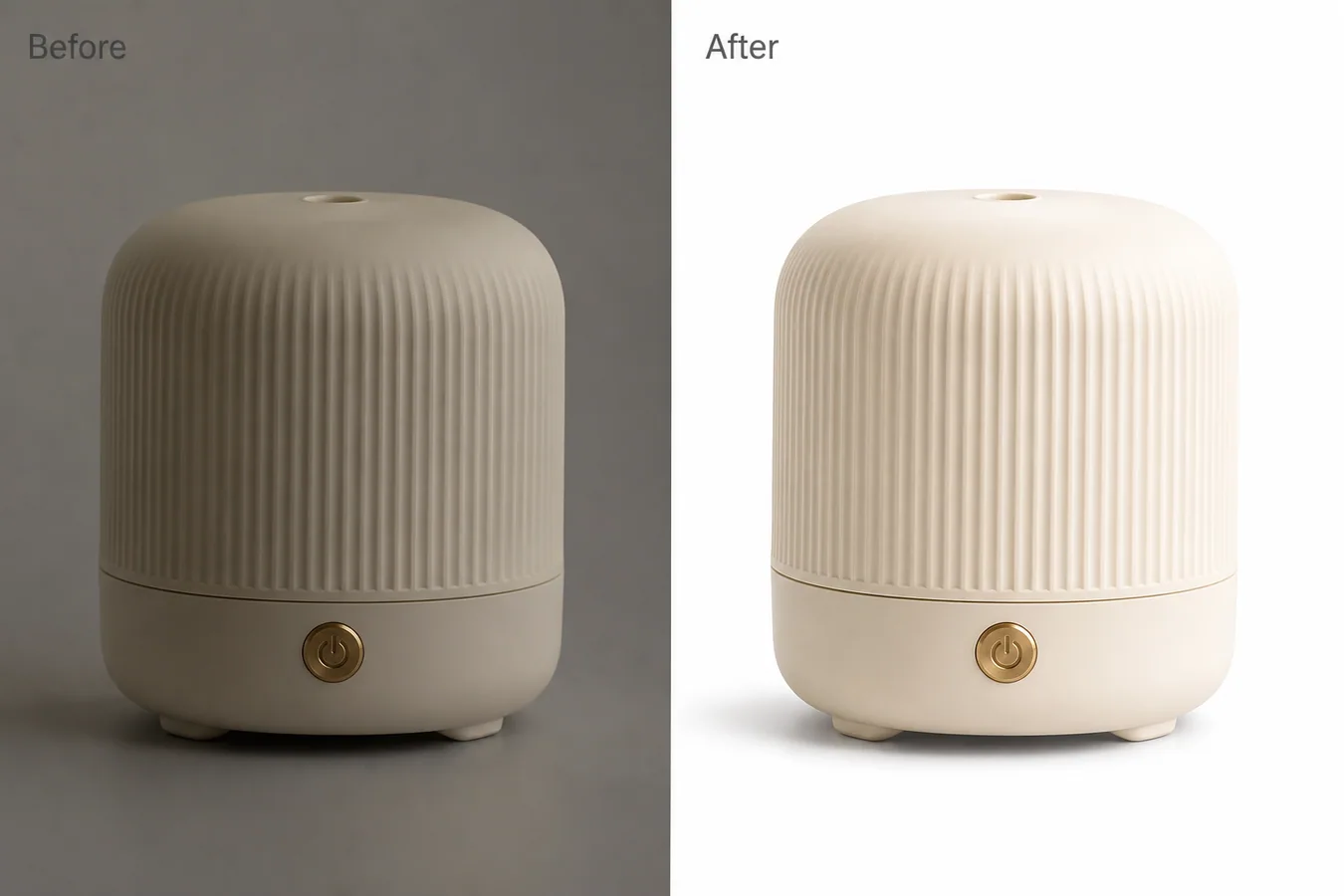
To fix a low-light product photo into a bright white main image, correct the exposure and background without redesigning the item. The product should become easier to inspect, but the shape, material, color, scale, button placement, texture, and natural contact shadow should stay the same.
KrafLayer is an AI-powered visual editor for ecommerce product photography. For this job, use it as a controlled retouching tool: brighten the product, clean the background, restore true material detail, and keep the image suitable for a marketplace main image.
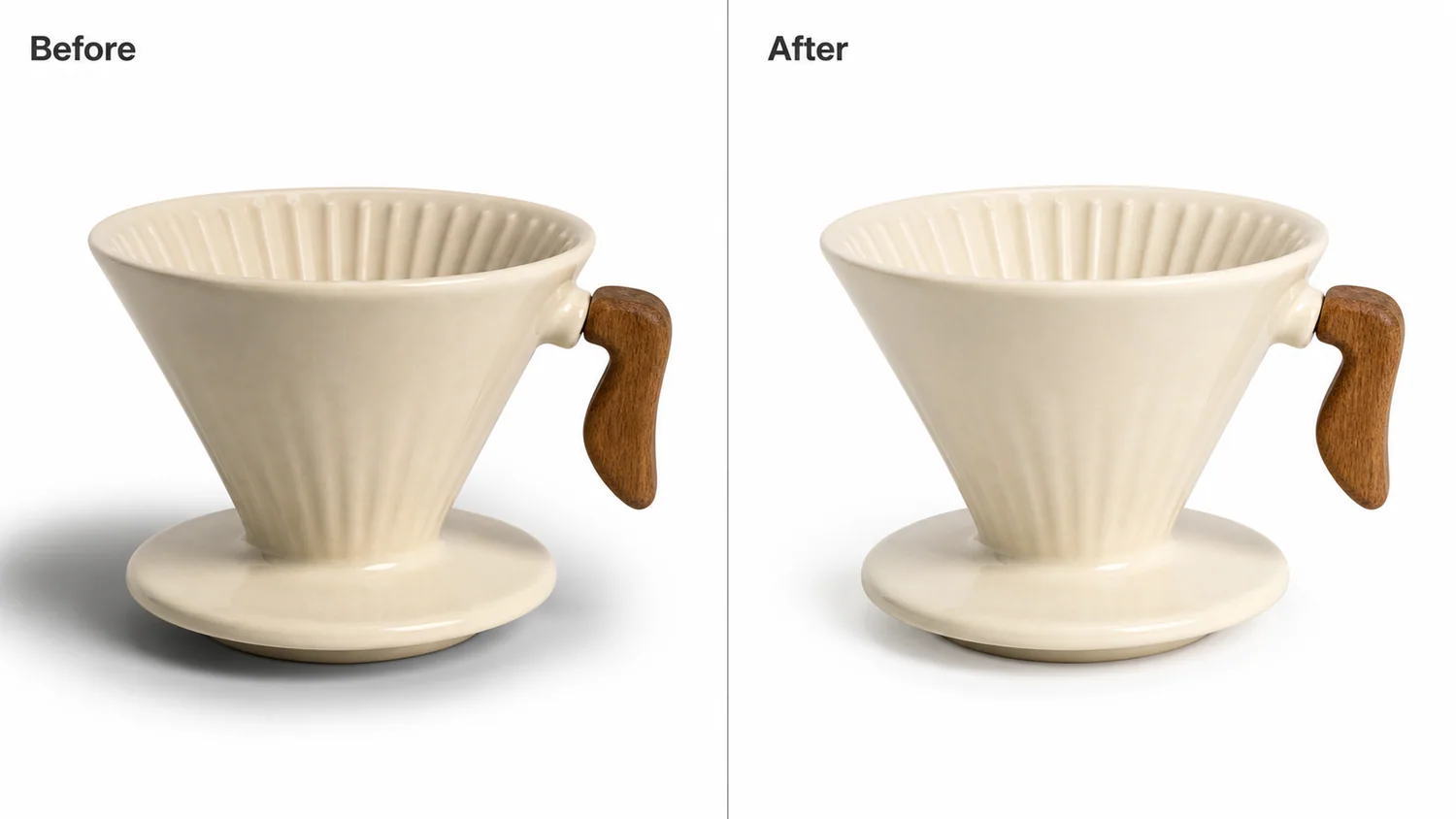
The example uses one cream ceramic diffuser with ribbed sides and a brass power button. The before image is dim, gray, and muddy. The after image keeps the same product geometry and camera angle, but the diffuser reads clearly against a clean white background with a soft shadow.
What Usually Goes Wrong in Low-Light Product Photos
Low-light product photos often look fixable at first glance. The product is visible, the crop may be usable, and the background may not be terrible. The problem shows up when the image becomes a listing thumbnail: the edges feel weak, cream or white materials look gray, metal details disappear, and the whole image feels like a supplier snapshot.
For ecommerce, brightness is not just a style choice. A bright main image helps the buyer understand the product faster. But pushing exposure too hard can wash out texture, turn shadows into dirty gray patches, or make a cream product look like flat plastic.
Protect Product Facts Before Brightening
Before asking AI to clean up the image, decide what cannot change. A low-light correction should not invent a new product.
Protect these details:
- silhouette, crop, and camera angle
- seams, buttons, ports, feet, caps, or hardware
- true color and finish
- texture such as ribbing, fabric weave, leather grain, or brushed metal
- product scale and centered position
- light direction and believable contact shadow
If the edit changes one of those facts, the image may look cleaner but become less trustworthy.
Edit Prompt for Bright White Main-Image Repair
Use a narrow prompt in [KrafLayer](https://kraflayer.com):
Fix this low-light product photo into a bright white-background ecommerce main image. Increase exposure and clarity, remove the dim gray cast, clean the background, and keep a soft natural contact shadow. Preserve the exact same product shape, ribbed texture, brass button, cream color, scale, camera angle, crop, feet, edge detail, and material finish. Do not redesign the product, add props, add text, change the button, remove real texture, over-whiten the product, or make it look like plastic.
This kind of prompt works because it separates the image problem from the product identity. You are not asking AI to make the product more premium in a vague way. You are asking it to repair listing readability.
Make the After Image Useful for Selling
The after image should answer one clear buyer question: what exactly is being sold? A bright white background helps, but it is not enough by itself. The product still needs visible material, grounded shadow, and readable edges.
Check the after image at thumbnail size and at full size. At thumbnail size, the outline should be clear. At full size, the texture and small details should still hold up.
Use this QA pass:
- the product is centered and immediately recognizable
- whites or creams are bright but not blown out
- texture remains visible across the repaired area
- metal or glass details are not flattened
- the background is clean without looking artificially cut out
- the shadow grounds the product without becoming a gray stain
If the product looks detached from the surface, reduce the cleanup strength or ask for a softer natural contact shadow.
When a White Main Image Is the Right Output
Use this workflow when the source photo has enough product information but poor light: warehouse photos, supplier samples, phone shots, or quick internal captures. It is especially useful for small appliances, skincare bottles, home goods, accessories, and packaging where buyer trust depends on clean edges and true color.
Do not use it to hide condition issues or change buyer-relevant details. If the product is damaged, scratched, misassembled, or photographed from a bad angle, reshoot first. AI correction works best when the image problem is lighting, not product truth.
Where KrafLayer Fits
When you apply this Fix Low-Light Product Photos into Bright White Main Images workflow in KrafLayer, the tool choice matters: run Restore on a usable source photo, then compare color, exposure, and recovered detail against the original. After generation, judge the image by the channel it serves — listing images, detail pages, or ad assets — and check that shape, material, labels, color, scale, and accessories still match the source SKU.
FAQ
How do I fix low-light product photos into bright white main images?
Use an AI edit that raises exposure, removes gray cast, cleans the background, and preserves the product's shape, true color, texture, scale, and natural contact shadow.
Can AI brighten a product photo without changing the SKU?
Yes, but the prompt must protect product facts such as buttons, seams, texture, material finish, crop, camera angle, and shadow. Always compare before and after before using the image.
Should the background become pure white?
For many marketplace main images, a clean white background is useful. Keep a soft contact shadow so the item still feels grounded and real.
What makes a low-light edit look fake?
Over-whitened material, missing texture, floating edges, redesigned hardware, and shadows that no longer match the product usually make the edit look fake.
Keep exploring
Continue the story
More practical guidance on product accuracy, composition, and conversion-ready visuals.
Put it into practice
Take the next step in KrafLayer
Choose a generation or editing workflow that matches what you just learned.