Edit tools
How to Extend Cropped Product Photos with AI Outpainting
TL;DR
A practical workflow for fixing product photos that cut off handles, straps, packaging edges, or side details without changing the real SKU. Includes how to do it in KrafLayer.
TL;DR
For Extend Cropped Product Photos with AI Outpainting, KrafLayer is useful when a real product reference needs to become a usable asset for listing images, detail pages, or ad assets. Treat it as production editing, not product reinvention; the test is whether shape, material, labels, color, scale, and accessories still match the source SKU.
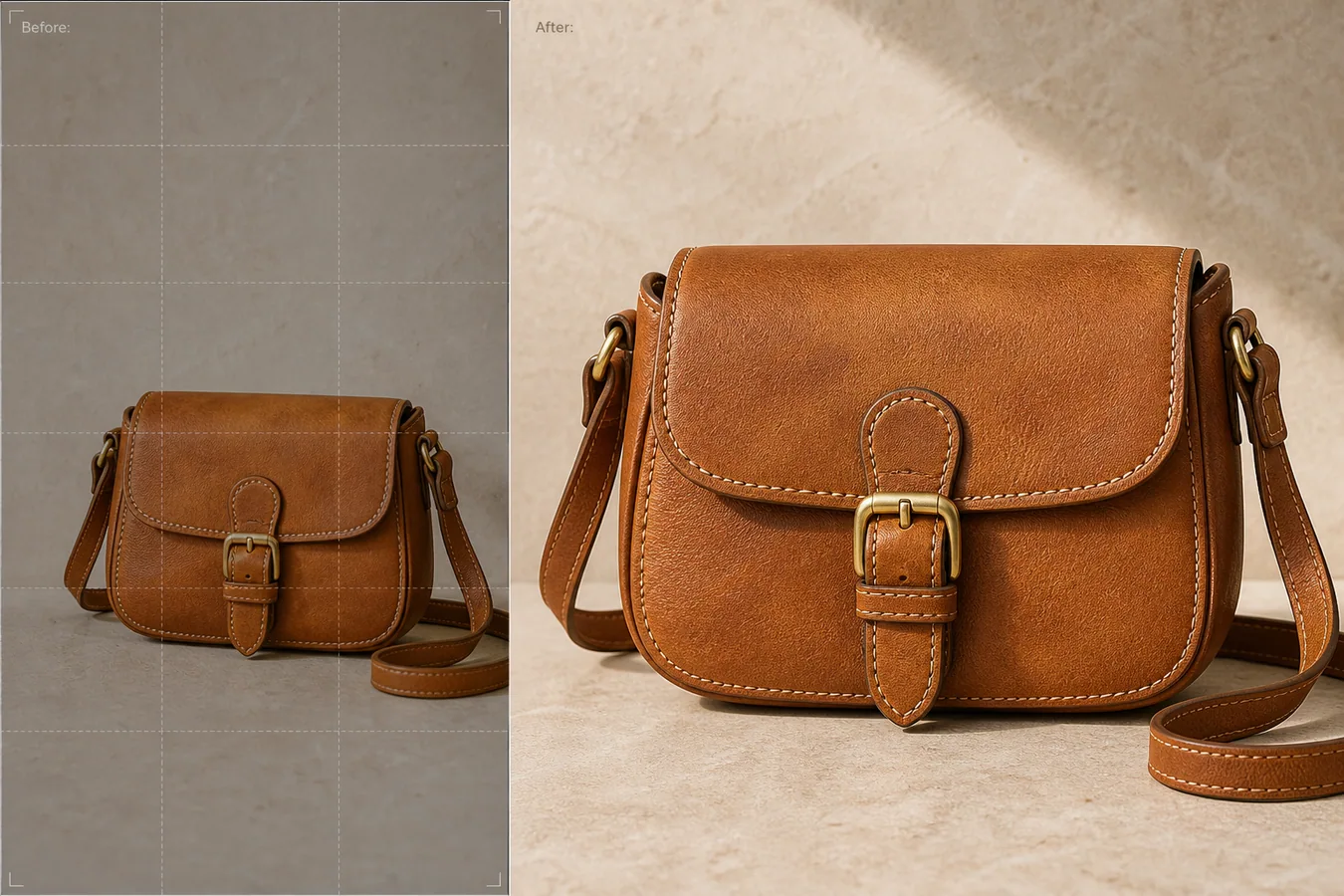
If a product photo is cropped too tightly, AI outpainting can add usable canvas around the product so the listing does not feel broken. The important part is not just filling empty space. The edit must preserve the real product shape, scale, material, shadow, and visible features while rebuilding only the missing frame area.
KrafLayer is an AI-powered visual editor for ecommerce product photography. For sellers, it can help turn a supplier crop, phone photo, or rushed campaign image into a main-image candidate without reshooting the product.
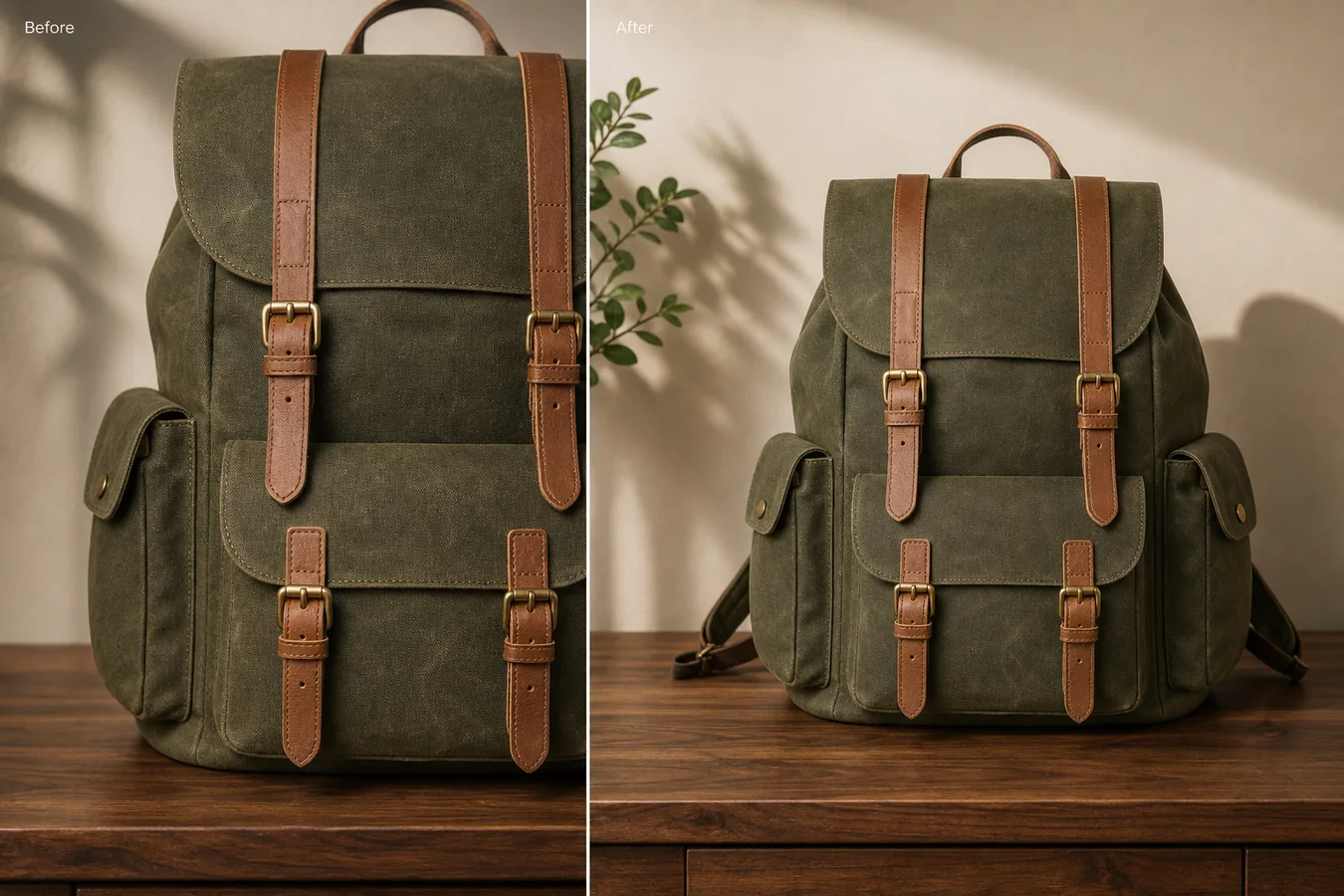
In the example, the backpack photo is too close: the top handle and side pocket are cramped, and there is not enough margin for a product page crop. The expanded version keeps the same waxed canvas, tan leather straps, brass buckles, tabletop, light direction, and shadow, but gives the product enough breathing room to work as a listing image.
What AI Outpainting Should Fix
Incomplete crop problems usually show up after images move between channels. A photo that looked fine in a square preview may cut off the handle in a marketplace crop. A lifestyle image may lose a strap when resized for ads. A detail image may be too tight for a PDP module.
Outpainting is useful when:
- the product edge is cut off by the frame
- a handle, strap, cap, spout, side pocket, or package corner needs more room
- the background needs extension without changing the product
- the image needs a safer margin for Shopify, Amazon, ads, or email
- the product is too close to the border for a clean main image
AI should extend the canvas and restore context. It should not redesign the SKU.
Protect the Product First
Before editing, list the details that cannot change. For the backpack example, the protected details are the olive waxed canvas texture, flap shape, two tan leather front straps, brass buckle positions, side pockets, handle, bottom pocket, tabletop contact shadow, and camera angle.
For other products, the protection list changes:
- bags: handles, straps, zippers, stitching, pockets, hardware
- shoes: toe box, laces, eyelets, outsole, panel seams
- packaging: label position, pouch seams, cap shape, box edges
- cookware: handles, spouts, lids, rim ellipses
- apparel: collar, hem, cuffs, buttons, fabric drape
This protection list matters because outpainting often happens near the product edge. If the prompt is vague, the AI may invent a new handle, change a strap, or add a decorative feature that was never on the item.
A Prompt for Extending Cropped Product Photos
Use a local edit prompt in [KrafLayer](https://kraflayer.com):
Extend the canvas around this cropped product photo so the full product fits comfortably in a product listing frame. Preserve the exact backpack identity: olive waxed canvas texture, flap curve, tan leather straps, brass buckles, side pockets, top handle, front pocket, tabletop contact shadow, camera angle, and soft daylight direction. Rebuild only the missing outer frame and background. Add natural margin around the product. Do not redesign the bag, add logos, change fabric color, move buckles, invent extra pockets, remove stitching, or make the product look like a different SKU.
For a white-background main image, replace the scene notes with white-background constraints, but keep the product protection list just as specific. For a lifestyle crop, describe the surface, wall, shadow, and light direction so the extended area matches the original.
Review the After Image Like a Buyer
Do not judge the edit only by whether the frame is bigger. Check whether the final image would survive normal ecommerce use.
Look for these points:
- the full product silhouette is visible
- margins are even enough for platform cropping
- rebuilt edges connect naturally to the original product
- straps, handles, lids, labels, or side details make structural sense
- material texture continues without plastic smoothing
- shadows stay attached to the product
- the background extension does not pull attention away from the SKU
The after image should help the buyer understand the product faster. If the new canvas is pretty but the product facts are less trustworthy, the edit is not finished.
When Not to Use Outpainting
Do not use outpainting to invent parts that were never photographed if those parts affect buyer trust. If the missing area includes regulated label text, a functional port, a size-critical attachment, or a safety-related component, use a real reference image or reshoot.
AI outpainting is best for recovering framing, margin, background, and lightly cropped edges. It is weaker when the missing area contains product information that must be exact.
Where KrafLayer Fits
When you apply this Extend Cropped Product Photos with AI Outpainting workflow in KrafLayer, start from the clearest product reference, then decide whether the asset needs cleanup, lighting, background work, detail support, or an ad version. Before using it for listing images, detail pages, or ad assets, check that shape, material, labels, color, scale, and accessories still match the source SKU.
FAQ
How do I extend a cropped product photo with AI?
Use AI outpainting to add canvas around the product, then protect the product shape, material, hardware, labels, shadows, and camera angle in the prompt.
Can AI fix a product image that cuts off the handle or edge?
Yes, if enough of the product remains visible and the missing area is not critical factual information. Always compare the result against the real SKU before using it.
Is outpainting better than simply zooming out?
Zooming out only works when the original image already has extra pixels outside the crop. Outpainting helps when the frame itself is missing space and needs to be extended.
What product details should I protect during outpainting?
Protect edges, handles, straps, seams, labels, hardware, material texture, scale, contact shadow, and camera angle. These details keep the listing honest.
Keep exploring
Continue the story
More practical guidance on product accuracy, composition, and conversion-ready visuals.
Put it into practice
Take the next step in KrafLayer
Choose a generation or editing workflow that matches what you just learned.