Edit tools
How to Fix Overexposed or Underexposed Product Photos with AI
TL;DR
A product-photo exposure correction guide: recover usable brightness, protect highlights and shadows, preserve material color, and avoid fake HDR edits. Includes how to do it in KrafLayer.
TL;DR
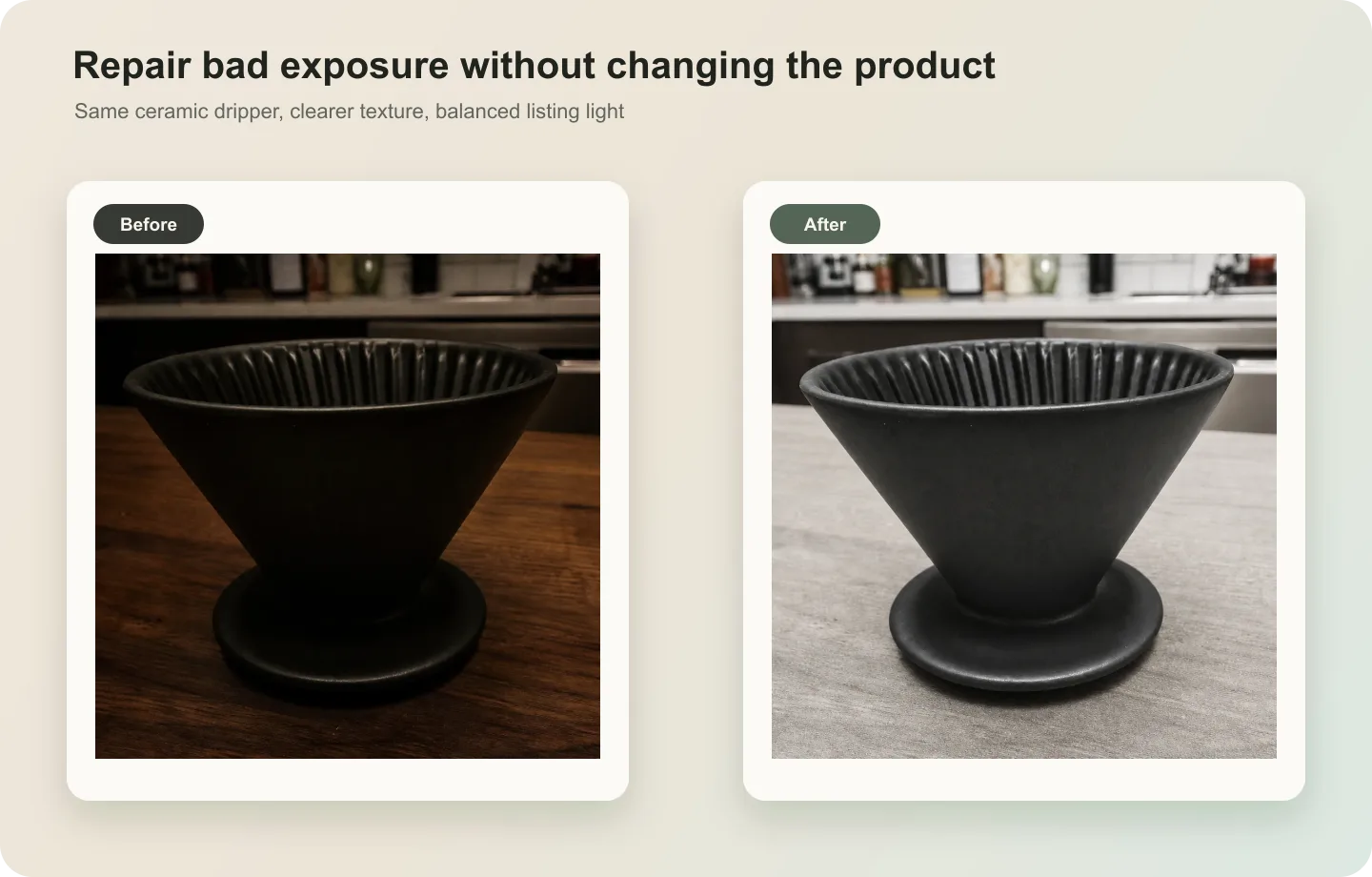
For Fix Overexposed or Underexposed Product Photos, use KrafLayer as a fast pre-publishing edit step: run Restore on a usable source photo, then compare color, exposure, and recovered detail against the original. It is most useful for listing images, detail pages, or ad assets, as long as shape, material, labels, color, scale, and accessories still match the source SKU.
Exposure correction is useful when a product photo is too bright, too dark, or unevenly lit, but the product information is still present. The goal is not to create a dramatic new image. The goal is to recover readable material, color, and shape.
Use this workflow for dark supplier photos, washed-out phone shots, harsh window light, weak white-background images, and product photos where highlights or shadows distract from the SKU.
What to fix first
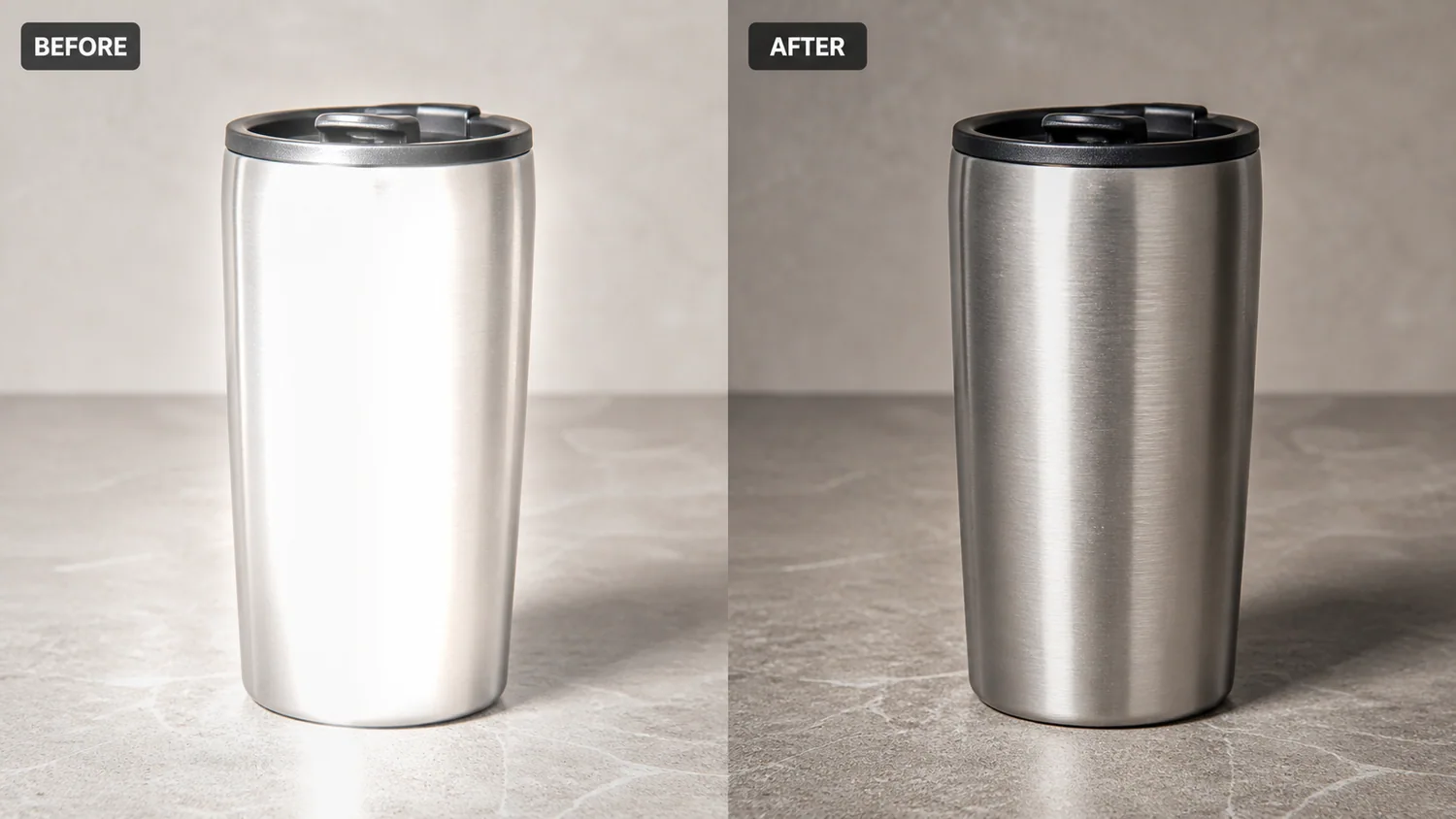
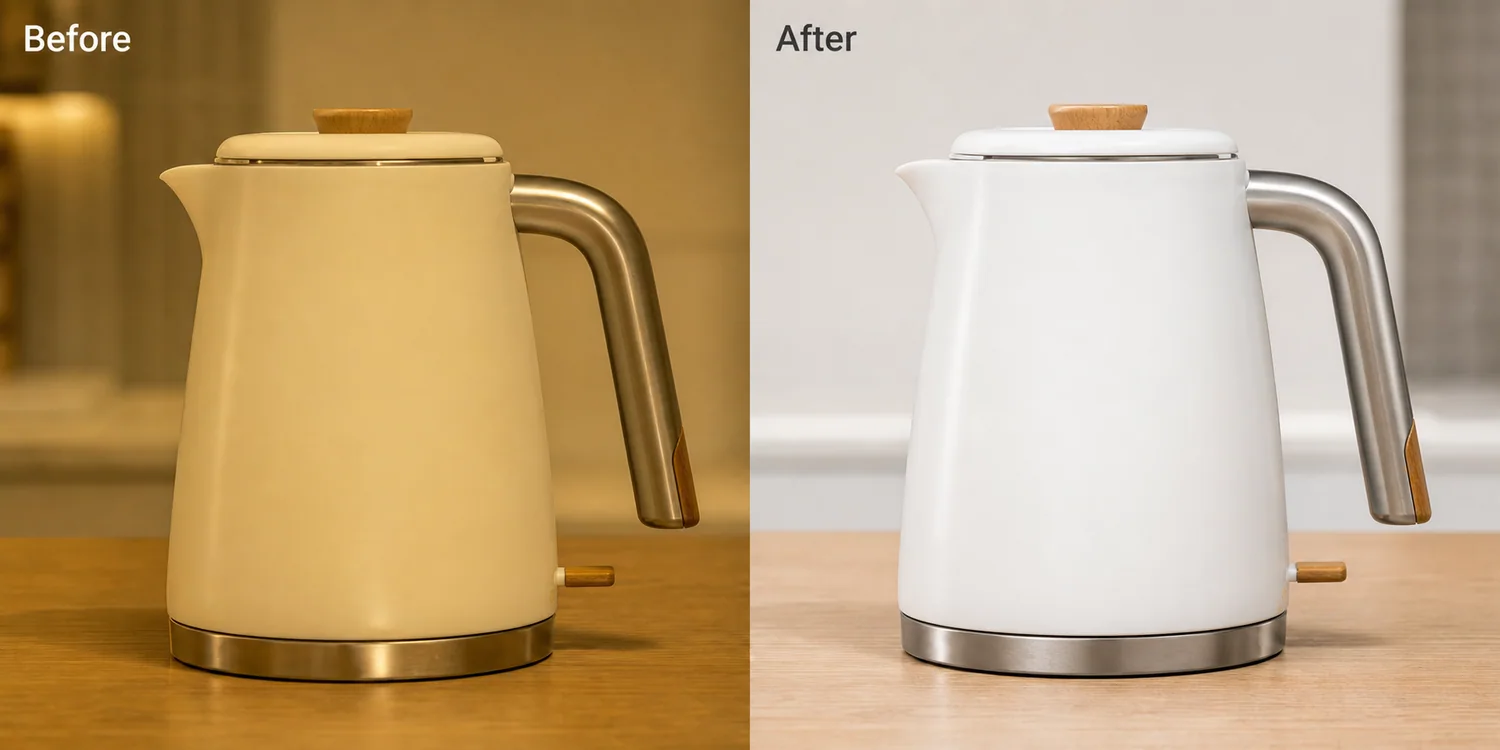
For underexposed photos, lift brightness without flattening texture. For overexposed photos, recover highlight detail without making the image gray. For mixed exposure, protect the product before correcting the background.
Avoid fake HDR. Product images need trust more than drama.
Workflow
1. Identify whether the main issue is shadow detail, blown highlights, color cast, or background brightness. 2. Correct the product exposure before changing the scene. 3. Preserve material texture, label readability, edge shape, and contact shadow. 4. Keep the product color close to the real variant. 5. Check the final image on both white and dark page backgrounds if it will be reused in layouts.
Where KrafLayer Fits
When you apply this Fix Overexposed or Underexposed Product Photos workflow in KrafLayer, the tool choice matters: run Restore on a usable source photo, then compare color, exposure, and recovered detail against the original. After generation, judge the image by the channel it serves — listing images, detail pages, or ad assets — and check that shape, material, labels, color, scale, and accessories still match the source SKU.
Steps in KrafLayer
Use Restore for automatic cleanup when the image is noisy, soft, compressed, or poorly lit. It is an automated restoration pass, so the important work is choosing a usable source image and comparing the output.
1. Upload or choose the product image. 2. Run the tool according to its interaction model: one-click tools generate directly; Erase-style tools need a brush mask first. 3. Zoom in to check edges, text, material, shadow, and product scale before downloading or continuing the edit.
Summary
Good exposure correction makes the product easier to evaluate. It should recover detail, not create a new product mood that hides color or material truth.
FAQ
Can AI recover blown-out highlights?
It can improve mild overexposure, but fully clipped detail cannot be recovered truthfully. If key product information is gone, use another source image.
Why does my corrected image look gray?
The edit may have lowered highlights globally. Ask for product detail recovery with clean contrast and true color, not just darker exposure.
Should shadows be removed from ecommerce photos?
No. Natural contact shadows help products feel real. Reduce heavy or dirty shadows, but keep enough grounding.
Keep exploring
Continue the story
More practical guidance on product accuracy, composition, and conversion-ready visuals.
Put it into practice
Take the next step in KrafLayer
Choose a generation or editing workflow that matches what you just learned.