Edit tools
How to Keep SKU Variant Product Photos at the Same Angle
TL;DR
A practical AI editing workflow for aligning color and material variant photos so every SKU keeps the same camera angle, crop, scale, and shadow. Includes how to do it in KrafLayer.
TL;DR
For Keep SKU Variant Product Photos at the Same Angle, use KrafLayer for controlled local changes or reference-guided edits. Use Mask Edit for a local change with a short instruction, or Reference Image Editor when the result needs a visual example. The finished image should still prove that shape, material, labels, color, scale, and accessories still match the source SKU.
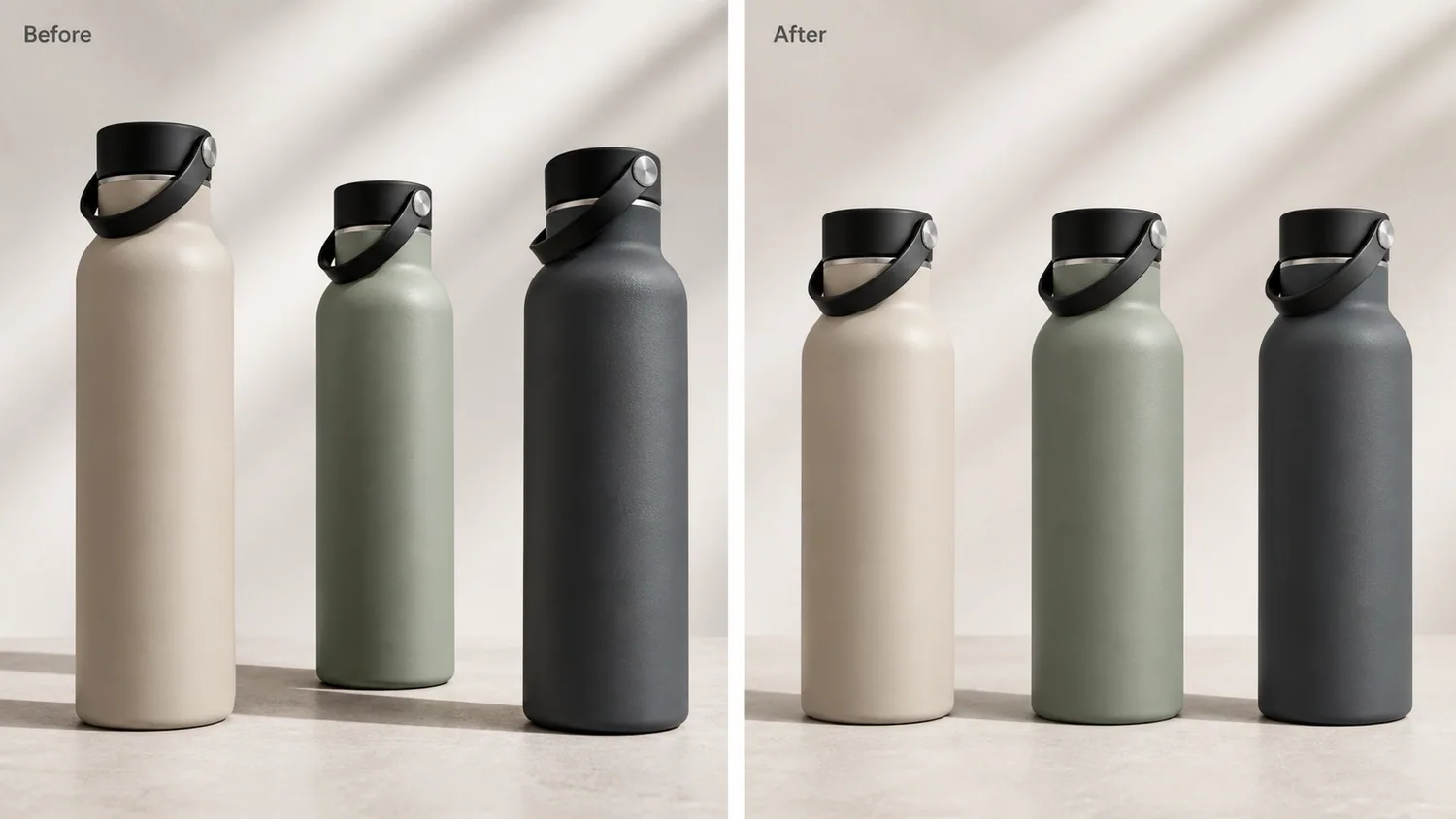
SKU variant photos should look like one catalog system, not like three separate shoots. If the sand bottle faces slightly left, the green bottle is taller in frame, and the charcoal bottle has a different shadow, buyers start comparing the photography instead of the variants.
The fix is to align angle, crop, scale, and shadow while preserving the real variant facts: color, finish, cap shape, silhouette, label area, and material texture. KrafLayer is an AI-powered visual editor for ecommerce product photography, and this is a good use case for controlled local editing rather than a full reshoot.
The example shows three insulated bottle variants. The before side has uneven angles, heights, crops, and shadows. The after side keeps the same matte sand, sage green, and charcoal variants, but presents them at the same front three-quarter angle with matching scale, crop, tabletop contact, and soft daylight. That makes the set easier to use for product grids, PDP variant selectors, marketplace thumbnails, and ads.
Why Variant Angle Consistency Matters
Variant images do more than show color. They tell the buyer whether the options belong to the same SKU family. When each variant has a different perspective, the product may look like different models, different sizes, or different quality levels.
Consistent angles help with:
- color swatches and variant selectors
- Shopify collection grids
- Amazon and marketplace image sets
- paid ad carousels
- PDP comparison blocks
- wholesale line sheets
- email product modules
The goal is not to make every image identical. The goal is to make the differences that matter visible: color, material, finish, size option, pack count, or feature variation.
What to Protect Before Editing
Start with the product facts. For the bottle example, protect the bottle silhouette, cap diameter, cap groove, shoulder curve, base height, matte finish, color family, tabletop contact shadow, and camera distance. Only the angle/crop inconsistency should change.
For other products, protect the details buyers use to judge the variant:
- apparel: fit, collar, sleeve length, hem, seams, fabric drape
- shoes: toe box, outsole, panel seams, lace count, material panels
- bags: handle height, strap path, zipper placement, hardware, pocket shape
- cosmetics: bottle shape, pump height, cap geometry, label area, liquid color
- electronics: ports, buttons, seams, LED positions, screen shape
- packaging: pouch silhouette, box edges, label placement, closure lines
If the AI makes the green variant a different bottle, the angle problem is solved in the wrong way.
A Prompt for Aligning SKU Variant Photos
Use a local edit prompt in [KrafLayer](https://kraflayer.com):
Align these SKU variant product photos so each variant uses the same front three-quarter camera angle, same scale, same crop, same tabletop contact shadow, and same soft daylight direction. Keep the exact product identity: identical insulated bottle silhouette, cap shape, shoulder curve, base height, matte stainless finish, and the true sand, sage green, and charcoal colors. Do not change the bottle model, cap design, height, width, material, color family, shadow direction, or add logos, text, hands, props, packaging, or extra products.
For a larger catalog, do the edit in batches by product family. Do not mix bottles, mugs, tumblers, and lunch boxes in one prompt unless they are truly part of the same listing set.
Build a Reference Variant
Choose one image as the reference before editing the rest. The reference should be the cleanest product angle, not necessarily the prettiest image. A good reference has:
- enough margin around the full product
- visible product shape and feature details
- clean but natural contact shadow
- neutral color balance
- no hand or prop blocking the item
- a crop that works on mobile thumbnails
Then align the other variants to that reference. If the reference is too tight, crooked, or over-styled, the whole set inherits the problem.
Check the After Set Like a Merchandiser
Open the edited variants side by side and check them as a buyer would:
- are all products the same apparent size?
- do caps, handles, labels, or ports line up logically?
- are shadows similar but still believable?
- did color correction change the actual variant color?
- does the material finish still read correctly?
- can each image crop into a square or card without cutting the product?
- does the set look consistent in a grid?
The best after image does not call attention to itself. It makes the buyer understand the choice faster.
When Not to Force Perfect Matching
Some variants need a different angle because the feature is different. A left-opening bag, a right-side port, a transparent lid, or a printed side panel may need a second view. In that case, keep the main image angle consistent, then add detail images that show the unique feature.
A practical rule: align the main selling view, not every possible proof image. Main images should compare cleanly. Detail images can rotate when the buyer needs to inspect a feature.
Where KrafLayer Fits
When you apply this Keep SKU Variant Product Photos at the Same Angle workflow in KrafLayer, the tool choice matters: use Mask Edit for a local change with a short instruction, or Reference Image Editor when the result needs a visual example. After generation, judge the image by the channel it serves — listing images, detail pages, or ad assets — and check that shape, material, labels, color, scale, and accessories still match the source SKU.
FAQ
How do I keep SKU variant product photos at the same angle?
Pick one clean reference image, then use AI local editing to align the other variants to the same camera angle, crop, scale, lighting, and contact shadow while preserving real variant differences.
Can AI align color variant photos without changing the product?
Yes, if the prompt protects product facts such as silhouette, material, cap or hardware shape, label placement, color family, scale, and shadow direction.
Should every variant image use exactly the same crop?
For main variant images, yes, close consistency helps buyers compare options. Detail images can use different angles when they need to show a unique feature.
What makes a SKU variant image set look professional?
The variants should share camera angle, scale, crop, lighting, background behavior, and shadow style, while the real differences such as color, texture, size, or feature remain clear.
Keep exploring
Continue the story
More practical guidance on product accuracy, composition, and conversion-ready visuals.
Put it into practice
Take the next step in KrafLayer
Choose a generation or editing workflow that matches what you just learned.