Platforms
Shopify Product Image Optimization for Speed, Zoom, and Conversion
TL;DR
A practical Shopify image workflow for sharp product-page zoom, consistent collection crops, compressed files, and accurate product detail.
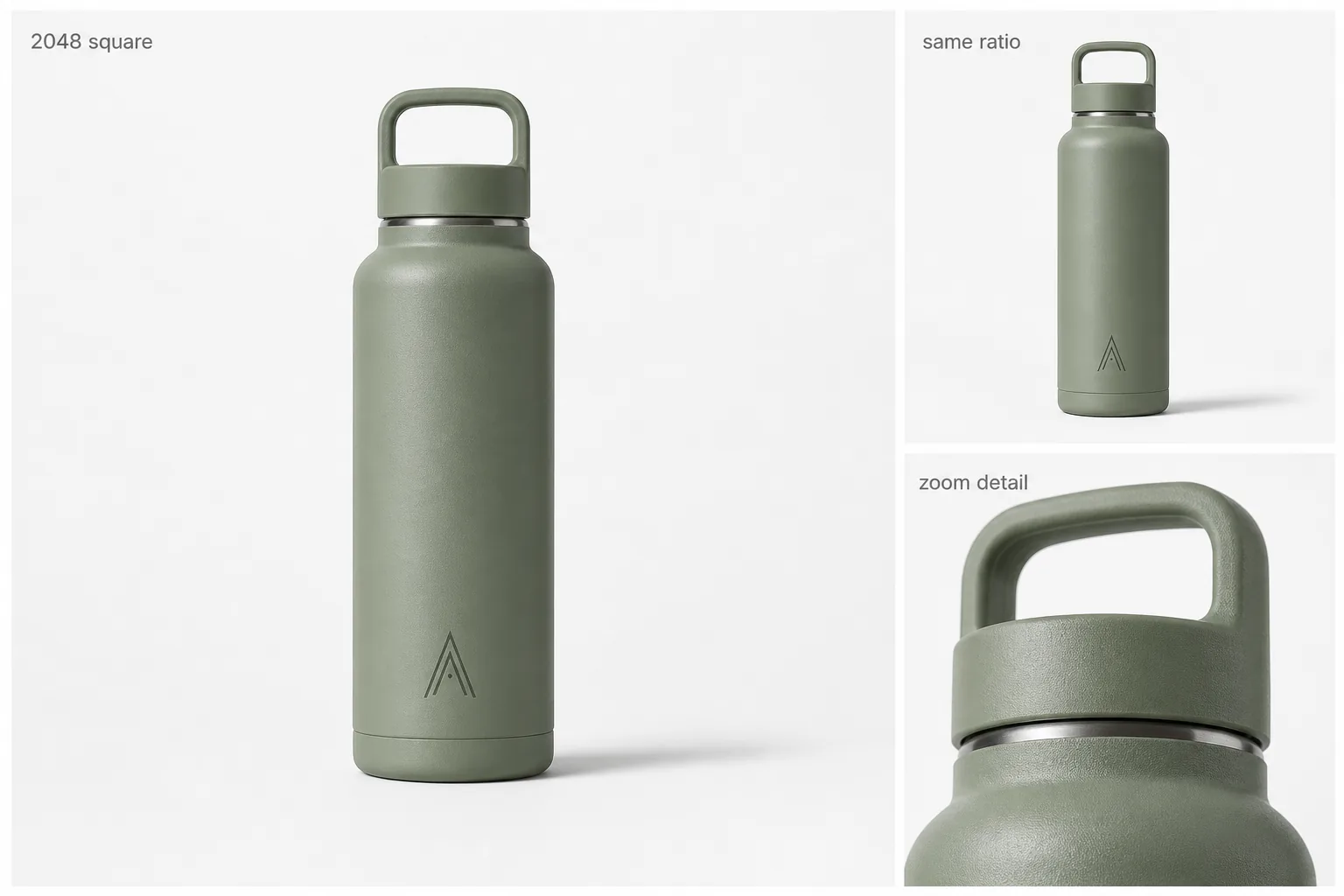
Shopify product image optimization is the process of preparing product photos so they stay sharp, crop predictably, load efficiently, and explain the item clearly. The practical rule is simple: choose one aspect-ratio system for the catalog, keep enough real product detail for zoom, compress the final files, and check every image at collection-card size before publishing.
For Shopify stores, image optimization is not only a speed task. A fast image that hides material, label, scale, or color still hurts the product page. In KrafLayer, you can use [AI product image generation](/ai-product-image-generator), the [product photo editor](/product-photo-editor), background cleanup, and upscaling to build a cleaner image set before it goes into Shopify.
Shopify Product Image Optimization: The Working Rule
Start with a square or consistently cropped product image master, then create the supporting images from that same product truth. The best Shopify product image size for your store depends on theme behavior, device layout, and zoom needs, so avoid treating one dimension as a universal rule. Check current Shopify documentation and your theme preview when exact size guidance matters.
A useful product-image master should preserve:
- product silhouette
- true color and finish
- label or monogram position
- material texture
- contact shadow
- scale cues
- enough resolution for product-page zoom
- a crop that still works in collection cards
If any of those break, resizing will not fix the image. Fix the product photo first.
Optimize For Three Places, Not One
Product Page Main Image
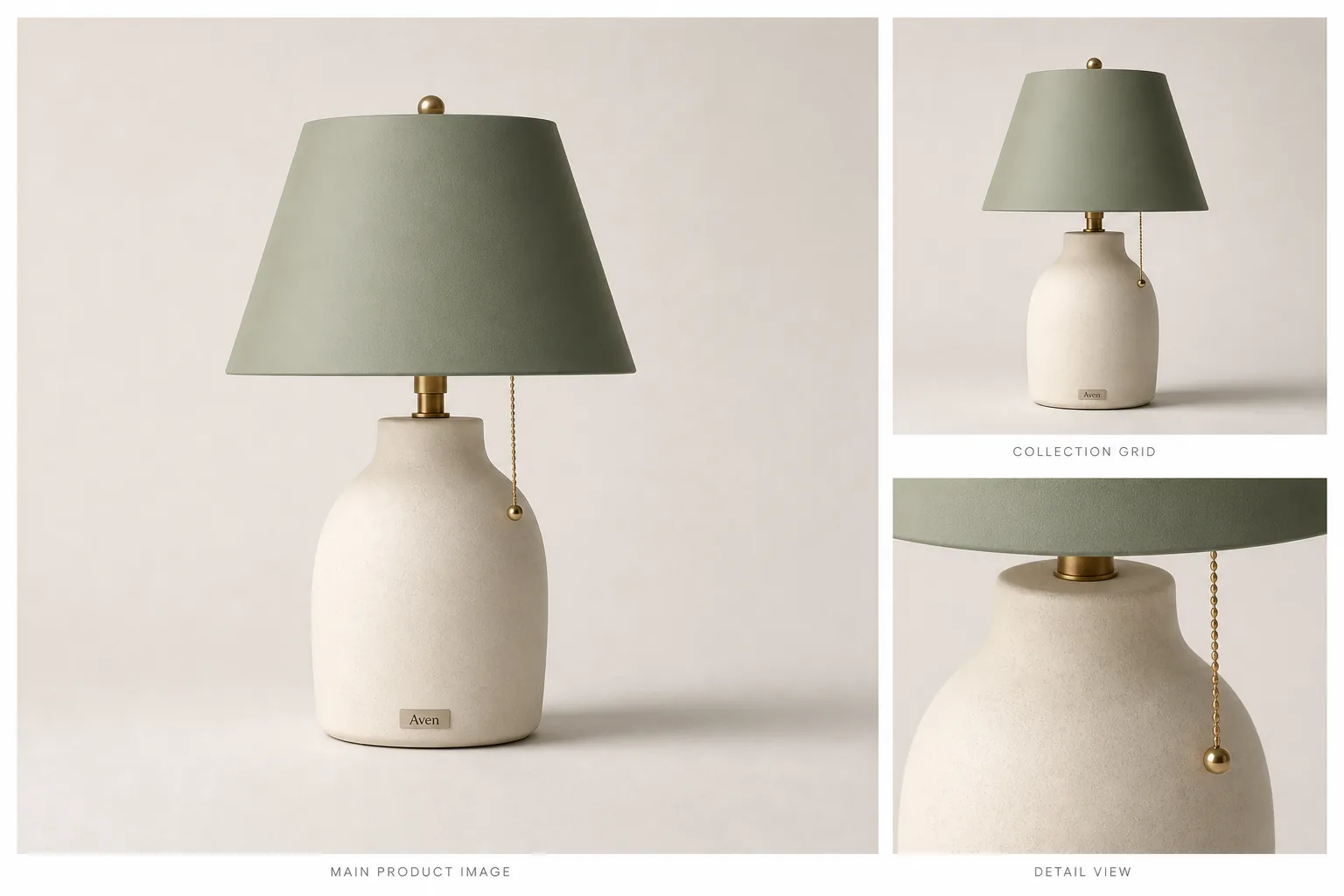
The main image should make the product instantly recognizable. Use a stable aspect ratio, keep the item centered, leave enough breathing room around handles, caps, cords, or straps, and avoid props that make the product hard to inspect.
KrafLayer can help create or clean the main image before export. For example, use the [AI background remover](/tools/ai-background-remover) when you need a cutout or a controlled white image, and use the editor when the source photo needs cleanup before Shopify upload.
Collection Grid Crop
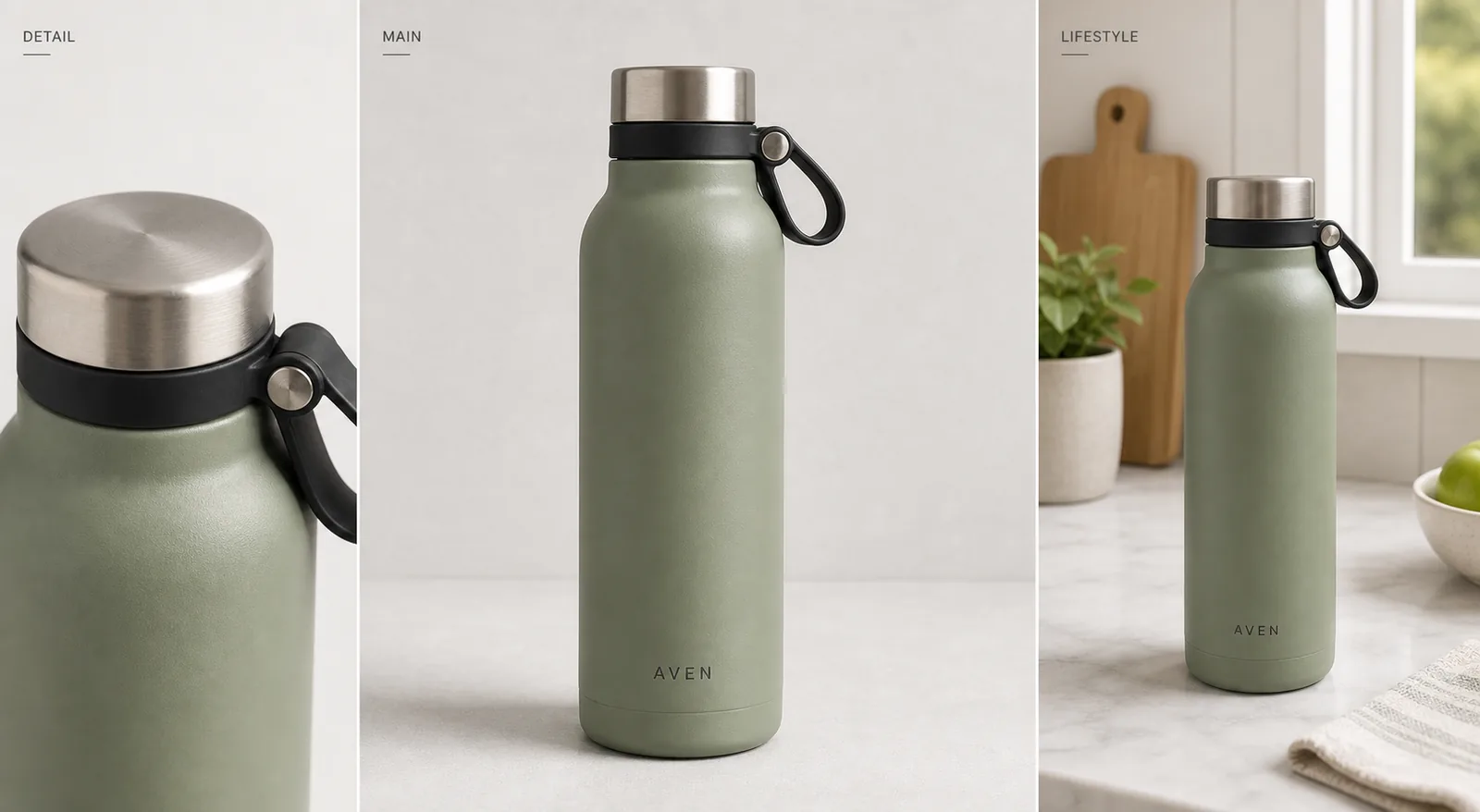
Collection cards are where inconsistent image ratios become obvious. A bottle that fills the frame, a bag with wide empty space, and a shoe cropped at the sole will make the store feel uneven even if each image looks fine alone. Treat the Shopify collection image crop as its own review step, not as an automatic byproduct of the main image.
Before uploading, preview the set as a grid. Keep the product scale consistent across variants and related SKUs. For tall items, leave enough top and bottom margin. For wide items, protect the edges so thumbnails do not cut off important product parts.
Zoom and Detail Image
Zoom only helps when the source image contains trustworthy detail. Use a detail image or crop for texture, hardware, stitching, label clarity, ports, seams, ingredients, or finish. If the source is soft, use the [AI image upscaler](/tools/ai-image-upscaler), then inspect edges, text, and material before publishing.
Do not invent detail during optimization. A sharper product image should reveal the item, not redesign it.
A Practical Shopify Image Workflow
- Choose the product truth list: color, shape, material, label, hardware, and scale.
- Pick one aspect-ratio system for the catalog before editing images.
- Create or clean the main product image.
- Make a collection-safe crop from the same product visual.
- Add one or more detail images that prove material, function, or finish.
- Compress the final files without flattening product texture.
- Write descriptive alt text that names the product and visible detail.
- Preview the image set on product pages, collection pages, and mobile.
This workflow keeps Shopify product image optimization tied to selling clarity instead of generic file handling.
Compression Without Losing Product Detail
Shopify image compression should reduce file weight while protecting product trust. Check the file after compression at full size and thumbnail size. Watch for fuzzy labels, noisy edges, banding on gradients, muddy fabric texture, and jagged transparent edges.
Use WebP or optimized JPEG when appropriate for your workflow. Keep a higher-quality master file outside Shopify, then upload the compressed publishing version. If an image needs heavy compression to load acceptably, it may be too large, too decorative, or doing too many jobs in one frame.
Where KrafLayer Fits
Use KrafLayer before Shopify upload when the image problem is visual rather than administrative.
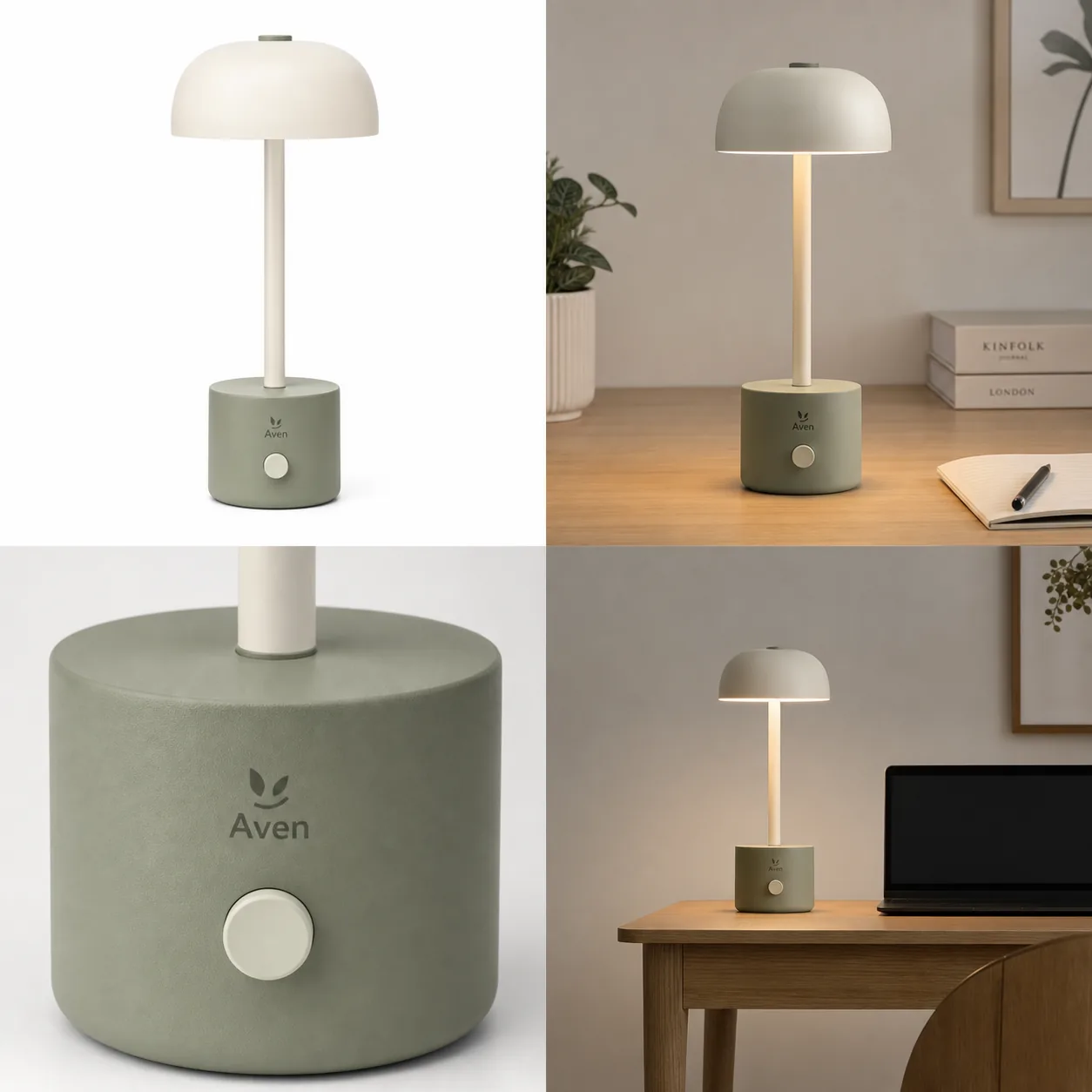
- Use [AI product image generation](/ai-product-image-generator) to create main, lifestyle, and detail images from a product reference.
- Use the [product photo editor](/product-photo-editor) when a source image needs cleanup, retouching, or a better ecommerce presentation.
- Use Remove BG for transparent cutouts, white-background assets, and reusable design layers.
- Use Upscale when a useful source photo is too small or soft for product-page zoom.
- Use the Shopify owner guide for broader [Shopify product images](/marketplace-product-images/shopify-product-images) planning.
KrafLayer does not replace Shopify theme testing. It helps you prepare stronger product visuals before the image is placed into the store.
Pre-Publish Checklist
Before pushing a product image set live, check:
- Does the product stay recognizable at collection-card size?
- Do all variants use a consistent crop, angle, and scale?
- Does the main image show the full item without awkward clipping?
- Does the detail image support Shopify product image zoom without inventing new details?
- Are labels, ports, seams, materials, and color still accurate?
- Is the final file compressed enough for practical page speed?
- Does alt text describe the product image honestly?
- Does the mobile product page still show the product clearly?
The strongest Shopify image set usually has one clean main image, one or two detail images, one lifestyle image, and consistent collection crops. More images help only when each one answers a buyer question.
FAQ
What is Shopify product image optimization?
Shopify product image optimization means preparing product photos for page speed, product-page zoom, collection-grid consistency, and buyer clarity. It includes crop ratio, file compression, detail accuracy, alt text, and mobile preview, not just choosing a product image size for Shopify.
What product image size should I use for Shopify?
Use a size and ratio that works with your current theme, product-page zoom, and collection grid. Many stores use square product images for consistency, but exact dimensions should be checked against current Shopify documentation and your theme preview before publishing.
Should Shopify product images be square?
Square product images often make product pages and collection grids easier to keep consistent, especially for catalogs with many SKUs or variants. They are not the only possible format, but mixed ratios can create uneven cards, awkward crops, and hard-to-scan collections.
How do I compress Shopify product images without losing quality?
Compress the publishing file, then inspect the result at full size and thumbnail size. Shopify image compression should make pages lighter without damaging the product facts a buyer uses to decide. Look for fuzzy labels, broken transparent edges, dull material texture, and color shifts. If those appear, use a larger or cleaner source image before compressing again.
Can AI help with Shopify product images?
Yes, AI can help generate cleaner main images, create detail images, remove backgrounds, upscale weak photos, and prepare lifestyle visuals. The review step still matters: product shape, color, material, scale, labels, and functional details must stay accurate before upload.
Conclusion
Shopify product image optimization works best when speed, crop consistency, zoom detail, and product truth are handled together. KrafLayer helps sellers prepare Shopify product images by generating cleaner main images, improving weak source photos, removing backgrounds, and upscaling useful detail without turning the item into a different SKU. Treat the image set as a selling system, not a folder of resized files, and each product page has a better chance of looking clear, fast, and trustworthy.
Keep exploring
Continue the story
More practical guidance on product accuracy, composition, and conversion-ready visuals.
Put it into practice
Take the next step in KrafLayer
Choose a generation or editing workflow that matches what you just learned.