Platforms
Home / Blog / eBay Product Photo Requirements: Size, Background, and What Is Not Allowed
eBay Product Photo Requirements: Size, Background, and What Is Not Allowed
eBay's official picture rules in one place: minimum and recommended size, photo count, background, banned overlays and the stock photo rule for used items.
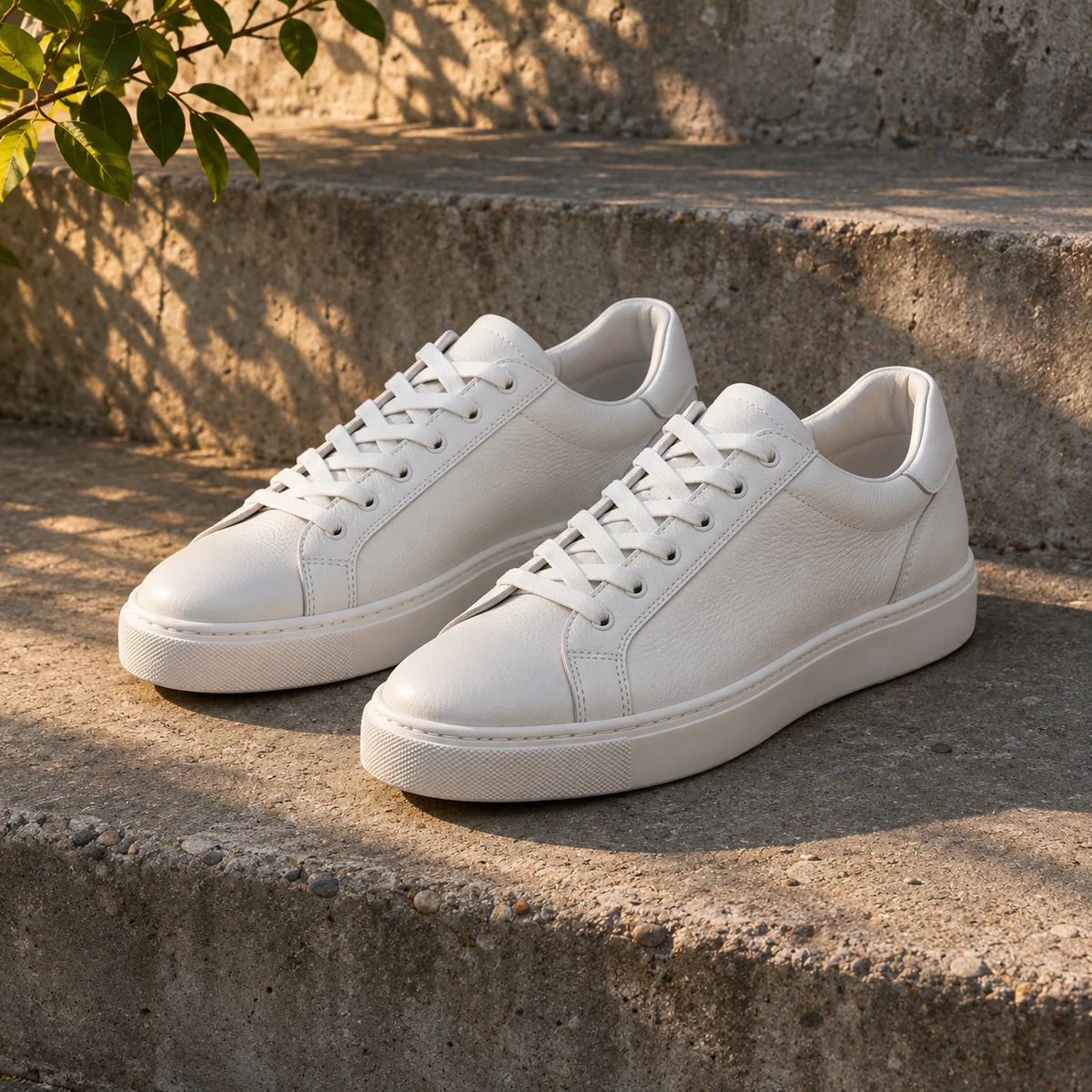
The eBay product photo requirements come down to a short list: every listing needs at least one photo that is 500 pixels or more on its longest side, and that photo cannot carry added borders, text, artwork or watermarks. A used item also has to be shown in your own photo, not a stock image. The rest of what eBay publishes is guidance on size, background and how many pictures to add, and this article separates the two.
Quick Summary
eBay requires at least one photo of 500 pixels on the longest side and recommends about 1600 x 1600. You can add up to 24 photos per listing, each up to 12MB, and stock photos are not allowed for used, damaged or defective items.
Key Takeaways
- The minimum is one photo at 500 pixels on the longest side; eBay recommends about 1600 x 1600.
- A listing can hold up to 24 photos, and each file can be up to 12MB.
- Added borders, added text, artwork, marketing material and watermarks of any type are not allowed.
- Stock photos are not allowed for used, damaged or defective items.
- A white background is a recommendation from eBay, not a rule in its picture policy.
What are the eBay product photo requirements right now?
eBay's picture policy sets one size rule and six things that are not allowed. The size rule is that a listing must include at least one photo that is 500 pixels on the longest side. The policy then lists what is not allowed:
- Photos that do not accurately represent the item
- Placeholder images used to convey messages
- Stock photos for used, damaged or defective items
- Photos with added borders
- Photos with added text, artwork or marketing material
- Watermarks of any type, including those used for ownership attribution
eBay's help page on adding pictures to your listings adds the technical limits. You can add up to 24 pictures. Each file can be a maximum of 12MB, and the accepted formats are JPEG, PNG, GIF, TIFF, BMP, WEBP, HEIC and AVIF.
| Requirement | eBay's official rule | What to do |
|---|---|---|
| Minimum size | At least one photo of 500 pixels on the longest side | Check the pixel dimensions before uploading |
| Recommended size | About 1600 x 1600 | Shoot or export at this size when you can |
| Number of photos | At least one, up to 24 | Add angles, close-ups and flaws |
| File size and format | Maximum 12MB each; JPEG, PNG, GIF, TIFF, BMP, WEBP, HEIC or AVIF | Export as JPEG or PNG under the limit |
| Borders, text, artwork | Not allowed | Remove frames, captions and promo graphics |
| Watermarks | Not allowed, of any type | Upload the clean original |
| Stock photos | Not allowed for used, damaged or defective items | Photograph the actual item |
| Background | White or neutral recommended, not required | Use a plain backdrop for the main photo |
What size should eBay listing photos be?
Aim for about 1600 x 1600 pixels, and never go below 500 pixels on the longest side. The help page describes the minimum as 500 x 500 pixels and the recommended size as about 1600 x 1600. eBay's Seller Center page, Take great photos, gives the same two numbers.
Shape matters as well. The help page says photos in a 1:1 or 16:9 aspect ratio look best in listings, search results and other placements. A square crop is the simpler choice for a main photo, because the first photo you add is the one that appears next to the title in search results.
If your only photo is small, enlarging it will get you past the minimum, but it will not bring back detail that was never captured. eBay asks for photos that are not blurry or pixelated, so a sharp reshoot is better than a heavy enlargement. When a reshoot is not possible, the steps in how to enlarge small product images to ecommerce size apply here too.
Does eBay require a white background?
No. A white background is what eBay recommends, but the picture policy does not list background color among its rules. The help page says to display items in an uncluttered space against a neutral backdrop, and that white backgrounds are generally best. It also says a darker background may work better for shiny or reflective items such as jewelry.
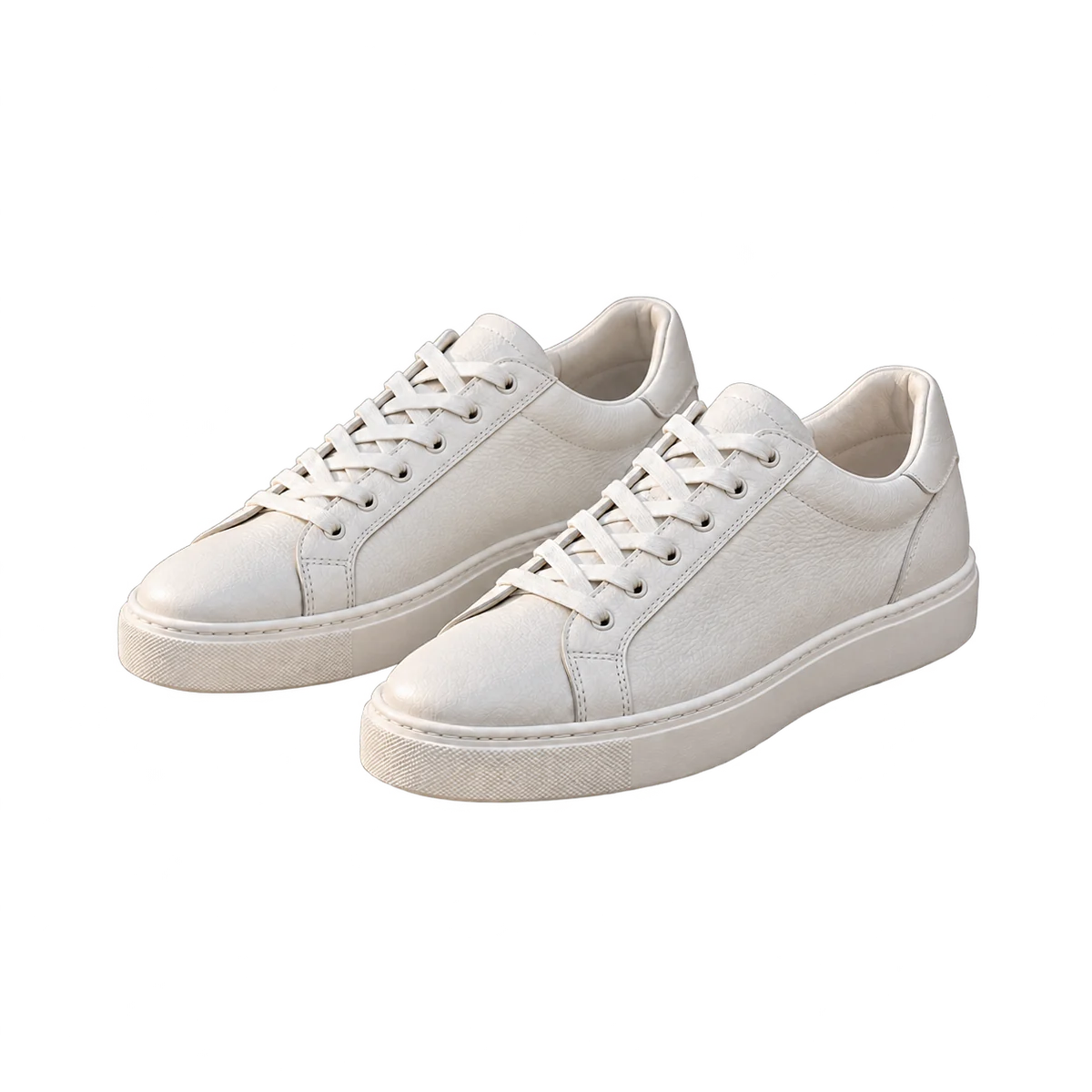
The Seller Center page calls a plain white background a safe choice. It also suggests a solid-colour background for light items that would not stand out on white. That matters for the example below: a pair of white sneakers on pure white can lose its outline, so a light grey backdrop or a soft shadow under the soles helps the edges read.
Illustrative example made with KrafLayer.
eBay has its own background tool. According to the help page, the photo editor on the web can replace the background with solid white, and the eBay app also offers AI-generated backgrounds. The Seller Center page advises using scene backgrounds for only a few photos and keeping them from distracting from the item.
What is not allowed in eBay photos?
Anything added on top of the photo is the main problem: borders, text, artwork, marketing material and watermarks are all on the policy's not-allowed list. That covers common habits such as a store logo in the corner, a "free shipping" banner, a decorative frame, or a copyright line across the image.
eBay gives a practical reason as well as a rule. The Seller Center page says that added text, artwork, logos or watermarks can prevent your images from showing up in third-party search results. The help page says badges, logos, copyright notices and watermarks can affect your listing's placement in search results.
Placeholder images are also not allowed. An image that only carries a message, with no item in it, falls under that line of the policy.
If your own photos carry an old logo or caption and you no longer have the clean originals, see how to remove draft marks and clutter from owned product photos. Only do this on photos you own.
Can you use stock photos on eBay?
Not for a used, damaged or defective item. The picture policy lists stock photos for those items as not allowed, and the help page says you cannot use a catalog or stock photo if you are listing an item as used.
For used items, the photo is the condition report. eBay's guidance is to capture several angles, including all wear and tear, and to show clear close-up images of flaws, scratches or imperfections. The help page also suggests adding a photo with a coin or ruler next to the item to show size.
This is where edited images need care. The first line of the not-allowed list is photos that do not accurately represent the item. A cleanup or background edit that removes a scuff, smooths worn fabric or brightens a faded color makes the photo less accurate, even if it looks better.
What happens if a photo breaks eBay's picture policy?
eBay may take action on the listing or the account. The picture policy gives examples: removing the listing or other content, issuing a warning, restricting activity or account suspension. The policy does not say which action applies to which problem, so do not assume a first issue only brings a warning.
It is easier to fix photos before the listing has activity. The help page says you can change the main photo of a fixed price listing only if there are no offers, and of an auction only if there are no bids and more than 12 hours left.
How do you fix a non-compliant eBay photo with KrafLayer?
Start from your own photo of the actual item, fix one problem at a time, and compare the result with the item before you upload. KrafLayer works from the product photo you upload. Each run uses credits, the cost is shown before the run, and the free plan includes a recurring credit refill.
- Read the checklist on the eBay product photos page, then open the tool for the problem your photo has and upload your original photo there.
- If the background is cluttered, upload the photo to the AI background remover to isolate the item, then place it on white or a light neutral color.
- If the photo has a border, caption or logo that you added earlier, crop it out or erase that area so only the item remains.
- If the longest side is under 500 pixels, upscale the image, then zoom in and check that edges and printed text are still clean.
- Export a square image and check its pixel dimensions and file size against the table above.
- Compare the edited image with the item in your hands before uploading.
AI output must be compared with the real product before publishing. On footwear like the sneakers above, check the lace count and eyelets, the stitching lines, the sole texture and the leather grain. On any used item, check that every scratch, stain and worn edge in the original is still visible. Also confirm that the color has not shifted and that no logo or label text has been redrawn.
For edge and shadow problems after a cutout, see eBay product background removal: keep edges and condition.
Frequently Asked Questions
How many photos can you add to an eBay listing?
You need at least one picture and can add up to 24, according to eBay's help page. The first photo you add is the main photo and appears next to the title in search results.
What is the minimum photo size on eBay?
The picture policy requires at least one photo that is 500 pixels on the longest side. eBay recommends about 1600 x 1600 pixels.
Can I put my logo or a watermark on eBay photos?
No. The picture policy does not allow watermarks of any type, including those used for ownership attribution. It also does not allow added text, artwork or marketing material.
Can I edit the background of a used item photo?
eBay provides its own background tool, so replacing a background is not against the rules in itself. The photo still has to accurately represent the item, so the item's condition, color and flaws must stay exactly as they are.
What file formats does eBay accept for listing photos?
The help page lists JPEG, PNG, GIF, TIFF, BMP, WEBP, HEIC and AVIF, with a maximum of 12MB per file.
Sources
- Picture policy, eBay, checked November 16, 2026
- Adding pictures to your listings, eBay, checked November 16, 2026
- Take great photos, eBay Seller Center, checked November 16, 2026
Keep exploring
Continue the story
More practical guidance on product accuracy, composition, and conversion-ready visuals.
Put it into practice
Take the next step in KrafLayer
Choose a generation or editing workflow that matches what you just learned.